Table of Contents
A slow Windows startup is usually caused by too many sign-in apps, an unhealthy or nearly full drive, a driver or service that times out, or an older hard disk. Start by measuring the delay and disabling only nonessential startup apps. Registry cleaners and one-click “optimizers” are unnecessary and can make troubleshooting harder.
Measure the slowdown first
- Note the time from pressing the power button to the sign-in screen, then the time from sign-in to a responsive desktop.
- Disconnect nonessential USB drives, docks, and card readers and test again.
- Open Task Manager and check the Startup apps page and its Startup impact column.
- In Event Viewer, review Applications and Services Logs > Microsoft > Windows > Diagnostics-Performance > Operational if that log is available.
A delay before the manufacturer's logo points to firmware or hardware. A quick sign-in screen followed by a long wait points to startup apps, profile components, or services.
Disable nonessential startup apps
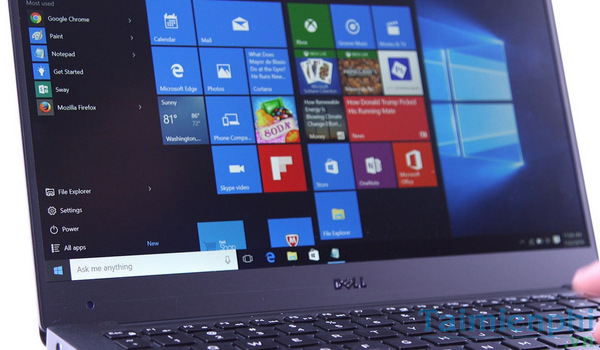
Press Ctrl + Shift + Esc, open Startup apps, and disable applications you do not need immediately after sign-in. Keep security software, accessibility tools, storage or encryption utilities, and required hardware controls enabled.
Older Windows 10 guides opened msconfig, whose Startup tab redirects to Task Manager on supported builds.
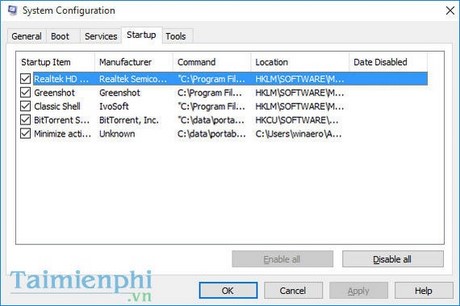
Restart and compare times. Disabling an entry does not uninstall the program; re-enable it if a needed feature disappears.
Visual effects have a small impact
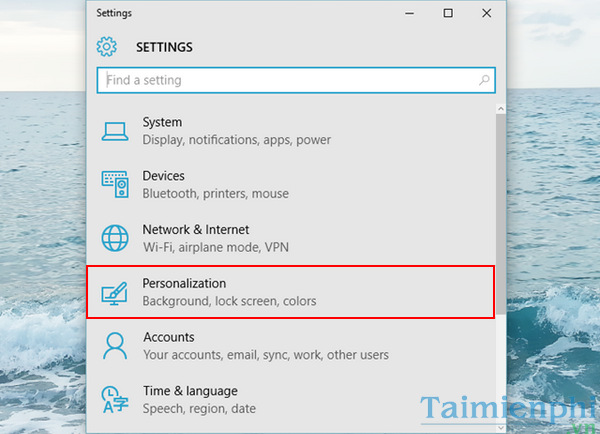
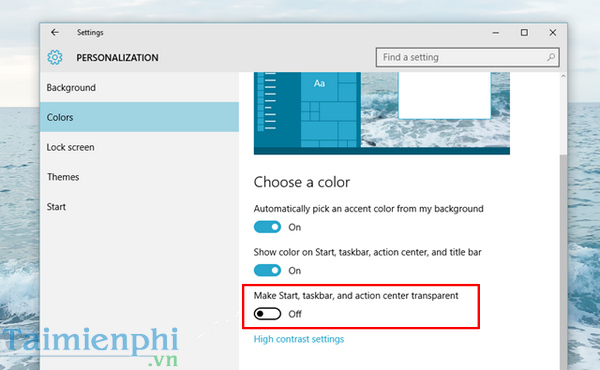
Transparency can be turned off under Settings > Personalization > Colors > Transparency effects.
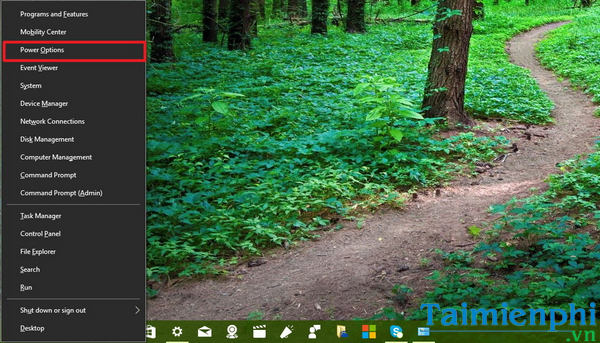
This may help a very low-end GPU or remote session, but it is rarely the main cause of a long boot. Treat it as a preference, not a leading optimization.
Test Fast Startup
Fast Startup can shorten a cold start by hibernating the kernel session. It does not speed up Restart, and it can aggravate some driver, dual-boot, wake, or shutdown problems.
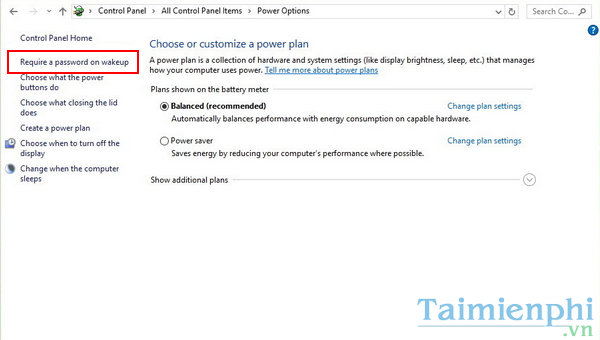
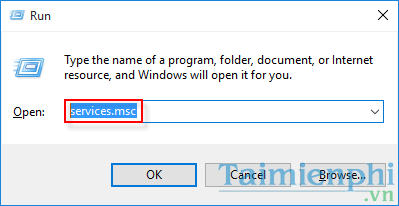
- Press Windows + R, enter
powercfg.cpl, and press Enter. - Select Choose what the power buttons do.
- Select Change settings that are currently unavailable.
- Enable Turn on fast startup, save, shut down, and compare a cold boot.
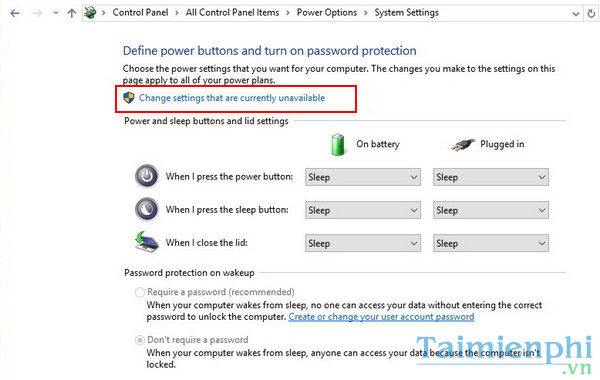
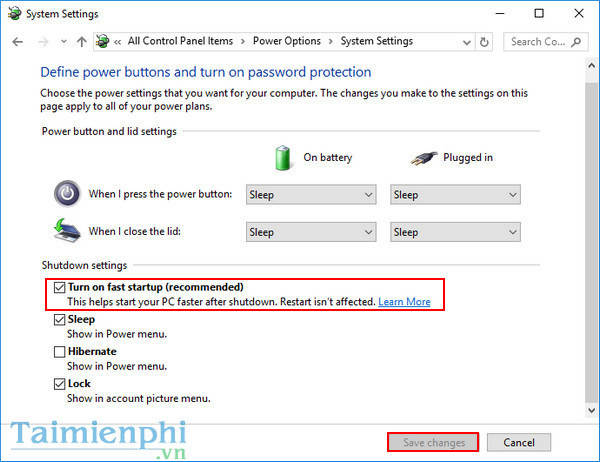
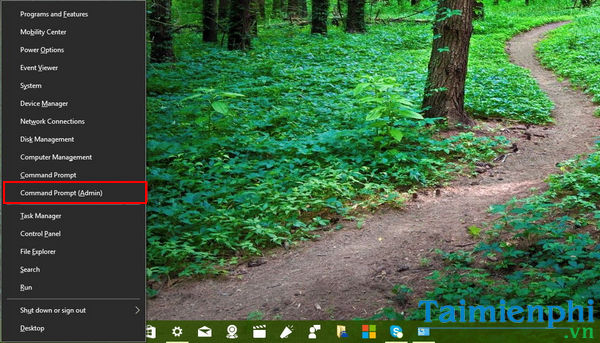
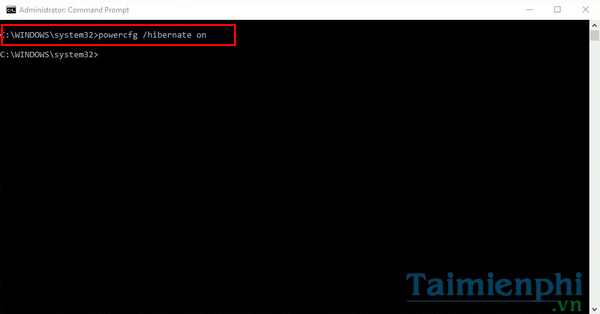
If the option is absent because hibernation is disabled, open Terminal as administrator and run powercfg /hibernate on. This reserves disk space for hibernation. The command in some old guides was misspelled as “hibermate.”

Turn Fast Startup back off if shutdown, wake, encryption, or another operating system behaves incorrectly.
Do not disable Windows services from a generic list
The Services console opens with services.msc, but a running service is not automatically a startup problem.
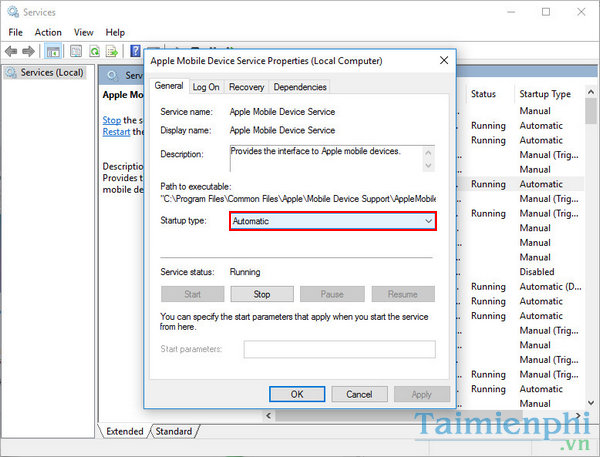
Do not disable Security Center, Diagnostic Policy, networking, update, sign-in, print, or device services merely to save seconds. If a third-party service is suspected, perform a controlled clean boot, re-enable items in groups, and restore normal startup after identifying the conflict.
Check updates, malware, and system files
Install current firmware and drivers from the PC manufacturer and cumulative updates for a supported Windows release. Run a full Microsoft Defender scan; a paid antivirus is not required simply because startup is slow.
In an administrator Terminal, run DISM.exe /Online /Cleanup-Image /RestoreHealth and then sfc /scannow if system corruption is suspected. Check storage health before attempting a reinstall.
Repair Windows only when evidence points there
A repair reinstall can preserve apps and files while replacing Windows components. A reset or clean installation removes more and should be a later step after a verified backup. Do not reinstall an obsolete Windows 10 Anniversary Update.
Windows 10 general support ended on October 14, 2025. A reset does not restore support, so plan a move to a maintained operating system.
Upgrade an HDD when storage is the bottleneck
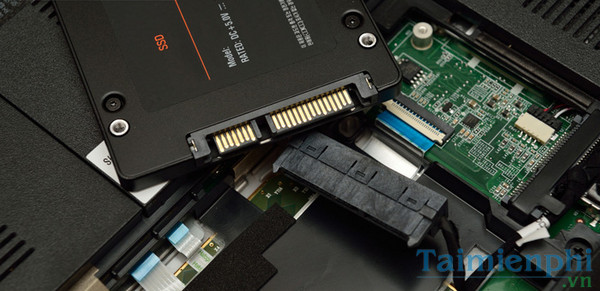
If the system drive is a mechanical hard disk and Task Manager shows sustained 100% disk activity during startup, an SSD can materially improve boot and application launch times. The exact gain depends on the PC, interface, and workload; do not rely on a universal “10 times faster” claim.
Before migrating, back up data, confirm the SSD form factor and interface, check capacity, and prepare recovery media. Buy from a reputable seller and verify the model and warranty; TipsMake explains how to spot a questionable SSD.
Other hardware checks
- Keep adequate free space on the system drive.
- Check memory use after sign-in; more RAM helps only when the system is paging heavily.
- Review firmware boot order and remove unavailable network or external boot devices from ahead of the system drive.
- Replace a failing drive rather than repeatedly optimizing it.
Related Articles
 Add, Remove Startup Applications with Windows 83 minutes read
 Boost Windows 10 Startup Speed by Enabling Fast Startup3 minutes read
 How to Manage Startup Programs with Windows?7 minutes read
 How to Speed Up Windows 10/11 Startup10 minutes read
 Turn Off Programs That Start with the System on Windows 106 minutes read
 How to Speed Up the Launch of Desktop Application on Windows 103 minutes read
Reader Comments 0
Sign in with email or Google to join the discussion.