Table of Contents
If Windows takes a long time to become usable after sign-in, review the apps that launch automatically. Disabling optional startup apps can reduce background work, but first distinguish a slow sign-in from a delay before Windows loads. Startup apps will not explain every slow boot.
Turn off unnecessary startup applications
As you install apps and programs, many of them are automatically added to the startup list, meaning they launch every time your computer turns on. As the list gets longer, it takes longer for Windows to load everything before you get to the desktop.
Disabling unnecessary startup applications will reduce the load on the CPU and drive during boot, allowing Windows to focus on loading only the essential applications and services. This difference can be quite noticeable, especially on older computers or computers without SSDs .
Not only do these apps slow down your boot time, they also continue to run in the background. So even when you're not using them, they continue to consume system resources and can slow down performance. Disabling startup does not uninstall the app, but its background functions, notifications, or synchronization may not run until you open it manually.
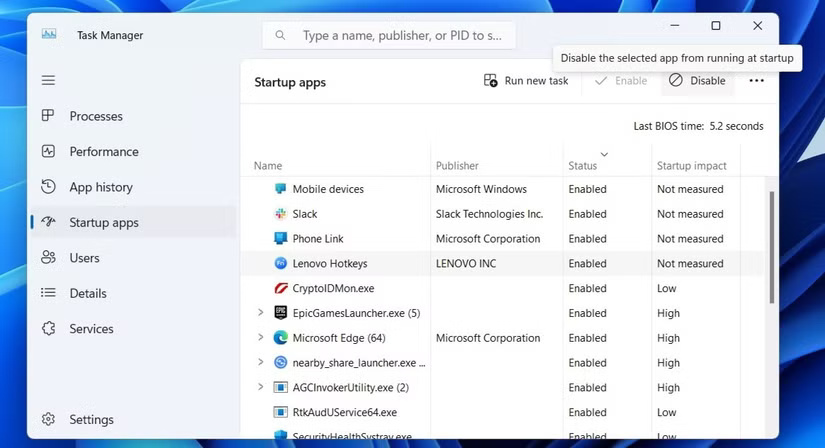
To manage startup applications on your PC, open Task Manager ( Ctrl + Shift + Esc ) and go to the Startup apps tab . Review the startup status of each item and decide whether it is necessary or not. For any application that does not need to run immediately, select it and click the Disable option in the upper right corner. Repeat this for all the non-critical applications in the list.
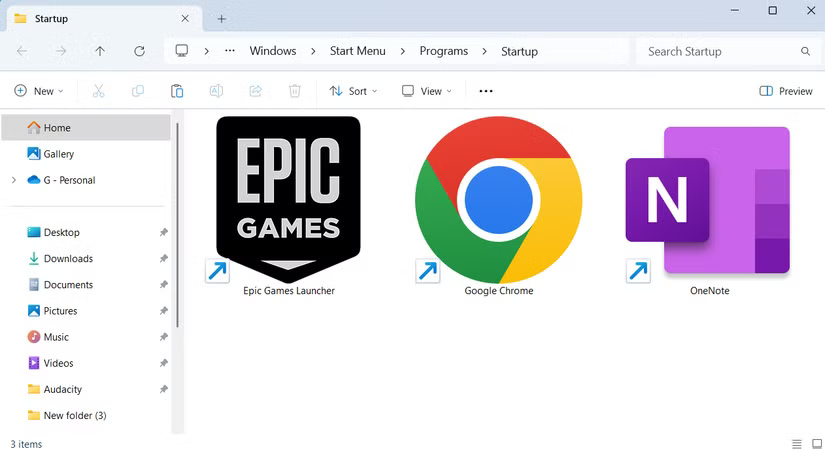
There's also a second item to check: the Startup folder. To open this folder, press Win + R to open the Run dialog box , type shell:startup , and press Enter . In the Startup folder, identify shortcuts you no longer need and move them to a temporary folder outside Startup so the change is reversible. Do not delete unfamiliar programs or scripts. The separate shell:common startup folder applies to all users and may require administrator access.
This will disable most startup applications, but if you previously used Task Scheduler to run applications at startup, review only tasks you created or can identify. Do not disable system maintenance or security tasks merely because they run at sign-in.
Which startup apps are safe to disable?
Just because disabling startup applications helps your computer boot faster doesn't mean you should disable them all. Also, not all applications or programs have the same impact when configured to run at startup.
Some applications are essential for both security and functionality. For example, your antivirus program should always start with your system to provide real-time protection. Similarly, cloud storage tools like OneDrive or Google Drive may need to start immediately to back up or sync your files. It's easy to forget to manually launch these applications when you turn on your computer, meaning your files don't sync when you edit them.
Background utilities such as Microsoft PowerToys also rely on startup access to automatically enable their features. Disabling these programs may reduce security, reduce productivity, or disrupt essential system functions.
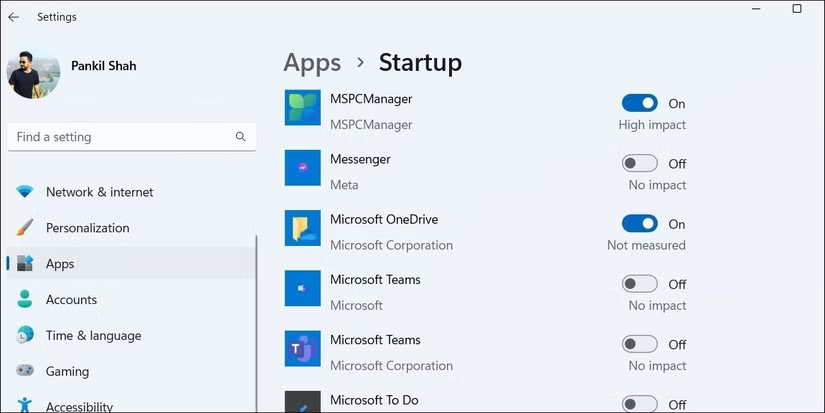
However, some apps don't need to start until the system is fully loaded. Apps like Spotify , Steam , WhatsApp , and even browsers like Microsoft Edge can be opened manually when needed, rather than slowing down the boot process. Messaging apps, game launchers, and file sharing tools often fall into this category, but disabling them can delay messages, updates, or other background features until you launch them. Choose based on your actual needs.
If you're unsure about disabling certain apps, Windows will show you how much each app impacts startup performance (though it's not perfect). In the Startup apps tab of Task Manager, look at the Startup impact column , where apps are labeled High , Medium , Low , or Not measured . You can sort apps by their impact to easily identify which programs have the biggest impact on startup time.
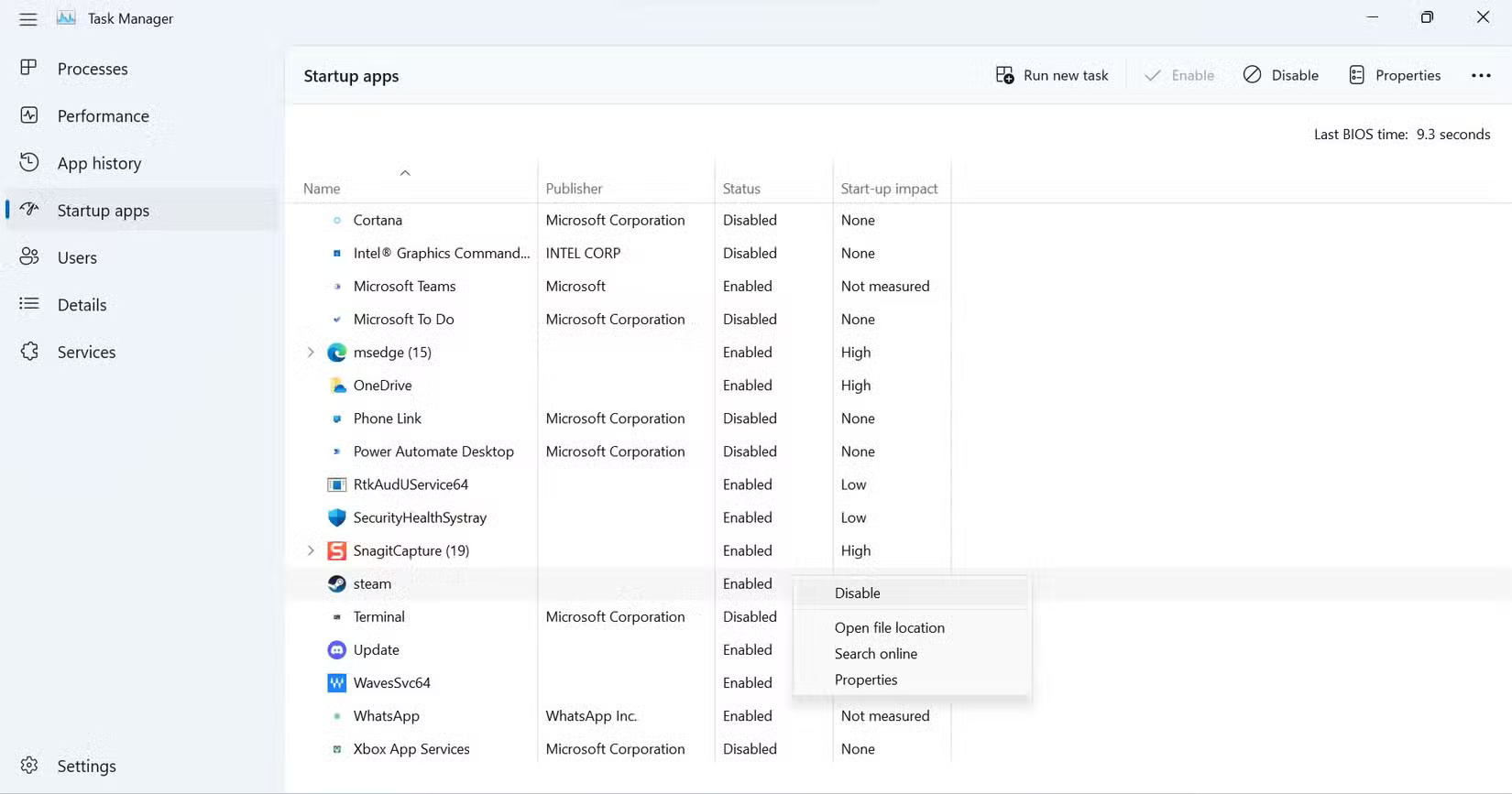
Note : If you come across a startup application or program that you don't recognize, don't disable it immediately. Instead, right-click it and select Search online . This quick check can help avoid accidentally disabling an application that is important to the stability or security of your system.
Get alerts when new apps add themselves to the startup list
While disabling unnecessary startup applications is a great way to speed up your boot time, your work isn't done. Newly installed programs—or even existing ones after an update—often automatically reconfigure themselves to start with Windows. Sometimes this happens because you accidentally accept a prompt without realizing it; other times, an update simply enables the setting without asking.
An easy way to control this is to enable startup application notifications in Windows. When this feature is enabled, Windows can alert you to supported startup-app registrations; it is not a complete monitor of every service, task, or startup mechanism. This way, you can review the change immediately and disable it before it has a chance to slow down your next startup.
To enable this feature, go to Settings > System > Notifications and make sure notifications are turned on. Then, scroll down and turn on Startup App Notification, if it appears in your version .
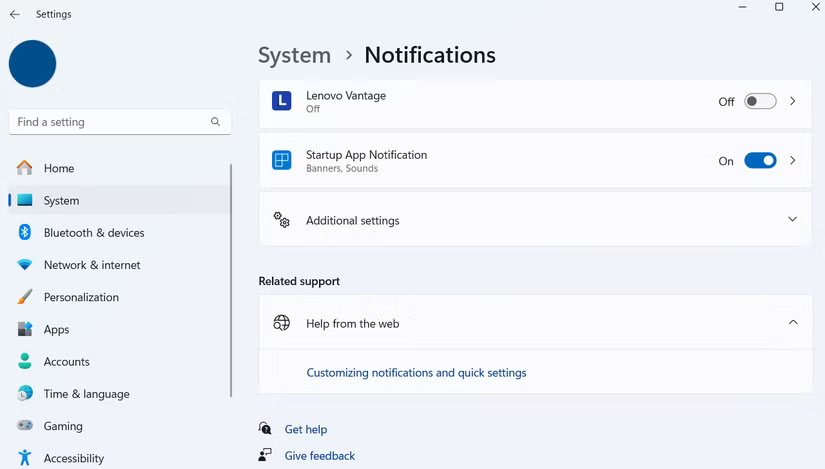
Windows can now show supported startup-app alerts. However, you should regularly review your startup applications manually to make sure you don't miss any unnecessary applications.
Measure the result and keep a way back
Note which apps you disable, restart under comparable conditions, and check how quickly the desktop becomes usable. Change a small group at a time. Re-enable an app in Task Manager if a needed feature stops working.
A High impact label is a clue about measured startup work, not proof an app is unnecessary or malicious. Confirm the publisher and file location for unfamiliar entries. See startup-program controls for related options.
If the delay occurs before sign-in, or remains after reducing optional apps, follow a wider PC troubleshooting process. Check for update activity, storage problems, or other symptoms before trying registry tweaks or disabling security services.



Reader Comments 0
Sign in with email or Google to join the discussion.