Table of Contents
NotebookLM can use supported YouTube videos as sources when their transcripts are available. A third-party browser extension described as “YouTube to NotebookLM” adds shortcuts on YouTube for sending a video, playlist or group of channel videos to a notebook. This is an import workflow, not continuous synchronization: later channel changes may not automatically update the notebook.
Check the extension before installing it
The extension is not a built-in YouTube or NotebookLM feature. Find it through the official Chrome Web Store and verify its exact name, developer, extension ID, update history, privacy disclosure and requested permissions. An extension that can read YouTube or NotebookLM pages may be able to access page content visible in those tabs.
- Install only when the requested permissions match the feature you need.
- Test with a non-sensitive notebook first.
- Do not use it with private videos or confidential notebooks unless authorized.
- Remove it if the developer, permissions or behavior changes unexpectedly.
You can avoid the extension for a single video: copy the supported YouTube URL, open NotebookLM, choose Add source, and use the YouTube source option. The extension is mainly a convenience for repeated or bulk selection.
Add one YouTube video
1. Open a captioned video
Go to the video you want to use and confirm that it is relevant, trustworthy and available with a usable transcript. NotebookLM primarily works from the transcript, so visual-only details may not appear in its answers.
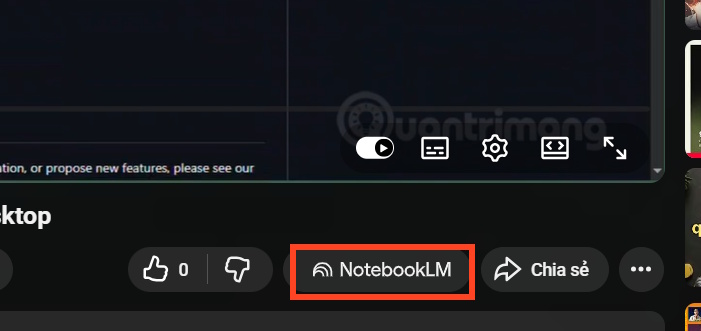
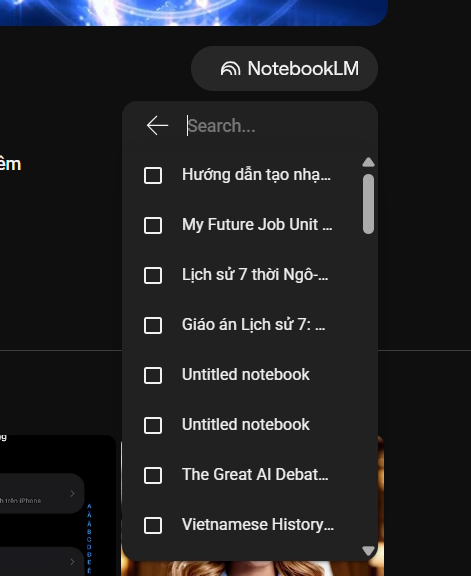
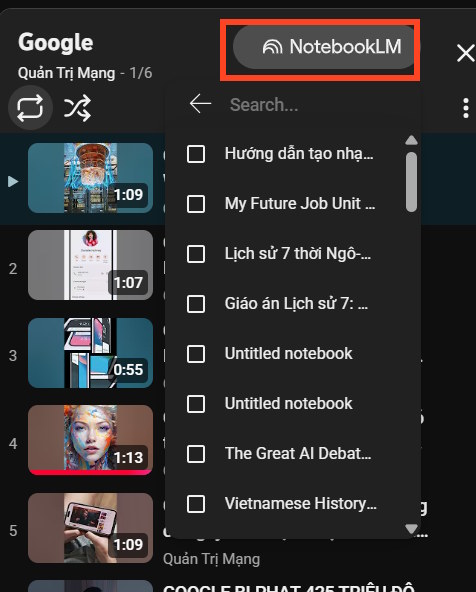
With the extension enabled, select the NotebookLM button added near the video controls.
2. Choose a destination
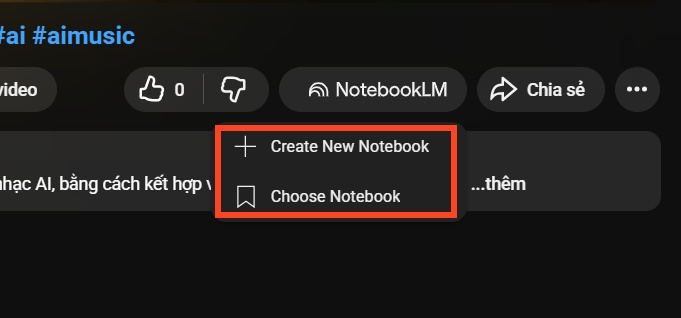
Create a new notebook or select an existing notebook whose topic matches the video. Avoid mixing unrelated channels and projects in one notebook because broad source sets make later questions harder to scope.
3. Confirm the imported source
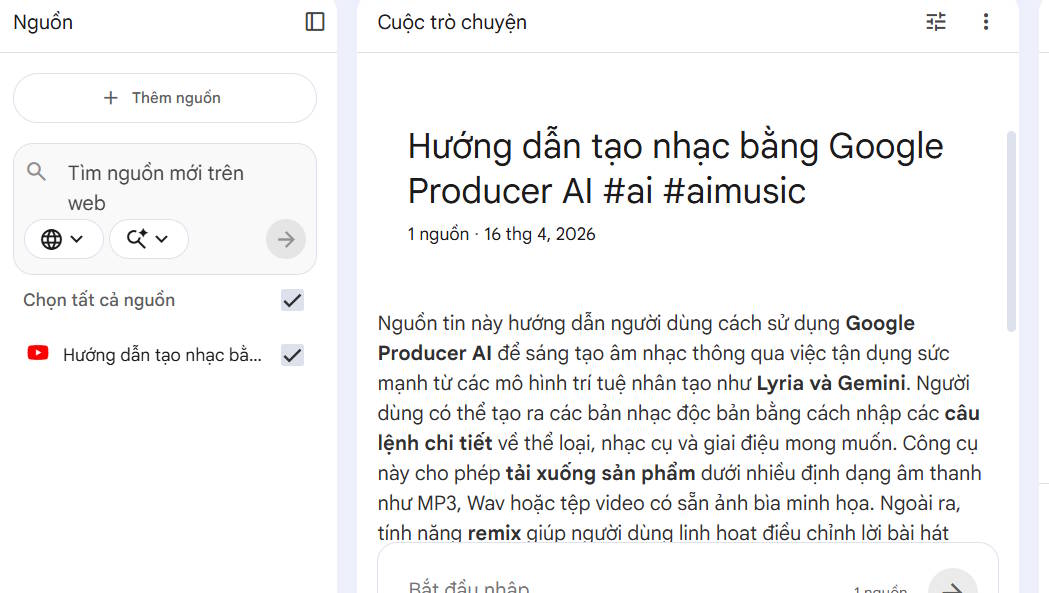
In NotebookLM, open the new video source and check its title, transcript coverage and summary. Follow several citations back to the transcript before using generated notes or teaching material.
Add videos from a YouTube channel
Open the channel and use the extension control. Choose Choose NotebookLM or the equivalent option shown by the current extension.
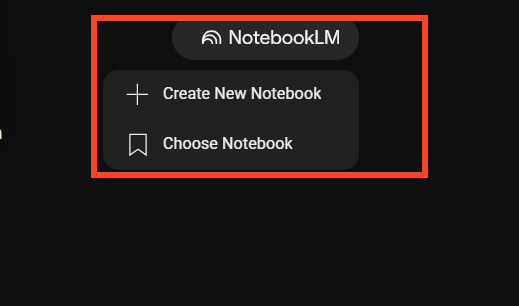
Select the destination notebook and review any video-selection screen. Import only the videos needed for the research question instead of automatically adding an entire large channel. NotebookLM source limits and extension batch limits can vary.
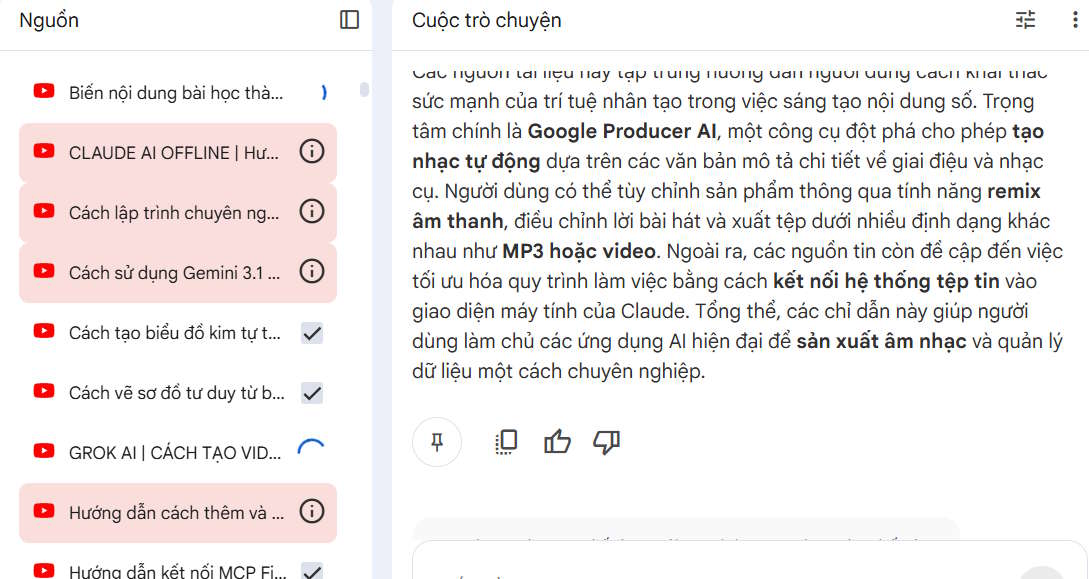
After import, compare the source count and titles with your selection. A video may fail when it is unavailable, restricted or lacks a usable transcript.
Add a YouTube playlist
Open the playlist, use the extension's NotebookLM control and choose the destination notebook. Review the playlist first: remove unrelated, duplicate, unavailable or outdated videos when the extension allows individual selection.
Verify the notebook after a bulk import
- Confirm every source belongs to the notebook's purpose.
- Check captions for key videos and note transcript gaps.
- Rename the notebook so its channel or playlist scope is clear.
- Ask NotebookLM to list all sources before requesting a synthesis.
- Keep copyright, licensing and classroom-sharing restrictions in mind.
This guide to Chrome extensions for NotebookLM workflows explains how to assess similar third-party tools and their permissions. For native ways to work with imported sources, see NotebookLM's newer features.
Related Articles
 Here's How to Change Your YouTube Channel Name and URL4 minutes read
 7 Things to Note When Starting YouTube Channel9 minutes read
 Turning YouTube into a Learning Tool8 minutes read
 Pockettube Chrome: Group Youtube Channel Managers4 minutes read
 How to Create a New Channel on YouTube?: Create New YouTube Channel3 minutes read
 25+ Best Youtube Vr Channels You Should Not Ignore10 minutes read
Reader Comments 0
Sign in with email or Google to join the discussion.