Table of Contents
To reuse a Canva design at a different size, open it in the editor and choose Resize (some interfaces call this Resize & Magic Switch or Magic Resize). Pick a preset such as an Instagram post, then choose Copy & resize to keep the original. Canva rearranges the layout, but you should inspect the result before publishing.
Resize a presentation slide for a social post
- Open the source design and check that its text and images are the ones you want to reuse. The example starts with a presentation slide.
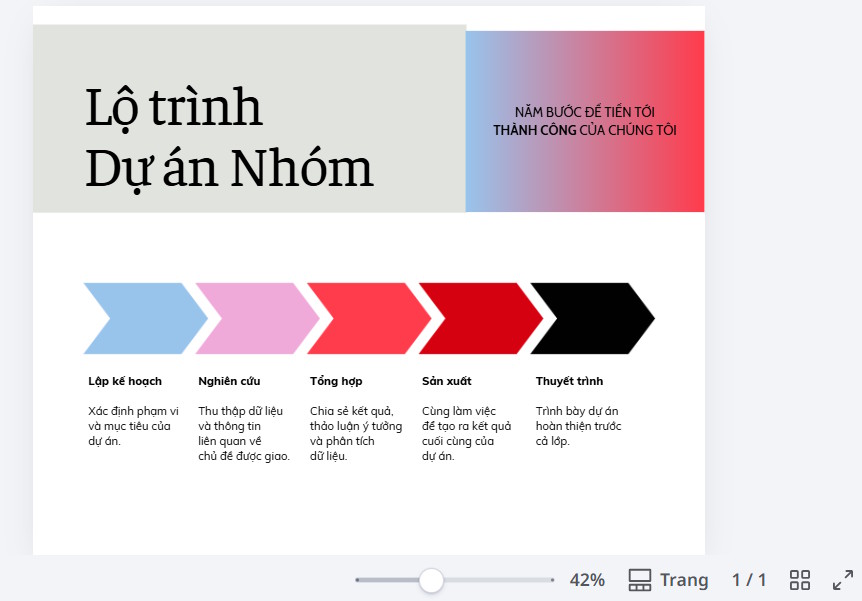
- Choose Resize from the editor menu. Browse the suggested formats or expand the list to find social media sizes. Canva's label may differ from the Change Size button in older screenshots.
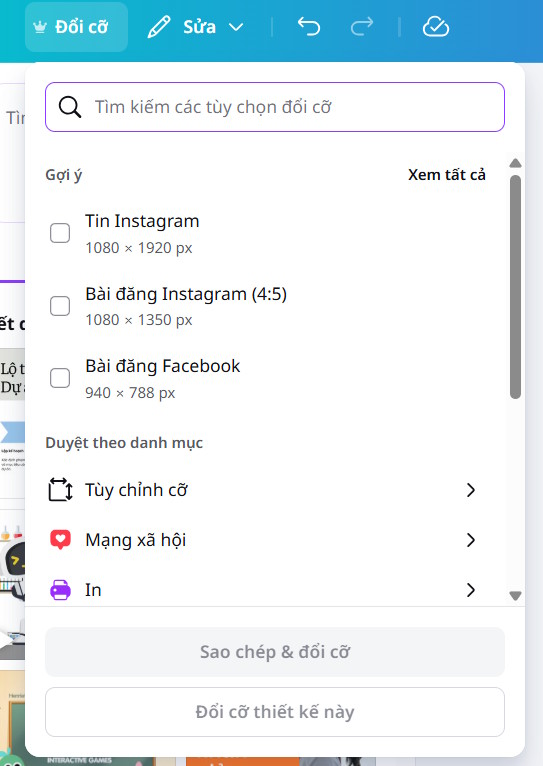
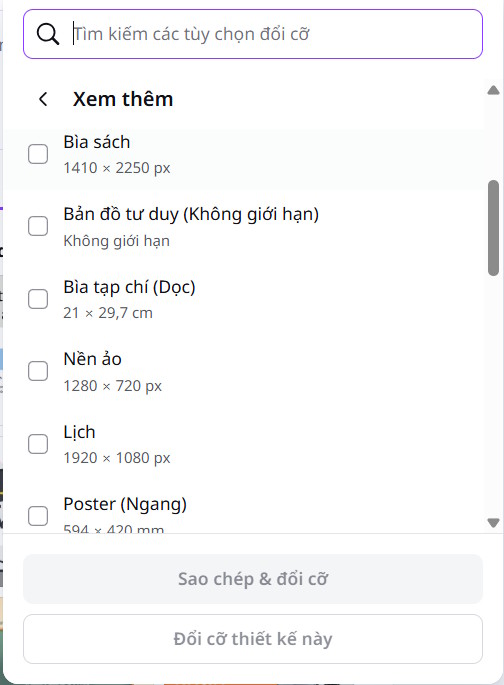
- Select the intended Instagram format and the pages to include. Choose Copy & resize for a separate version, or Resize this design to change the current file. The copy option is safer when you still need the original slide.
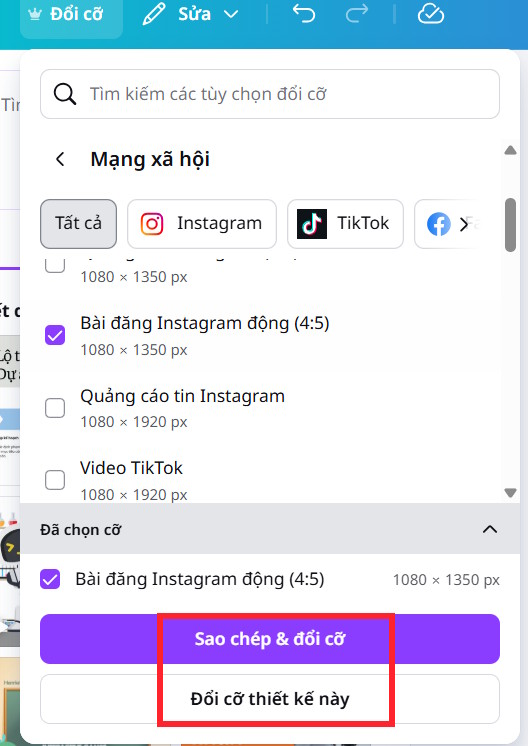
- Open the resized result, then check whether the title, important content and visuals fit within the new canvas. The confirmation and finished design are shown below.
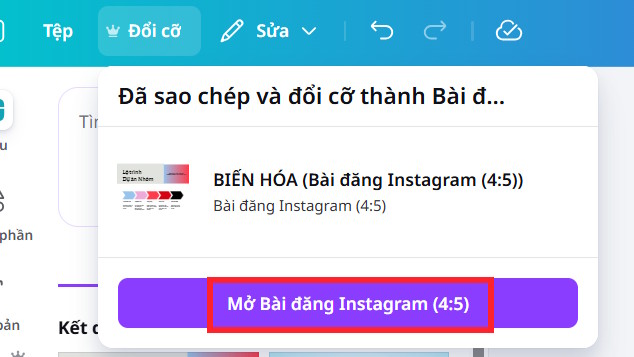
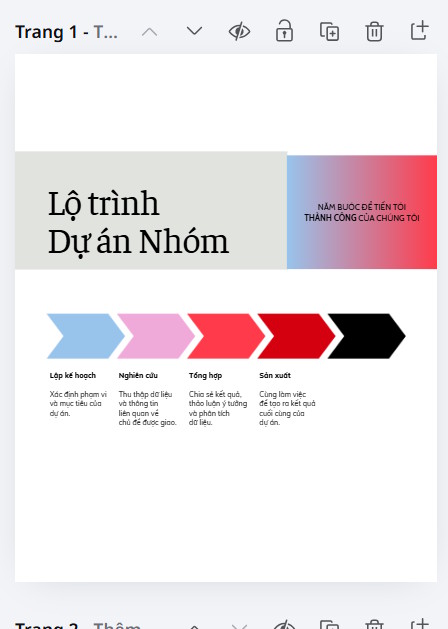
Canva's current resize instructions also allow custom dimensions and selected pages. Canva lists Magic Resize for eligible paid, education and nonprofit plans, and says each use counts toward an AI usage limit. If the menu is unavailable, check your plan and design type; Canva Docs do not support the same resize action.
Resize versus changing the content format
Changing a slide from widescreen to a square post mainly changes dimensions and layout. Turning a presentation into a document or translating the text uses other Magic Switch or Translate actions, which may alter the words as well as the layout. Review names, numbers, branding and line breaks after any conversion. TipsMake has a separate guide to translating Canva presentation slides.
If your aim is a PowerPoint file rather than a different Canva canvas size, use the relevant export workflow; see exporting a Canva design to PowerPoint. Resizing alone does not change the download file type.
Related Articles
 5 Steps to Design a Free Logo on Canva3 minutes read
 How to Convert Canva to Word Quickly and Easily3 minutes read
 Design Infographics in Canva AI from Data4 minutes read
 How to Design iPhone Logos and Cards with Canva7 minutes read
 Guide to Creating 3D Designs Using AI in Canva4 minutes read
 How to Create Leaflets Using Canva9 minutes read
Reader Comments 0
Sign in with email or Google to join the discussion.