Table of Contents
To share a notebook publicly, open Share and change its access to Anyone with a link, if that option is available for your account. Anyone who obtains the link may be able to use the shared notebook, so review its sources and generated content before changing the setting.
The screenshots use NotebookLM branding. Google's current help documentation refers to the product as Gemini Notebook; some interface labels may differ.
Check what you are about to make public
Read the sources, notes and Studio outputs in the notebook. Remove material that is confidential, personal or not authorized for public distribution. An AI summary is not a substitute for checking the underlying documents.
Do not use Chat View as a privacy boundary. Google explains that this view hides sources and artifacts from the default layout but does not necessarily remove a viewer's underlying access. See its public notebook sharing guidance.
Turn on public-link sharing
1. Open the correct notebook
From your notebook list, open the notebook you want to distribute. Check its title and source list so you do not publish a similarly named private workspace.
2. Open Share
Select Share near the top-right corner. You need permission to manage sharing, rather than ordinary viewer access.
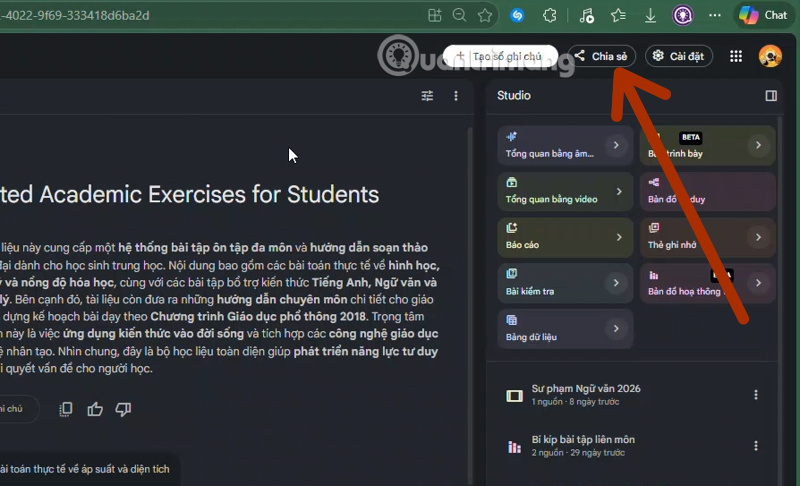
3. Change the access setting
Open the notebook access menu. A private notebook commonly shows Restricted.
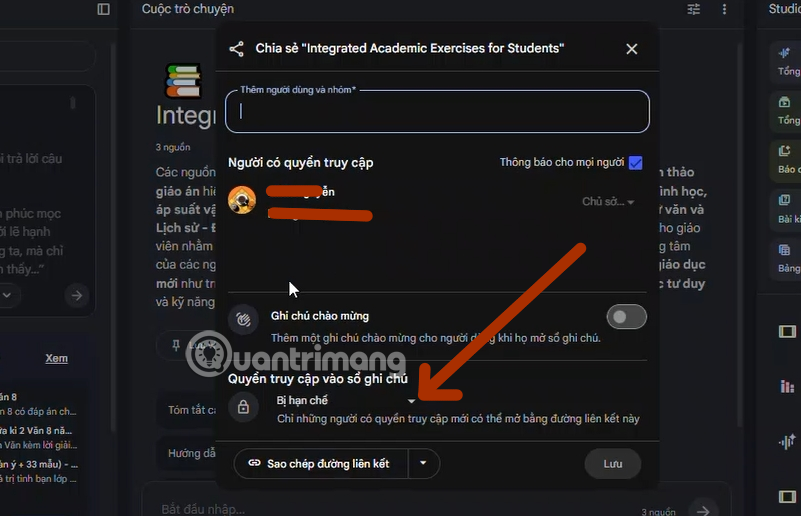
Select Anyone with a link. This enables link-based public access; it does not limit access to only the people to whom you personally send the URL.
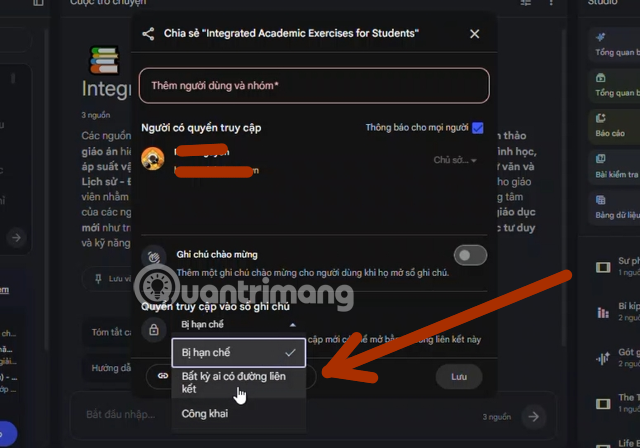
4. Save and copy the link
If the dialog displays Save, use it to apply the change. Then select Copy link. The globe icon next to Share indicates public sharing.
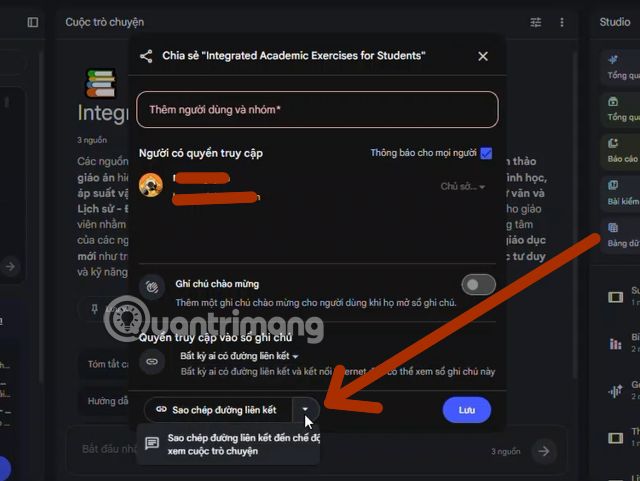
Before distributing the link widely, test it with an account that does not already have owner or editor access. Google states that opening a shared notebook requires a signed-in Google account. A recipient's experience may therefore differ from yours.
Share an Audio Overview or another Studio artifact
You can also share supported generated content from the Studio panel or its viewer. Open the item and look for Share, sometimes within its three-dot menu.
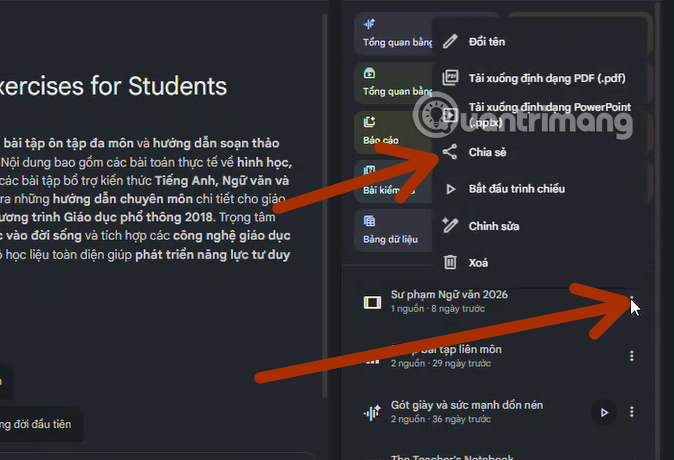
Review the access information, then copy the artifact's link. Do not assume that sharing one item creates a private exception to a public notebook's permissions.
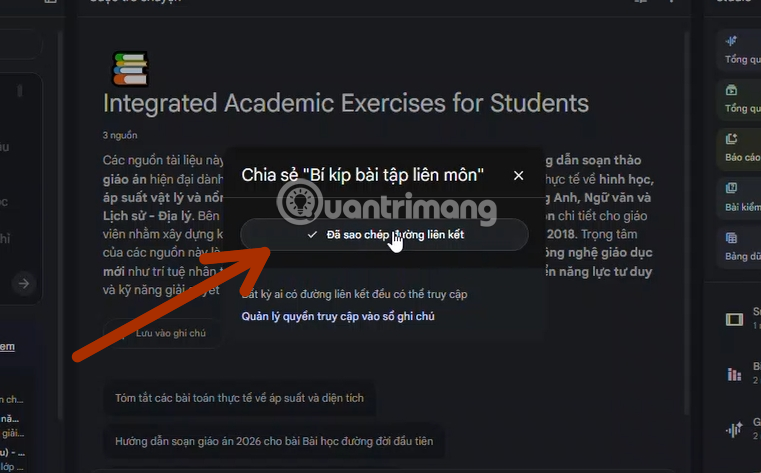
Google's notebook and artifact sharing documentation distinguishes the two: the notebook itself requires sign-in, while a shared artifact from a public notebook can be viewed without a Google sign-in.
If a format offers downloading, the downloaded file becomes a separate copy. Its recipients may retain or redistribute it independently of later changes to the notebook. Review an audio or video overview for incorrect names, misleading statements and omissions before distributing it.
If Anyone with a link is missing
Check the account you are signed in to, your role in the notebook and the restrictions shown by the product. Public sharing is not available in every account context. Work and education users should follow their organization's sharing policy and ask an administrator about permitted options.
Some source types also restrict sharing. For example, Google says notebooks containing artifacts created from Play Books ebooks cannot be shared publicly. Do not copy restricted work or school material to a personal account merely to bypass an organizational restriction.
Turn public sharing off
- Open the notebook and select Share.
- Change notebook access back to Restricted.
- Save the change if requested, then review the list of individually invited users.
This removes access through the public link. It does not erase files, screenshots or other copies people already obtained, and separately invited users may still have access until their permissions are changed.
Make the notebook useful to its readers
Give the notebook a specific title, identify the scope of its sources, and check that the generated material is suitable for the audience. For a learning project, see using YouTube sources for study in NotebookLM. For a larger knowledge collection, the guide to organizing an AI-assisted knowledge system discusses source organization and verification.
Public notebooks can support study and reference, but readers should still inspect citations and verify consequential claims against the original material.
Related Articles
 3 Best Chrome Extensions for Gemini Notebook (NotebookLM)12 minutes read
 NotebookLM's New Features Will Amaze You8 minutes read
 NotebookLM Alternatives Worth Trying5 minutes read
 NotebookLM App Adds Built-in Camera: Explained3 minutes read
 NotebookLM vs ChatGPT: Which AI tool is better?18 minutes read
 5 Tips to Unlock the Full Potential of NotebookLM8 minutes read
Reader Comments 0
Sign in with email or Google to join the discussion.