Table of Contents
Microsoft 365 has a few built-in tools that are easy to overlook. If you repeatedly hunt for commands, retype standard text, clean imported data or perform the same email actions, these five features are worth trying. Availability and menu labels can vary by app and version.
Find a command with Search
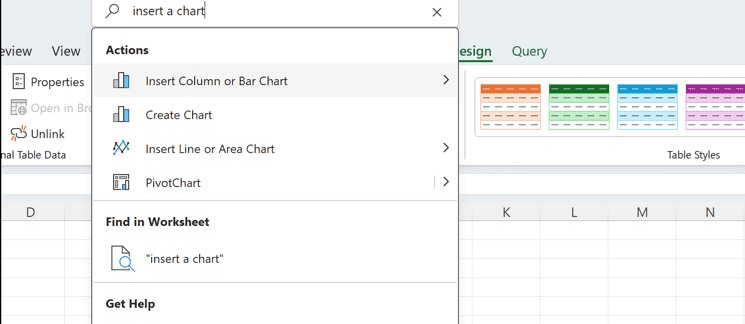
In a desktop Office app, use the Search box at the top to type the name of a command instead of looking through ribbon tabs. For example, search for “page break” in Word or “conditional formatting” in Excel. On Windows, Alt+Q commonly moves focus to that box. This is different from Ctrl+F, which searches within your document or worksheet.
Reuse text and formatting with Word Quick Parts
Quick Parts lets you save a selected block, such as a standard paragraph or formatted table, and insert it again. In desktop Word, select the content, open Insert > Quick Parts and save the selection to the gallery. When drafting another document, place the cursor and choose the saved part. For more formatting ideas, see these time-saving Word tips.
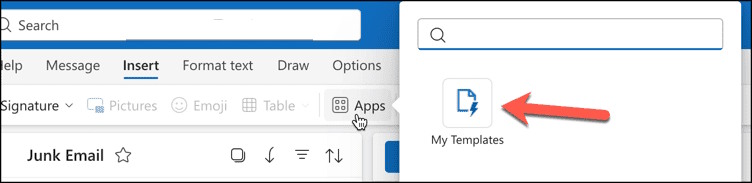
Outlook’s My Templates serves a related purpose for reusable email text, but it is a separate feature from Word Quick Parts. If it is available in your Outlook version, create a template from the message composer’s Apps or More apps menu, then insert it into a later message.

Clean imported data with Excel Power Query
Power Query is useful when a CSV or another data source needs the same cleanup every time. In Excel, use Data > Get Data to connect to a source, then use the Power Query editor to remove columns, change data types or filter rows before loading the result. Keeping these steps in a query makes a later refresh easier than repeating manual edits. Check the preview and data types before loading so dates and numbers are interpreted as intended.
Combine recurring email actions with Outlook Quick Steps
If you often move a message to a folder and mark it as read, a Quick Step can group those actions. Find Quick Steps in Outlook, create one for the tasks you actually repeat, and test it on a nonessential message first. The available actions and controls depend on the Outlook version.
Paste from the Office Clipboard
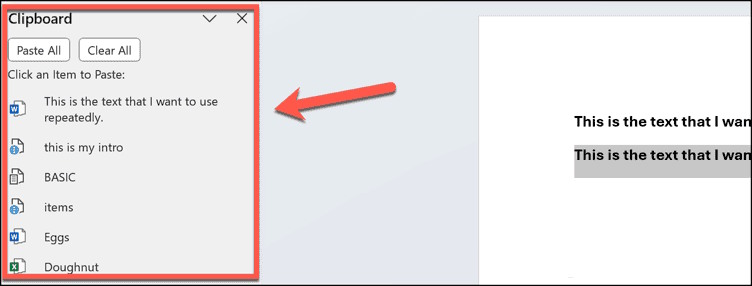
The Office Clipboard can hold several copied items so you can choose an earlier one instead of copying it again. In supported desktop Office apps, open the Clipboard pane from the Home tab, copy the items you need, then select one in the pane to paste. This is particularly handy while assembling material from multiple documents. It is distinct from your operating system’s clipboard history. See the Office Clipboard walkthrough for Word for more detail.
Related Articles
 6 Powerful Excel Features Most People Never Use9 minutes read
 15 Interesting Features to Use in Microsoft 36511 minutes read
 5 Microsoft Designer Features for Better Photo Editing6 minutes read
 6 Cool Microsoft Edge Features You Shouldn't Miss: Practical Guide6 minutes read
 Microsoft Demonstrates the Value of Windows 8 for Businesses4 minutes read
 Steps to Enable Security Features on Microsoft 3658 minutes read
Reader Comments 0
Sign in with email or Google to join the discussion.