Table of Contents
NotebookLM can turn selected source documents into flashcards and quizzes for review. The best results come from a focused source set and a clear instruction about scope, difficulty and question style. Generated answers and explanations should still be checked against the source before learners rely on them.
Choose and verify the source material
Open NotebookLM, create a notebook and add the documents you are authorized to use. A short chapter or a small group of closely related notes usually produces more focused practice than an entire mixed folder.
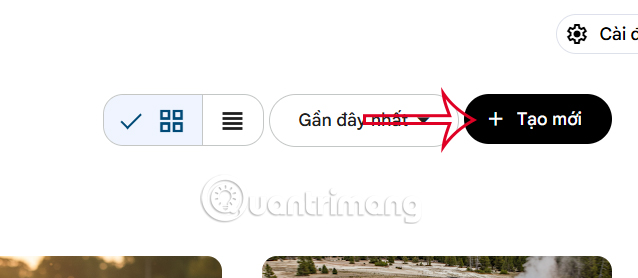
Check the imported source summary and several citations. If a scan has missing pages, unreadable text or incorrect optical character recognition, correct the source before generating study materials.
Create flashcards in NotebookLM
1. Customize the flashcard set
Open the flashcard control in the Studio area; in the interface shown, it uses a pen icon. Specify the topic boundaries, learner level and number or detail of cards. Ask for one testable idea per card and avoid vague prompts such as “make cards from everything.”
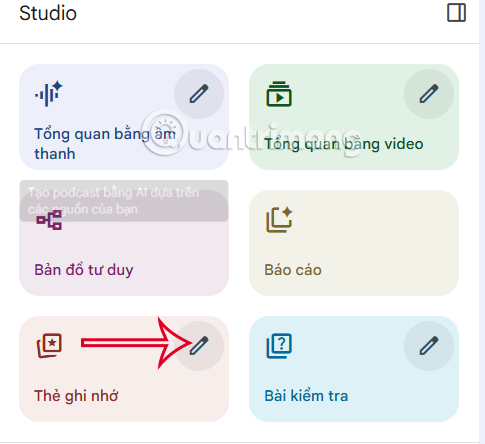
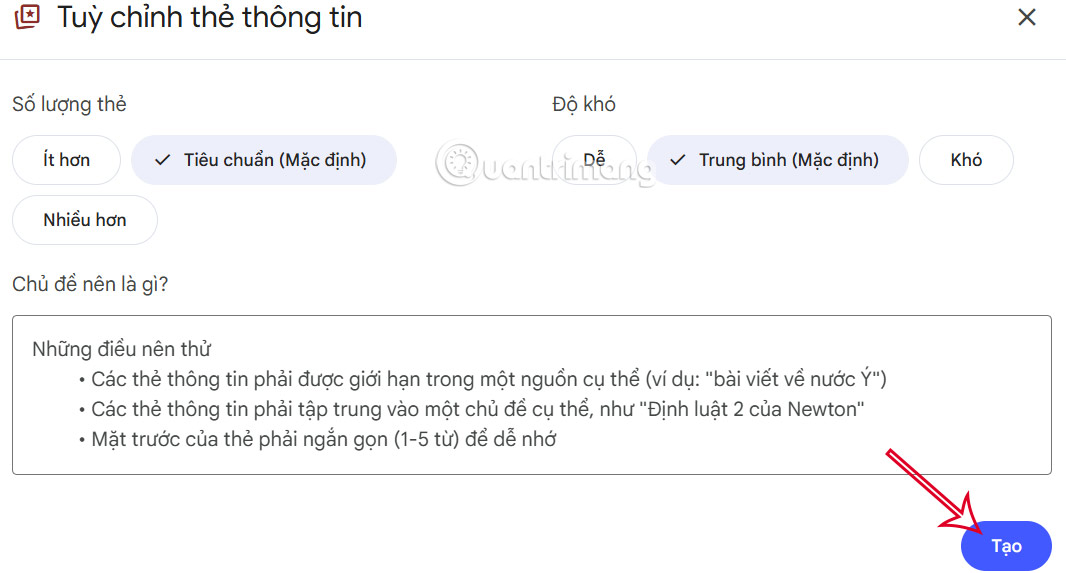
Example instruction:
Create 20 flashcards from the selected chapter for an introductory learner. Put one concept or relationship on each card. Use concise answers, include essential terminology, and exclude facts that appear only in examples or side notes.Select Create after reviewing the instruction.
2. Study and inspect the cards
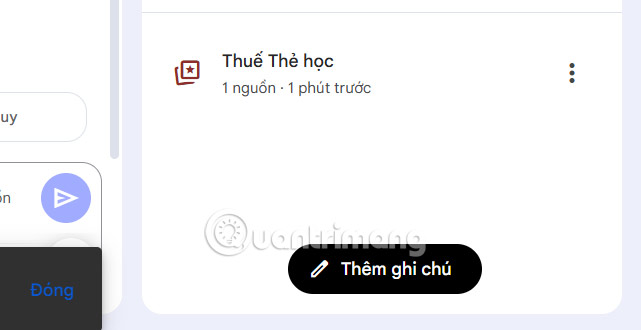
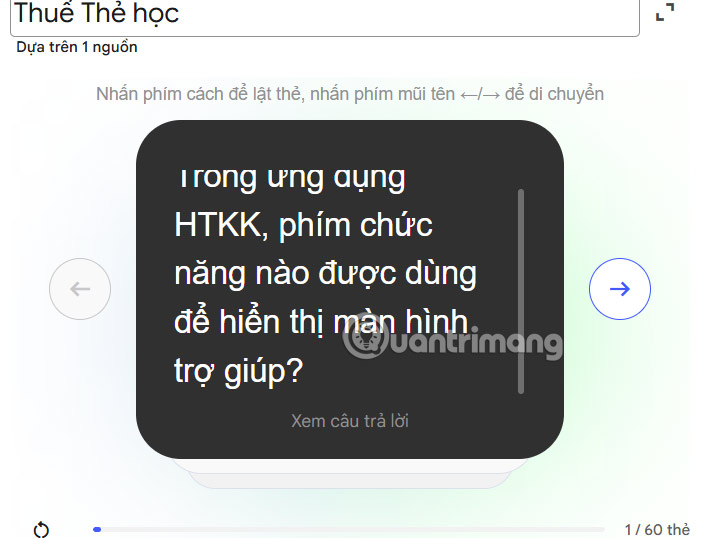
Open the generated set and use the arrows to move through the cards. Before revealing an answer, say or write your response; simply rereading both sides does not test recall.
3. Review answers and explanations
Select View answer to reveal the response and Explanation for additional context when available. Follow the cited source for any card that appears ambiguous, overly broad or inconsistent with your notes.
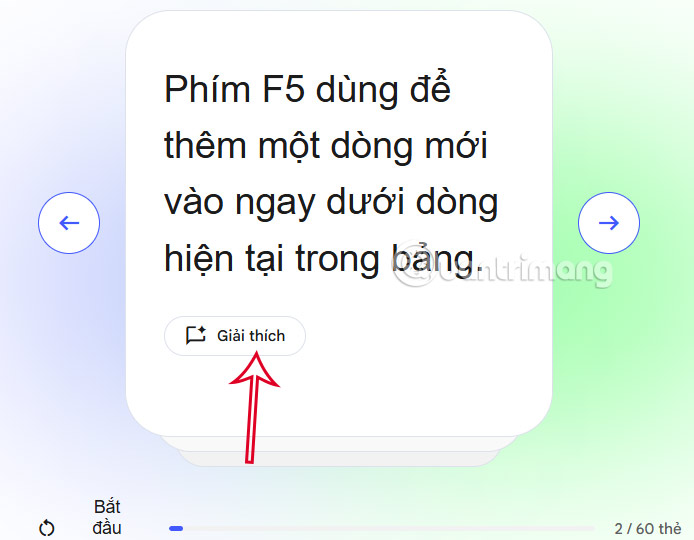
Remove or regenerate cards that combine several questions, depend on wording tricks, give an answer longer than the concept being tested or introduce information outside the selected source.
Create a quiz in NotebookLM
1. Add the quiz source
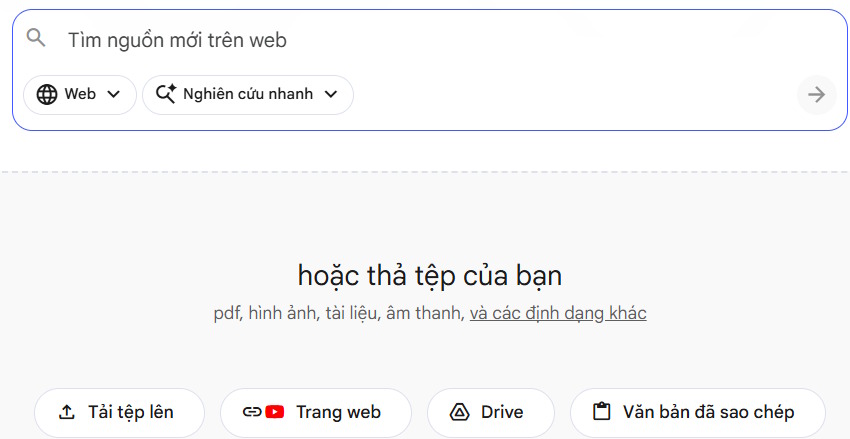
Create a notebook or use the same verified notebook, then select the exact sources the quiz should cover. Supported source types can vary, so confirm that NotebookLM has imported the text correctly.
2. Open quiz customization
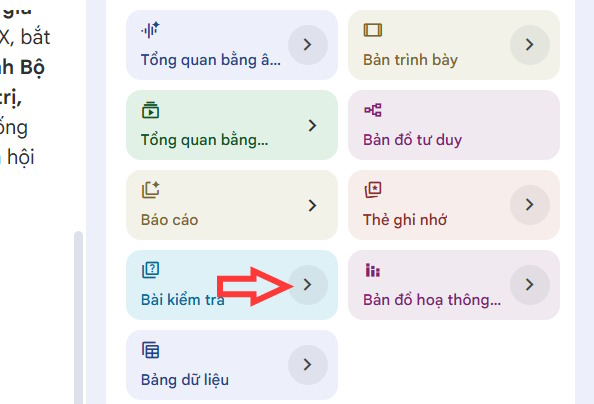
Open the customization control beside the quiz or test item in Studio. Interface labels can change, but the goal is to define the quiz before generating it.
3. Set the scope, format and difficulty
Choose the number of questions and available difficulty setting, then describe the knowledge area and question format. For multiple-choice questions, ask for one unambiguously correct answer and plausible distractors that are not misleading. For short-answer questions, state what a complete answer must include.
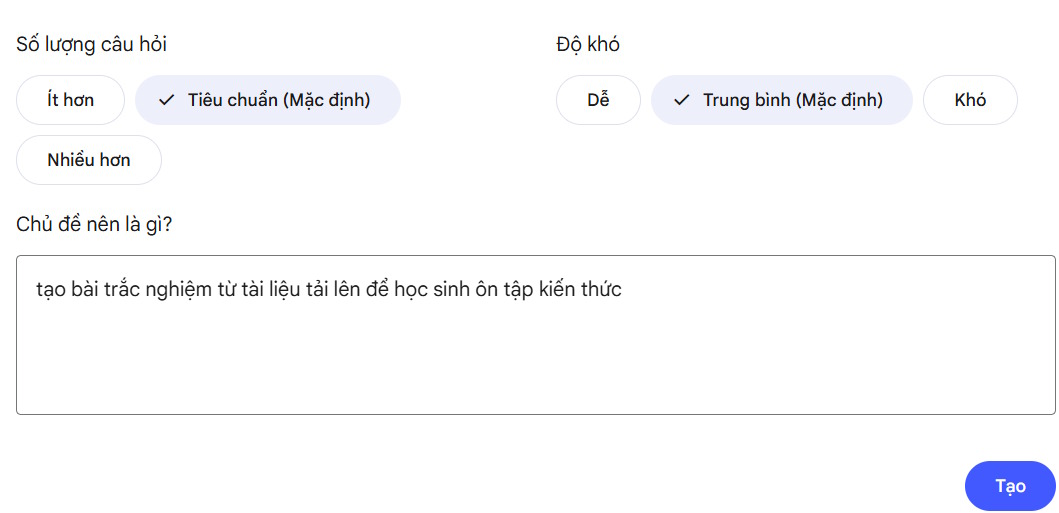
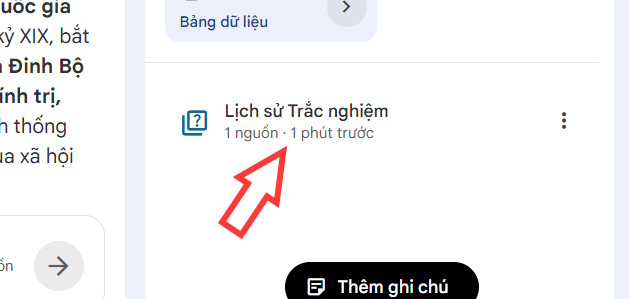
4. Test the generated quiz
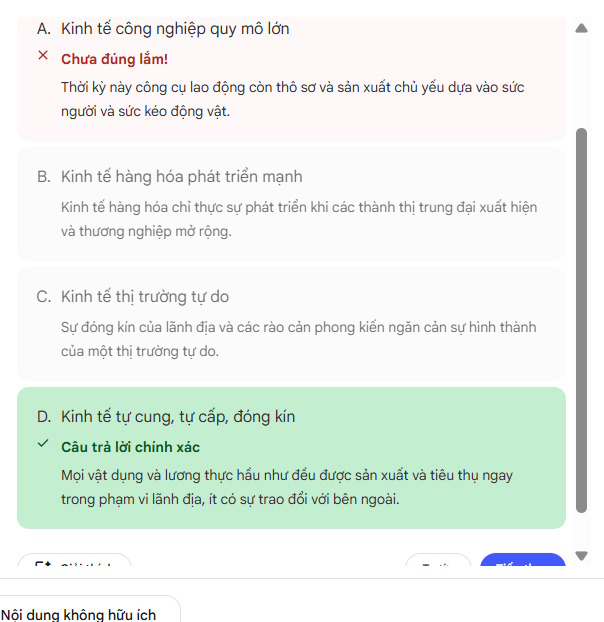
Open the quiz and complete it as a learner would. Check that each question is supported by the source, that the correct option is truly correct and that explanations address the reasoning rather than merely repeat the answer.
NotebookLM may provide hints and explanations after an answer. Verify these too; an incorrect explanation can teach a misconception even when the keyed option is correct.
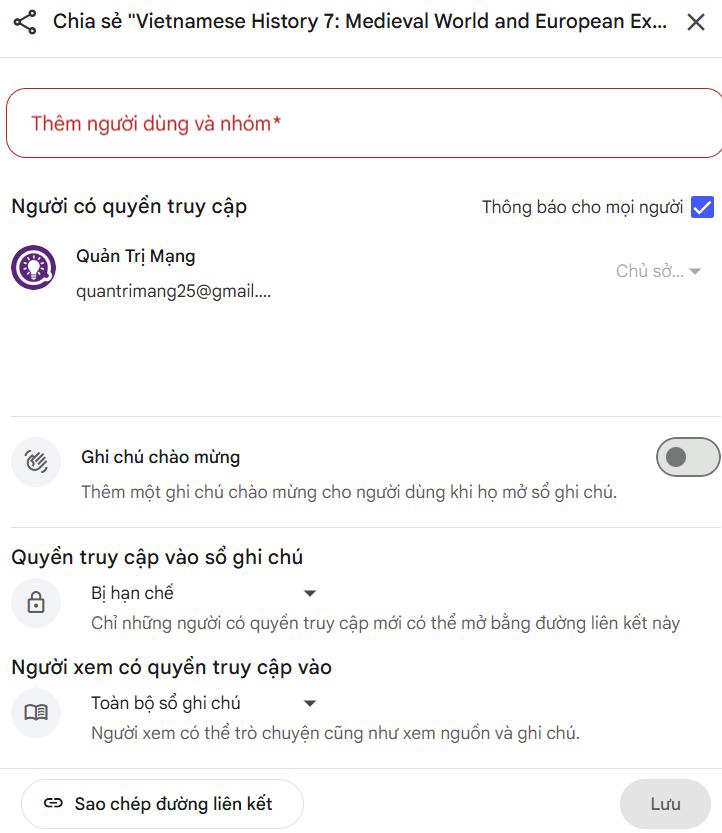
5. Share the quiz carefully
Use the share control to create or copy an available learner link. Check the access setting in a private window before distribution, and share only material you are permitted to disclose. Do not include private student records or restricted course documents in a publicly accessible notebook.
Quality checklist for teachers and learners
- All questions stay within the selected source and learning objective.
- Each flashcard tests one clear idea.
- Every quiz item has a defensible answer and useful explanation.
- Difficulty comes from the concept, not confusing wording.
- Important claims have been checked through source citations.
- The shared link exposes only the intended material.
To decide when a source-grounded notebook is preferable to a general chatbot, see NotebookLM vs. ChatGPT. For a wider comparison of learning workflows, review these AI tools for high-school and university students.
Related Articles
 How to Create Flashcards and Quizzes on Notebooklm3 minutes read
 NotebookLM Alternatives Worth Trying5 minutes read
 Instructions for Creating Reading-style Readings Using NotebookLM4 minutes read
 Instructions on Converting Lessons into Videos on NotebookLM4 minutes read
 How to Create Flashcards in Canva AI3 minutes read
 Create Data Tables at Lightning Speed in NotebookLM5 minutes read
Reader Comments 0
Sign in with email or Google to join the discussion.