Table of Contents
To make a chart in Canva, open your design, add a chart from the editor’s chart tools, then replace its sample values with your own data. The chart updates as you edit it, so check the labels and numbers before sharing the design.
Add a chart to your design
- Open a presentation, document, or other Canva design. In the left sidebar, open Elements and search for charts, or choose Charts from the sidebar if it appears in your editor.
- Browse the available chart types and select one that matches your data: bars for comparing categories, a line for changes over time, or a pie or donut for parts of a whole. Click the chart to place it on the page.
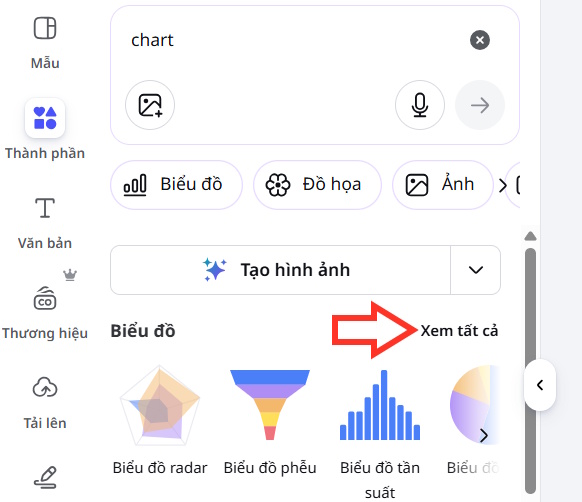
If your editor shows a Charts category with View all, open it to compare additional chart types.
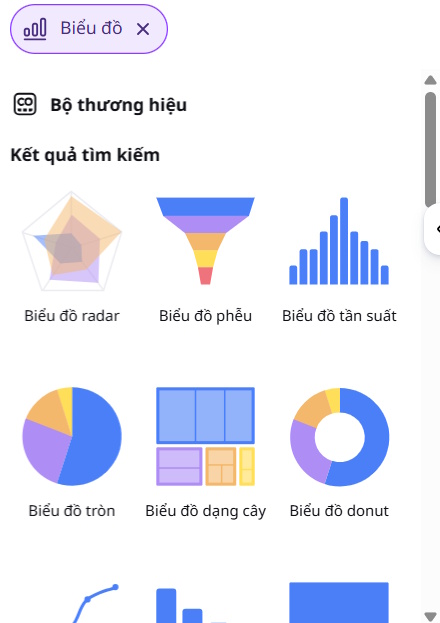
Replace the sample data
Select the inserted chart and choose Edit or Data in the toolbar or side panel. Enter category names and numerical values in the chart’s data table. Depending on the chart and editor, you may also be able to import data from a file. Make sure each label corresponds to the correct number and remove unused sample rows.
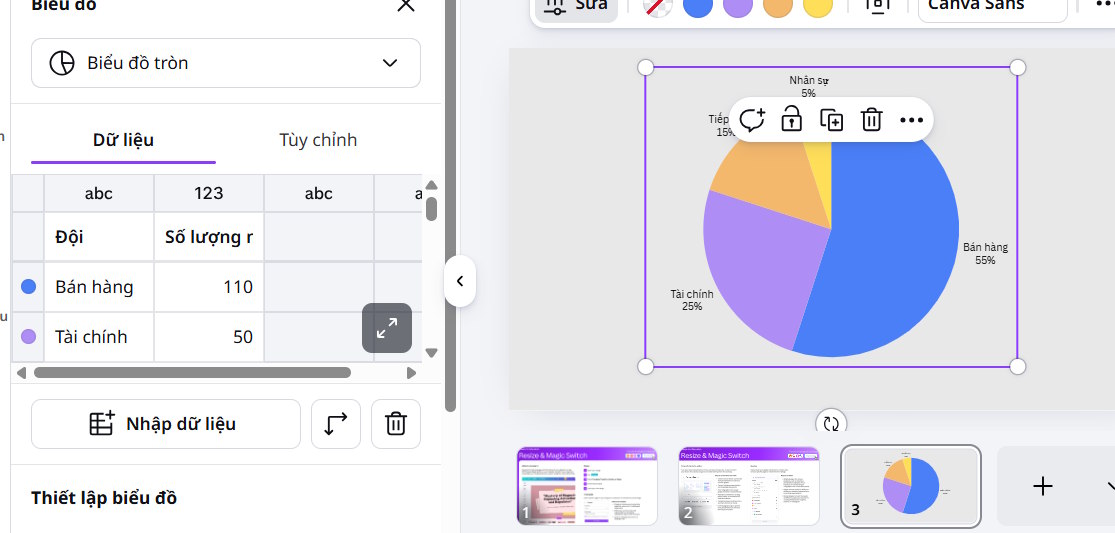
Use the chart settings to adjust which labels or series appear. A chart may call these settings Labels, Segments, or something similar; the available options depend on the chart type. If the chart is hard to read, shorten category names or choose a different chart before adding more decoration.

Adjust the appearance and check the result
Open Customize to change options such as labels, number formatting, or the chart’s appearance where available. Select a chart part or its color control to change its color. Use colors that distinguish categories and keep text legible against the background.

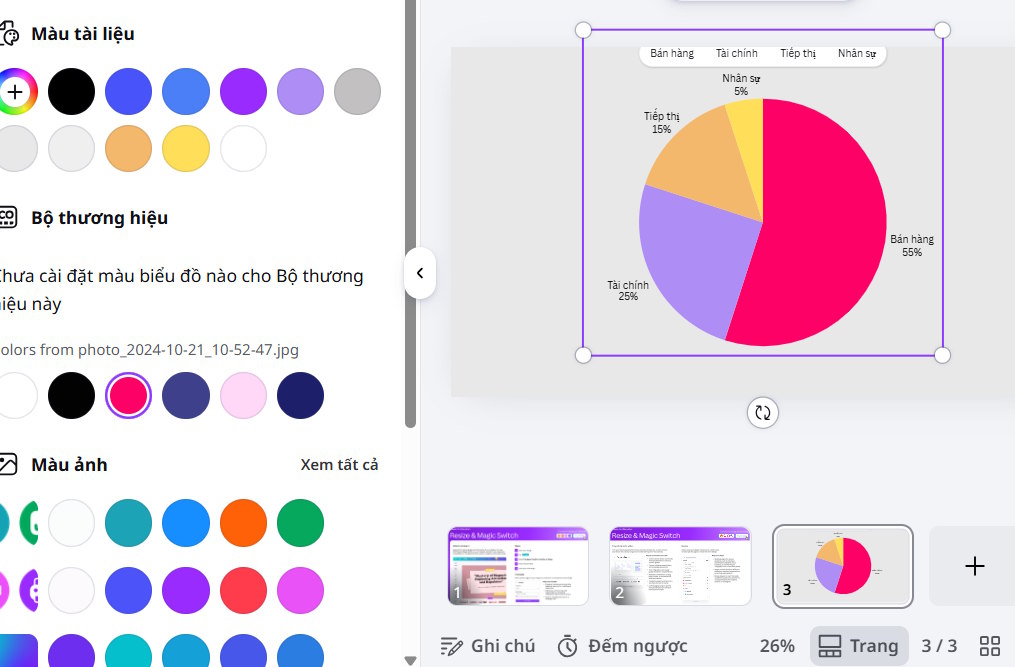
Review the final chart at the size it will appear in your design. Check its title, axes or legend, units, and values against the source data. For more layout ideas, see how to create an infographic in Canva or how to build a Canva presentation. Canva’s chart help covers additional chart and data options.
Related Articles
 How to Draw Charts with AI Accurately and Quickly3 minutes read
 4 New Canva Features You'll Love11 minutes read
 How to Draw a Map Chart on Excel: Excel Charts5 minutes read
 The Most Detailed Instructions on Drawing, Creating, and Inserting Charts in5 minutes read
 Instructions for Creating Charts on PowerPoint5 minutes read
 Guide to Creating 3D Designs Using AI in Canva4 minutes read
Reader Comments 0
Sign in with email or Google to join the discussion.