Table of Contents
Excel charts turn a worksheet range into a visual comparison, trend, distribution, or relationship. A useful chart begins with a specific question and a suitable data type; extra colors, effects, and labels cannot rescue a chart that encodes the wrong comparison.
The screenshots show Excel 2019. Recent desktop versions use the same general Insert, Chart Design, and Format workflow.
Choose the chart type
- Column chart: vertical bars for comparing values across a modest number of categories.
- Bar chart: horizontal bars; useful when category labels are long or there are many categories.
- Line chart: values across an ordered sequence, most often time. It emphasizes direction and rate of change.
- Scatter chart: the relationship between two numeric variables. Unlike a line chart, both axes are numeric.
- Pie or doughnut chart: a few nonnegative parts of one meaningful whole. Avoid it for many slices or several data series.
- Area chart: a trend with magnitude emphasized by the filled area; overlapping series can become difficult to read.
- Combo chart: two compatible chart types, sometimes with a secondary axis. Label the axes clearly and use it only when the scales genuinely differ.
- Surface chart: a specialized view of values across a numeric matrix, useful for finding combinations, peaks, and valleys—not a default choice simply because the data set is large.
Read the chart’s components
A chart may contain a title, horizontal category or value axis, vertical value axis, data series, plot area, legend, gridlines, and data labels. Include only elements that help a reader interpret the measure and its units.
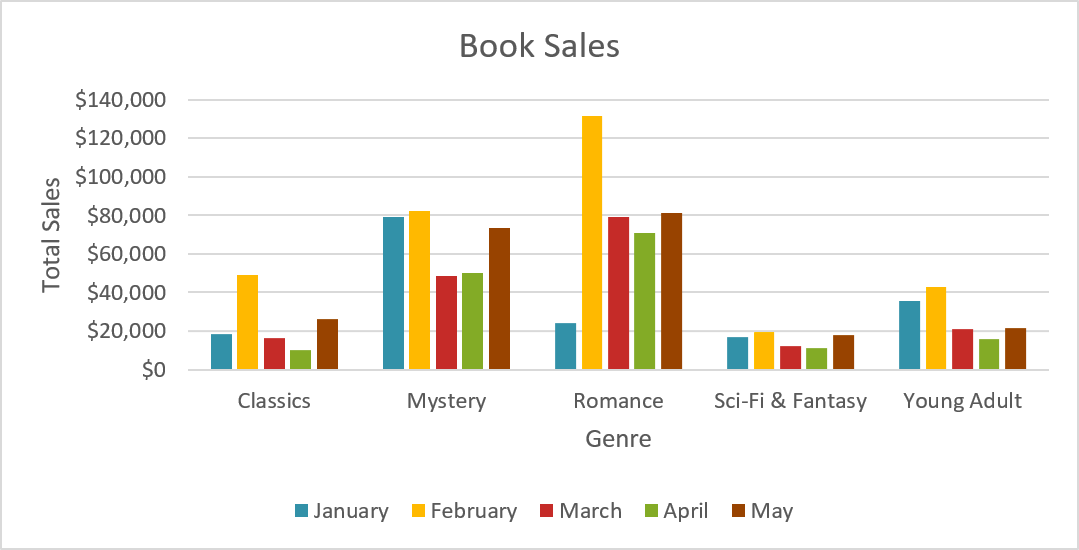
A legend identifies series, not the meaning of the entire chart. When one series is shown, a direct title may make the legend unnecessary.
Prepare the source range
- Use one row of clear headers and one consistent type of value per column.
- Do not include unrelated totals unless they are intentionally part of the comparison.
- Keep dates as real Excel dates and numbers as numeric values.
- Use blanks deliberately; zero and missing are not the same.
- Convert regularly expanding data to an Excel Table with Ctrl+T.
Insert a chart
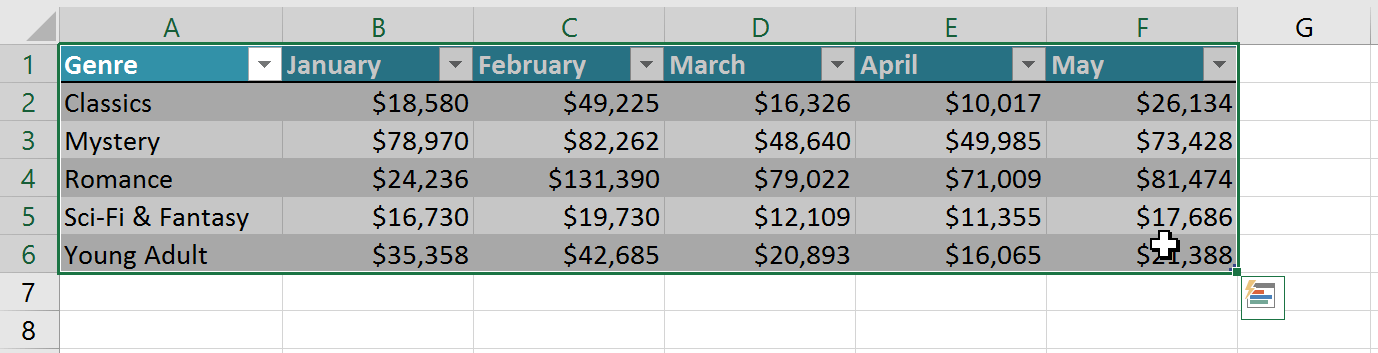
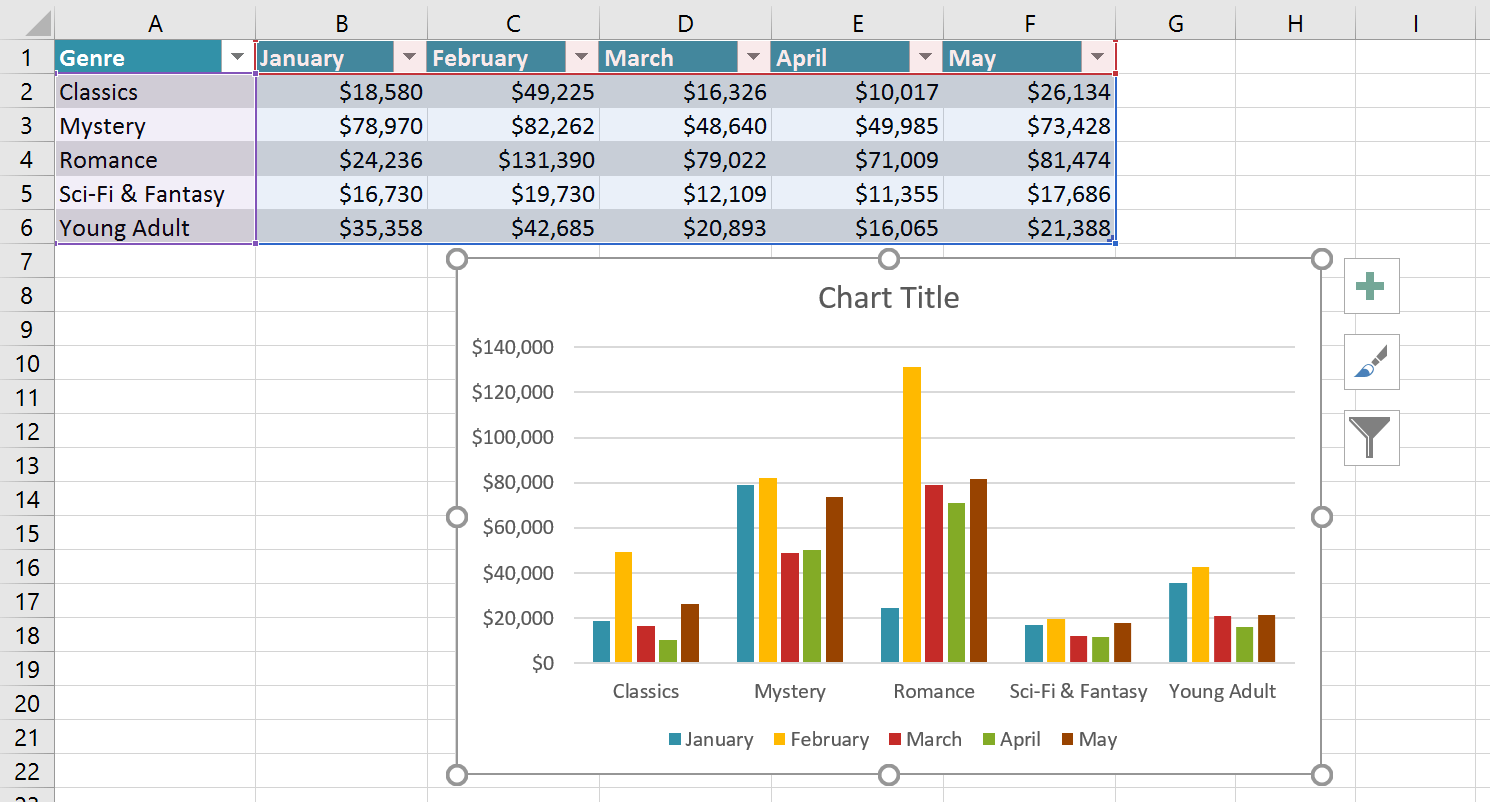
- Select the source cells, including the row and column labels required by the chart. In the example, the range is A1:F6.
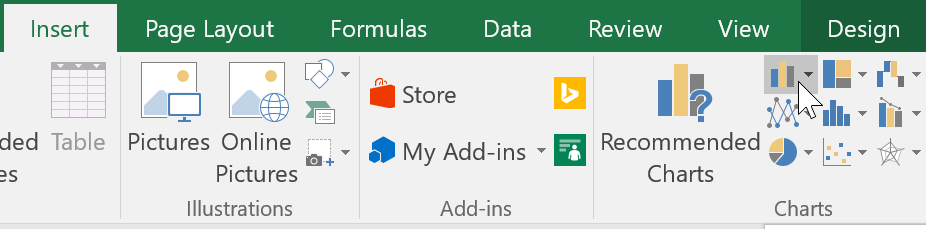
- Open Insert and choose the chart family, such as Column.
- Select a two-dimensional subtype that matches the comparison.
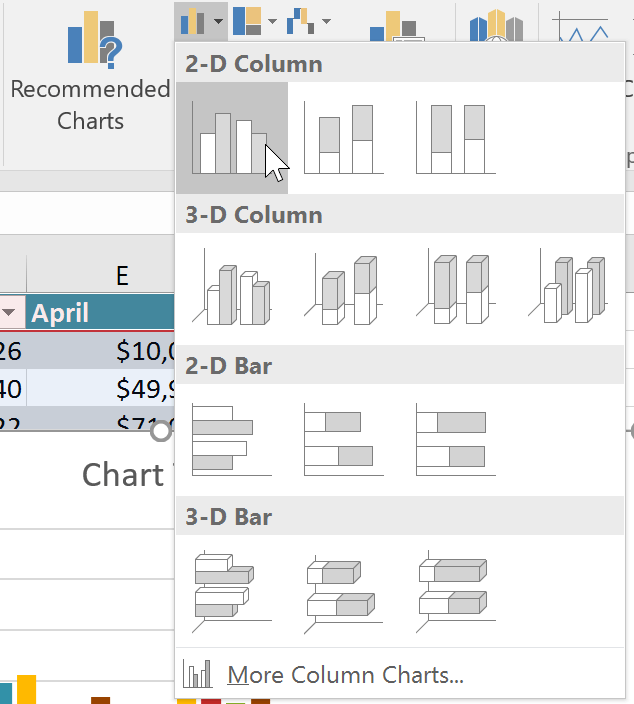
Excel inserts the chart as an object on the worksheet.
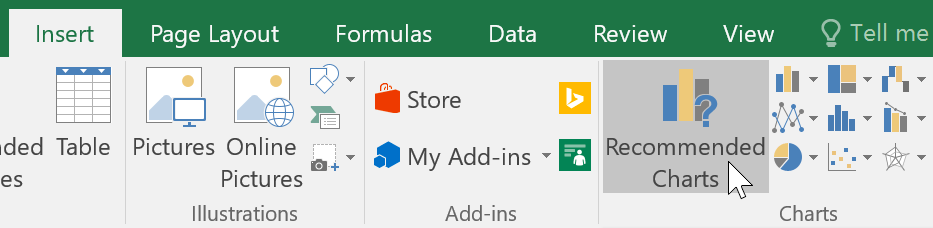
If the choice is unclear, use Recommended Charts as a starting point, then verify that the suggested encoding answers the actual question.
Add titles, labels, and a restrained style
Select the chart, then use Chart Design > Add Chart Element for a chart title, axis titles, legend, data labels, gridlines, or a trendline when appropriate.
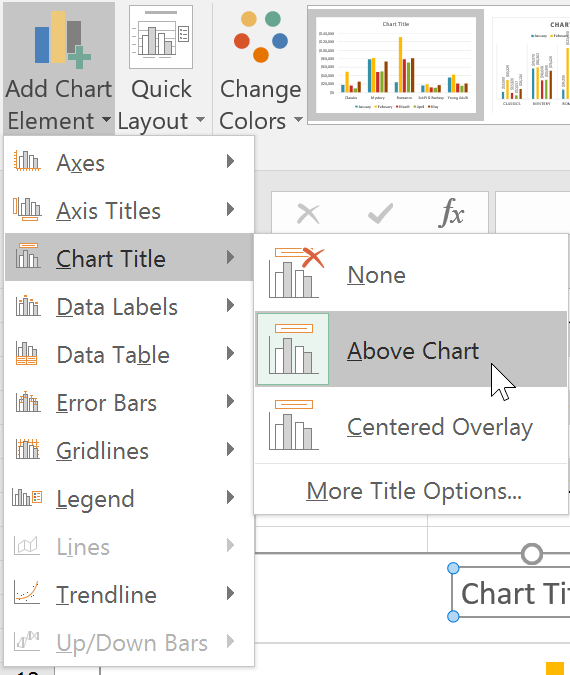
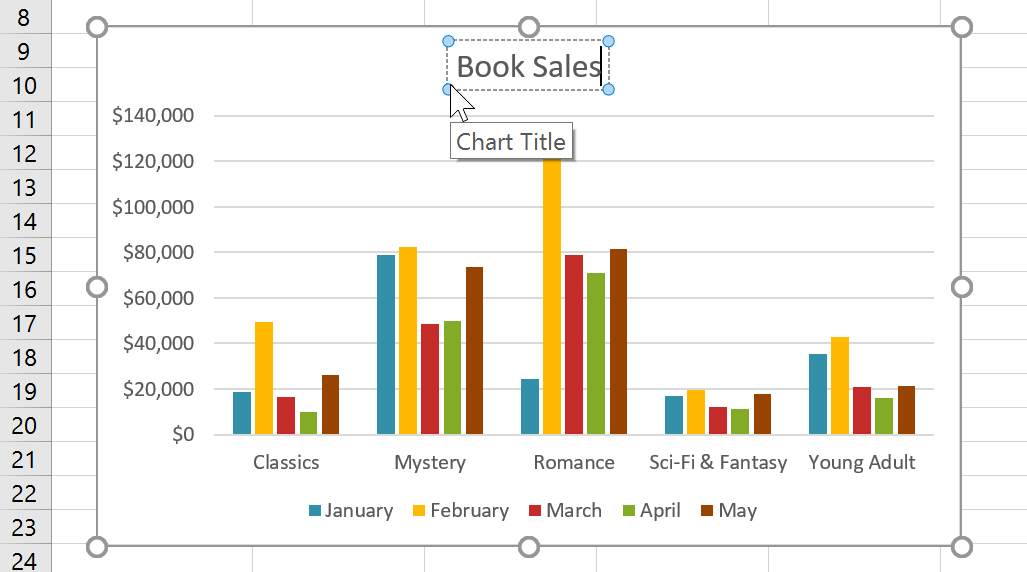
Use a chart title that states the subject and context, such as Monthly Book Sales by Category. Add axis titles when the measure or units are not obvious.
Quick Layout applies a predefined arrangement of chart elements.
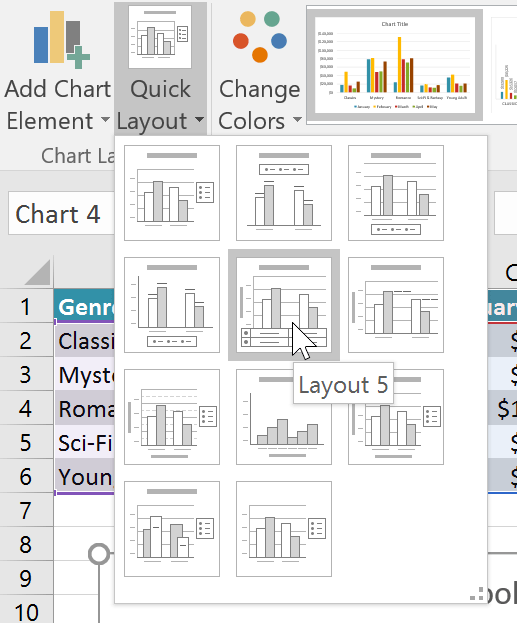
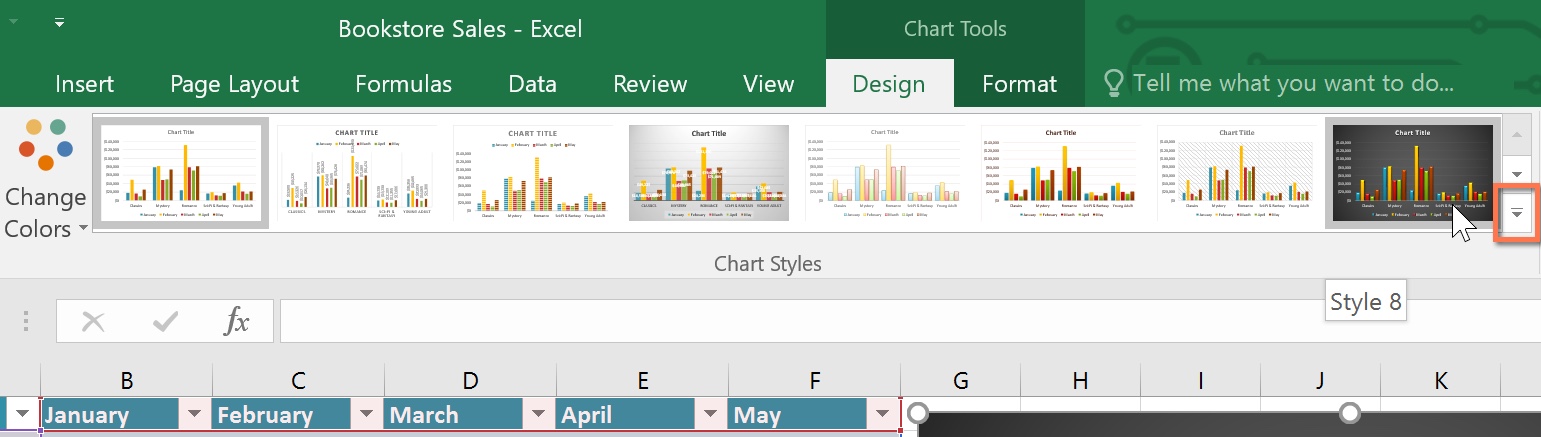
Chart Styles change the visual treatment without changing the source values.
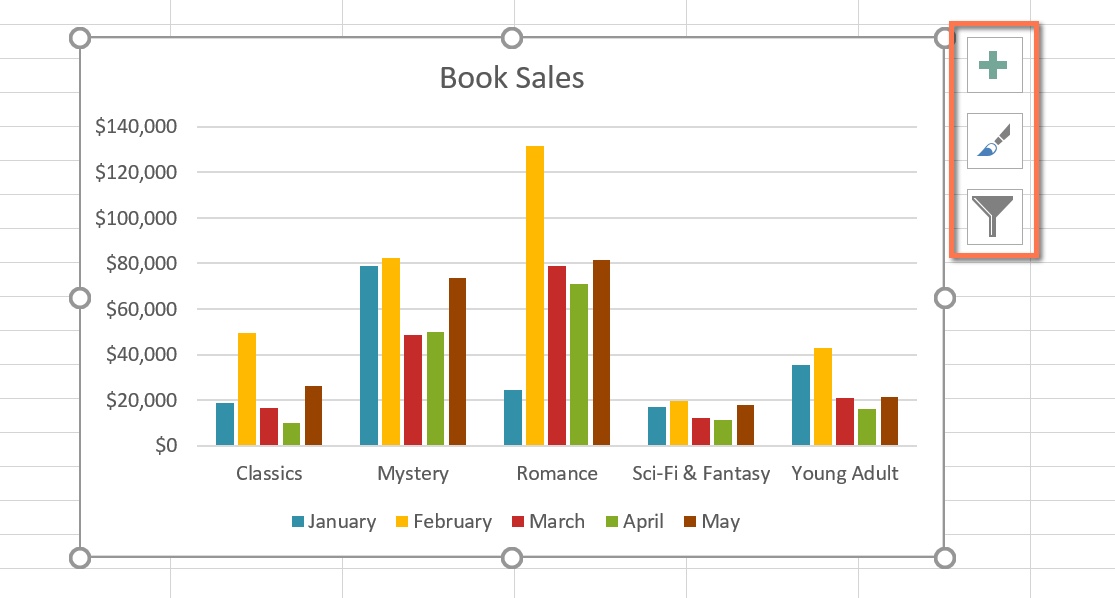
The chart-side shortcuts can add elements, apply a style, or filter the displayed series and categories.
Formatting guidelines
- Prefer a two-dimensional chart; perspective in 3-D charts can distort apparent size.
- Use one accent color for the series that needs attention and neutral colors for context.
- Do not rely on red-versus-green alone; use labels, patterns, or another differentiator where needed.
- Start a bar or column value axis at zero unless there is a clearly explained analytical reason not to.
- Use data labels selectively. Labeling every point can obscure the pattern.
- Add alternative text through the chart’s format options and provide the underlying data or a textual takeaway when accessibility matters.
Switch rows and columns
The same source range can be grouped in different ways. In the example, categories are the groups and months are the series.
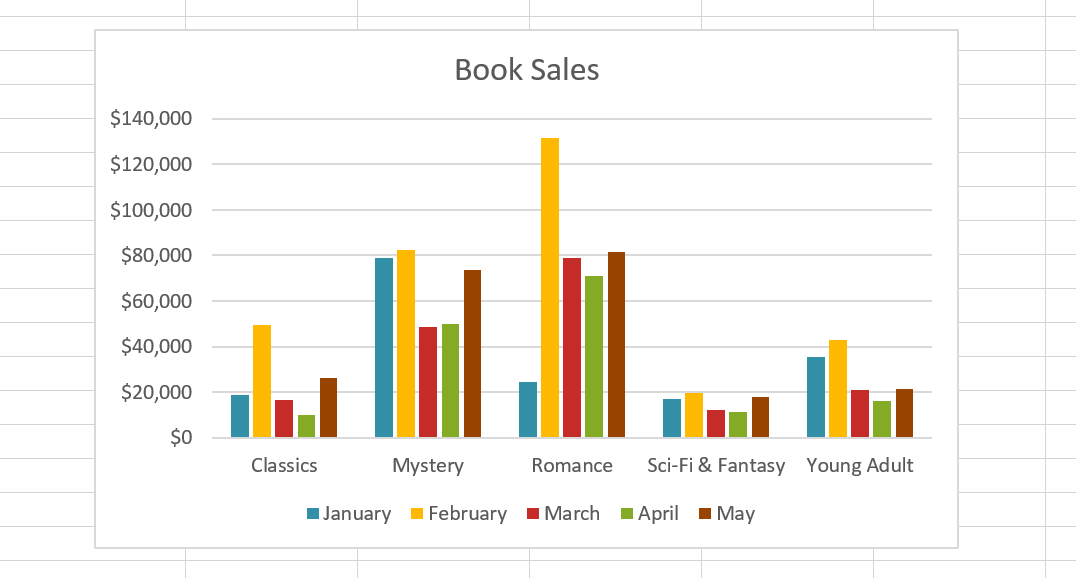
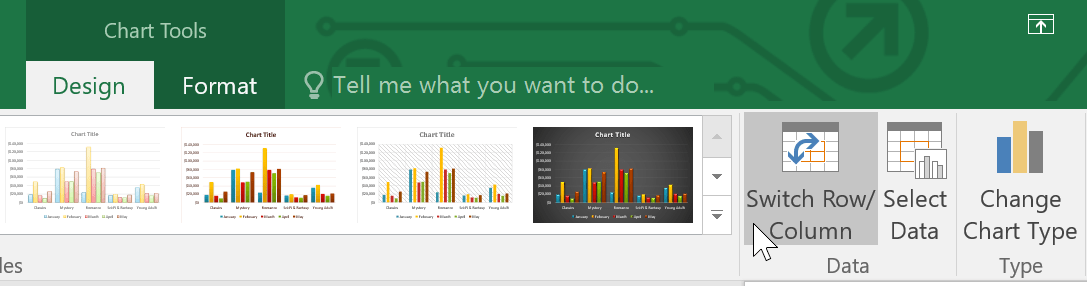
Select the chart and choose Chart Design > Switch Row/Column.
The chart now groups by month and uses the categories as series.
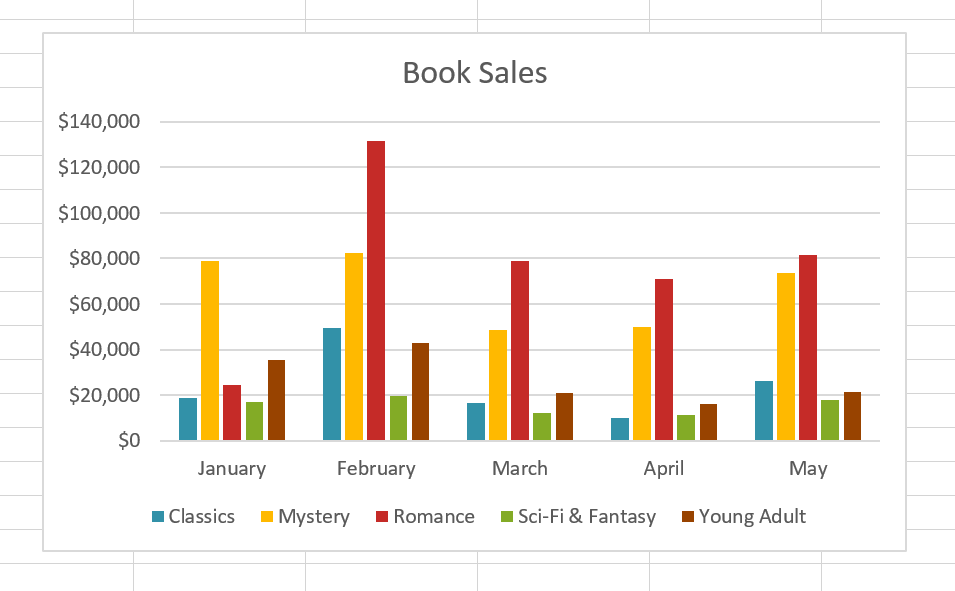
Switching does not transpose the worksheet data; it changes how the chart interprets its series and category labels. The command is unavailable for some chart types.
Change the chart type
Select Chart Design > Change Chart Type.
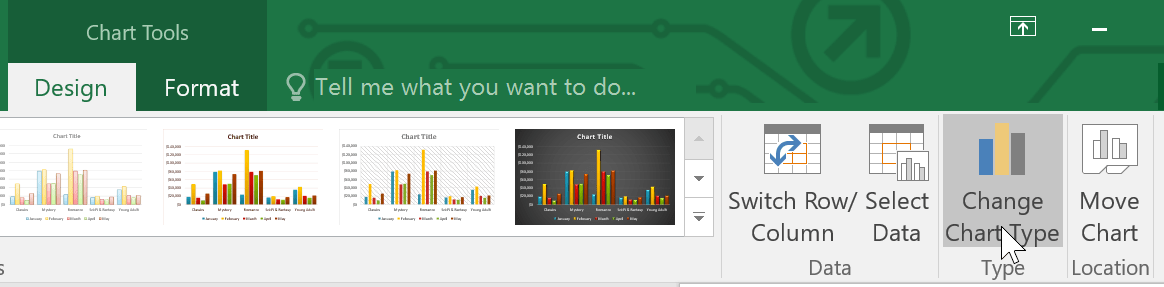
Choose the new family and subtype, then select OK.
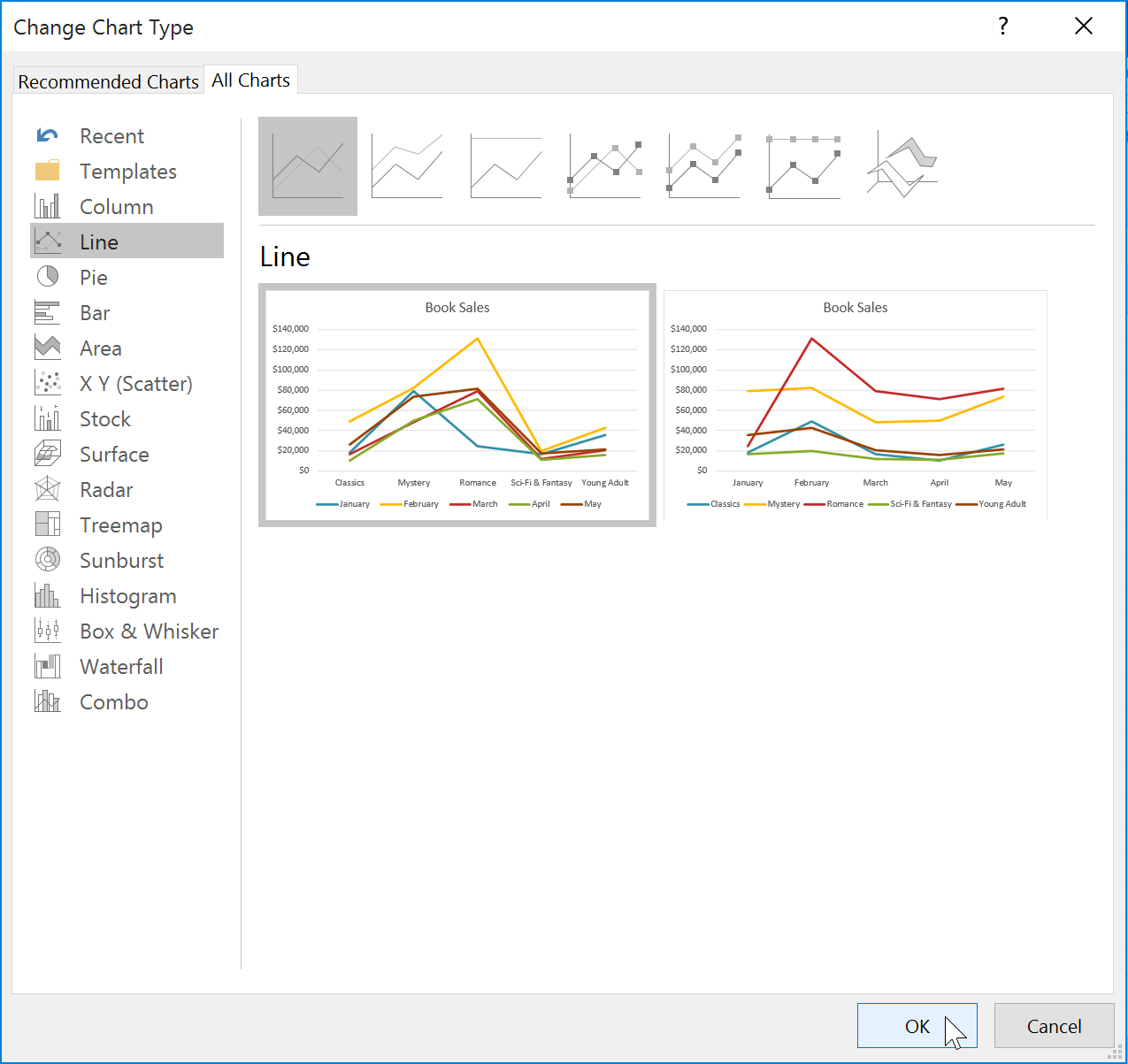
A line chart can make time trends clearer than clustered columns when the horizontal categories form a true sequence.
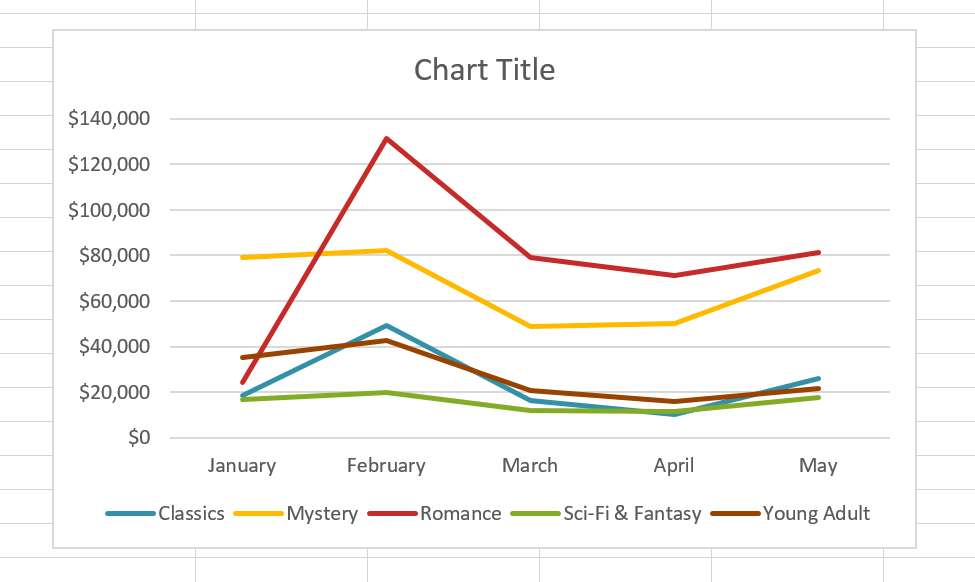
After changing types, recheck the axis scale, label density, blank-cell behavior, and legend. A chart type change can make earlier formatting inappropriate.
For a focused walkthrough, see How to Make a Line Graph in Microsoft Excel.
Move a chart
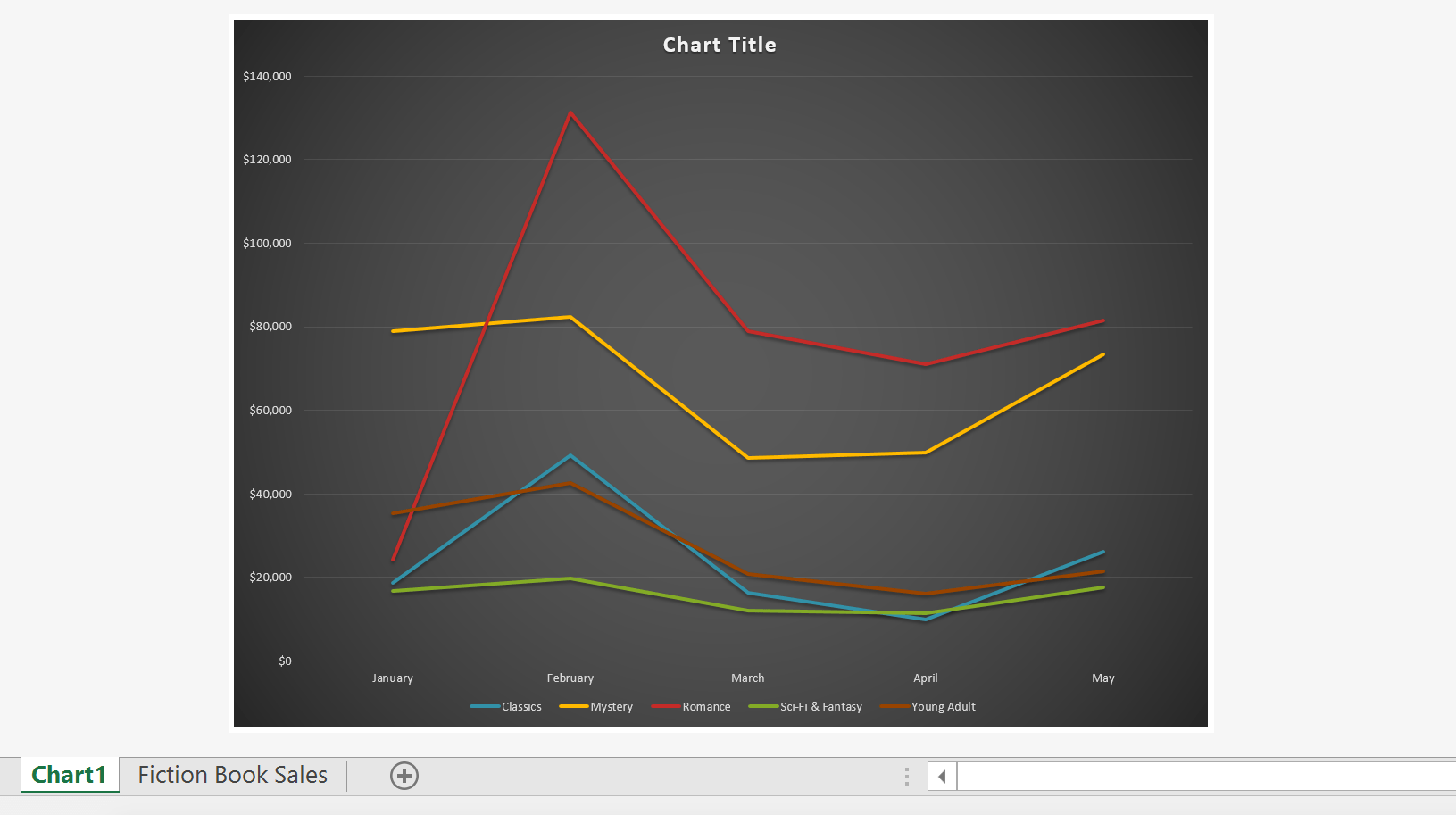
To place the chart on its own sheet, select it and choose Chart Design > Move Chart.
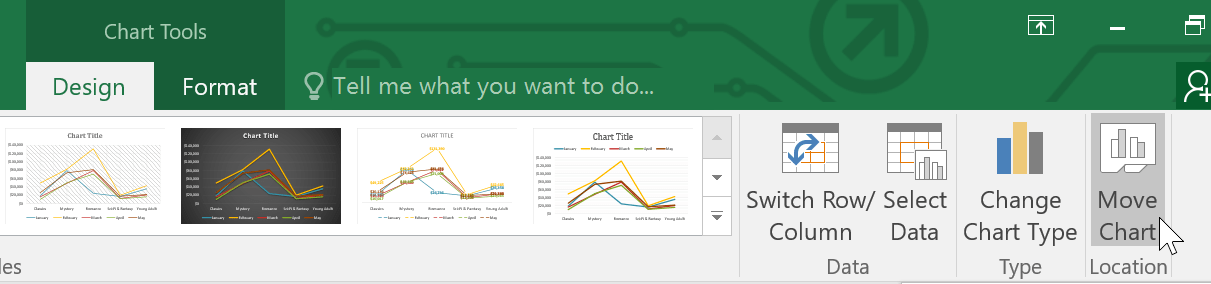
Choose New sheet and give it a descriptive name, or select Object in to embed it on an existing worksheet.
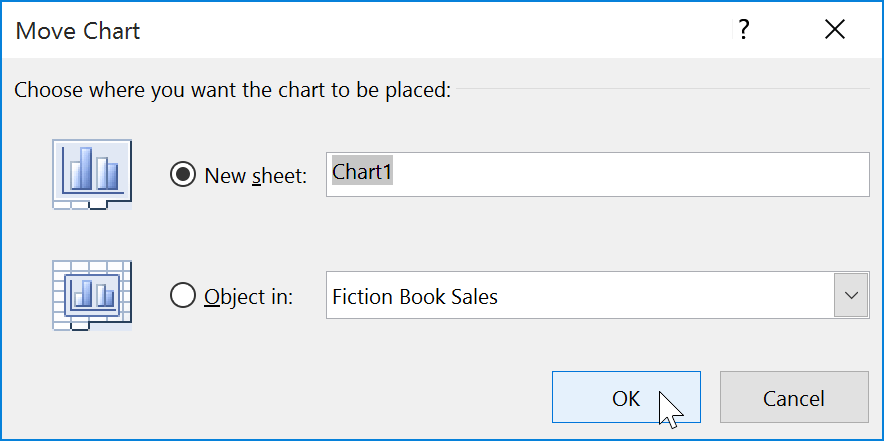
A chart sheet is useful for presentation or printing; an embedded chart is better when readers need the visual beside its source or controls.
Change the data range
Select an embedded chart to highlight its source ranges. Drag the colored range handles to include adjacent data, or use Chart Design > Select Data to edit the chart range, series names, series values, and category labels.
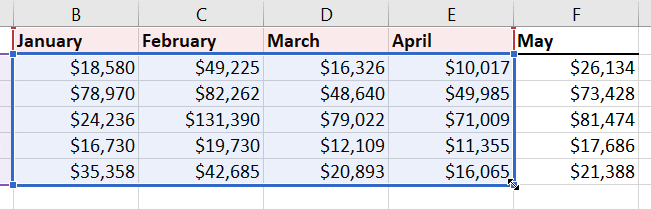
When the chart is on a separate chart sheet, Select Data is more reliable than trying to drag a highlighted range. Confirm that added rows are within the source and that new columns have the correct headers.
Keep the chart current
If new records are added regularly, build the chart from an Excel Table. Adding a row directly below the table normally expands both the table and a chart based on it. A fixed range does not always expand, so verify the chart after each import or paste.
For summaries that must be rearranged or filtered before charting, create an Excel PivotTable and consider a PivotChart. To present a linked visual in a deck, follow the guide to linking Excel data to PowerPoint and test the link before sharing files.
Final chart checklist
- Does the chart answer one clear question?
- Are the chart type and axis scales appropriate?
- Are title, units, time period, and source context clear?
- Can labels be read without rotating or crowding them?
- Does the source include all intended records and exclude unintended totals?
- Would the conclusion remain understandable without color alone?
Microsoft’s current guides cover creating a chart from start to finish and updating an existing chart.
Related Articles
 How to Draw a Map Chart on Excel: Excel Charts5 minutes read
 Instructions on How to Create Charts in Excel Professional8 minutes read
 How to Draw Charts and Graphs in Excel Simply and Quickly4 minutes read
 How to Create 2 Excel Charts on the Same Image: Draw an Excel Chart4 minutes read
 How to Draw a Pie Chart in Excel 20164 minutes read
 Instructions for Creating Interactive Charts in Excel with INDEX7 minutes read
Reader Comments 0
Sign in with email or Google to join the discussion.