Table of Contents
Excel includes many common functions that can be used to quickly find the sum, average, count, maximum, and minimum values for a range of cells.
A function is a predefined formula that performs calculations using specific values in a particular order. Excel includes many common functions that can be used to quickly find the sum, average, count, maximum, and minimum values for a range of cells. To use functions correctly, you will need to understand the different parts of a function and how to create arguments to calculate values and cell references.
Parts of a Function
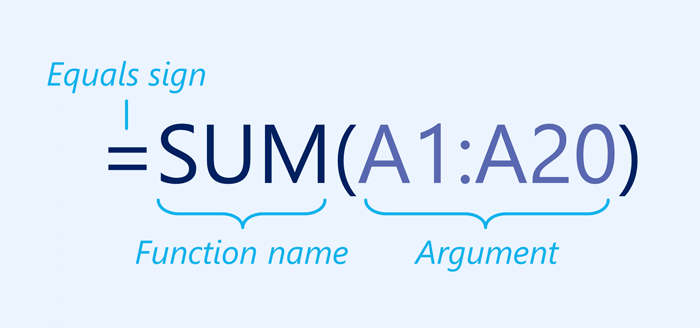
To function correctly, a function must be written in a specific way, known as syntax. The basic syntax for a function is an equals sign ( = ), a function name (e.g., SUM ), and one or more arguments. The arguments contain the information you want to calculate. The function in the example below will add the values of the range of cells A1:A20.
Working with Arguments
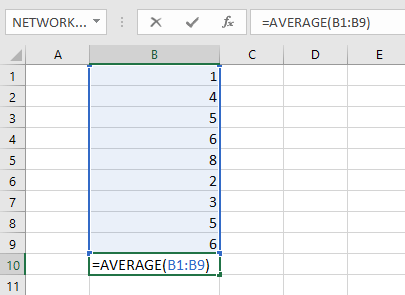
Arguments can refer to both individual cells and cell ranges and must be enclosed in parentheses. You can include one or more arguments, depending on the syntax required for the function.
For example, the function =AVERAGE(B1:B9) will calculate the average of the values in the range B1:B9. This function only takes one argument.
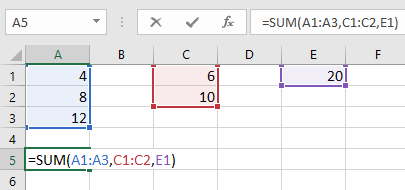
Multiple arguments must be separated by commas. For example, the function =SUM(A1:A3, C1:C2, E1) will add the values of all cells in the 3 arguments.
Create a Function
Excel has many built-in functions. Here are some of the most common ones you'll use:
- SUM: This function adds all the values of the cells in the argument.
- AVERAGE: This function determines the average value of the values in the argument. It sums the cells and then divides that value by the number of cells in the argument.
- COUNT: This function counts the number of cells that contain numeric data in their arguments. This function is useful for quickly counting items within a range of cells.
- MAX: This function determines the highest cell value in the argument.
- MIN: This function determines the lowest cell value in the argument.
How to Create a Function Using the AutoSum Command
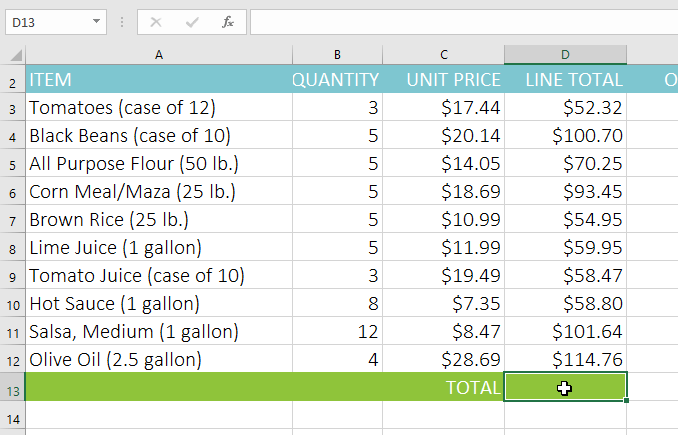
The AutoSum command allows you to automatically insert the most common functions into your formulas, including SUM, AVERAGE, COUNT, MAX , and MIN . The example below will use the SUM function to calculate the total cost for a list of recently ordered items.
1. Select the cell that will contain the function. For example, we would select cell D13.
2. In the Editing group on the Home tab, click the arrow next to the AutoSum command. Next, select the desired function from the drop-down menu. For example, we will select Sum.
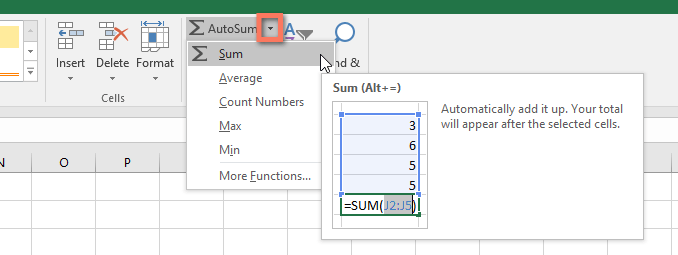
3. Excel will place the function in the cell and automatically select a range of cells for the argument. In the example, cells D3:D12 were automatically selected, and their values will be added to calculate the total cost. If Excel selects the wrong range of cells, you can manually enter the desired cells into the argument.
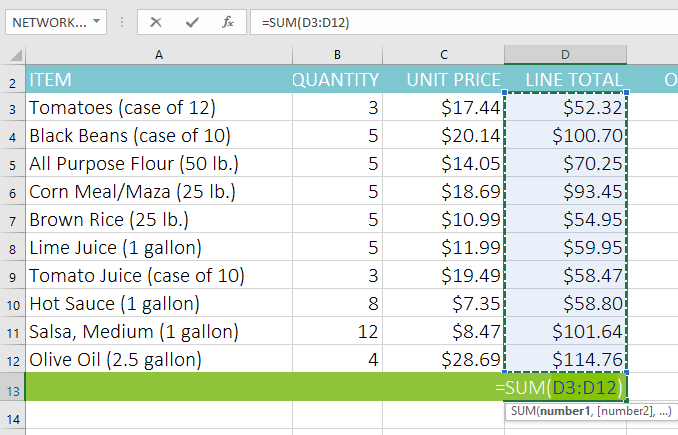
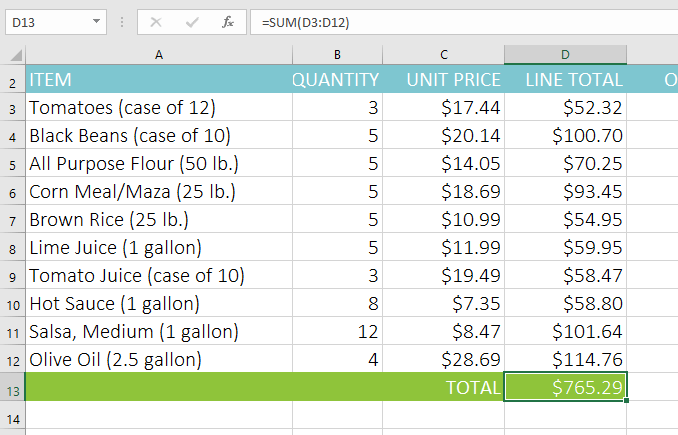
4. Press Enter on the keyboard. The function will be calculated and the result will appear in the cell. In the example, the sum of D3:D12 is $765.29.
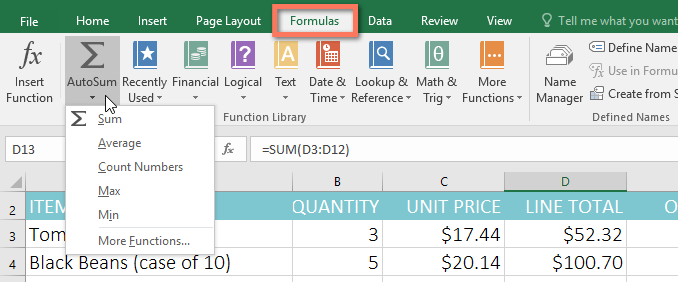
The AutoSum command can also be accessed from the Formulas tab on the Ribbon.
You can also use the keyboard shortcut Alt + = instead of the AutoSum command. To use this shortcut, hold down the Alt key and then press the equals sign.
Watch the video below to see how this shortcut works.
How to Manually Enter a Function
If you already know the function name, you can easily type it yourself. In the example below (counting cookie sales), the AVERAGE function will be used to calculate the average number of units sold by each team.
1. Select the cell that will contain the function. For example, we would select cell C10.
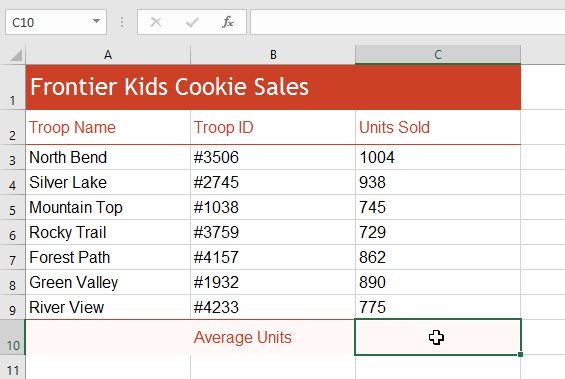
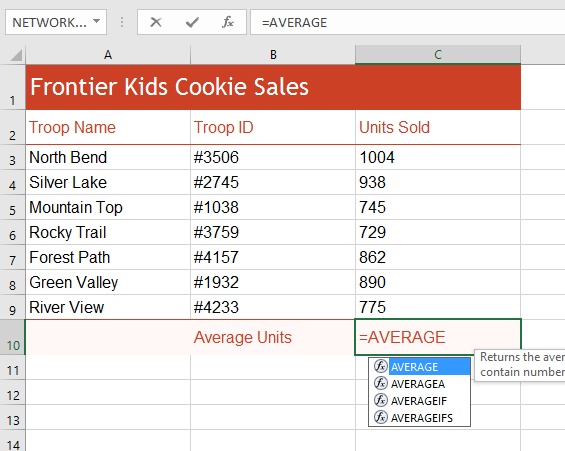
2. Enter the equals sign ( = ), then enter the desired function name. You can also select the desired function from the list of suggested functions that appear below the cell as you type. For example, you would enter =AVERAGE.
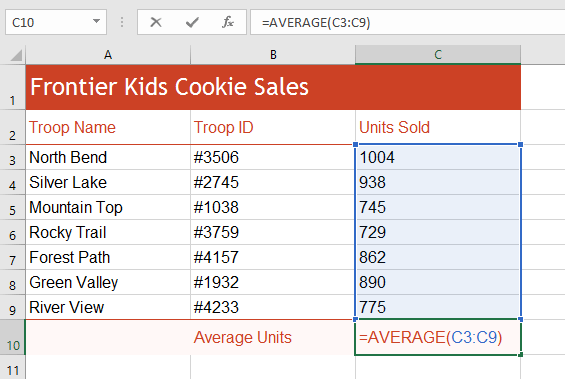
3. Enter the range of cells for the argument inside the parentheses. For example, you would enter (C3:C9). This formula will add the value of cells C3:C9 , then divide that value by the total number of values in the range.
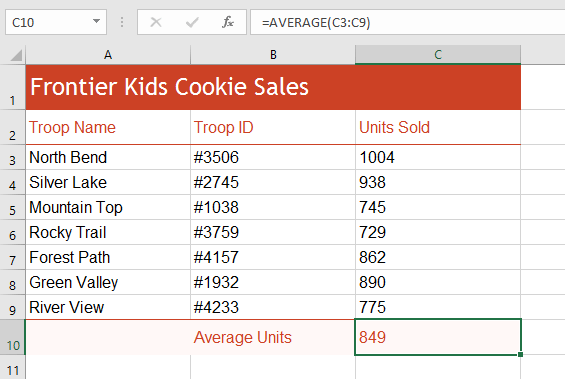
4. Press Enter on the keyboard. The function will be calculated and the result will appear in the cell. In the example, the average number sold by each team is 849.
Excel won't always tell you if your formula is wrong, so checking all your formulas will be up to you.
Function Library
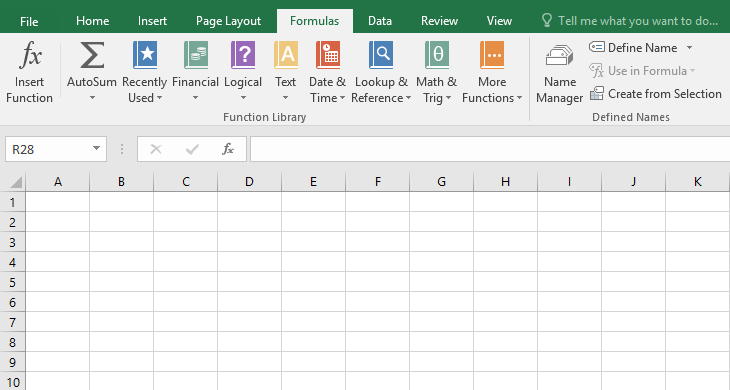
Although Excel has hundreds of functions, the ones you'll use most often will depend on the type of data in your workbook. You don't need to learn every single one, but exploring some of the different types of functions will be helpful when you create new projects. You can even use the Function Library on the Formulas tab to browse functions by category, including Financial, Logical, Text, and Date & Time .
To access the Function Library , select the Formulas tab on the Ribbon. Find the Function Library group.
How to Insert a Function from the Function Library
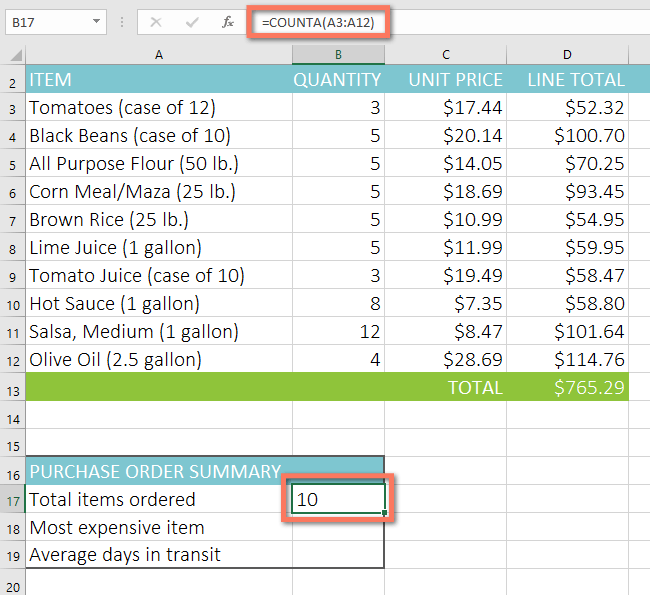
The example below will use the COUNTA function to count the total number of items in the Items column. Unlike COUNT, COUNTA can be used to count cells containing data of any type, not just numerical data.
1. Select the cell that will contain the function. For example, we would select cell B17.
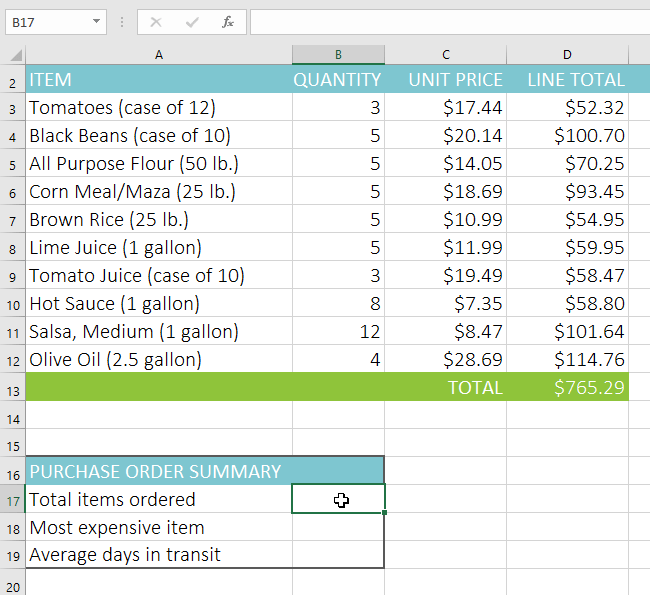
2. Click the Formulas tab on the Ribbon to access the Function Library.
3. From the Function Library group, select the desired function category. For example, select More Functions , then hover over Statistical.
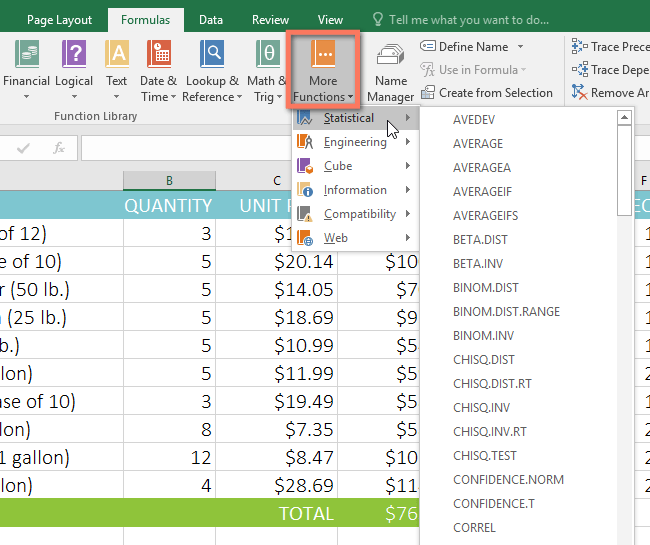
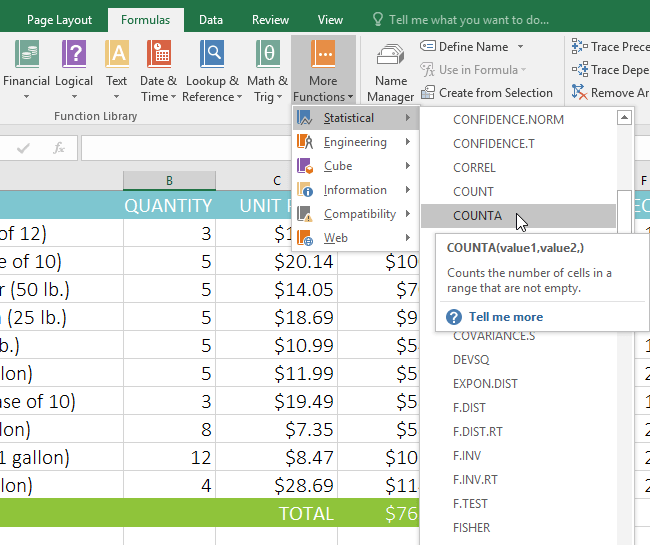
4. Select the desired function from the drop-down menu. For example, we would select the COUNTA function, which will count the number of cells in the Items column.
5. The Function Arguments dialog box will appear. Select the Value1 field, then enter or select the desired cells. For example, we would enter the range of cells A3:A12. You can continue adding arguments in the Value2 field, but in this case, the example only wants to count the number of cells in the range A3:A12.
6. When you are satisfied, click OK.
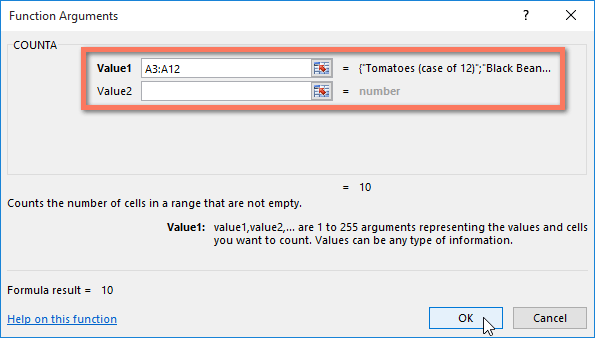
7. The function will be calculated and the result will appear in the cell. In the example, the result shows that 10 items have been ordered.
Insert Function Command
While the Function Library is a great place to browse for functions, you might sometimes prefer searching for an alternative function. You can do so using the Insert Function command. It might take some trial and error depending on the type of function you're looking for, but in practice, the Insert Function command can be an efficient way to quickly find a function.
How to Use the Insert Function Command
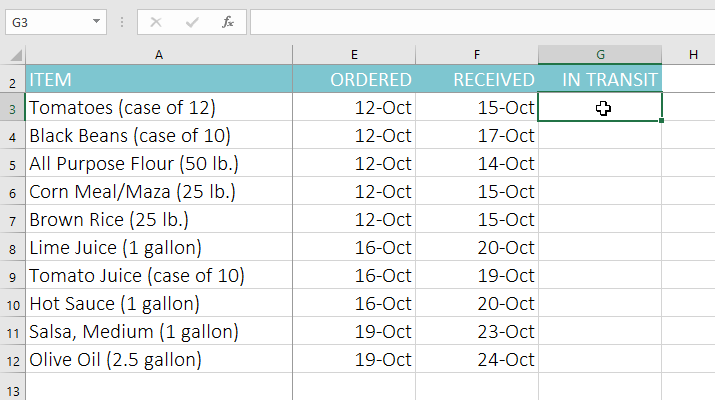
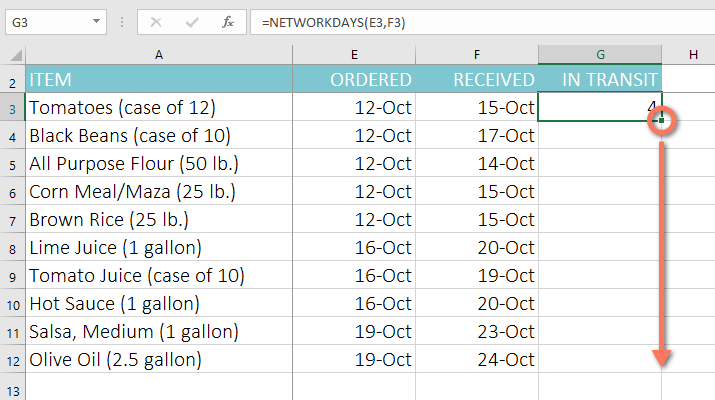
The example below seeks a function to calculate the number of days to receive items after placing an order. The example will use the dates in columns E and F to calculate the delivery time in column G.
1. Select the cell that will contain the function. For example, we would select cell G3.
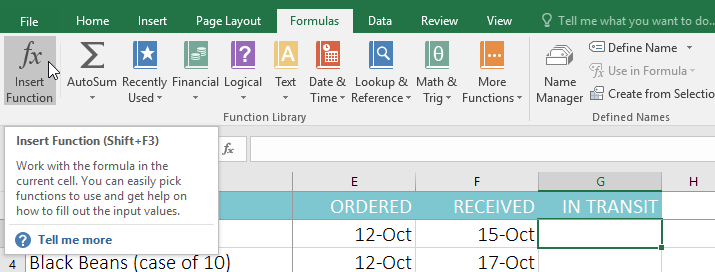
2. Click the Formulas tab on the Ribbon , then click the Insert Function command.
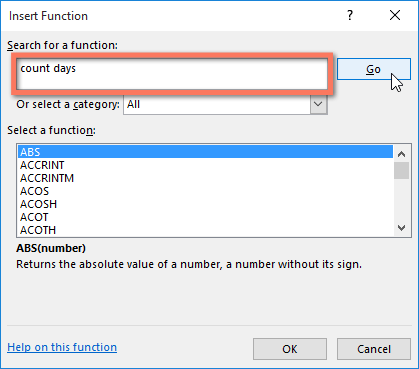
3. The Insert Function dialog box will appear.
4. Enter a few keywords describing the calculation you want the function to perform, then click Go. For example, you would enter the number of days, but you can also search by selecting a category from the drop-down list.
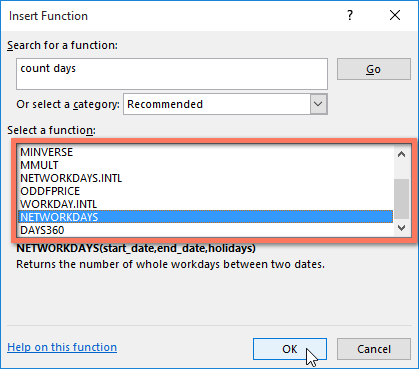
5. Review the results to find the desired function, then click OK. For example, we will select NETWORKDAYS to calculate the number of working days between the order date and the delivery date.
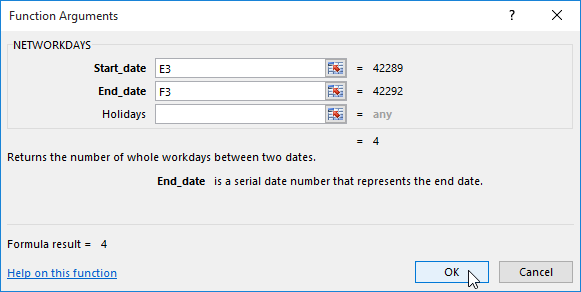
6. The Function Arguments dialog box will appear. From here, you can enter or select the cells that will form the arguments in the function. For example, you would enter E3 in the Start_date field and F3 in the End_date field.
7. When you are satisfied, click OK.
8. The function will be calculated and the result will appear in the cell. In the example, the result shows that it takes 4 business days to receive the order.
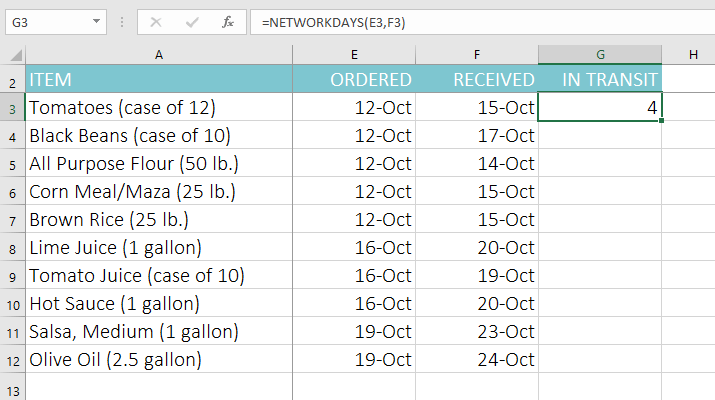
Like formulas, functions can be copied to adjacent cells. Simply select the cell containing the function, then click and drag the fill handle of the cells you want to fill. The function will be copied, and the values for those cells will be calculated relative to their rows or columns.
If you're comfortable with basic functions, you might want to try a more advanced one like the VLOOKUP function. Refer back to TipsMake.com's article on how to use the VLOOKUP function in Excel for more information.
FAQ
What is the main point of excel 2019 (part 15): functions?
Excel includes many common functions that can be used to quickly find the sum, average, count, maximum, and minimum values for a range of cells.
Why is this development important?
Key takeaway: Excel includes many common functions that can be used to quickly find the sum, average, count, maximum, and minimum values for a range of cells.
What are the key takeaways?
A function is a predefined formula that performs calculations using specific values in a particular order.
Related Articles
 Summary of Trigonometric Functions in Excel6 minutes read
 How to Fix the SUM Function Doesn't Add up in Excel3 minutes read
 Complete Financial Functions in Excel You Should Know23 minutes read
 3 Functions to Help You Stop Wasting Time in Excel8 minutes read
 MS Excel - Lesson 5: Excel Formulas and Functions7 minutes read
 Statistical Functions in Excel Include Conditional12 minutes read
Reader Comments 0
Sign in with email or Google to join the discussion.