Table of Contents
Freeze Panes keeps the rows above and columns to the left of the selected cell visible while you scroll. Use it for headers and identifying fields. For side-by-side comparison, Excel can also open another window onto the same workbook or split one worksheet into independently scrollable panes.
The screenshots show Excel 2019. Recent desktop versions use the same commands on the View tab.
Freeze several top rows
To keep rows 1 and 2 visible, select a cell in row 3 or select the entire third row.
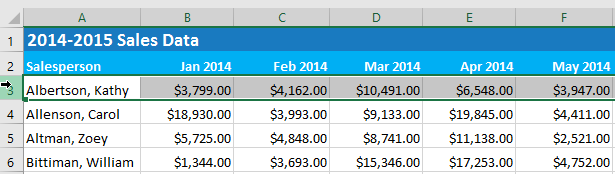
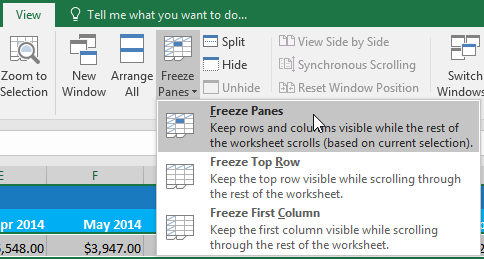
Choose View > Freeze Panes > Freeze Panes.
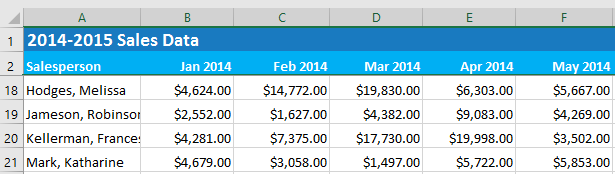
A line marks the frozen boundary. As you scroll down, rows 1 and 2 remain at the top.
Freeze Panes works from the active cell, not from the row’s contents. If the wrong rows remain visible, unfreeze first, select the correct cell, and repeat.
Freeze several left columns
To keep column A visible, select a cell in column B or select the entire B column.
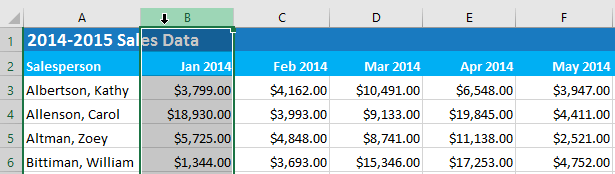
Choose View > Freeze Panes > Freeze Panes.
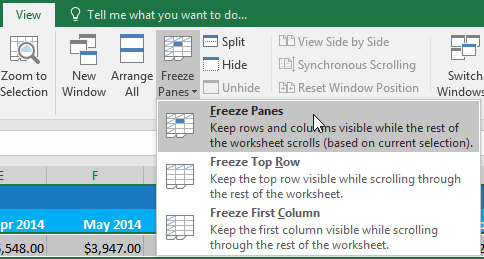
Column A remains visible when you scroll to the right.
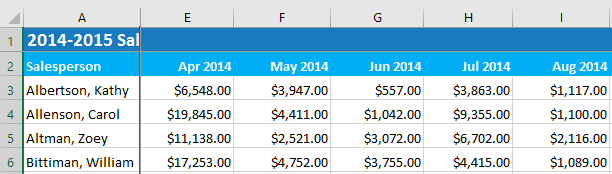
Freeze rows and columns at the same time
Select the cell immediately below the rows and immediately to the right of the columns you want to retain. For example:
- Select B2 to freeze row 1 and column A.
- Select C3 to freeze rows 1:2 and columns A:B.
Then choose View > Freeze Panes > Freeze Panes. Excel always freezes from the top edge and left edge of the sheet; it cannot freeze an isolated middle row while rows above it scroll away.
Freeze only the first row or first column
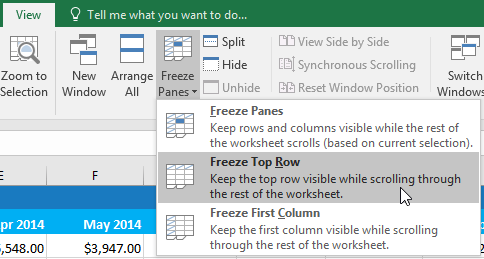
Use Freeze Top Row or Freeze First Column when one header row or one identifying column is enough. These commands do not depend on the active cell.
Unfreeze panes
Choose View > Freeze Panes > Unfreeze Panes.
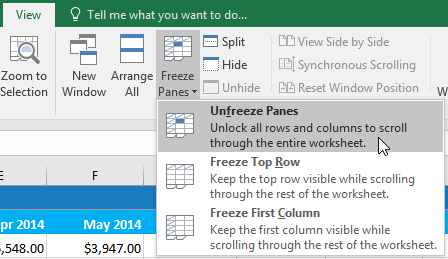
Unfreezing changes only the view. It does not delete, move, or unprotect worksheet cells. Freeze Panes is likewise not a security feature; it does not stop editing.
Open another window for the same workbook
Use a second window when you need different sheets—or distant areas of one sheet—visible at the same time.
- Choose View > New Window.
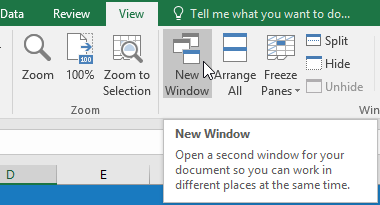
Excel opens another view of the same workbook, often identified with a suffix such as :1 and :2 in the window title.
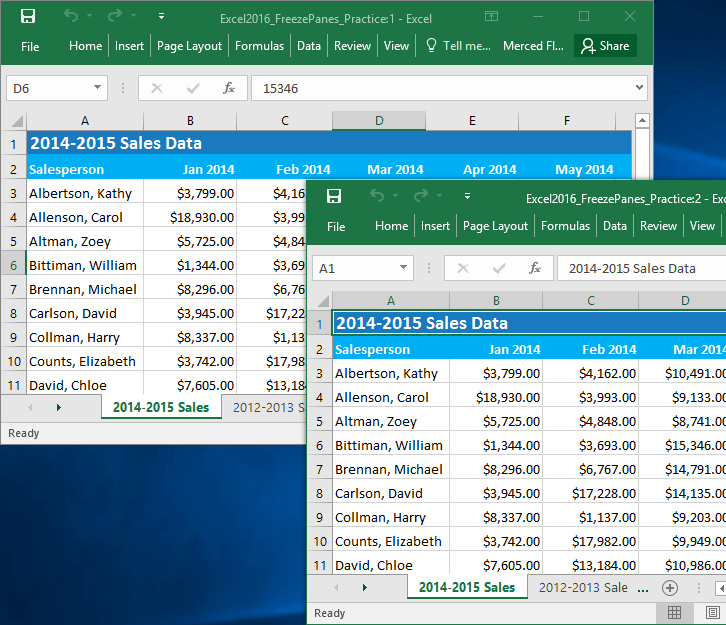
Navigate each window independently. For example, show the 2012 sheet in one and the 2013 detail sheet in the other.
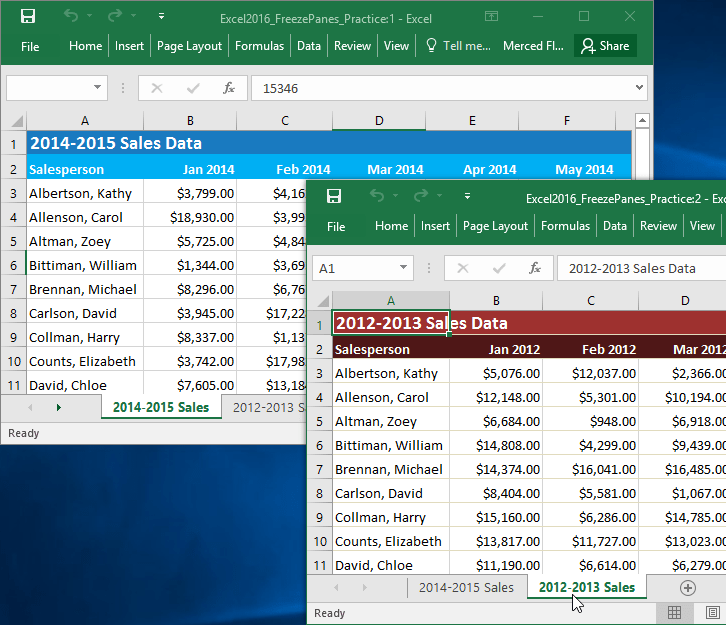
Changes made in either window affect the same open workbook; these are not separate copies. Saving from one window saves the workbook’s current state.
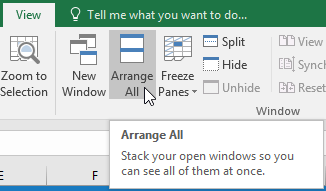
Use View > Arrange All to tile, stack, or otherwise arrange open workbook windows.
When comparison is finished, close the extra window. Confirm that at least one workbook window remains open and save as usual.
Split one worksheet into panes
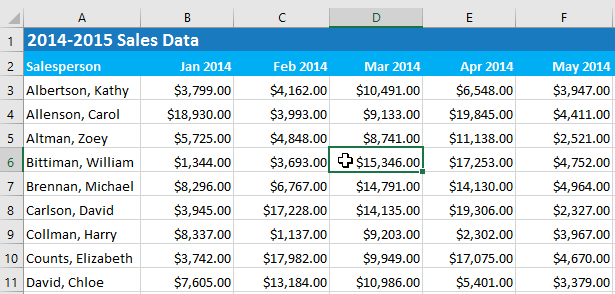
Split creates two or four views of the same sheet with separate scroll controls. Select cell D6 to place a horizontal split above row 6 and a vertical split to the left of column D.
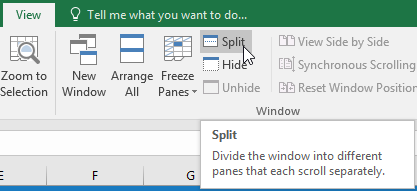
Choose View > Split.
Each pane can scroll to a different part of the same worksheet.
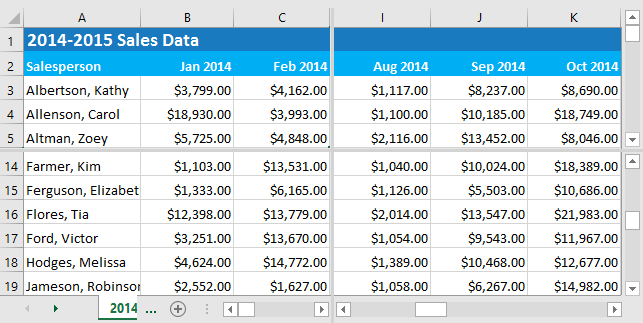
Drag a divider to resize the panes. Double-click a divider or select Split again to remove the split.
Freeze Panes, Split, or New Window?
- Freeze Panes: keep top headers or left identifiers visible while one main area scrolls.
- Split: compare distant areas on the same worksheet inside one Excel window.
- New Window: compare different sheets or workbook views side by side, especially across multiple monitors.
Freeze Panes and Split can be confusing when used together. If the view does not behave as expected, remove the split and unfreeze panes, then configure only the feature needed.
Important printing distinction
Frozen rows and columns are a screen view; they do not automatically repeat on printed pages. To repeat worksheet headings in print, use Page Layout > Print Titles. The guide to adding and repeating an Excel header row covers that separate setting.
For a version-neutral Freeze Panes walkthrough, see How to Freeze Cells in Excel. If the worksheet still requires scrolling because columns are too wide, use the page and sizing checks in the Excel A4 layout guide.
Troubleshooting
- Too many rows or columns freeze: Excel used the active cell’s position. Unfreeze and select the cell directly below and right of the required boundary.
- Freeze Panes is unavailable: exit cell-edit mode and check whether the workbook window or view has restrictions.
- The gray line is visible but headers move: it may be a split divider rather than a frozen boundary; turn Split off and try again.
- Only one row can be selected from the shortcut menu: use the general Freeze Panes command after selecting the row below the last required row.
Microsoft’s current guides explain how to freeze rows and columns and split worksheet panes.
Related Articles
 Steps to Fix 'There Are Currently No Power Options7 minutes read
 How to Fix There Are Currently No Power Options Available Windows Error5 minutes read
 Excellent Way in Excel Part 2: Complete Guide7 minutes read
 MS Excel 2007 - Lesson 2: Customizing in Excel3 minutes read
 100 Extremely Useful Excel Tips to Know - Part 111 minutes read
 Excel Doesn't Have a Developer, Don't Worry Because There Is5 minutes read
Reader Comments 0
Sign in with email or Google to join the discussion.