Table of Contents
Excel outlines let you collapse detail rows or columns without deleting them. You can create an outline manually with Group, or let the desktop Subtotal command insert summary formulas and groups for a sorted list. These tools change the worksheet structure, so keep an untouched copy when the data is important.
The screenshots show Excel 2019. Recent desktop versions place the commands under Data > Outline. Excel for the web supports basic grouping, but the automatic Subtotal command is a desktop feature.
Group rows or columns manually
- Select the complete rows or columns that contain the detail you want to collapse. The example selects columns B:D.
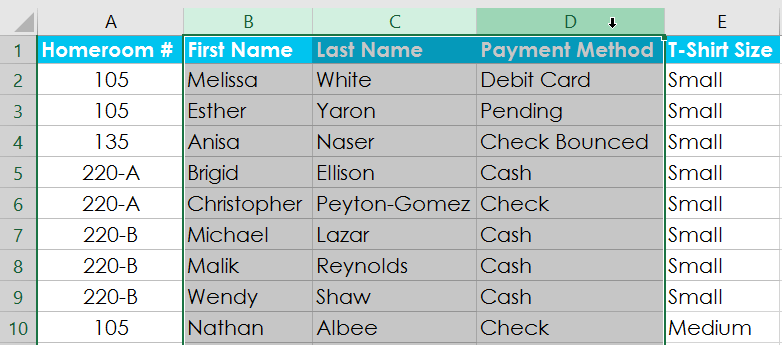
- Open Data and select Group. If only cells were selected, Excel may ask whether to group rows or columns.
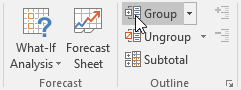
An outline bar and minus button appear beside or above the grouped detail.
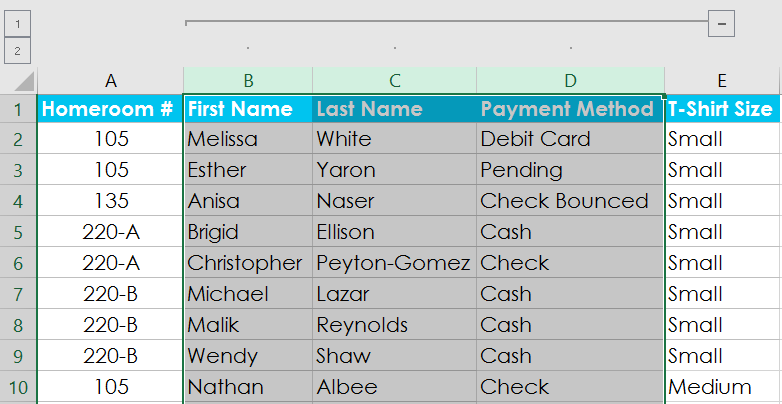
Keep the summary row or summary column outside the group. This allows the total to remain visible when the detail is collapsed. For nested outlines, group the inner detail first, then the larger outer section.
Ungroup the selected detail
Select the grouped rows or columns and choose Data > Ungroup.
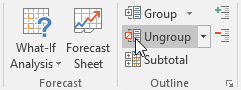
Ungroup removes that outline level; it does not delete the values. If the wrong area is grouped, ungroup it before building further nested levels.
Collapse and expand a group
Select the minus button to hide the group’s detail.
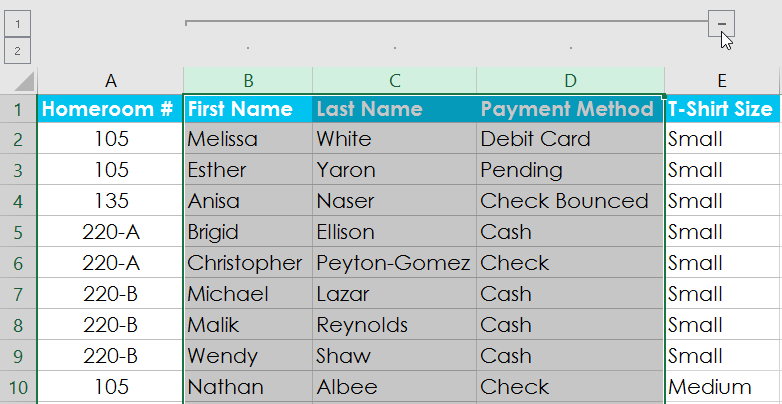
Select the plus button to show the detail again.
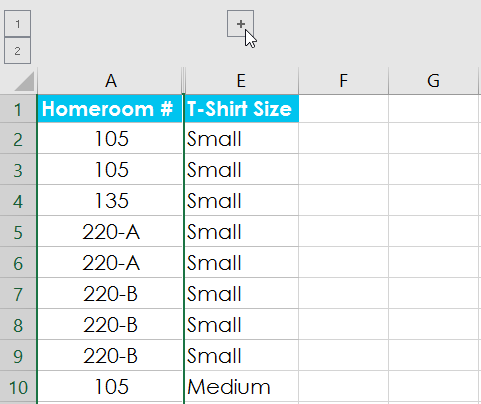
This is different from manually hiding rows or columns: the outline symbols expose the report’s intended hierarchy and make it easy to switch views.
Before using the Subtotal command
The automatic Subtotal command inserts SUBTOTAL formulas whenever the value in a chosen category column changes. Prepare the list first:
- Use one header row and one record per row.
- Remove blank rows and merged cells from the list.
- Sort by the same category that will be selected in At each change in.
- Decide whether you need a Sum, Count, Average, or another available function.
- Confirm which numeric or nonblank column should receive the subtotal formula.
Excel Tables do not support the automatic Subtotal command. If the command is unavailable, either convert the table to a normal range—losing table functionality such as structured expansion—or keep the table and create a PivotTable instead.
Insert subtotals into a sorted list
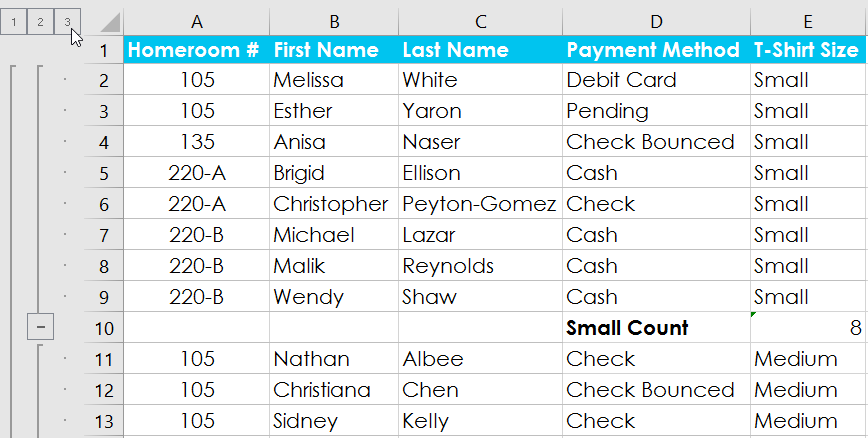
In this example, the list is sorted by T-Shirt Size so equal sizes are contiguous.
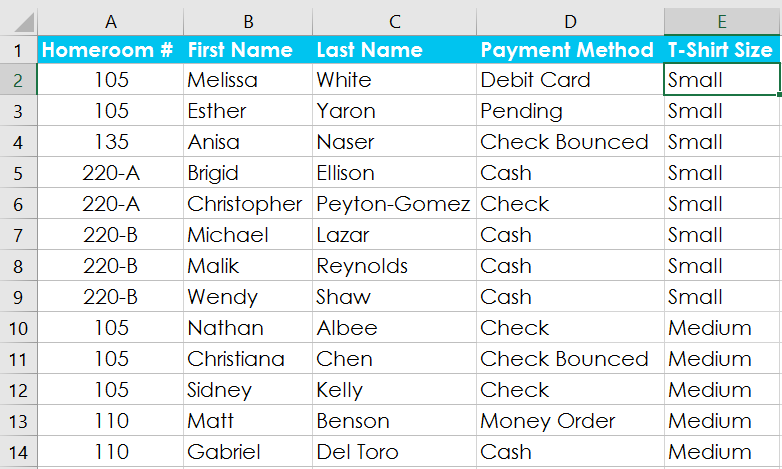
If you need help checking the sort order, use the guide to sorting Excel columns.
- Select a cell in the list.
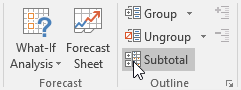
- Open Data > Subtotal.
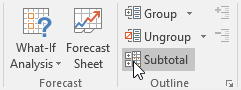
- For At each change in, choose T-Shirt Size.
- For Use function, choose the calculation the report needs.
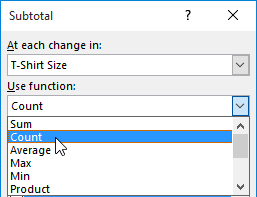
- Under Add subtotal to, select the column or columns that should contain the formulas, then select OK.
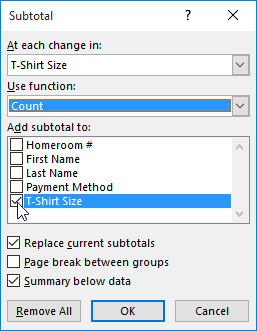
Excel inserts a subtotal row after each size group, adds a grand total, and creates an outline.
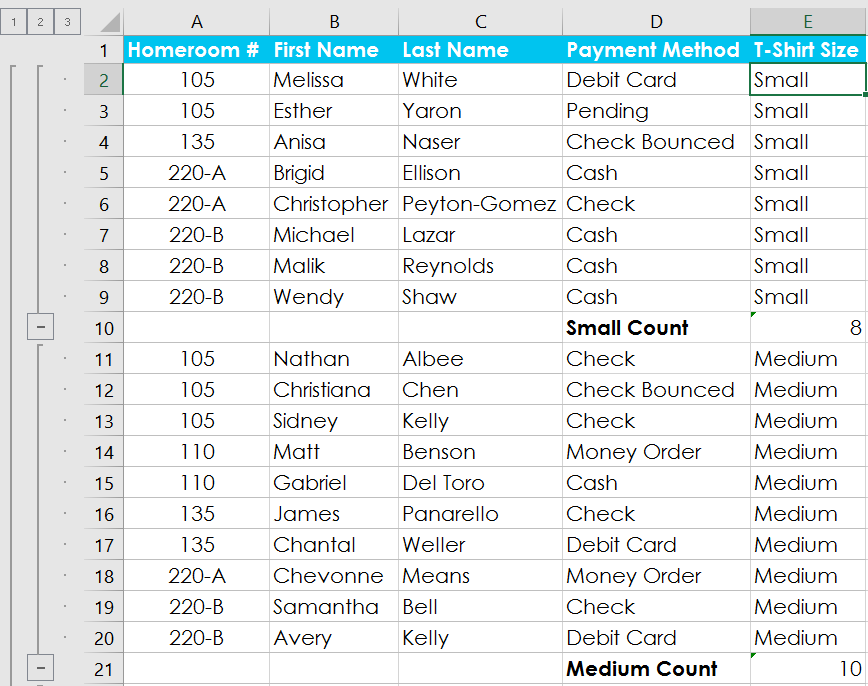
Count records or sum quantities?
Count counts nonblank cells in the selected subtotal column. It tells you the number of records only when each data row represents one record and the chosen cell is populated. If one order row can contain several shirts, counting rows does not give the total number of shirts; select Sum and subtotal the Quantity column instead.
Check the inserted formula and one group manually before relying on the report. A typical subtotal formula resembles =SUBTOTAL(9,F2:F8), where function number 9 requests a sum.
Use outline levels
The numbered outline buttons switch the whole sheet between summary and detail levels. Level 1 shows only the grand total.

Level 2 shows the subtotal rows while hiding the individual records.
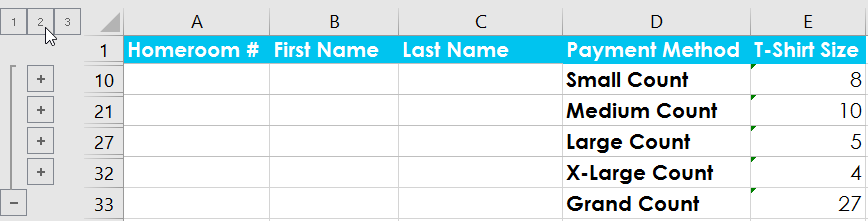
Level 3 shows all records in this example.
Individual plus and minus buttons can expand or collapse only one group.
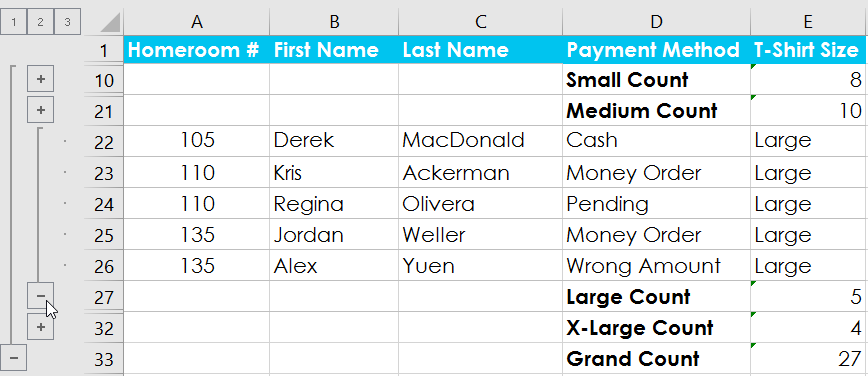
Excel can support several nested outline levels, but a deeply nested worksheet becomes hard to audit. If readers need many dimensions, a PivotTable is usually easier to rearrange and validate.
Add more than one subtotal level
To create nested subtotals—for example, Region outside Salesperson—sort by the outer category first and the inner category second. Insert the outer subtotal, then run Subtotal again for the inner category with Replace current subtotals cleared. Verify the outline and formulas afterward.
Do not add multiple levels until the first subtotal is correct. A wrong sort order creates repeated category blocks and misleading totals.
Remove subtotals
Select a cell in the subtotaled range, then open Data > Subtotal.
Select Remove All.
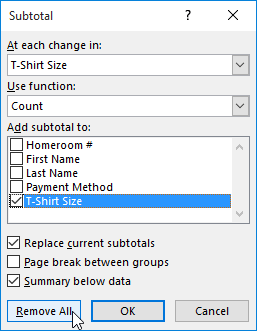
Excel removes the formulas inserted by the Subtotal command and the outline it created, while leaving the original detail records.
Remove only the outline symbols
To clear a manually created outline, open the Ungroup menu and choose Clear Outline.
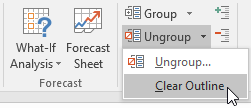
Clear Outline removes grouping but does not remove formulas that were created manually. When subtotals were inserted with the Subtotal dialog, use Remove All in that dialog so both the inserted subtotal rows and their outline are cleaned up together.
Choose Subtotal or PivotTable
- Use manual grouping to collapse known worksheet sections.
- Use the Subtotal command for a printable, sorted list with summary rows embedded in it.
- Use the SUBTOTAL worksheet function when you want formulas that respond to filtering without inserting group rows automatically.
- Use a PivotTable when categories must be rearranged, filtered, or compared across several dimensions. See How to Create PivotTables in Excel.
Microsoft’s current references explain how to outline worksheet data and insert subtotals into a list.
Related Articles
 Instructions to Enable Tab Groups in Firefox3 minutes read
 PowerPoint 2019 (Part 17): Aligning, Arranging, and Grouping Objects9 minutes read
 Adjusting Group in Excel Is Reversed6 minutes read
 Excellent Way in Excel Part 2: Complete Guide7 minutes read
 100 Extremely Useful Excel Tips to Know - Part 111 minutes read
 Excel Computer Test - Part 34 minutes read
Reader Comments 0
Sign in with email or Google to join the discussion.