Table of Contents
A workbook can contain many worksheets, each shown as a tab at the bottom of Excel. You can add, copy, rename, reorder, color, delete, and group these sheets to keep related data organized. Grouping is especially powerful because an edit made on one grouped sheet is repeated on every sheet in that group.
| Task | Best method |
|---|---|
| Add a blank sheet | Select the New Sheet (+) button |
| Duplicate a layout | Use Move or Copy and enable Create a copy |
| Reorder sheets | Drag a worksheet tab |
| Edit matching sheets together | Group the worksheet tabs temporarily |
How to insert a new worksheet
1. Locate and select the New Sheet button near the bottom right corner of the Excel window.
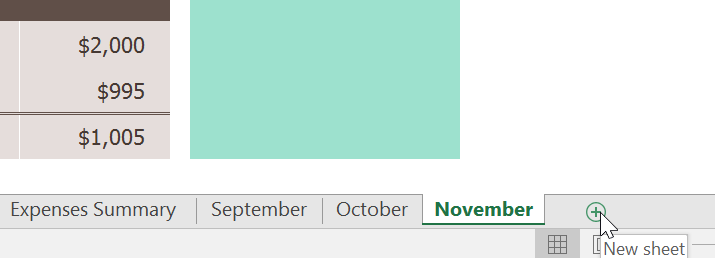
2. A new blank worksheet will appear.
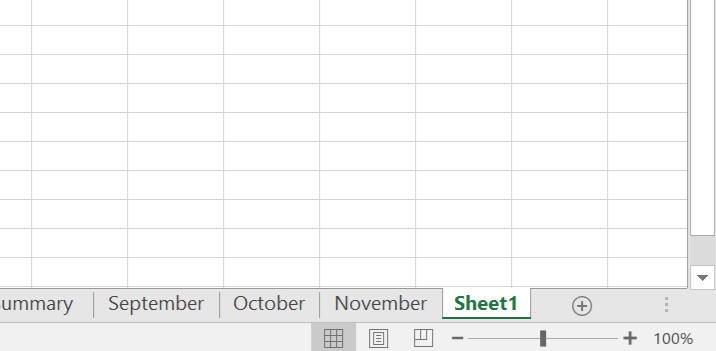
3. By default, any new workbook you create in Excel will contain one sheet, called Sheet1. To change the default number of sheets, navigate to Backstage view, click Options, and then select the desired number of sheets to include in each new workbook.
How to copy a worksheet
If you need to copy the contents of one worksheet to another, Excel allows you to copy the existing worksheet.
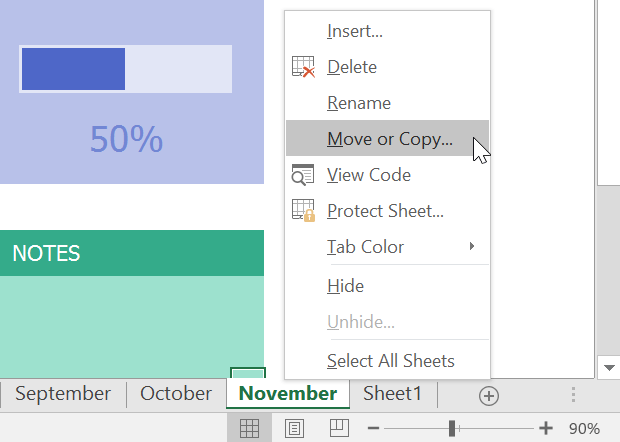
1. Right-click the worksheet you want to copy, then select Move or Copy from the worksheet menu.
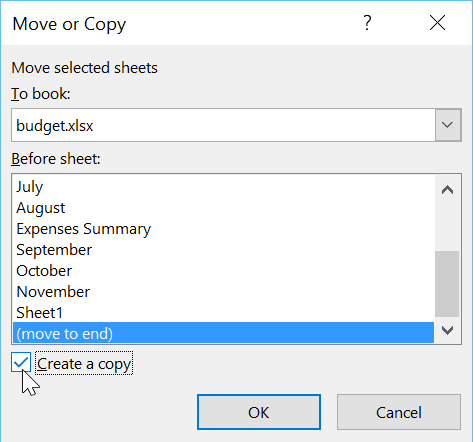
2. The Move or Copy dialog box will appear. Select the position where the sheet will appear in the Before sheet: field. For example, select (move to end) to place the sheet to the right of the existing sheet.
3. Select the box next to Create a copy, then click OK.
4. The worksheet will be copied. It will have the same title as the original worksheet, as well as the version number. For example, the November worksheet has been copied, so the new worksheet will be named November (2). All content from the November worksheet has also been copied to the new worksheet.
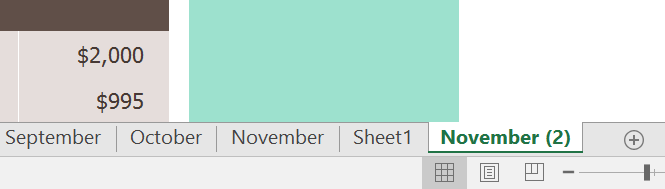
You can also copy a worksheet to a completely different workbook. You can select any currently open workbook from the To book: drop-down menu.
How to rename a worksheet
1. Right-click the worksheet you want to rename, then select Rename from the worksheet menu.
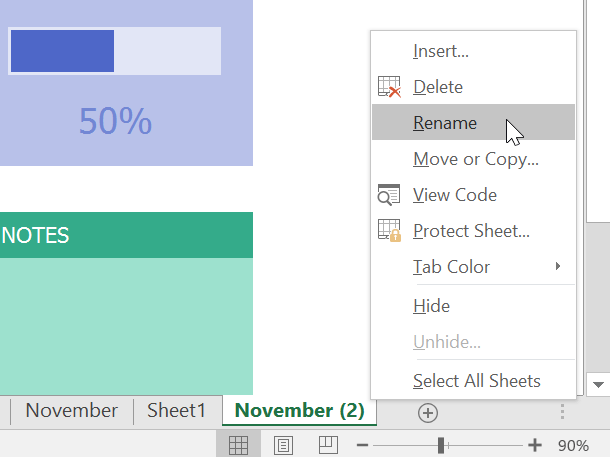
2. Enter the desired name for the worksheet.
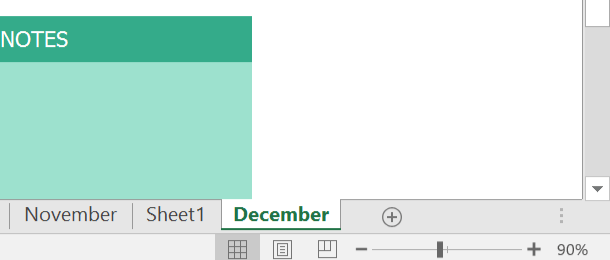
3. Click anywhere outside the worksheet tab or press Enter on your keyboard. The worksheet will be renamed.
How to move a worksheet
1. Click and drag the worksheet you want to move until a small black arrow appears above the desired location.
2. Release the mouse button. The worksheet will move.
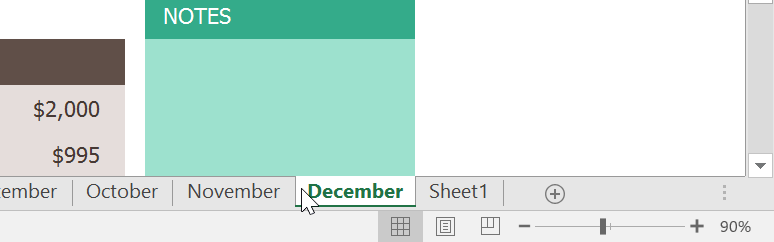
How to change worksheet tab colors
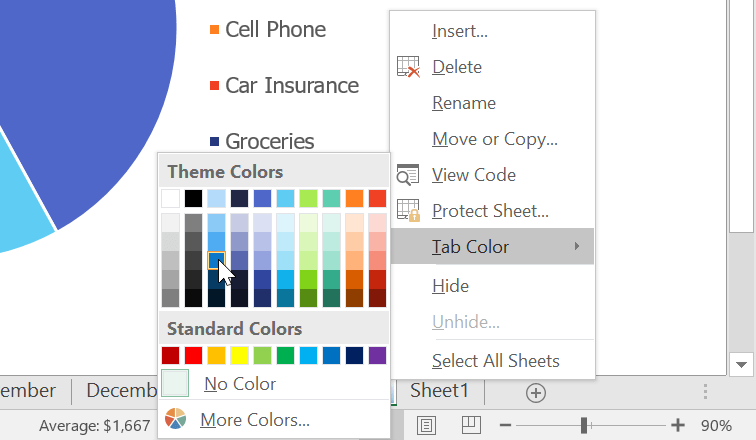
1. Right-click on the desired worksheet tab and hover over the Color tab. The Color menu will appear.
2. Choose your desired color.
3. The worksheet tab color will be changed.
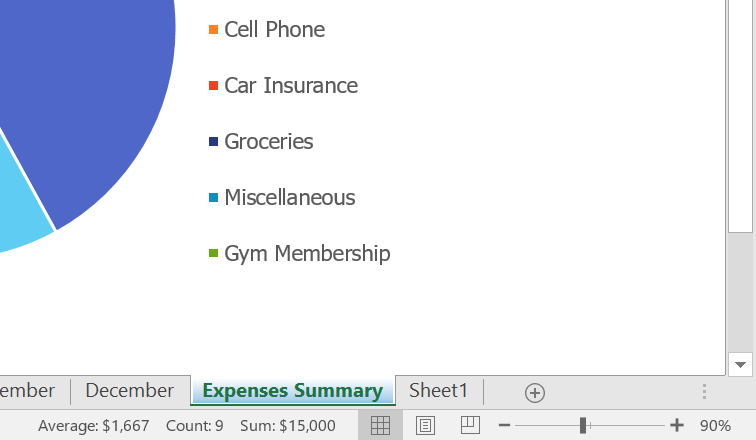
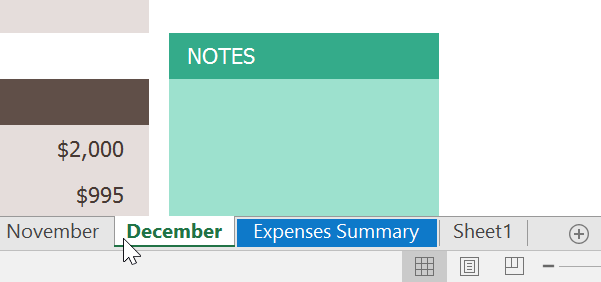
The tab color of a worksheet is significantly less noticeable when the worksheet is selected. Select a different worksheet to see how the color appears when the worksheet is not selected.
How to delete a worksheet
1. Right-click the worksheet you want to delete, then select Delete from the worksheet menu.
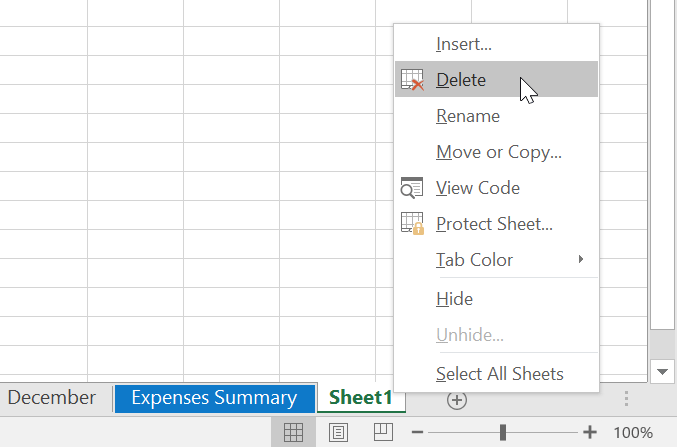
2. Confirm the deletion if Excel asks. The worksheet and its contents will be removed from the workbook.
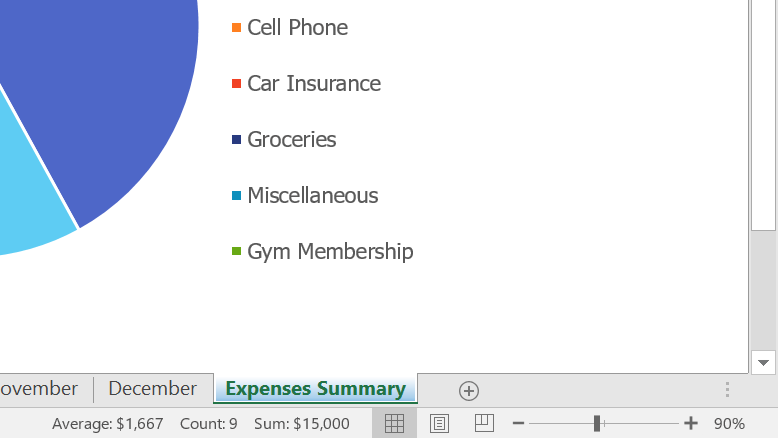
Before deleting a sheet, verify that no formulas, charts, or other sheets depend on it. Worksheet deletion may not be recoverable with Undo. Save a backup copy of the workbook when the data matters. To prevent accidental editing, use Review > Protect Sheet; remember that sheet protection is an editing control, not a substitute for a backup.
Switching between worksheets
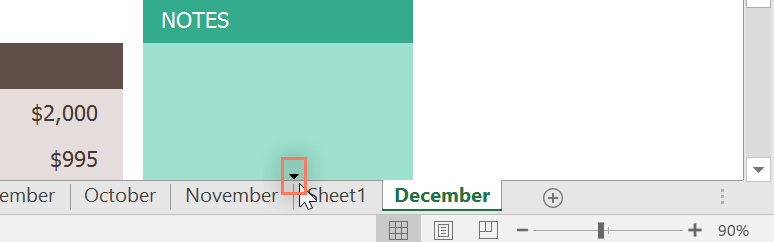
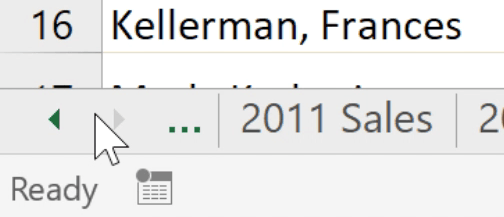
If you want to view a different worksheet, you can simply click on the corresponding tab to switch to that worksheet. However, with larger workbooks, this can sometimes become tedious, as it may require scrolling through all the tabs to find the one you want. Instead, you can simply right-click on the scroll arrows in the bottom-left corner, as shown below.
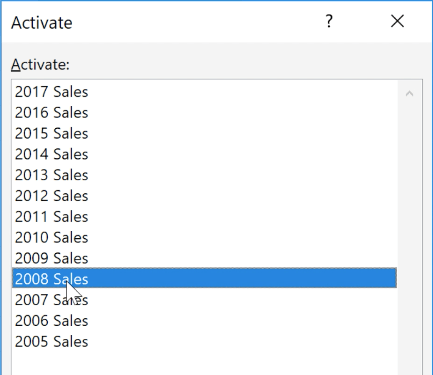
A dialog box will appear with a list of all the worksheets in the workbook. You can then double-click the worksheet you want to go to.
Watch the video below to see how this shortcut works.
Group and ungroup worksheets
Grouping lets you apply the same entry or formatting change to several worksheets at once. Use it only when the grouped sheets share the same layout, and ungroup them as soon as the shared edit is complete to avoid unintended changes.
How to group worksheets
1. Select the first worksheet you want to include in the worksheet group.

2. Press and hold the Ctrl key on your keyboard. Select the next worksheet you want in the group.

3. Continue selecting until all the worksheets you want to group are selected, then release the Ctrl key. The worksheets are now grouped.

While sheets are grouped, edits made on the active sheet are repeated at the same cell locations on the other grouped sheets. Check the selected tabs before typing, pasting, formatting, or deleting content.
How to ungroup worksheets
1. Right-click the sheet in the group, then select Ungroup Sheets from the sheet menu.
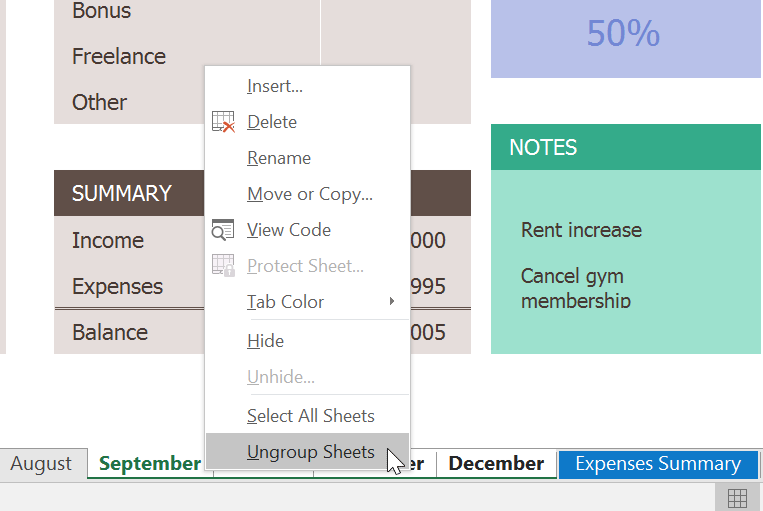
2. The worksheets will be ungrouped. You can also click on any worksheet that is not in the group to ungroup all worksheets.

Tips for workbooks with many worksheets
- Use short, specific sheet names rather than relying on Sheet1, Sheet2, and similar defaults.
- Apply tab colors consistently, such as one color per month or workflow stage.
- Keep the worksheet order predictable and place summary sheets first.
- Check for grouped tabs before making a one-sheet change.
You can also use the Name Box to jump to a range on another worksheet. If worksheet tabs have disappeared, check the setting described in how to show or hide Excel sheet tabs.
Related Articles
 Stop Using These Formulas: Excel Macros Will Do It for You!6 minutes read
 List of Common Shortcuts for Google Sheets on Chrome OS (Part 3)6 minutes read
 How to Quickly Delete Multiple Sheets in Excel3 minutes read
 Working with Sheets: Explained5 minutes read
 Complete Guide to Excel 2016 (Part 9): Working with Multiple6 minutes read
 Tips with Spreadsheets (Sheet) in Excel4 minutes read
Reader Comments 0
Sign in with email or Google to join the discussion.