Table of Contents
Excel evaluates a formula in a specific order: parentheses first, then exponents, multiplication and division from left to right, and finally addition and subtraction from left to right. Understanding that sequence helps you write multi-step formulas that return the result you intended.
Order of operations
Excel follows this order of operations:
- Parentheses: calculate expressions inside parentheses first.
- Exponents: evaluate powers such as 3^2.
- Multiplication and division: calculate from left to right.
- Addition and subtraction: calculate from left to right.
Multiplication does not always come before division, and addition does not always come before subtraction. Operators at the same level are evaluated from left to right.
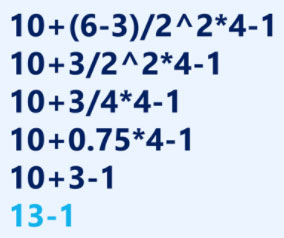
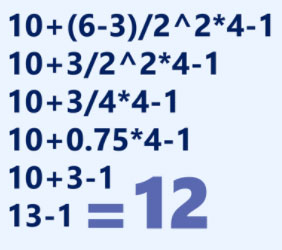
Although this formula may seem complicated, follow the steps to find the correct answer.

First, we'll start by performing the calculation inside the parentheses. In this case, it's 6 - 3 = 3.

As you can see, the formula has become simpler. Next, let's see if there are any exponents. There are 2^2 = 4.
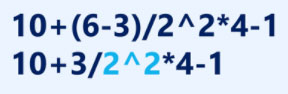
Next, we will solve any multiplication and division problems, in order from left to right. Because division appears first when reading this part of the expression from left to right, calculate: 3/4 = 0.75.
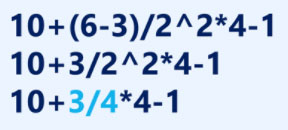
Now, we'll calculate the remaining multiplication: 0.75 * 4 = 3.
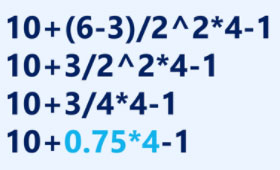
Next, perform any addition or subtraction calculations, again in order from left to right. Addition comes first: 10 + 3 = 13.
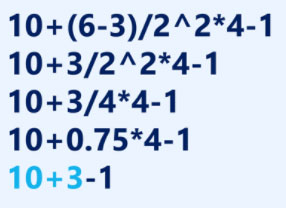
Finally, perform the remaining subtraction: 13 - 1 = 12.
Now, we have the answer: 12. And this is the exact result you will get if you enter the formula into Excel.
Build a complex formula in Excel
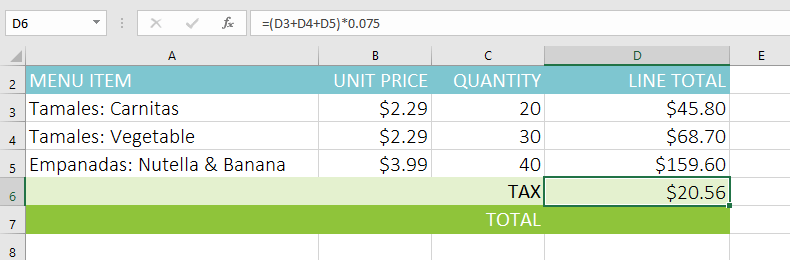
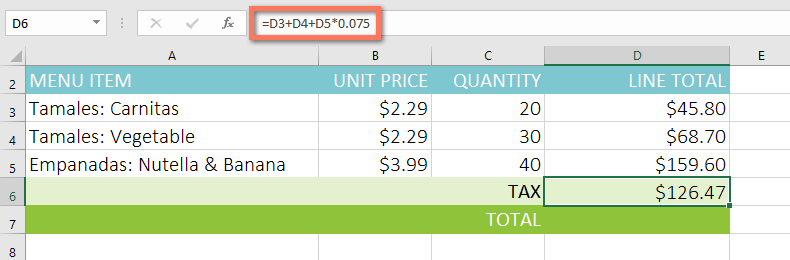
Suppose cells D3 through D5 contain item prices and you need to calculate 7.5% sales tax. Enter =(D3+D4+D5)*0.075 in cell D6. The parentheses force Excel to add the prices before multiplying the subtotal by the tax rate.
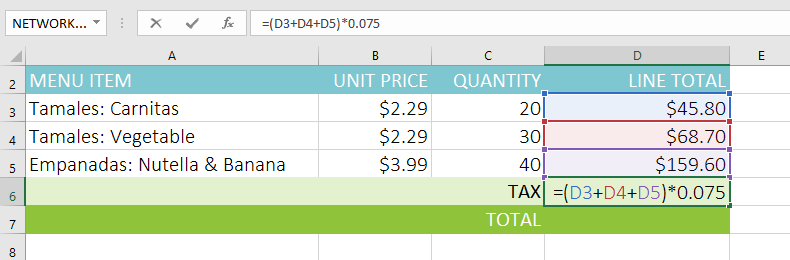
Excel follows the order of operations. First, add the values inside the parentheses: (45.80 + 68.70 + 159.60) = 274.10. Then, multiply that value by the tax rate: 274.10 * 0.075. The result will show that the sales tax is $20.56.
Parentheses make the intended calculation explicit. Without them, Excel would multiply D5 by 0.075 first and then add D3 and D4, producing a different result. Excel can evaluate a syntactically valid formula even when its logic is wrong, so verify the result against a simple manual estimate.
How to create a complex formula using the order of operations
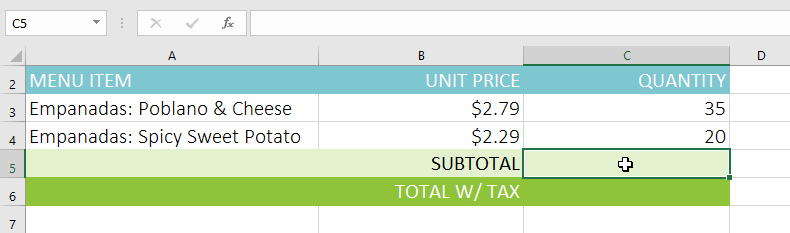
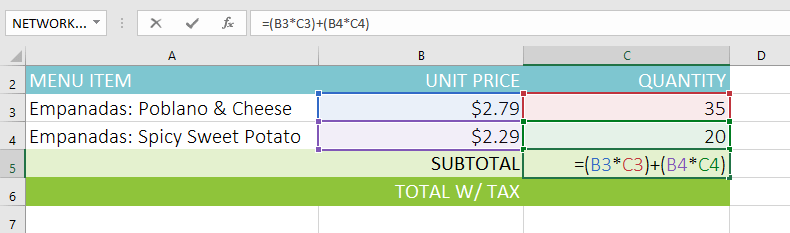
The example below uses cell references along with numerical values to create a complex formula that calculates the subtotal for a food and beverage bill. The formula calculates the cost of each item on the menu first, then adds those values together.
1. Select the cell that will contain the formula. For example, we would select cell C5.
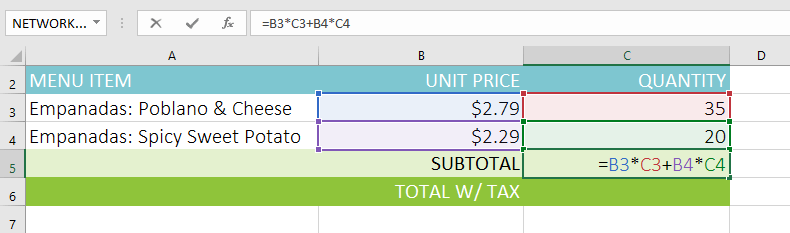
2. Enter the formula. For example, you would enter =B3*C3+B4*C4. This formula will follow the order of operations, first performing the multiplication: 2.79*35 = 97.65 and 2.29*20 = 45.80. Then, it will add these values to calculate the sum: 97.65+45.80.
3. Double-check the accuracy of the formula, then press Enter on the keyboard. The formula will be calculated and the result displayed. In the example, the result shows the subtotal of the order is $143.45.
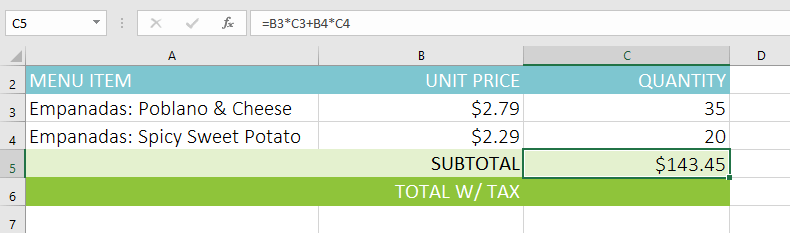
You can also write the example as =(B3*C3)+(B4*C4). The extra parentheses do not change the result, but they separate the line-item calculations and make the formula easier to audit.
Check a complex formula before reusing it
- Confirm that the formula begins with an equals sign.
- Check every cell reference and operator.
- Use parentheses when the intended grouping is not obvious.
- Compare the result with an approximate calculation before copying the formula to other cells.
For a broader introduction to functions and formula components, see Excel formulas and functions.
Related Articles
 A Complete Guide to Excel 2016 (Part 14): Create Complex Formulas6 minutes read
 Excel 2019 (Part 12): Introduction to Formulas9 minutes read
 How to Hide Formulas in Excel3 minutes read
 How to Use ChatGPT to Write Excel Formulas9 minutes read
 MS Excel - Lesson 5: Excel Formulas and Functions7 minutes read
 How to Create Complex Formulas5 minutes read
Reader Comments 0
Sign in with email or Google to join the discussion.