Table of Contents
An Excel formula is an expression that calculates a result from numbers, cell references, operators, or functions. Every formula begins with an equals sign (=). Using cell references instead of typing values directly lets Excel recalculate the result whenever the source data changes.
Mathematical operators in Excel
| Operation | Operator | Example |
|---|---|---|
| Addition | + | =A1+B1 |
| Subtraction | - | =A1-B1 |
| Multiplication | * | =A1*B1 |
| Division | / | =A1/B1 |
| Exponent | ^ | =A1^2 |
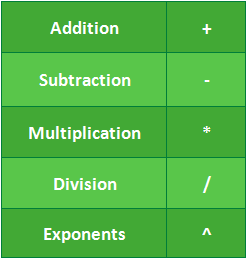
All formulas in Excel must begin with an equals sign (=). This is because the cell contains the formula and the value it calculates.
Why formulas use cell references
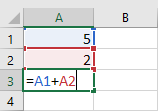
You can calculate with fixed numbers, such as =2+2, but most worksheets use cell addresses. For example, =A1+A2 adds the current values in A1 and A2. If either value changes, Excel recalculates the formula automatically, so you do not have to rewrite it.
In the formula below, cell A3 calculates the sum of the values in cells A1 and A2 by creating a cell reference:
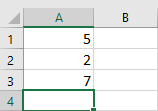
When you press Enter, the formula will calculate and display the answer in cell A3:
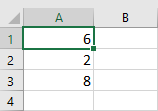
If the values in the referenced cells change, the formula will automatically recalculate:
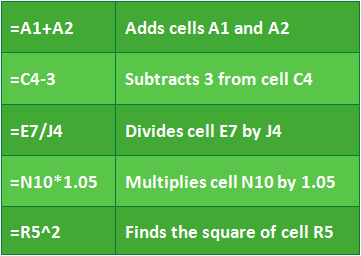
By combining a mathematical operator with a cell reference, you can create many simple formulas in Excel. Formulas can also include a combination of cell references and numbers, as in the examples below:
How to create a formula
The example below will use a simple formula and cell references to calculate the budget.
1. Select the cell that will contain the formula. For example, we would select cell D12.
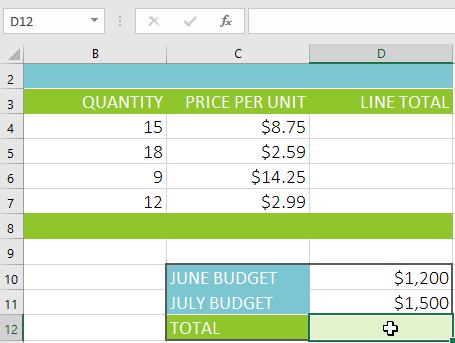
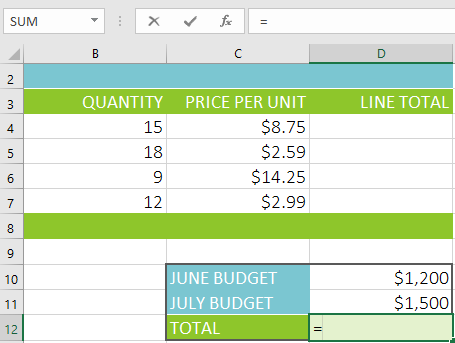
2. Type the equals sign (=). Note how it appears in both the cell and the formula bar.
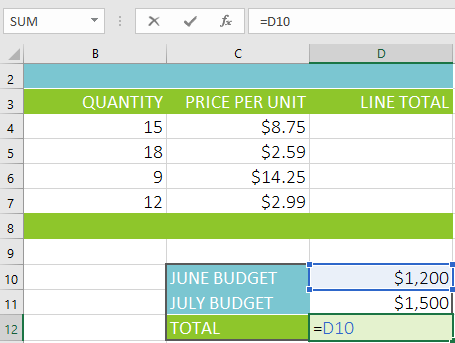
3. Enter the address of the cell you want to reference first in the formula—cell D10 in the example. A blue border will appear around the referenced cell.
4. Enter the mathematical operator you want to use. For example, you would enter the plus sign (+).
5. Enter the address of the second cell you want to reference in the formula—cell D11 in the example. A red border will appear around the referenced cell.
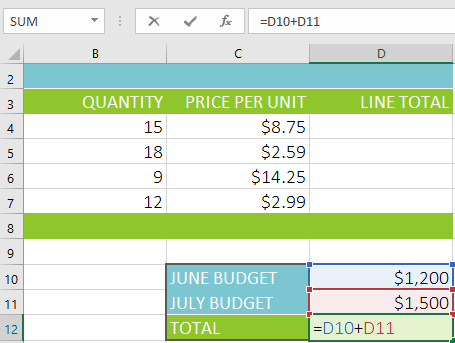
6. Press Enter on your keyboard. The formula will be calculated and the value will be displayed in the cell. If you select the cell again, note that the cell displays the result, while the formula bar displays the formula.
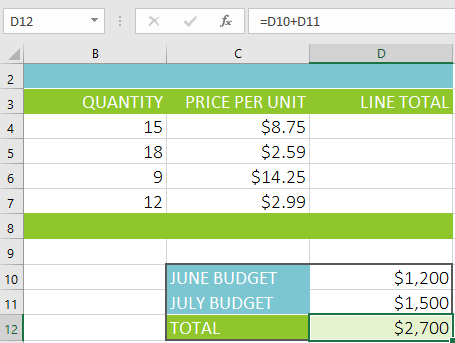
If a numeric result appears as #######, the column is usually too narrow to display it. Widen the column and check the cell's number format. This display does not normally mean the underlying formula has been deleted.
Update source values without rewriting formulas
The real advantage of cell references is that they allow you to update data in your spreadsheet without having to rewrite formulas. The example below modifies the value of cell D10 from $1,200 to $1,800. The formula in D12 will automatically recalculate and display the new value in cell D12.
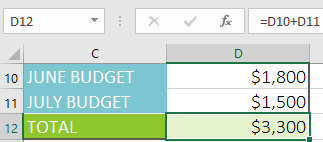
Excel can calculate a valid formula even when it references the wrong cells. Check the cell addresses and compare the result with a quick estimate before relying on it.
How to create formulas using the point-and-click method
Instead of manually entering cell addresses, you can point and click on the cells you want to include in the formula. This method can save a lot of time and effort when creating formulas. The example below will create a formula to calculate the cost of ordering a number of plastic silverware boxes.
1. Select the cell that will contain the formula. For example, we would select cell D4.
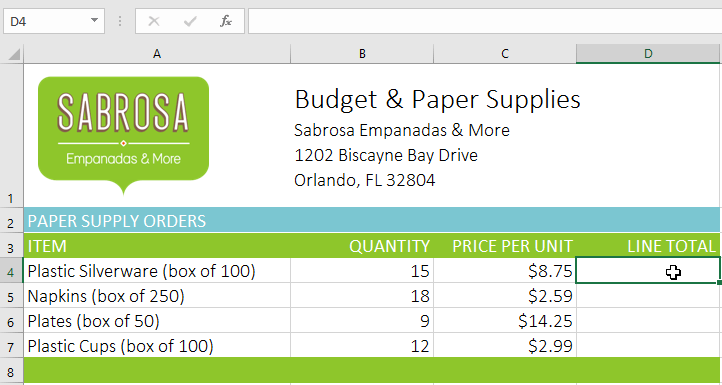
2. Type the equals sign (=).
3. Select the cell you want to reference first in the formula—cell B4 in the example. The cell address will appear in the formula.
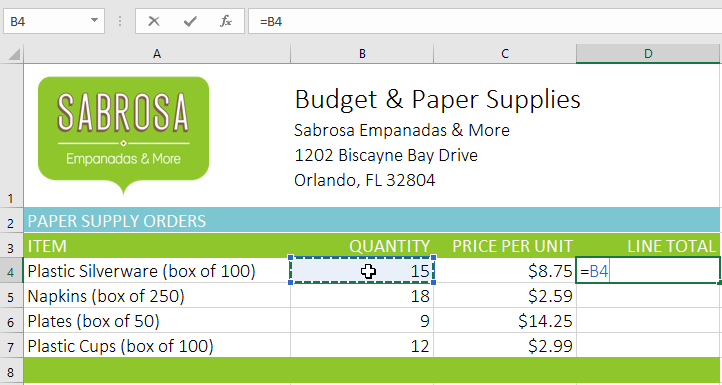
4. Enter the mathematical operator you want to use. For example, you would enter the multiplication sign (*).
5. Select the cell you want to reference second in the formula—cell C4 in the example. The cell address will appear in the formula.
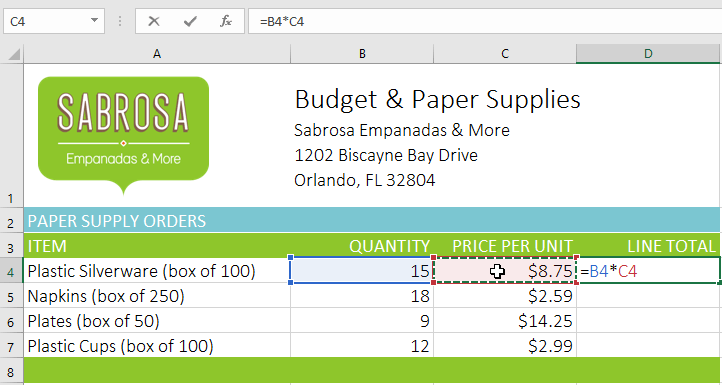
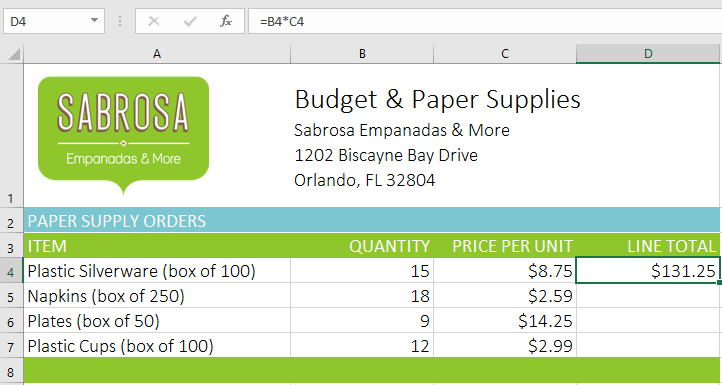
6. Press Enter on the keyboard. The formula will be calculated and the value will be displayed in the cell.
Copy formulas with the fill handle
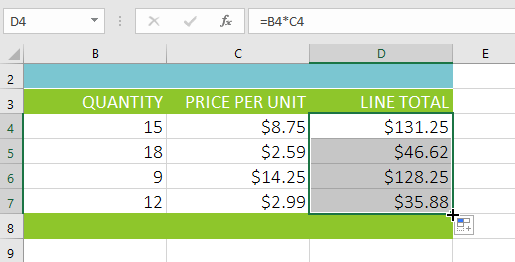
Formulas can also be copied to adjacent cells using the Fill Handle, which can save a lot of time and effort if you need to perform the same calculation multiple times in a worksheet. The Fill Handle is the small square in the lower right corner of the selected cell(s).
1. Select the cell containing the formula you want to copy. Click and drag the Fill Handle to the cells you want to fill.
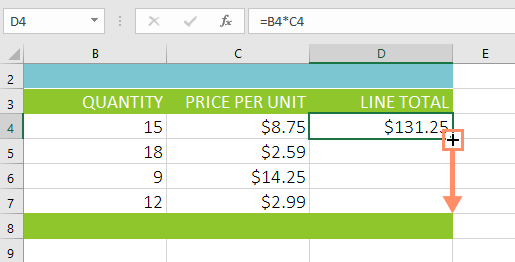
2. After you release the mouse button, the formula will be copied to the selected cells.
How to edit a formula
Sometimes you might want to modify an existing formula. The example below entered an incorrect cell address in its formula, so it needs to be edited.
1. Select the cell containing the formula you want to edit. For example, we would select cell D12.
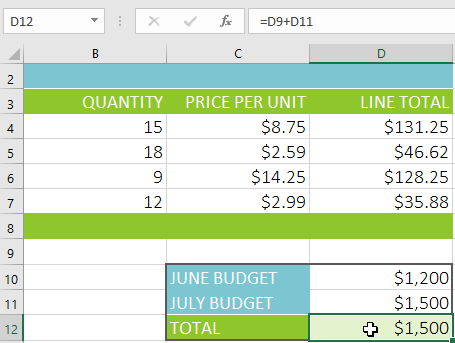
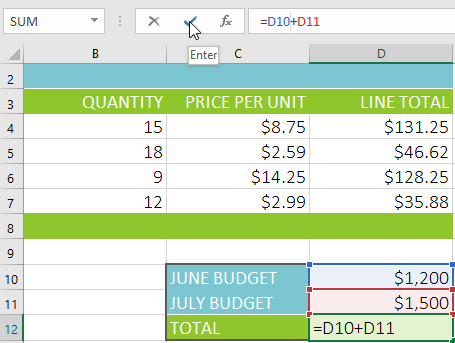
2. Click on the formula bar to edit. You can also double-click on a cell to view and edit the formula directly within the cell.
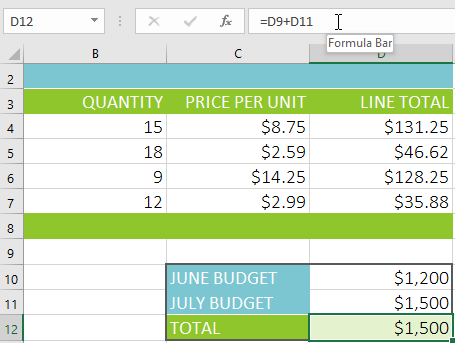
3. A border will appear around any referenced cell. For example, this would change the first part of the formula to reference cell D10 instead of cell D9.
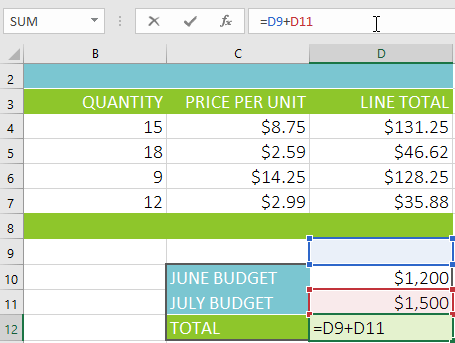
4. When you're finished, press Enter on your keyboard or select the Enter command in the formula bar.
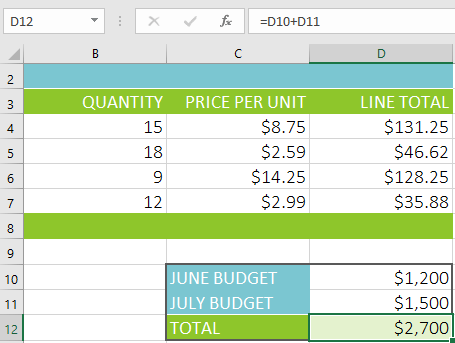
5. The formula will be updated and the new value will be displayed in the cell.
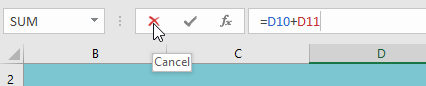
If you change your mind, you can press the Esc key on your keyboard or click the Cancel command in the formula bar to avoid accidentally making changes to the formula.
Show formulas and troubleshoot errors
Press Ctrl + ` to show formulas instead of results throughout the worksheet; press the shortcut again to return to normal view. The grave-accent key is usually near the upper-left corner of the keyboard.
For more background, read Excel formulas and functions. If Excel reports a loop between formulas, see how to fix a circular reference error.
Related Articles
 Complete Guide to Excel 2016 (Part 13): Introduction to Formulas9 minutes read
 How to Hide Formulas in Excel3 minutes read
 MS Excel - Lesson 5: Excel Formulas and Functions7 minutes read
 Guidelines for Importing Chemistry Formulas in Excel4 minutes read
 Instructions on How to Copy Formulas in Excel: Excel Functions4 minutes read
 Excel 2019 (Part 13): Creating Complex Formulas6 minutes read
Reader Comments 0
Sign in with email or Google to join the discussion.