Table of Contents
Sorting rearranges rows according to the values in one or more columns. Excel can sort text, numbers, dates, colors, and custom sequences, but the selection must include every related column. Sorting only one column in a record list can detach names, dates, amounts, and IDs from one another.
The screenshots show Excel 2019. Recent desktop versions and Excel for the web use similar Sort controls, although some advanced options differ.
Choose the correct sort scope
For one connected data set, sort the entire record range. Excel then moves each row as a unit while ordering it by the chosen column.
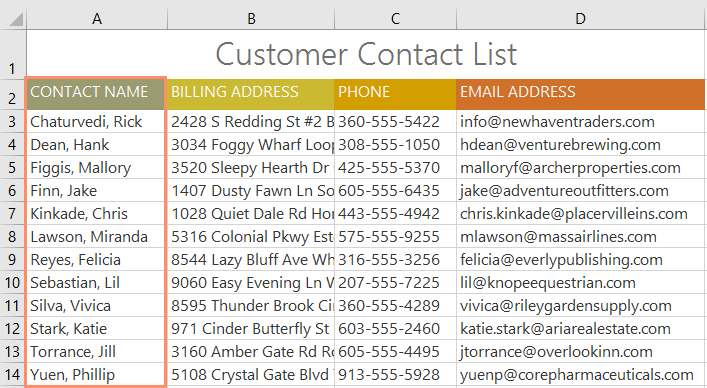
Sort only a smaller selected range when it is a genuinely independent table and should not move the surrounding content.
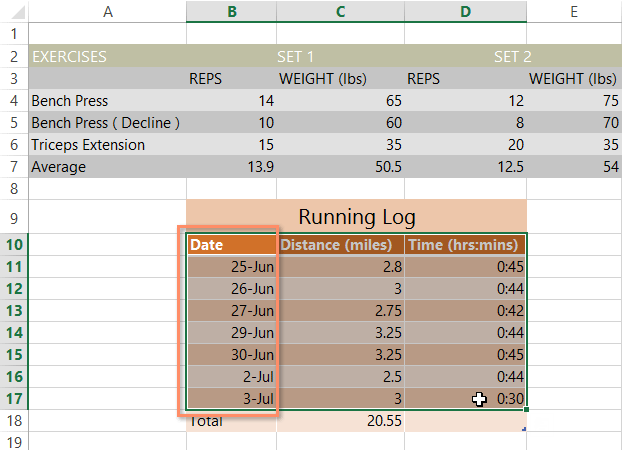
Before sorting
- Keep one header row with no blank header cells.
- Remove merged cells and blank rows that split the list.
- Use one data type per column: real dates, numeric amounts, or text identifiers.
- Save or make a copy if the current order is important; Undo may not remain available after later edits or saving.
- Add a permanent sequence column before sorting if you may need to restore the original order.
Quickly sort a complete list
To sort t-shirt orders by Last Name, select one cell in the Last Name column, such as C2.
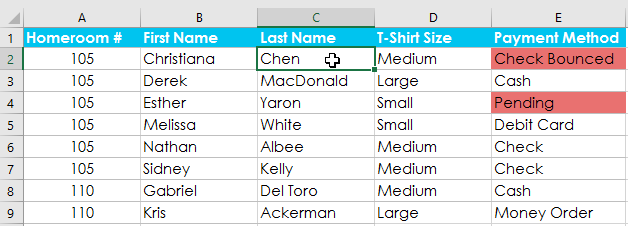
On the Data tab, choose A to Z for ascending text or Z to A for descending text.
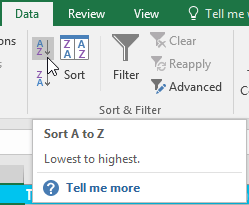
Excel sorts the records by last name and keeps the cells in each row together.
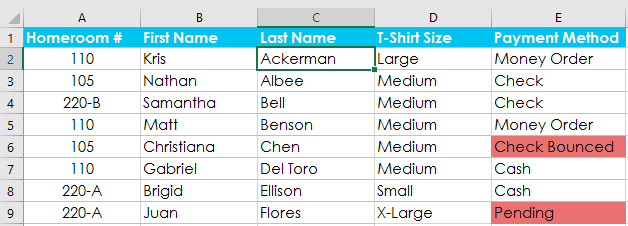
If Excel asks whether to expand the selection, choose Expand the selection for a connected record list. Choose Continue with the current selection only when the selected cells are independent and intentionally need to move alone.
Sort an independent range
Select the complete small table, such as G2:H6. Include its headings if the Sort dialog should recognize column names.
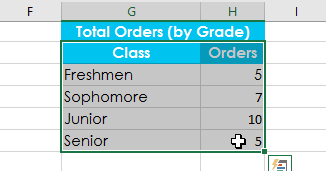
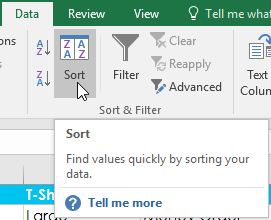
Choose Data > Sort.
In the Sort dialog, confirm My data has headers, then select the Orders column.
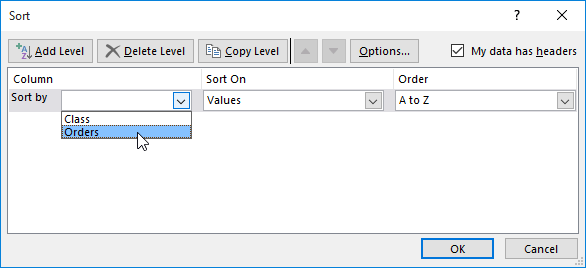
Choose Largest to Smallest and select OK.
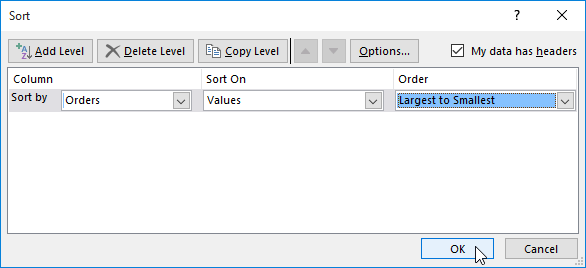
Only the selected independent table is rearranged.
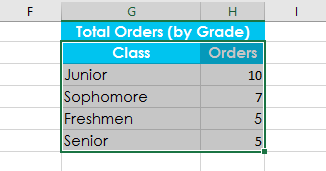
Do not use this limited-range method on columns that form part of a larger record list. If the classes in G2:G6 and order counts in H2:H6 must stay paired, both columns must be selected.
Why a sort order may look wrong
Inconsistent text changes the sequence. A missing hyphen, leading or trailing space, different spelling, or hidden character can place an apparently similar value elsewhere.
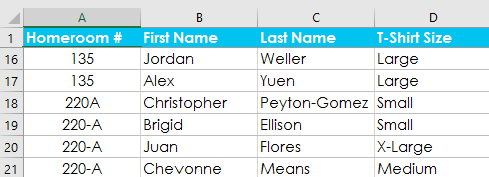
- Numbers sort like text: some cells contain numeric text. Convert the whole column to numbers before sorting.
- Dates sort alphabetically: some entries are text rather than Excel date values.
- Header moves into the data: open the Sort dialog and enable My data has headers.
- Blanks split the selection: select the full range explicitly or convert it to an Excel Table.
- Rows no longer match: only one column was sorted. Undo immediately if possible and repeat with the full record range.
Data Validation can reduce inconsistent future entries; see how to limit Excel input values.
Sort with a custom list
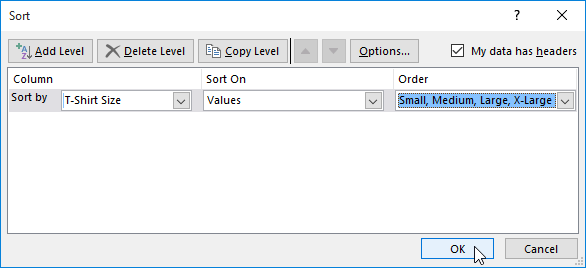
Alphabetical order is wrong for sequences such as Small, Medium, Large, X-Large or High, Medium, Low. Use a custom list.
Select a cell in the T-Shirt Size column.
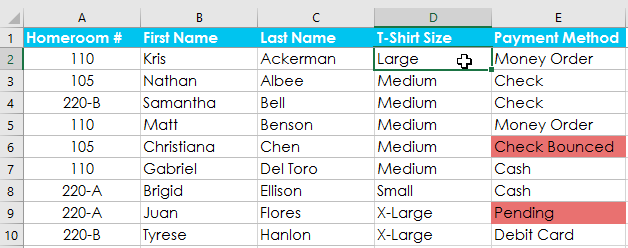
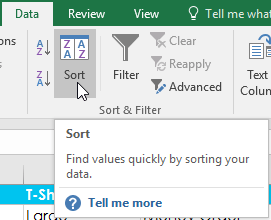
Choose Data > Sort.
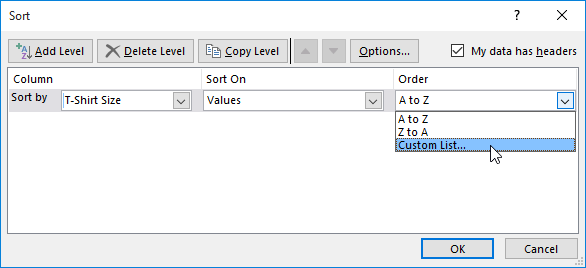
Set Sort by to T-Shirt Size, leave Sort On as Cell Values, and choose Custom List in Order.
In Custom Lists, select NEW LIST and enter one item per line in the exact required order:
Small
Medium
Large
X-Large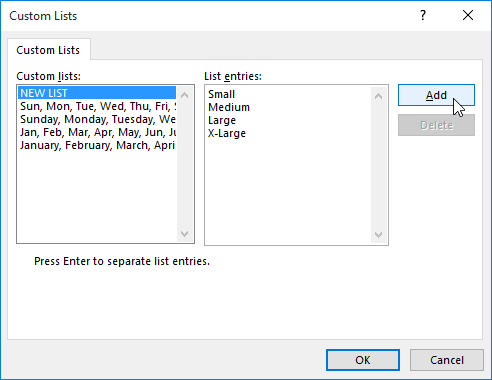
Select Add, select the saved list, and choose OK.
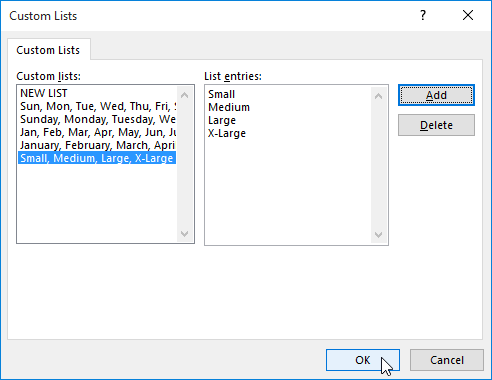
Confirm the Sort dialog.
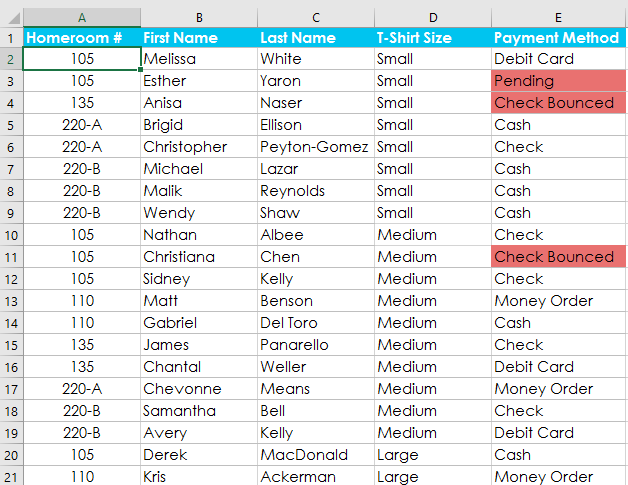
The rows are arranged in the custom size order.
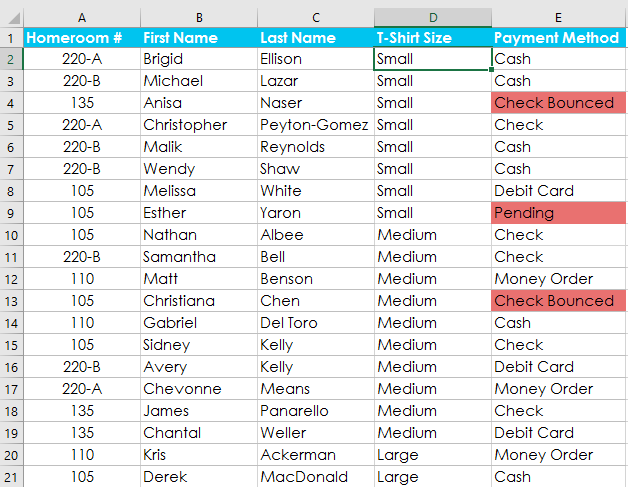
Every spelling in the data must match the custom-list item. Decide where unexpected or blank values should appear and review them after sorting. Custom lists are stored in the local Excel settings, so another user or computer may not have the same reusable list even though the workbook retains its current row order.
Sort by multiple columns
A multi-level sort applies the first rule, then uses the next rule only to order rows tied on the earlier rule. In this example, size is the primary key and Homeroom # is the secondary key.
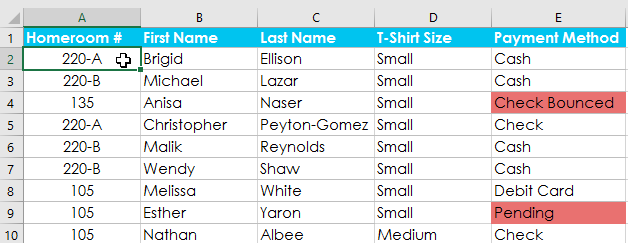
Select a cell in the record range.
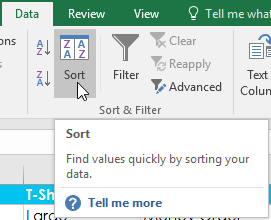
Choose Data > Sort.
Set the first level to T-Shirt Size with the custom order, then select Add Level.
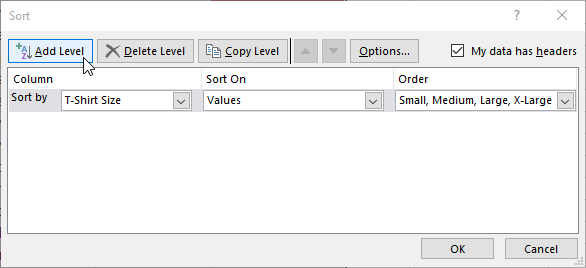
Set the second level to Homeroom # and choose the desired ascending or descending order.
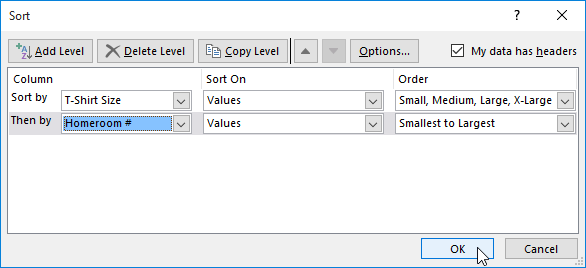
Excel first groups rows by size and then orders each size group by homeroom.
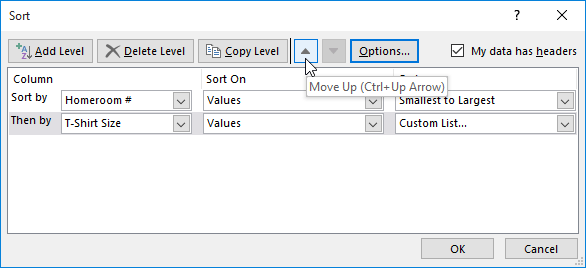
Use the Move Up and Move Down arrows in the Sort dialog to change priority. A level higher in the list is evaluated first.
Sort by color or icon
In the Sort dialog, Sort On can use Cell Color, Font Color, or a conditional-formatting icon. Add a level for each color or icon whose relative position matters. Because color meaning can be ambiguous or change with formatting, prefer sorting by an explicit status column when the sequence is business-critical.
Sort top to bottom or left to right
The default direction is top to bottom. For a normal range, Sort > Options can switch to left-to-right sorting. Excel Tables do not support left-to-right sorting; converting a table to a range removes table behavior, so consider whether rearranging columns manually is safer.
Sorting and filtering are different
Sorting changes row order. Filtering keeps the order but temporarily hides rows. Use the sort-and-filter guide when you need both operations, and clear active filters before checking the full sorted list.
For analysis that needs categories rearranged without changing the source record order, create an Excel PivotTable.
Final safety check
- Confirm that the first and last records still contain the correct values across every column.
- Check a few unique IDs against names or amounts after the sort.
- Verify that the header stayed at the top.
- Look for numeric text, text dates, blanks, and inconsistent labels.
- Save only after confirming that related cells remained on the same rows.
Microsoft’s current Excel sorting reference covers multi-level sorts, custom lists, colors, icons, case sensitivity, and left-to-right sorting.
Related Articles
 Sort Data in Excel3 minutes read
 How to Reverse Data in Columns on Excel: Excel Data Spread3 minutes read
 Algorithms Arranged in Data Structures && Algorithms5 minutes read
 MS Excel 2007 - Lesson 8: Sort and Filter: Excel Data Filtering3 minutes read
 Sort the Database in Excel4 minutes read
 How to Sort Excel Columns Alphabetically: Step-by-Step Guide6 minutes read
Reader Comments 0
Sign in with email or Google to join the discussion.