Table of Contents
Before printing an Excel workbook, decide which cells or worksheets you need, then check the preview for clipped columns, unreadable scaling, and missing headings. Excel's Print pane lets you choose the printer and copies while adjusting the print range, orientation, margins, and scaling.
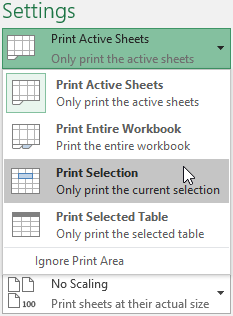
- Print selection for a specific cell range.
- Print active sheets for the selected worksheet tabs.
- Print entire workbook for every worksheet in the file.
How to access the Print pane
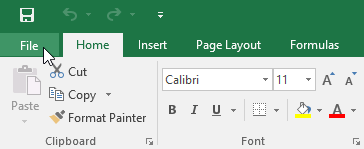
1. Select the File tab. The Backstage view will appear.
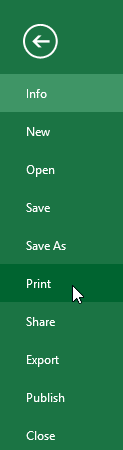
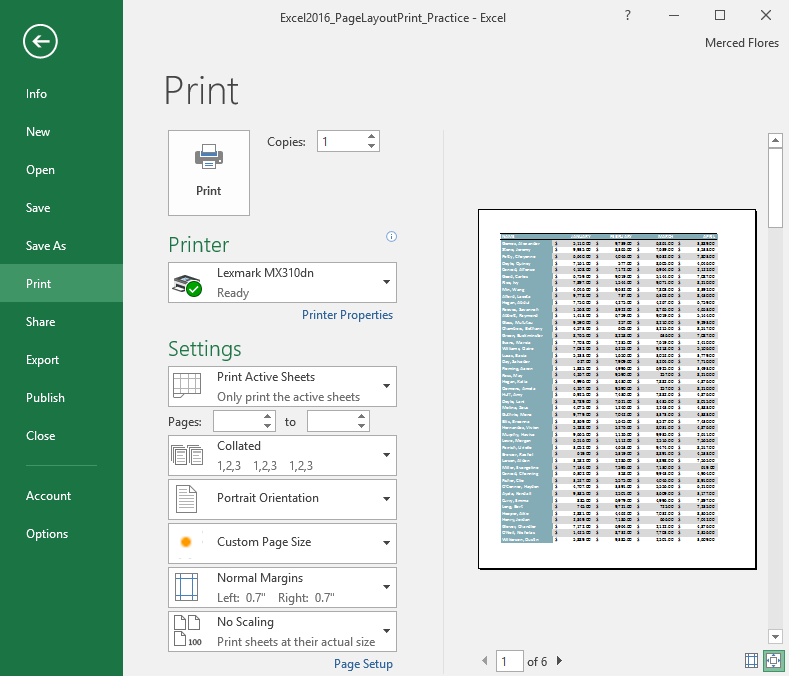
2. Select Print. The Print control panel will appear.
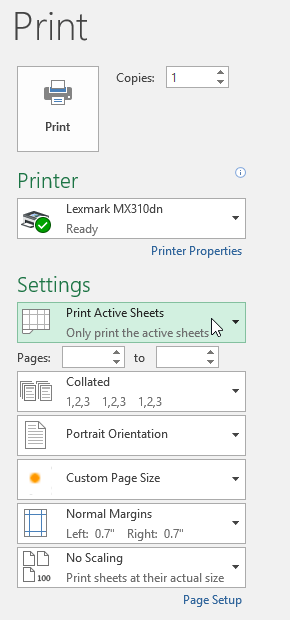
This is the Print control panel :
How to print a workbook
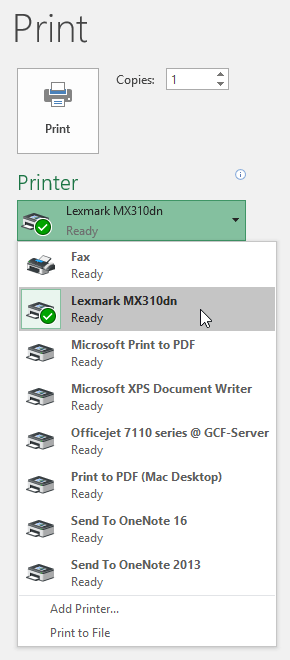
1. Navigate to the Print control panel, then select your desired printer.
2. Enter the number of copies you want to print.
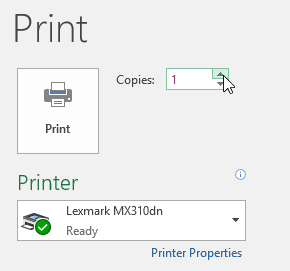
3. Select any additional settings if needed.
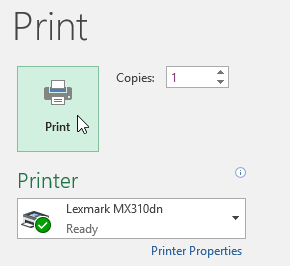
4. Click Print.
Choose what to print
Choose the smallest range that contains the information readers need. If several worksheet tabs are selected, printing active sheets includes each selected tab; printing the entire workbook includes every sheet. Use Print Selection when only a highlighted range should appear.
How to print the active spreadsheet
1. A worksheet is considered active when it is selected.

2. Select the worksheets you want to print. To print multiple worksheets, click on the first worksheet, hold down the Ctrl key on your keyboard, and then click on any other worksheets you want to select.
3. Navigate to the Print pane.
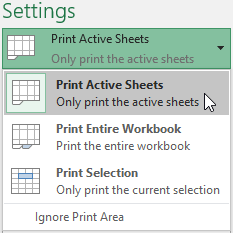
4. Select Print Active Sheets from the print-range menu .
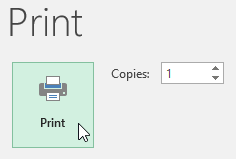
5. Click the Print button.
How to print the entire workbook
1. Navigate to the Print pane.
2. Select Print Entire Workbook from the print-range menu .
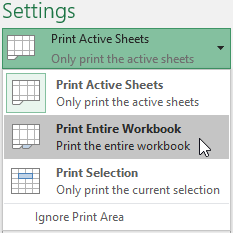
3. Click the Print button.
How to print a selection
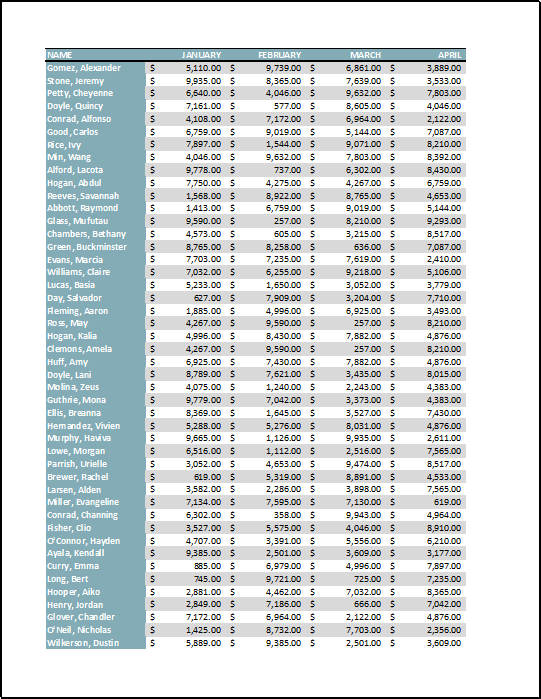
For example, this would print the profiles of the top 40 salespeople from the Central spreadsheet.
1. Select the cells you want to print.
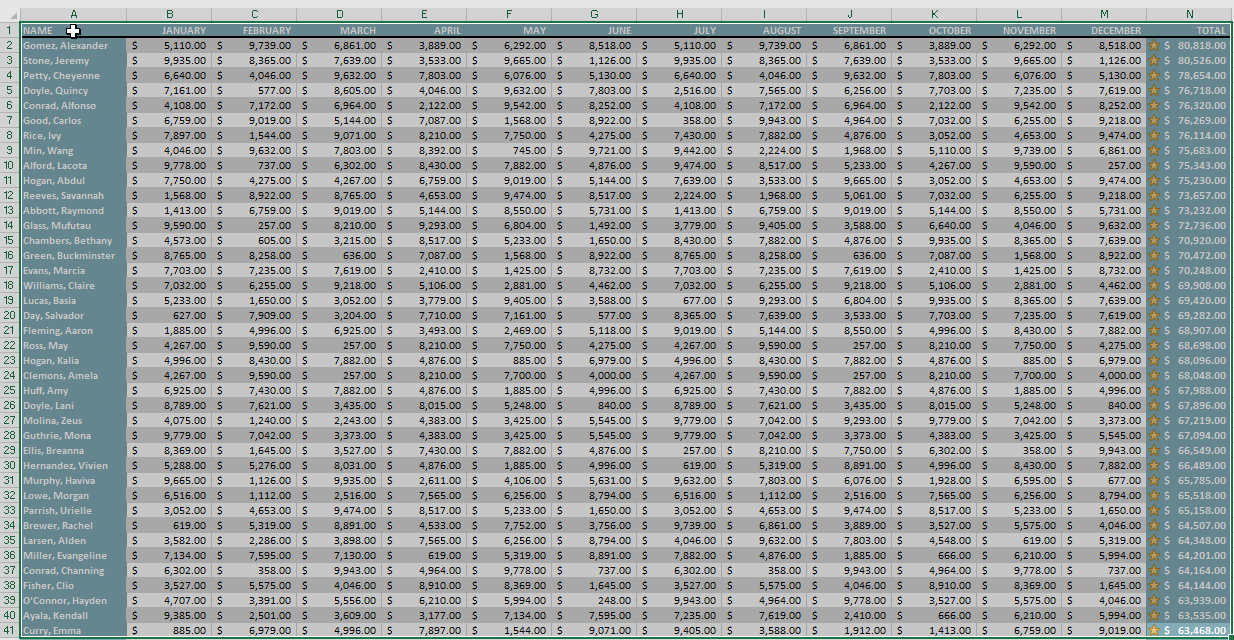
2. Navigate to the Print pane.
3. Select Print Selection from the print-range menu .
4. A preview of the selection will appear in the Preview panel .
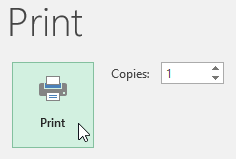
5. Click the Print button to print the selected area.
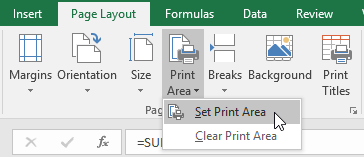
To save a reusable print area, select the cells and choose Page Layout > Print Area > Set Print Area. Clear the saved print area before attempting to print the full worksheet; otherwise Excel may continue to print only the defined range.
Fit worksheet content to the printed page
Use the preview to catch layout problems before sending the job to the printer. Orientation, scaling, margins, repeated titles, and page breaks determine whether the worksheet remains readable on paper.
How to change page orientation
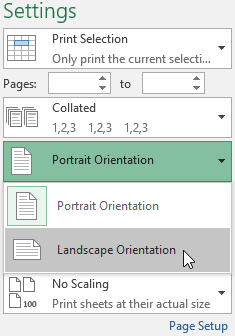
Excel offers two page orientation options: landscape and portrait. Landscape orientation sets the page horizontally, while Portrait orientation sets the page vertically. The example will set the page orientation to landscape.
1. Navigate to the Print pane.
2. Select your desired orientation from the Page Orientation drop-down menu. For example, we would select Landscape Orientation.
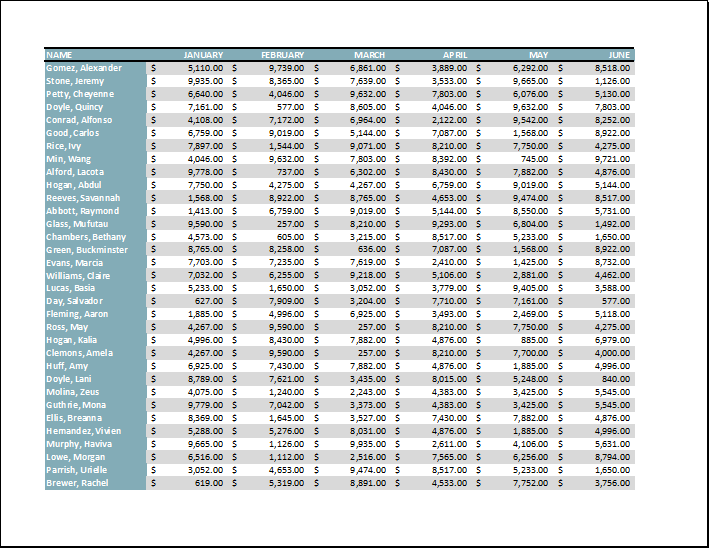
3. The new page orientation will be displayed in the Preview panel.
Revise the content before printing.
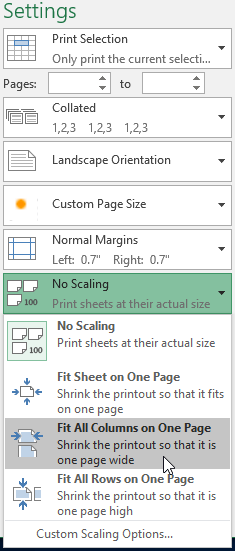
If some of your content is being cut off by the printer, you can use the scaling feature to automatically adjust your workbook to fit the printed page.
1. Navigate to the Print pane . As seen in the previous Preview example, the content will be cropped when printed.
2. Select the desired option from the Scaling drop-down menu. For example, we would select Fit All Columns on One Page.
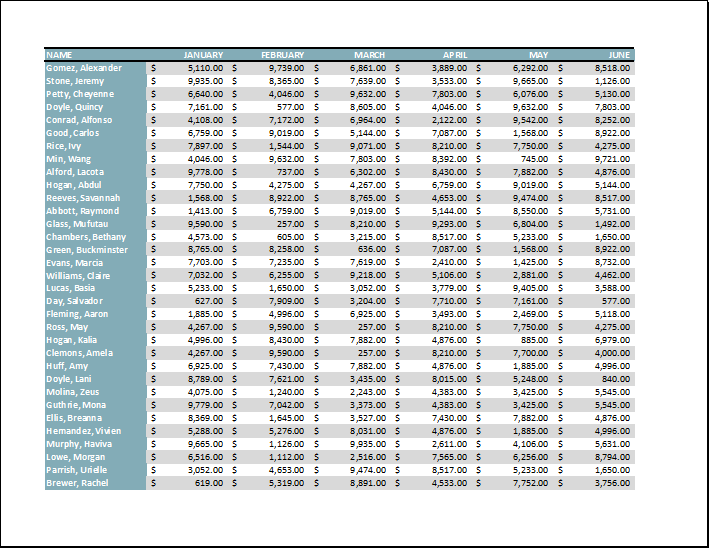
3. The spreadsheet will be adjusted to fit on one page.
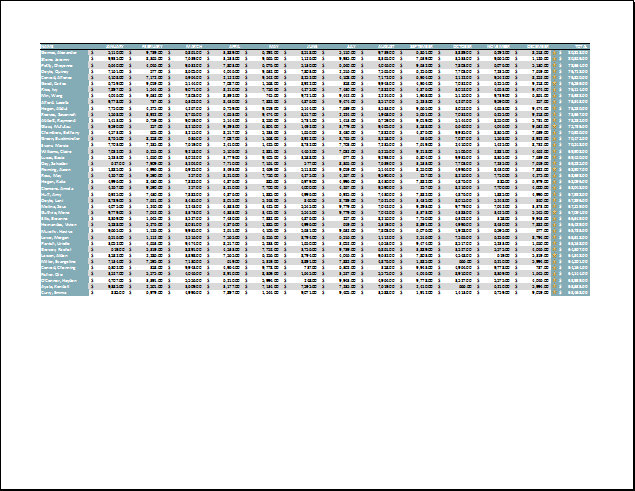
Scaling many columns onto one page can make text too small to read. If the preview looks cramped, switch to landscape orientation, reduce the print area, or allow the worksheet to span more than one page instead of forcing everything onto a single sheet.
How to include headings
If your worksheet uses title headings, it's important to include these headings on every page of the printed worksheet. It would be difficult to read a workbook if the headings only appeared on the first page. The Print Titles command allows you to select specific rows and columns to appear on each page.
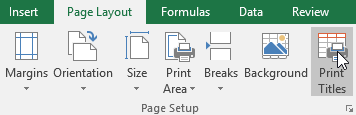
1. Click the Page Layout tab on the Ribbon, then select the Print Titles command.
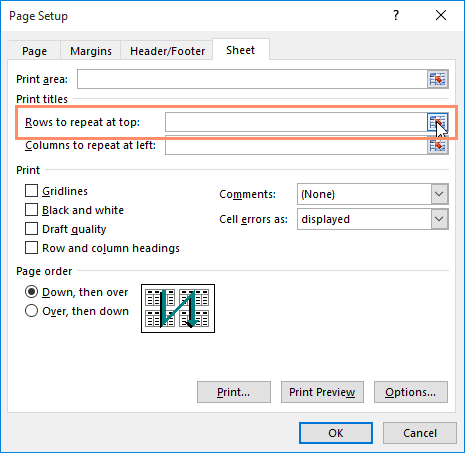
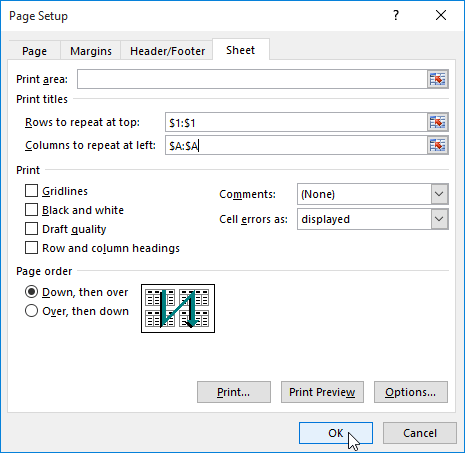
2. The Page Setup dialog box will appear. From here, you can select the rows or columns to repeat on each page. For example, this will repeat the first row.
3. Click the Collapse Dialog button next to the Rows to repeat at top: field.
4. The cursor will become a small selection arrow and the Page Setup dialog box will collapse. Select the row(s) you want to repeat at the top of each printed page. For example, we will select row 1.
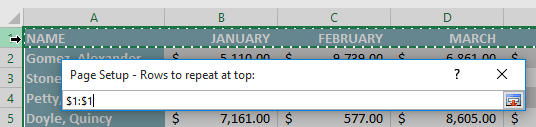
5. Row 1 will be added to the Rows to repeat at top field. Click the Collapse Dialog button again.

6. The Page Setup dialog box will expand. To repeat a column, use the same procedure shown in steps 4 and 5. The example selected repeats row 1 and column A.
7. When you are satisfied with your choices, click OK.
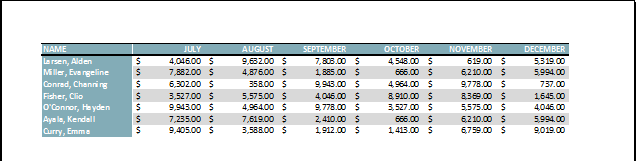
8. In the example, row 1 appears at the top of each page and column A appears to the left of each page.
Adjust page breaks
1. Click the Page Break Preview command to switch to Page Break view .

2. The vertical and horizontal blue dotted lines indicate page breaks. Click and drag one of these lines to adjust the page break.
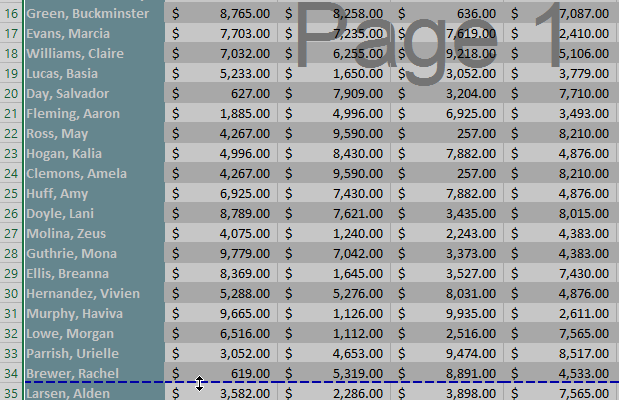
3. The example has placed a horizontal page break between lines 21 and 22.
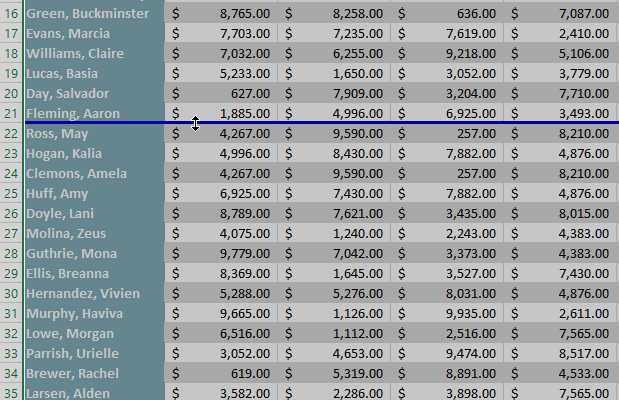
4. In the example, all pages now display the same number of rows due to a change in page breaks.
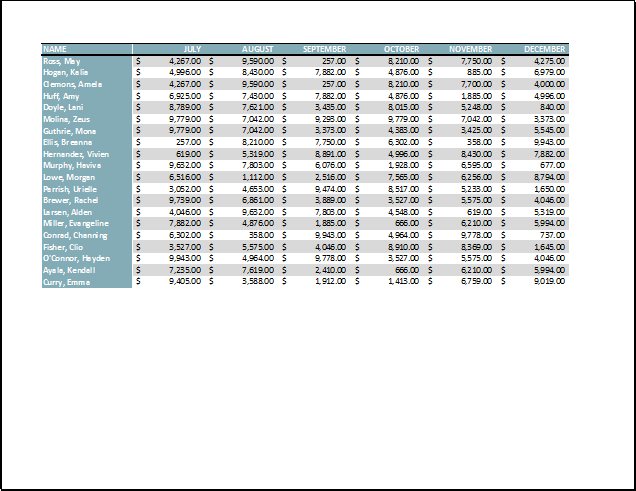
How to modify margins in the Preview panel
Margins are the space between your content and the edge of the page. Sometimes you may need to adjust the margins to make your data fit better. You can modify page margins from the Print pane.
1. Navigate to the Print pane.
2. Select your desired margin size from the Page Margins drop-down menu. For example, we'll select Narrow.
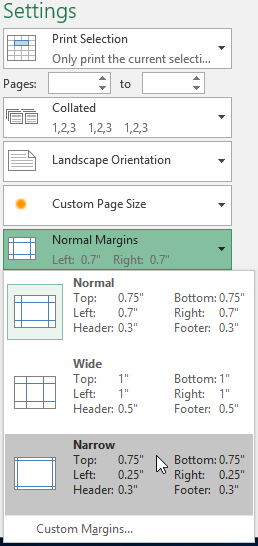
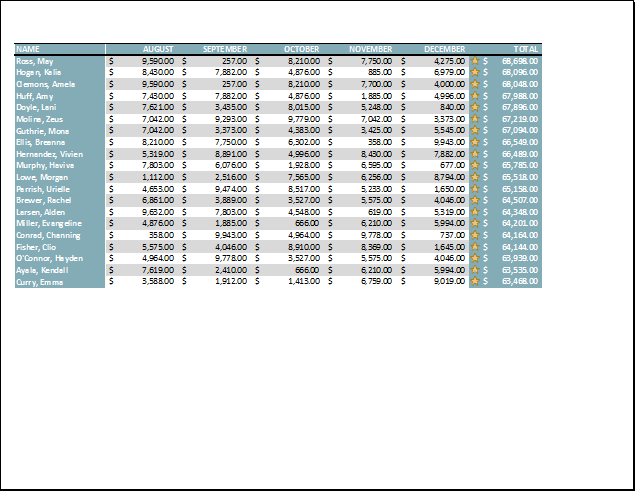
3. The new page margins will be displayed in the Preview panel.
You can manually adjust the margins by clicking the Show Margins button in the bottom right corner, then dragging the margin markers in the Preview panel .
Final print check
- Confirm the printer, paper size, page range, and number of copies.
- Use the preview arrows to inspect every page, not only the first.
- Check that headers, row labels, and totals are not cut off.
- Make sure scaling leaves the text readable.
For focused instructions, see how to print an Excel spreadsheet on one page and how to repeat titles on printed Excel pages.
Related Articles
 Instructions for Printing Two-Sided Paper in Word, PDF, Excel6 minutes read
 How to Fix the Error of Printing Without Finishing the Page3 minutes read
 How to Fix the Error of Printing Missing Documents in an Excel Sheet4 minutes read
 Some Printing Tips Are Essential in Excel8 minutes read
 Complete Guide to Excel 2016 (Part 13): Introduction to Formulas9 minutes read
 MS Excel 2007 - Lesson 14: Layout: Microsoft Excel2 minutes read
Reader Comments 0
Sign in with email or Google to join the discussion.