Table of Contents
Cell formatting makes an Excel worksheet easier to scan without changing the underlying data. Use font size, emphasis, fill color, borders, alignment, and cell styles to create a clear hierarchy—but keep the choices consistent so formatting helps readers instead of distracting them.
- Use a readable font and size for body cells.
- Reserve bold or fill color for headings, totals, and important status information.
- Keep strong contrast between text and background colors.
- Do not rely on color alone to communicate meaning.
How to change the font size
1. Select the cell(s) you want to modify.
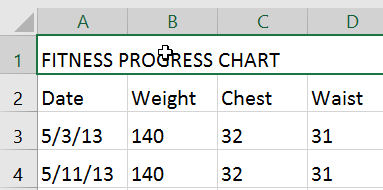
2. On the Home tab, click the drop-down arrow next to the Font Size command, then select your desired font size. For example, you would choose size 24 to make the text larger.
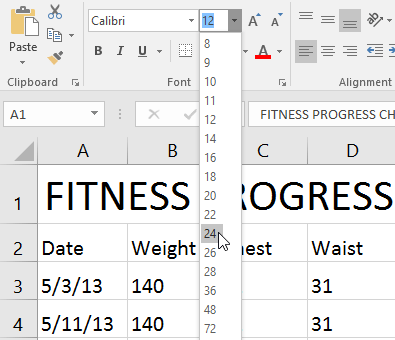
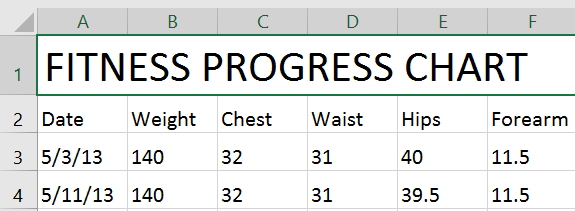
3. The text will change to the selected font size.
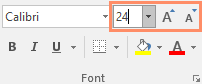
You can also use the Increase Font Size and Decrease Font Size commands, or enter a custom font size using the keyboard.
How to change the font
By default, the font of each new workbook is set to Calibri. However, Excel offers many other fonts that you can use to customize the text in your cells. The example below will format the header cell to help distinguish it from the rest of the worksheet.
1. Select the cell(s) you want to modify.
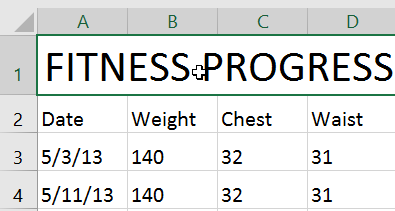
2. On the Home tab, click the drop-down arrow next to the Font command, then select your desired font. For example, we would choose Century Gothic.
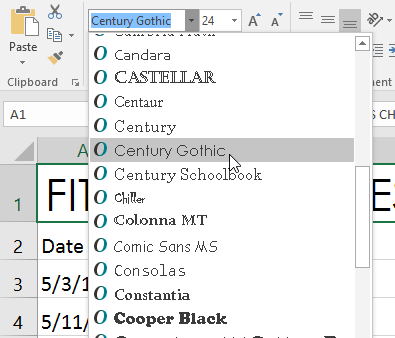
3. The text will change to the selected font.
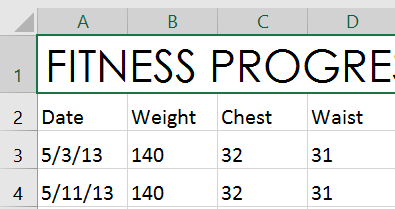
When creating workbooks at work, you'll want to choose a font that's easy to read. Along with Calibri, standard readable fonts include Cambria, Times New Roman, and Arial.
How to change the font color
1. Select the cell(s) you want to modify.
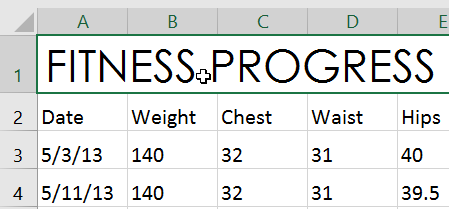
2. On the Home tab, click the drop-down arrow next to the Font command, then select your desired font color. For example, we will choose green.
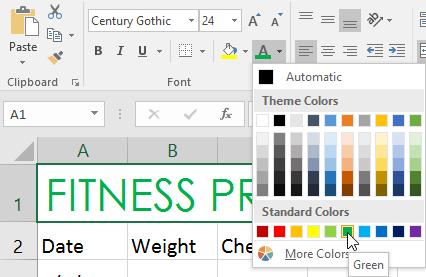
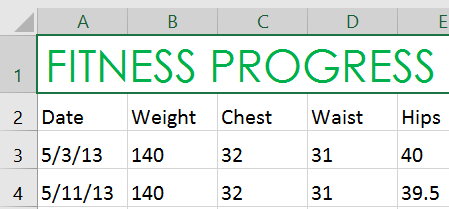
3. The text will change to the selected font color.
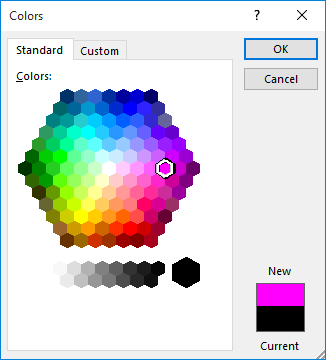
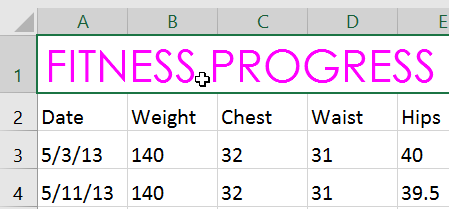
Select More Colors at the bottom of the menu to access additional color options. The example has changed the font color to bright pink.
Use bold, italic, and underline
1. Select the cell(s) you want to modify.
2. Click the bold ( B ), italic ( I ), or underline ( U ) command on the Home tab. The example will bold the selected cells.
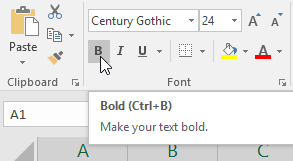
3. The selected style will be applied to the text.
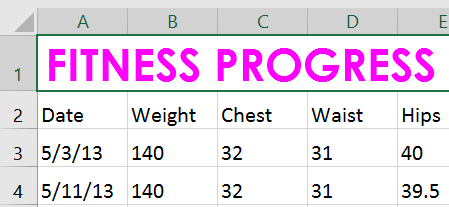
You can also press Ctrl + B on your keyboard to bold the selected text, Ctrl + I to apply italics, and Ctrl + U to apply an underscore.
Cell border and background color
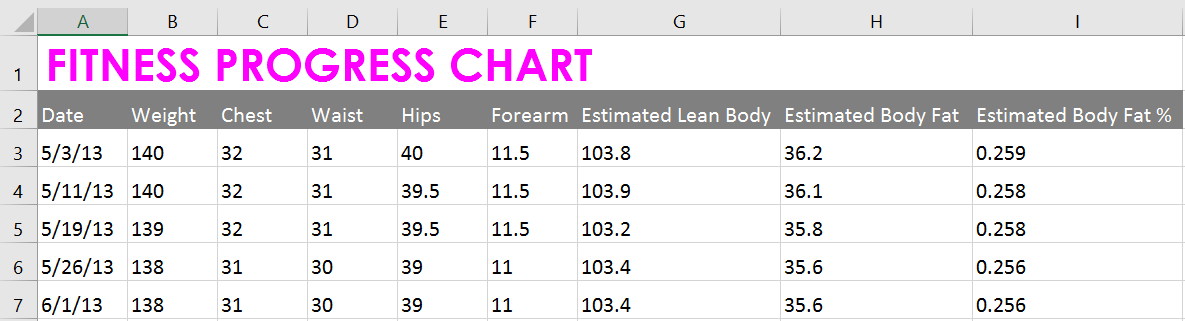
Cell borders and background colors allow you to create clear and defined boundaries for different sections of a worksheet. Below, the example will add cell borders and background colors to header cells to help distinguish them from the rest of the worksheet.
How to add a background color
1. Select the cell(s) you want to modify.
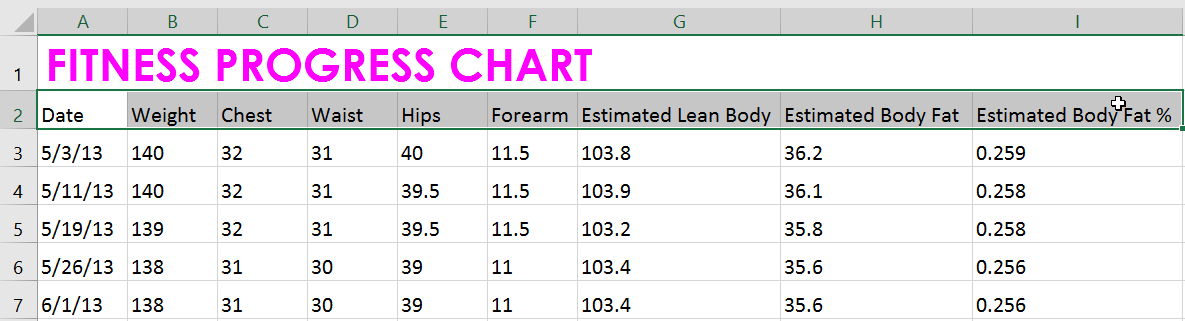
2. On the Home tab, click the drop-down arrow next to the Fill Color command, then select the background color you want to use. For example, we will choose dark gray.
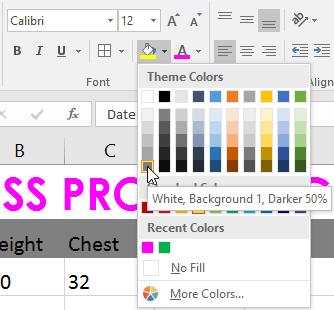
3. The selected background color will appear in the selected cells. The example also changed the font color to white to make it easier to read with this new background color.
How to add a border
1. Select the cell(s) you want to modify.
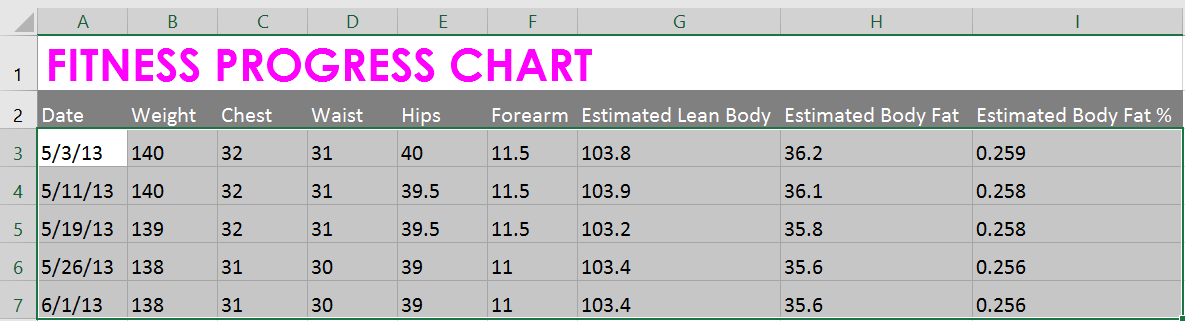
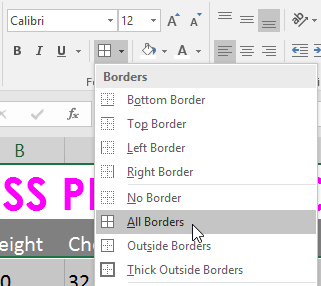
2. On the Home tab, click the drop-down arrow next to the Borders command, then select the border style you want to use. For example, we will select to display All Borders.
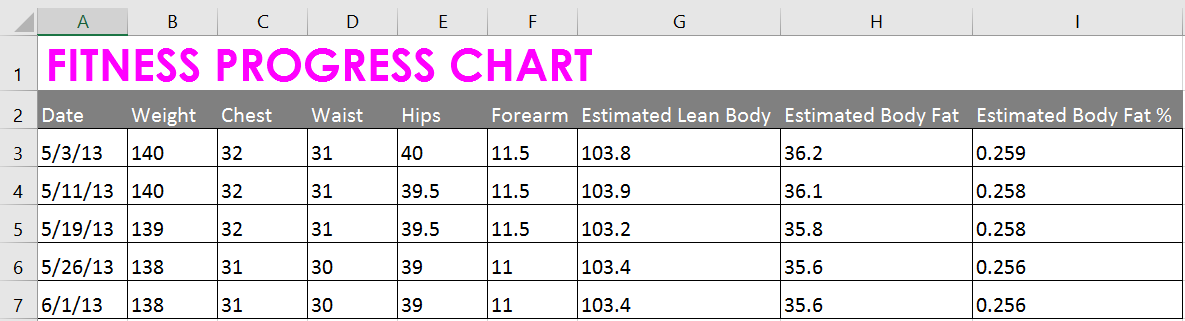
3. The selected border style will appear.
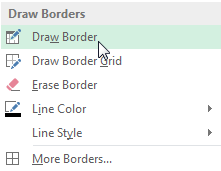
You can draw borders and change their style and color using the Draw Borders tool at the bottom of the Borders drop-down menu .
Cell styles
Excel's built-in Cell Styles apply a coordinated set of formatting choices to titles, headings, totals, warnings, and other common elements. They are useful when you want consistent formatting without setting each property separately.
How to apply cell type
This example will apply a new cell style to the existing title and header cells.
1. Select the cell(s) you want to modify.
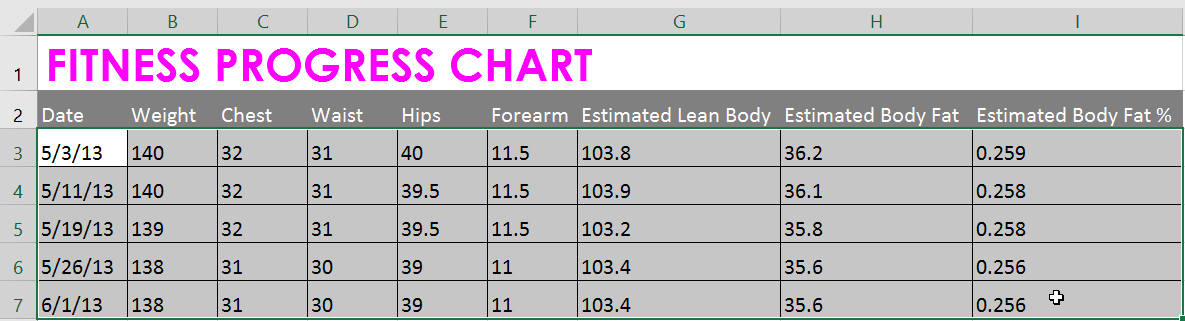
2. Click the Cell Styles command on the Home tab, then select your desired style from the drop-down menu.
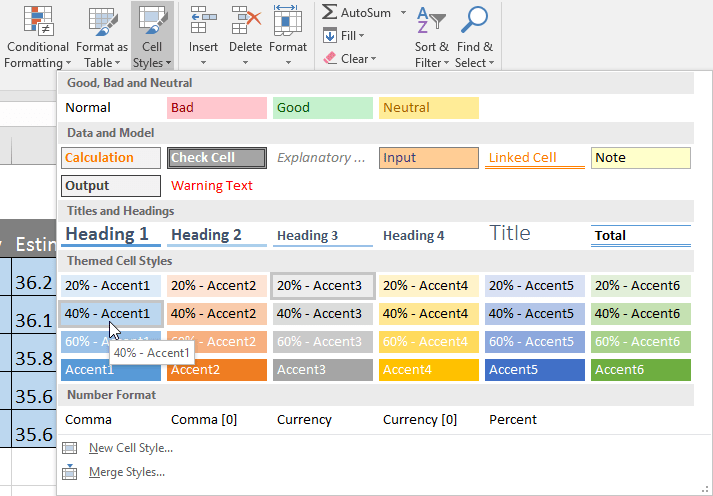
3. The selected cell style will appear.
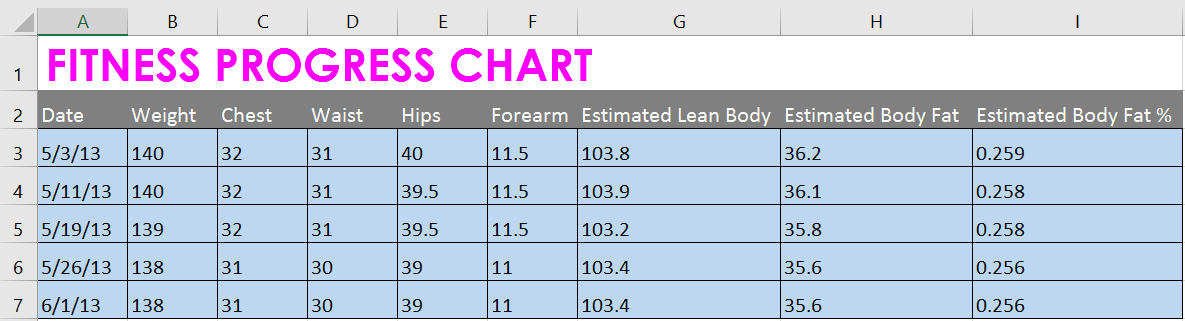
A cell style may replace existing font, fill, border, number, or protection settings included in that style. Preview the result before applying a style to cells that already have important custom formatting.
Text alignment
By default, any text entered into a spreadsheet will be aligned to the bottom left of the cell, while numbers will be aligned to the bottom right. Changing the cell alignment allows you to choose how content is displayed in any cell, which can make your content easier to read.
- Left Align : Align the content to the left border of the cell.
- Center Align : Aligns the content equally from the left and right borders of the cell.
- Right Align : Align the content to the right border of the cell.
- Top Align : Align the content to the top border of the cell.
- Middle Align : Aligns the content equally from the top and bottom borders of the cell.
- Bottom Align : Align the content to the bottom border of the cell.
How to change the horizontal text alignment
The example below will modify the alignment of the header cell to better distinguish it from the rest of the worksheet.
1. Select the cell(s) you want to modify.
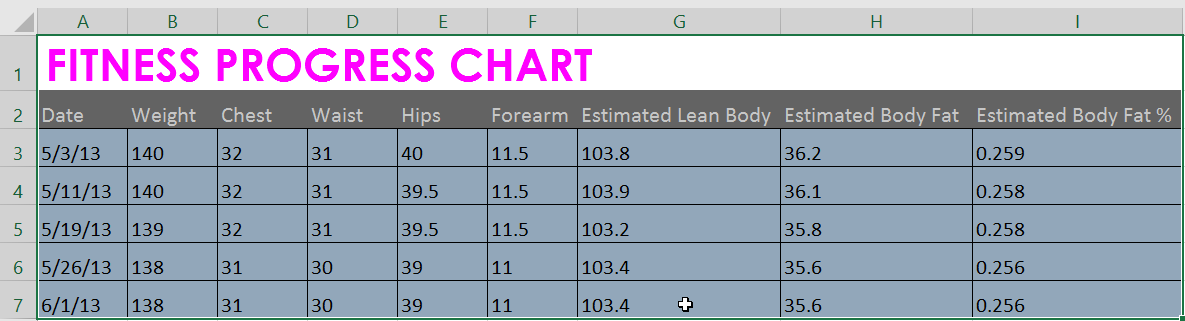
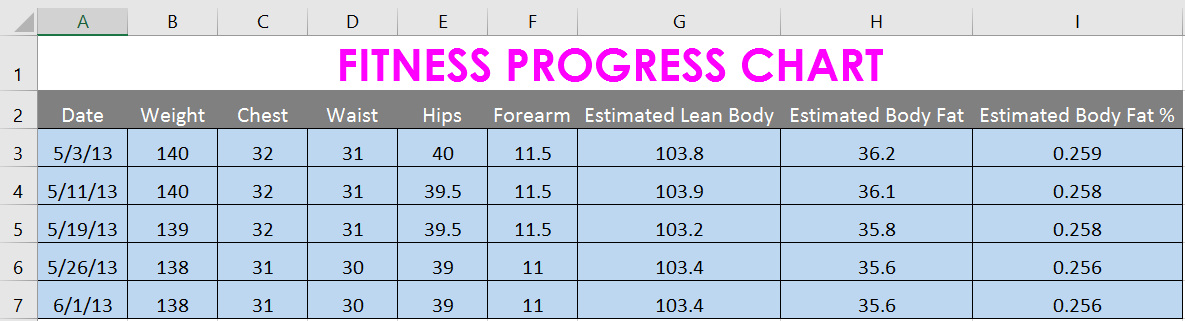
2. Select one of the three horizontal alignment commands on the Home tab. For example, we would select Center Align.
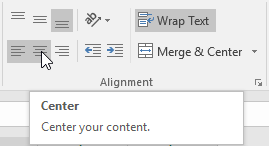
3. The text will be horizontally centered in the selected cells.
How to change the vertical alignment of text
1. Select the cell(s) you want to modify.
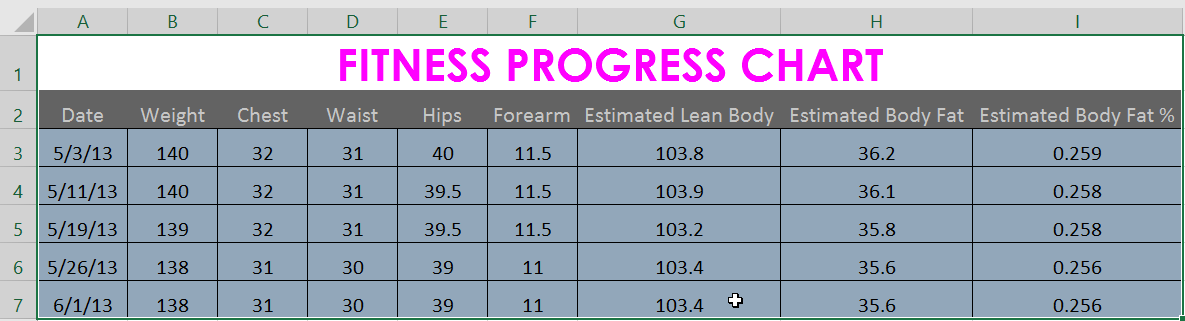
2. Select one of the three vertical alignment commands on the Home tab. For example, we would select Middle Align.
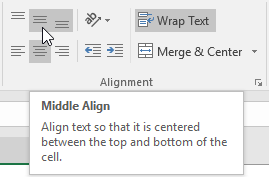
3. The text will be vertically centered in the selected cells.
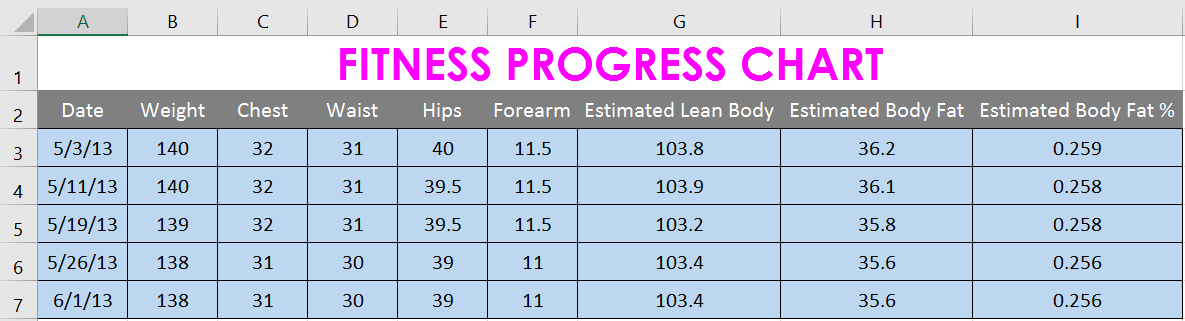
You can apply both vertical and horizontal alignment settings to any cell.
Format Painter
Format Painter copies font, fill, borders, number format, and alignment from one selection to another. Select the source cell, choose Format Painter on the Home tab, and then select the destination. Double-click Format Painter when you need to apply the same formatting to several separate ranges; press Esc when finished.
Formatting checklist
- Use consistent styles for equivalent headings and totals.
- Check text contrast against every fill color.
- Keep borders light and purposeful rather than outlining every cell by default.
- Verify that number formatting still matches the data.
- Review the worksheet at normal zoom and in print preview.
See the broader guide to formatting data in Excel, or use these tips for cleaning up a messy Excel worksheet.
Related Articles
 Ms Excel - Lesson 13: Use Conditional Formatting in Excel2 minutes read
 MS Excel 2003 - Lesson 13: Using Conditional Formatting in Excel2 minutes read
 How to Format Data Based on Other Cell Conditions in Excel4 minutes read
 Tips for Formatting Cells in Excel for Professional Spreadsheets: Explained5 minutes read
 How to Calculate and Color Blank Cells in Excel3 minutes read
 Complete Tutorial of Excel 2016 (Part 5): Basics of Cells and Ranges11 minutes read
Reader Comments 0
Sign in with email or Google to join the discussion.