Table of Contents
Excel cell references control what happens to a formula when you copy it. A relative reference such as A1 changes with the formula's new location, while an absolute reference such as $A$1 remains fixed. Mixed references lock only the row or the column.
| Reference type | Example | What changes when copied |
|---|---|---|
| Relative | A1 | Both row and column can change |
| Absolute | $A$1 | Neither row nor column changes |
| Mixed: fixed column | $A1 | Row can change; column A stays fixed |
| Mixed: fixed row | A$1 | Column can change; row 1 stays fixed |
Relative references
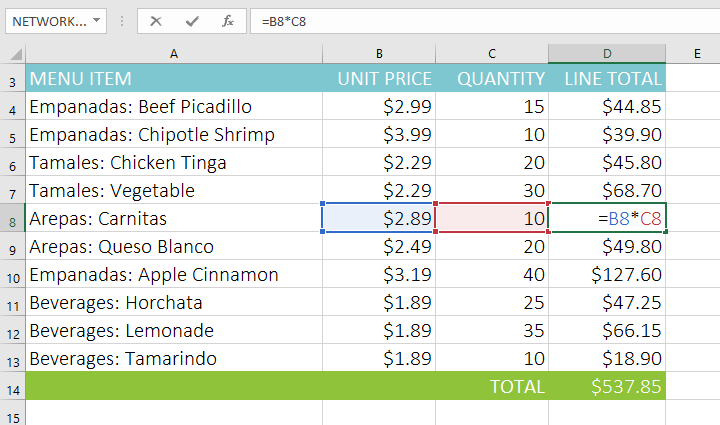
By default, all cell references are relative references. When copied across multiple cells, they change based on the relative positions of the rows and columns. For example, if you copy the formula =A1+B1 from row 1 to row 2, the formula will become =A2+B2. Relative references are especially convenient whenever you need to repeat the same calculation across multiple rows or columns.
How to create and copy formulas using relative references
The following example aims to create a formula that multiplies the price of each item by the quantity. Instead of creating a new formula for each row, you can create a single formula in cell D4 and then copy it to the other rows. The example will use relative references to ensure the formula calculates the exact total for each item.
1. Select the cell that will contain the formula. For example, we would select cell D4.
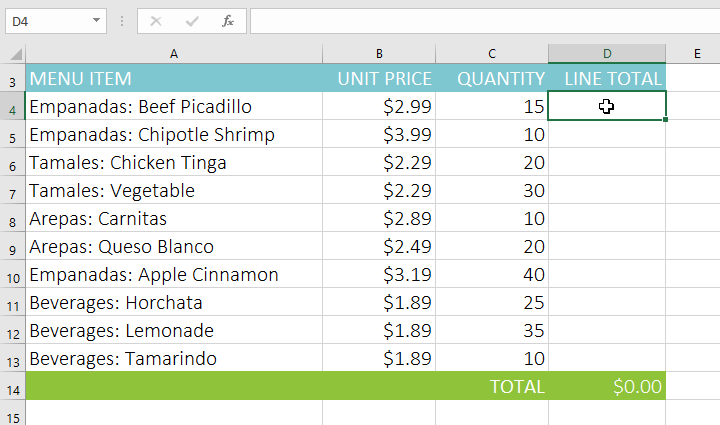
2. Enter the formula to calculate the desired value. For example, you would enter =B4*C4.
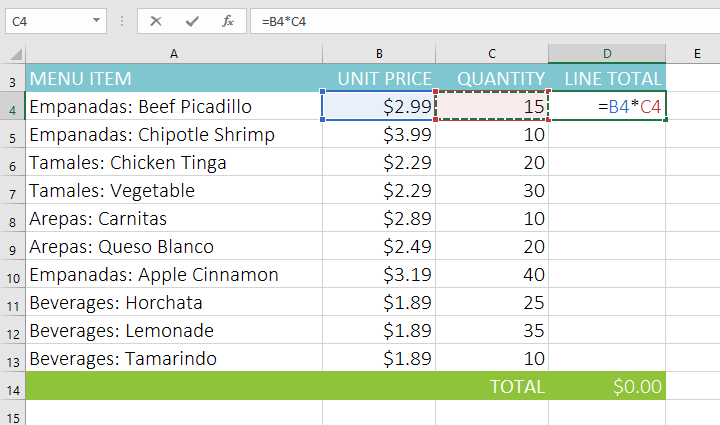
3. Press Enter on the keyboard. The formula will be calculated and the result will be displayed in the cell.
4. Locate the fill handle in the bottom right corner of the desired cell. The example will locate the fill handle for cell D4.
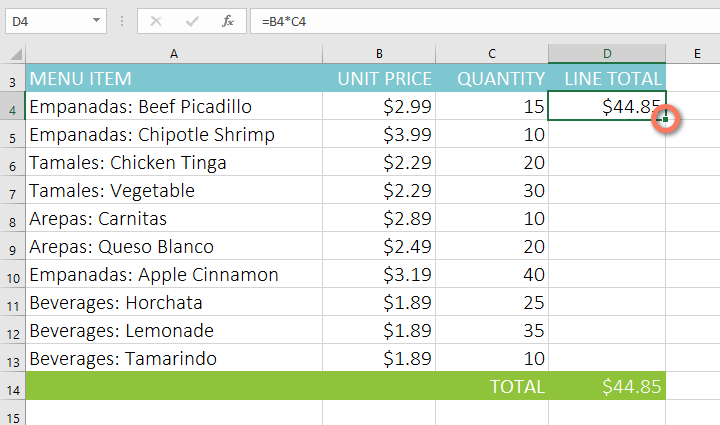
5. Click and drag the fill handle to the cells you want to fill. For example, we would select cells D5:D13.
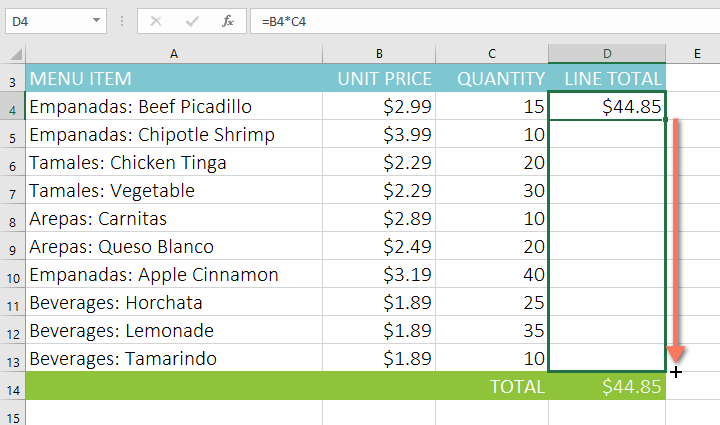
6. Release the mouse button. The formula will be copied to the selected cells with relative references, displaying the result in each cell.
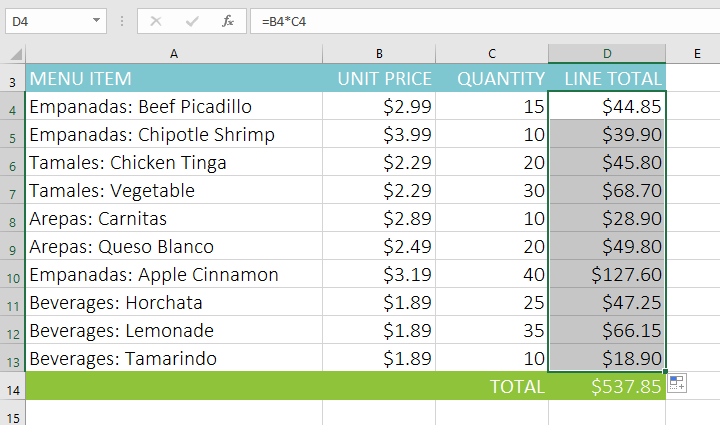
You can double-click on filled cells to check the accuracy of their formulas. Relative cell references should be different for each cell, depending on its row.
Absolute references
There may be times when you don't want a cell reference to change when copied to other cells. Unlike relative references, absolute references don't change when copied or filled. You can use an absolute reference to keep a row and/or column unchanged.
An absolute reference is specified in a formula by adding the dollar sign ( $ ). This sign can precede a column reference, a row reference, or both.
Use $A$2 when both the column and row must stay fixed. Use $A2 to lock only column A, or A$2 to lock only row 2. These mixed references are useful in multiplication tables and formulas copied across both rows and columns.
While editing a formula, select a cell reference and press F4 to cycle through relative, absolute, and mixed forms. On some laptops you may need to hold Fn as well.
How to create and copy formulas using absolute references
The example below will use cell E2 (containing a 7.5% tax rate) to calculate the sales tax for each item in column D. To ensure the reference to the tax rate remains constant—even if the formula is copied and filled into other cells—cell $E$2 needs to be set as an absolute reference.
1. Select the cell that will contain the formula. For example, we would select cell D4.
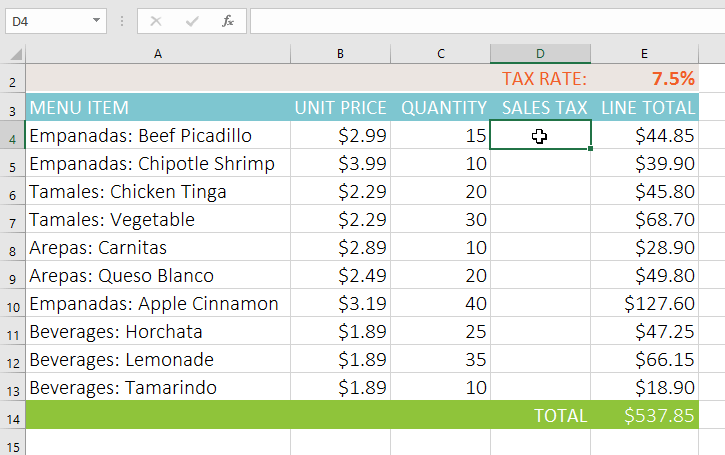
2. Enter the formula to calculate the desired value. For example, you would enter =(B4*C4)*$E$2, making $E$2 an absolute reference.
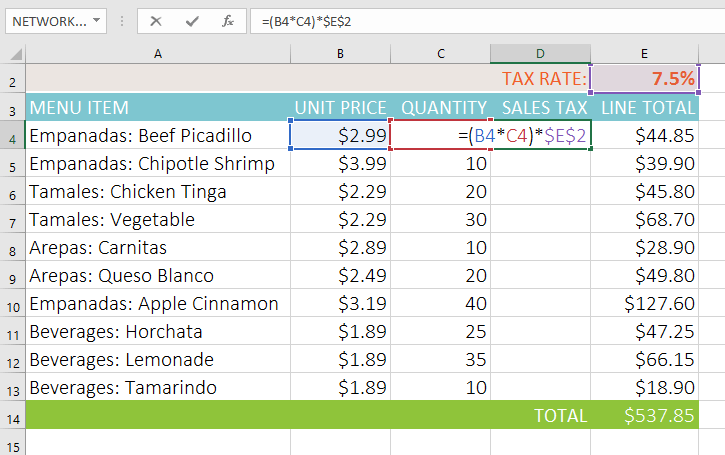
3. Press Enter on the keyboard. The formula will perform the calculation, and the result will be displayed in the cell.
4. Locate the fill handle in the bottom right corner of the desired cell. The example will locate the fill handle for cell D4.
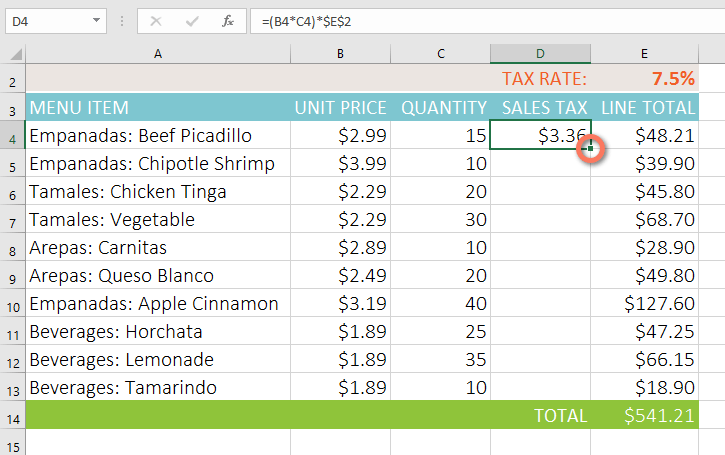
5. Click and drag the fill handle into the cells you want to fill (cells D5:D13 in the example).
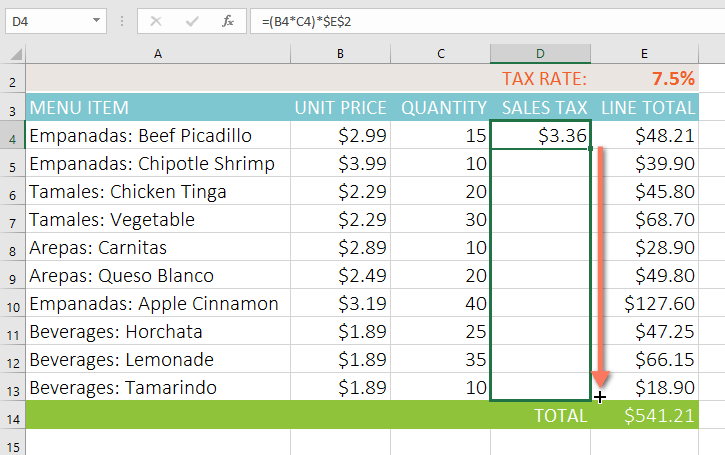
6. Release the mouse button. The formula will be copied to the selected cells with absolute references, and the values in each cell will be calculated.
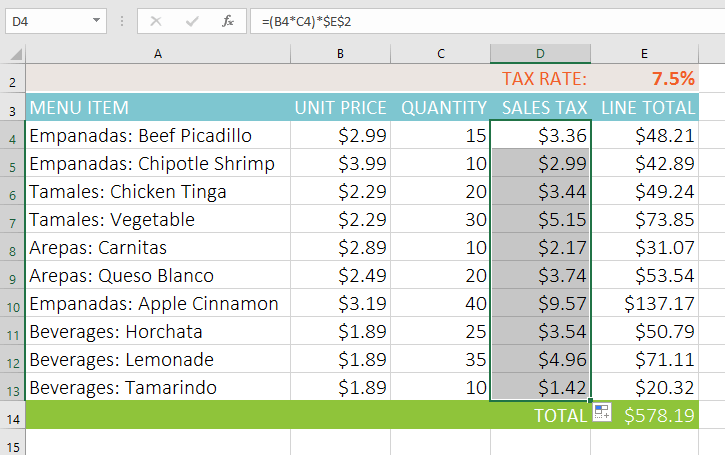
You can double-click on filled cells to check the accuracy of the formulas. Absolute references must be the same for each cell, while other references are relative to the cell's row.
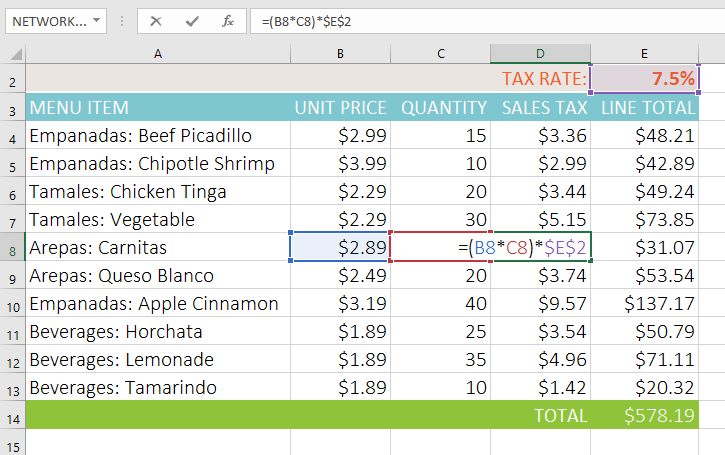
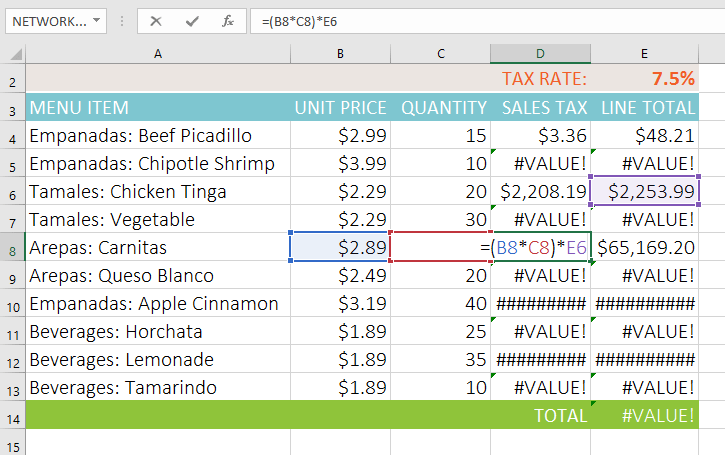
Make sure to include the dollar sign ( $ ) whenever you are making an absolute reference across multiple cells. The dollar sign was omitted in the example below. This caused Excel to interpret it as a relative reference, producing an incorrect result when copied to other cells.
Using cell references across multiple worksheets
Excel allows you to reference any cell on any worksheet, which can be especially useful if you want to reference a specific value from one worksheet to another. To do this, simply begin the cell reference with the worksheet name, followed by an exclamation mark ( ! ). For example, if you want to reference cell A1 on Sheet1, its cell reference would be Sheet1!A1.
If a worksheet name contains spaces or certain special characters, enclose it in single quotation marks. For example, a reference to cell A1 on a sheet named July Budget is 'July Budget'!A1.
How to reference a cell on another worksheet
The example below illustrates a cell whose value is calculated across two worksheets. This allows the exact same value to be used on two different worksheets without rewriting formulas or copying data.
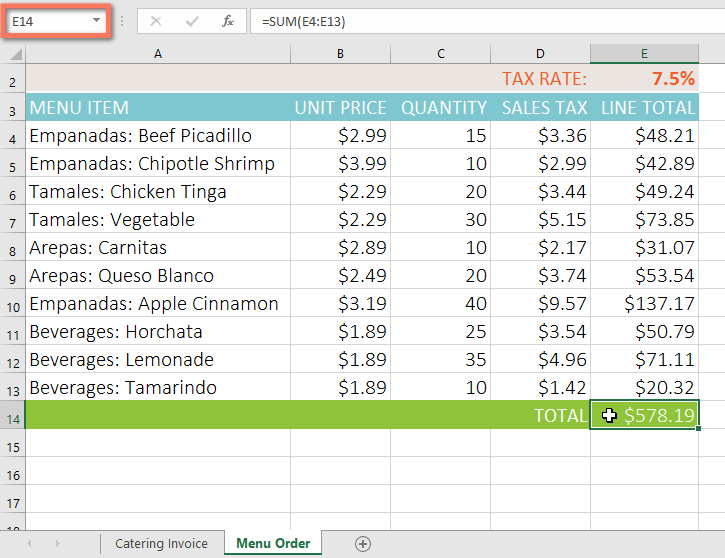
1. Locate the cell you want to reference and note the worksheet containing that cell. For example, to reference cell E14 on the Menu Order worksheet.
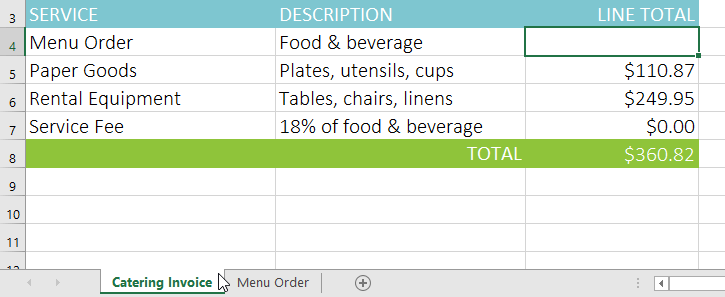
2. Navigate to the desired worksheet. For example, we would select the Catering Invoice worksheet.
3. Locate and select the cell where you want the value to appear. For example, we would select cell C4.
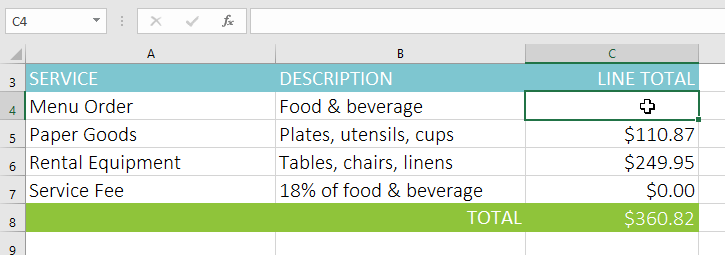
4. Enter the equals sign ( = ), the worksheet name followed by the exclamation mark (!) and the cell address. For example, you would enter ='Menu Order'!E14.
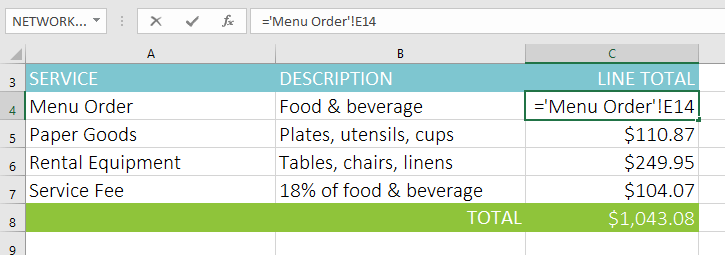
5. Press Enter on your keyboard. The value of the referenced cell will appear. Now, if the value of cell E14 changes on the Menu Order worksheet, it will be automatically updated on the Catering Invoice worksheet.
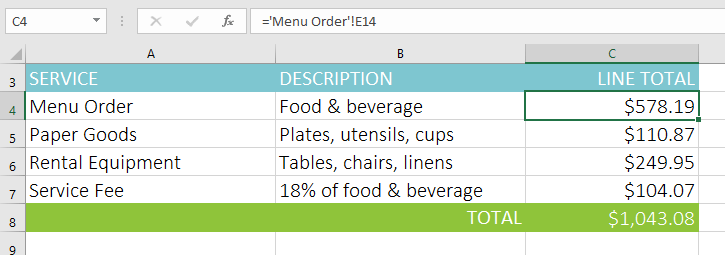
If you rename your worksheet later, the cell reference will be automatically updated to reflect the new worksheet name.
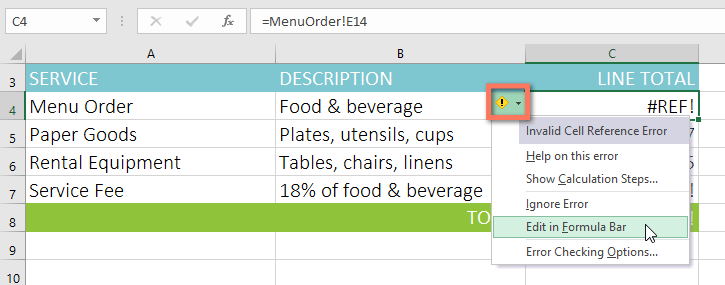
If you enter the wrong worksheet name, a #REF! error will appear in the cell. In the example below, the worksheet name was misspelled. To edit, ignore, or check for the error, click the Error button next to the cell and select an option from the menu.
Related Excel guides
For more practice with formulas, see Excel formulas and functions. If you are comparing values across ranges, the guide to matching data in Excel shows another practical use of cell references.
Related Articles
 Complete Guide to Excel 2016 (Part 15): Relative and Absolute9 minutes read
 Excel 2016 - Lesson 15: Relative and Absolute Cell References9 minutes read
 Absolute and Relative Addresses in Excel4 minutes read
 Types of Cell References: Explained7 minutes read
 Row: How to Copy Formulas in Excel11 minutes read
 Complete Tutorial of Excel 2016 (Part 5): Basics of Cells and Ranges11 minutes read
Reader Comments 0
Sign in with email or Google to join the discussion.