Table of Contents
Overview
This guide explains how to turn off spell check in Word - turn off red underline in Word in clear, practical terms. It covers the key concepts, recommended steps, common limitations, and useful checks so you can make a better-informed decision.
In any version of Word from Word 2003, 2007, 2010, 2013 or even the latest versions of Word such as Word 2016 -2020 when editing Vietnamese text, we all see the red underlines under the characters. In fact, this confusing part is the spelling and grammar checking function of Word. Whenever starting Word to work, this function is also activated by default. But for many people, this function only makes things more confusing, not to mention that it does not work very effectively for Vietnamese. That is why many people also look for ways to turn off the spelling checking function, removing this red underline. If you still do not know how, please see the instructions below from this guide!
Summary of operations to turn off spell check in Word
Regular versions of Word have almost the same functions, only different in interface. Below are the steps to turn off spell checking in Word that you can follow:
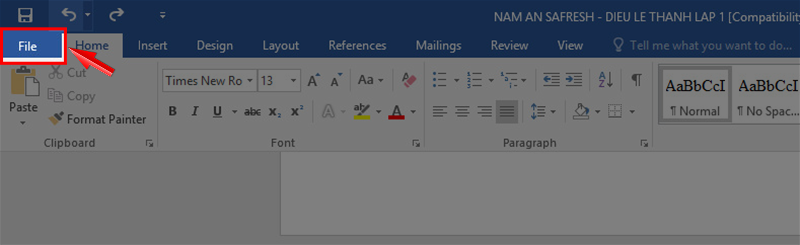
- After starting Word > select File in the left corner
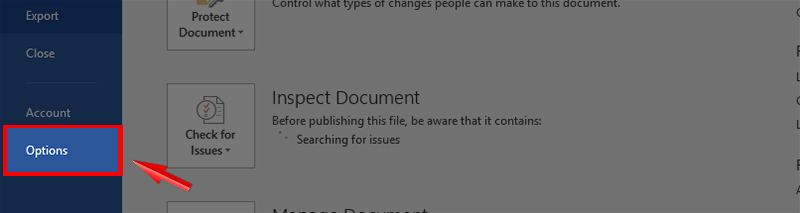
- Go to Options
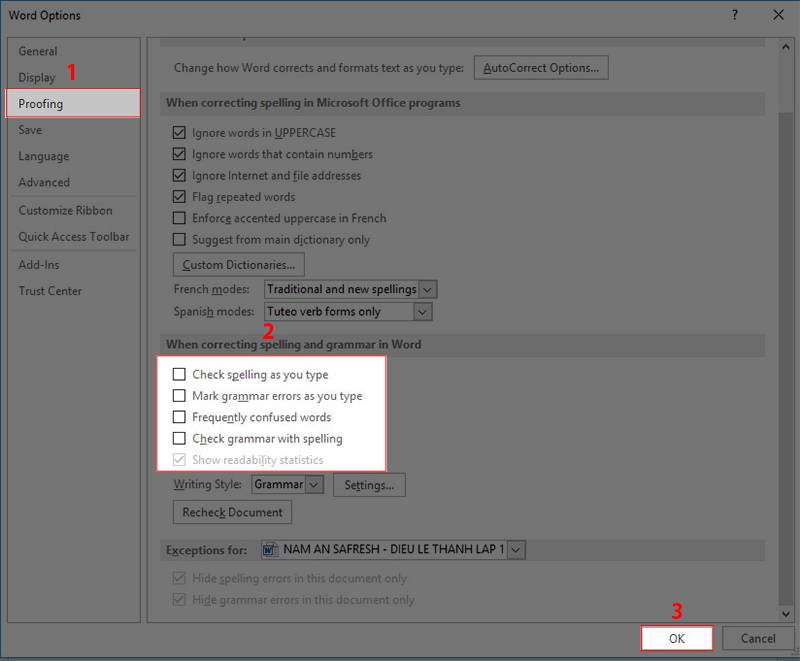
- In Options > select Proofing.
- Remove the check mark from the items: Check spelling as you type, Mark grammar errors as you type, Frequently confused words, Check grammar with spelling
- After unchecking the above items, press OK to complete turning off the spell check function, the red underlined parts will also disappear.
Detailed steps with pictures of shortcuts to spell check in Word
The instructions below are performed on Word 2016, you can also apply this instruction to turn off spell check in Word 2010 and above.
Step 1: Open Word software and select File
Step 2: Select Options
Step 3: In the Options section, select Proofing, in When correcting spelling and grammar in Word (spelling check feature in Word), uncheck the following items:
- Check spelling as you type.
- Mark grammar errors as you type.
- Frequently confused words.
- Check grammar with spelling.
Then press OK to confirm. Now the red underline in Word has been turned off.
Above is a guide to turn off spelling check in Word by this guide. The operation is straightforward, with easy-to-understand illustrations that anyone can do. If the article is useful, please share it with your friends and leave a comment below if you do it successfully!
Key Takeaways
Use the guidance above as a practical reference for turn off spell check in Word - turn. Check compatibility, follow the steps carefully, and verify important details with official documentation when software, security, accounts, health, or purchases are involved.
FAQ
How do I turn off spell check in Word - turn off red underline in Word?
Follow the steps in this guide in order, confirm each setting before continuing, and save, restart, or reconnect the device when the instructions require it.
What should I check before I begin?
Confirm the correct device, account access, software version, compatibility, and a current backup whenever the process could affect files, settings, or security.
What should I do if the process does not work?
Repeat the steps carefully, check for model or version differences, install available updates, and consult the manufacturer's official support documentation.
Related Articles
 How to Remove Red Underline in Word, Turn Off Red Underline Spell4 minutes read
 How to Change the Underline Color of Word Spell Check: Step-by-Step Guide3 minutes read
 How to Turn Off Spell Checking in Word, Powerpoint (Remove the Red2 minutes read
 How to Easily and Effectively Remove Red Underlines in Word4 minutes read
 How to Turn Off Spell Checking in Word3 minutes read
 How to Turn Off Spell Checking in Word3 minutes read
Reader Comments 0
Sign in with email or Google to join the discussion.