Table of Contents
The error “Cannot start Microsoft Outlook. Cannot open the Outlook window” usually points to a damaged navigation setting, a faulty COM add-in, a broken Outlook profile, an Office installation problem, or an Outlook data-file error. The steps below are for classic Outlook for Windows. New Outlook uses a different app and does not support every classic command, profile, COM add-in, or PST repair step.
1. Close stuck Office processes and restart Windows
Open Task Manager with Ctrl + Shift + Esc. End any clearly stuck Outlook process, then restart the computer. Do not end unrelated Windows or security processes. After restarting, install pending Windows and Microsoft 365 updates before testing Outlook again.
2. Start classic Outlook in Safe Mode
- Press Windows + R.
- Enter Outlook.exe /safe and select OK.
- If prompted, choose the normal Outlook profile.
Safe Mode starts classic Outlook without most add-ins and custom interface settings. If Outlook opens normally in Safe Mode, a COM add-in is a likely cause.
In Outlook, go to File > Options > Add-ins. At the bottom, select COM Add-ins and choose Go. Record which add-ins are enabled, disable them, restart Outlook normally, and re-enable one at a time until the failure returns. Remove or update the add-in that triggers the error.
Microsoft maintains an official Outlook startup-error guide with the current Safe Mode procedure.
3. Reset the navigation pane
A damaged navigation-pane configuration can prevent the Outlook window from opening.
- Close Outlook.
- Press Windows + R.
- Enter Outlook.exe /resetnavpane and select OK.
This resets navigation-pane customizations. It does not delete mailbox messages, but you may need to add some shortcuts or shared folders to the pane again.
4. Test a new Outlook profile
A profile stores accounts, data-file references, and startup settings. Create a test profile rather than deleting the existing one.
- Hold Shift while starting classic Outlook. Alternatively, press Windows + R and enter Outlook.exe /profiles.
- In the profile picker, choose Options, then New.
- Name the profile and add the email account.
- Start Outlook with the new profile.
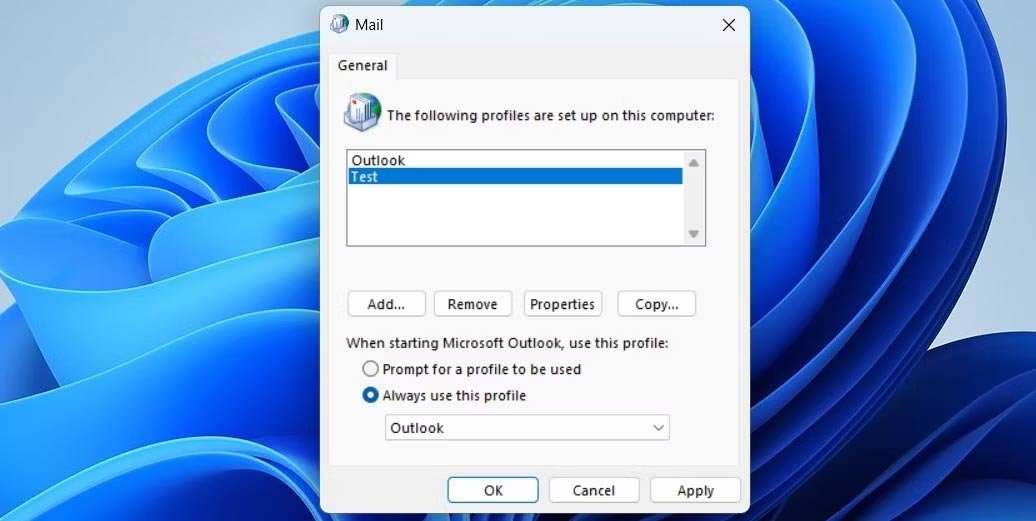
If the new profile works, keep the old profile until you confirm that all mail, archives, signatures, and local data are available. Microsoft's current process is described in Create an Outlook profile.
5. Repair Microsoft 365 or Office
- Open Settings > Apps > Installed apps.
- Find Microsoft 365 or the installed Office suite, open its menu, and select Modify.
- Try Quick Repair first.
- If Outlook still fails, run Online Repair. Save work in other Office apps because this more thorough repair can reinstall components and requires an internet connection.
See Microsoft's Office application repair instructions if the options differ on your installation.
6. Repair a PST or OST only when the error points to a data file
Use the Inbox Repair Tool, SCANPST.EXE, when Outlook reports that it cannot open a data file or folder set, or when there is other evidence of PST or OST damage. Do not download a copy of SCANPST from an unofficial site.
Back up an important PST before repairing it. A PST may contain mail stored only on the computer. For Microsoft Exchange and some synchronized accounts, an OST is an offline cache that Outlook can often rebuild from the server, but verify the account type before deleting or replacing anything.
- Close Outlook.
- Follow Microsoft's version-specific path to locate SCANPST.EXE.
- Open the tool, browse to the affected .pst or .ost file, and start the scan.
- Keep the option to create a backup if offered, then repair detected errors.
- Open Outlook and check the folder list and any recovered folders.
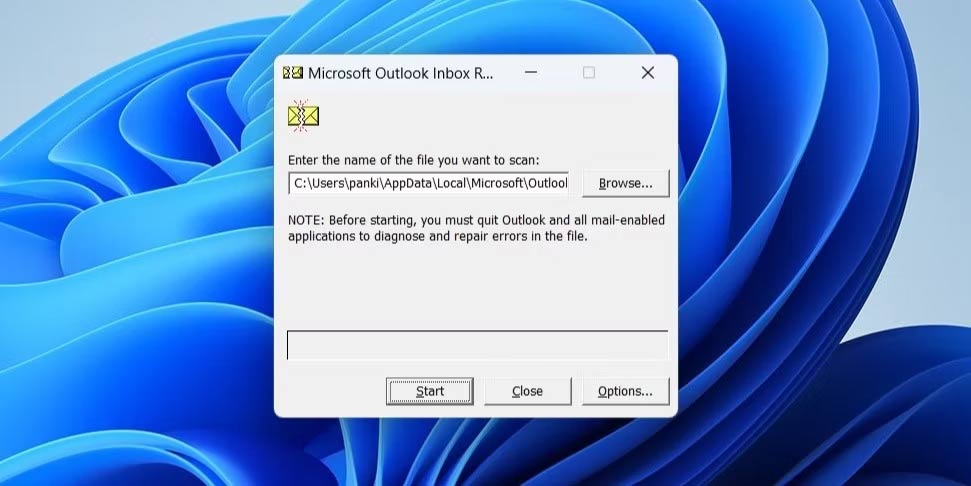
The executable and data-file locations vary by Office version and account. Use Microsoft's PST and OST repair guide rather than entering a guessed path.
7. Turn off compatibility mode
Classic Outlook normally should not run in Windows compatibility mode. Right-click the Outlook shortcut, choose Properties, open Compatibility, and clear Run this program in compatibility mode if it is enabled. Apply the change and test Outlook again.
8. Use Microsoft's supported troubleshooter
Open the Windows Get Help app and search for the exact Outlook startup message. Microsoft has moved several older support tools into Get Help. The available Microsoft 365 troubleshooters can check common configuration and sign-in problems.
When to stop and protect the data
Stop repeated repair attempts if the PST is the only copy of important mail, the storage device is reporting errors, or SCANPST repeatedly fails. Make a copy of the data file and involve the organization's Microsoft 365 administrator or a qualified recovery service. Reinstalling Outlook does not by itself repair a damaged local data file.
Related Articles
 How to Fix Outlook There Is No Associated Program Email on Windows3 minutes read
 Fix Microsoft Outlook Error 0x80040115 on Windows 107 minutes read
 Outlook 2016 Crashes on Startup, This Is a Fix3 minutes read
 How to Fix Outlook Error 0x800CCC0E: Complete Guide9 minutes read
 Microsoft Is Committed to Fixing Updates on Windows 103 minutes read
 Error Cannot Open Outlook, This Is a Fix3 minutes read
Reader Comments 0
Sign in with email or Google to join the discussion.