Table of Contents
When a Windows 11 laptop repeatedly drops Wi-Fi, first determine whether the network itself is failing or only the laptop is disconnecting. Test another phone or computer on the same Wi-Fi at the same time. If every device drops, focus on the router, modem, interference, or internet provider. If only the laptop drops, work through the Windows steps below.
1. Reset the radio without changing saved settings
Press Windows+A, turn Wi-Fi off, wait 10 seconds, and turn it on again. If that does not restore the radio, briefly enable Airplane mode, wait, and disable it.
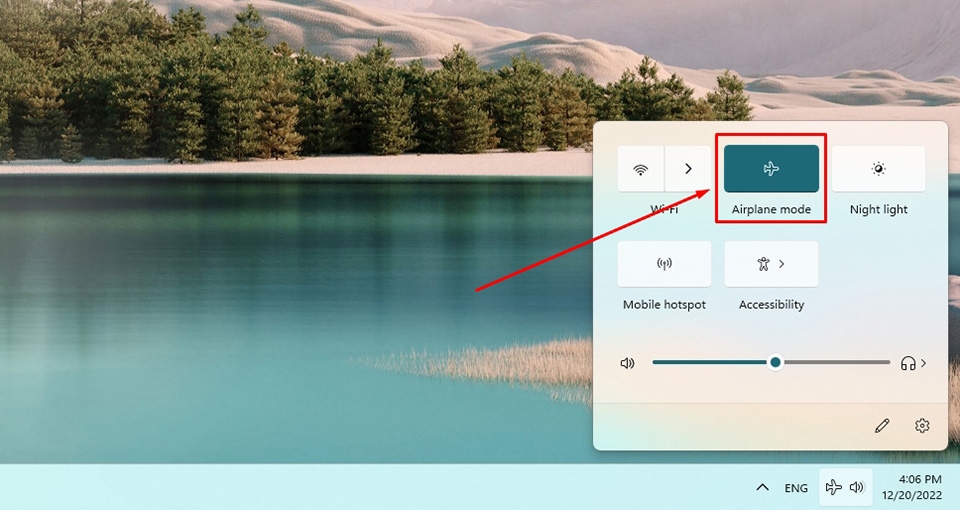
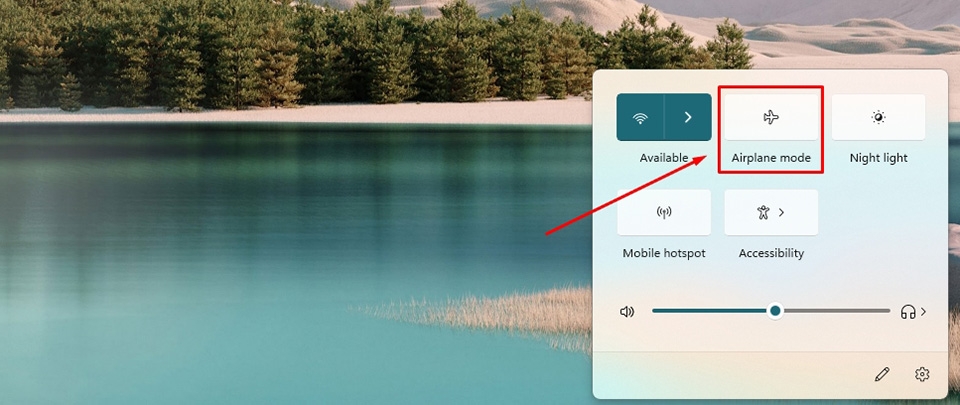
Airplane mode also interrupts Bluetooth and other radios, so do not use it while transferring data or relying on a Bluetooth input device. This is a temporary radio reset, not a fix for recurring driver or signal problems.
2. Forget and reconnect to one problem network
A damaged or outdated saved profile can cause repeated authentication failures. Forgetting the network removes its stored password and configuration from this PC:
- Press Windows+A and open Manage Wi-Fi connections.
- Right-click the affected network and choose Forget. You can also use Settings > Network & internet > Wi-Fi > Manage known networks.
- Select the network again, enter the current password, and reconnect.
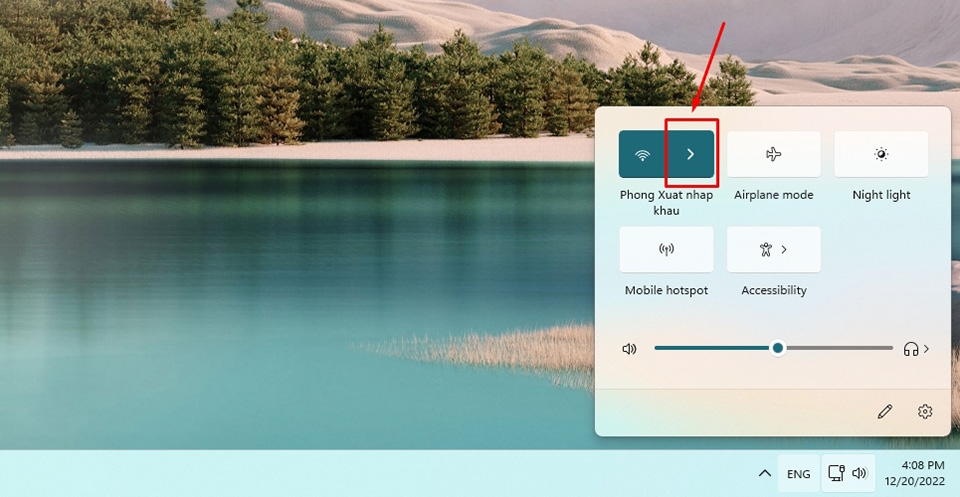
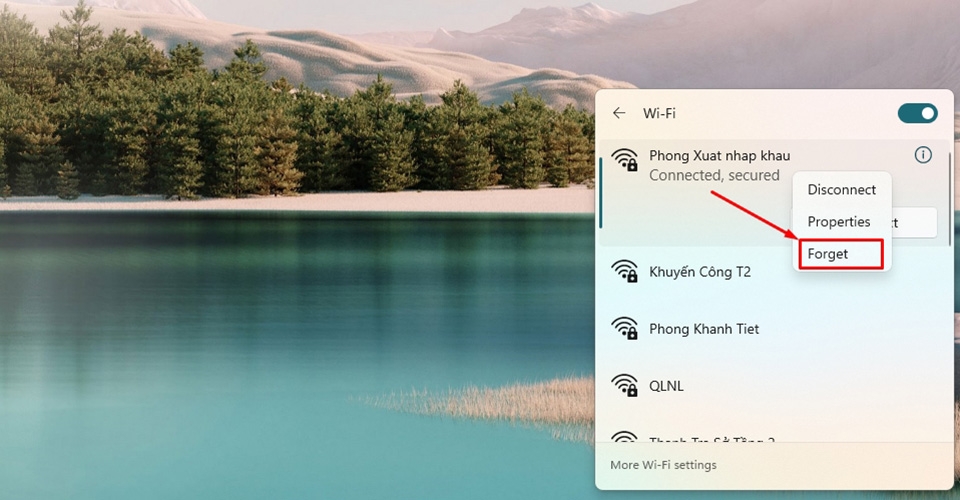
If the network uses work or school certificates, captive-portal enrollment, or organization settings, ask the administrator before removing its profile.
3. Enable automatic reconnection
If the connection works but does not return after a brief signal loss, enable Connect automatically when in range:
- Open the Wi-Fi network list from Quick Settings.
- Select the network and open its properties.
- Enable Connect automatically when in range.
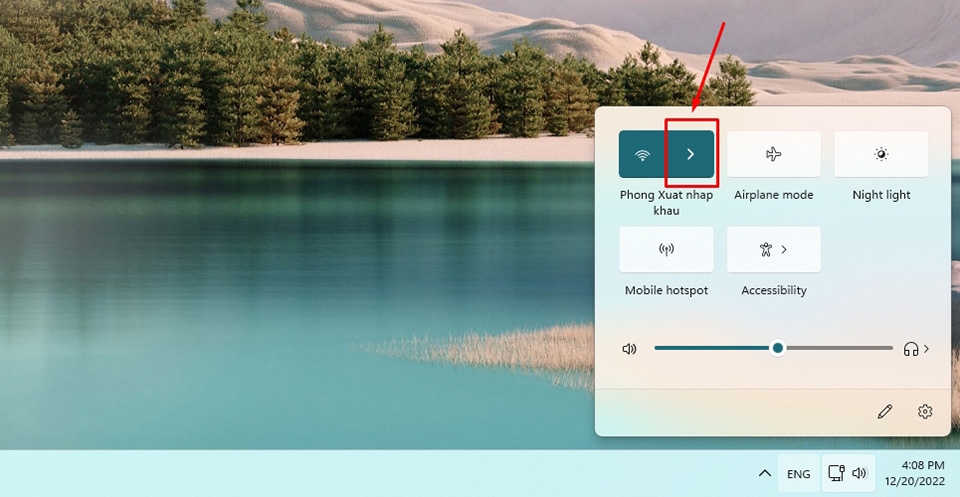
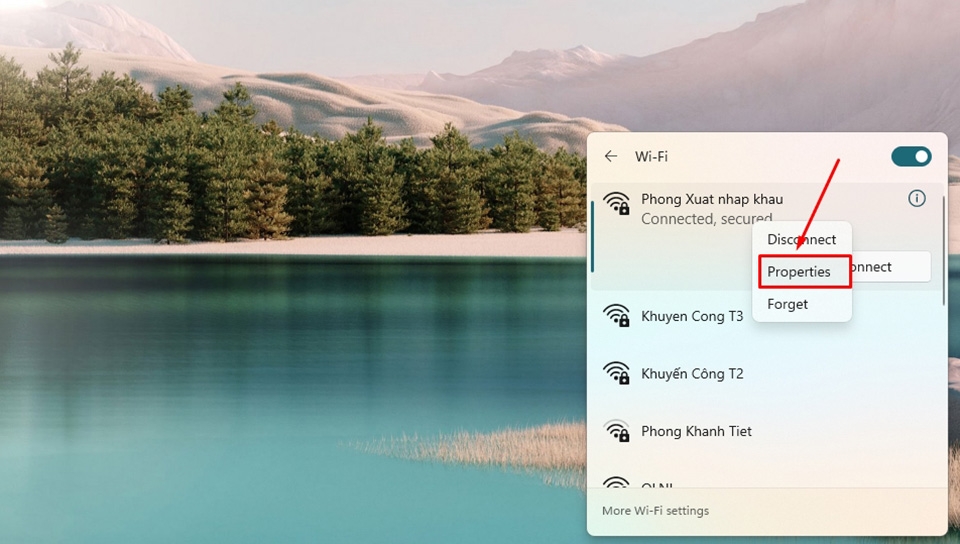
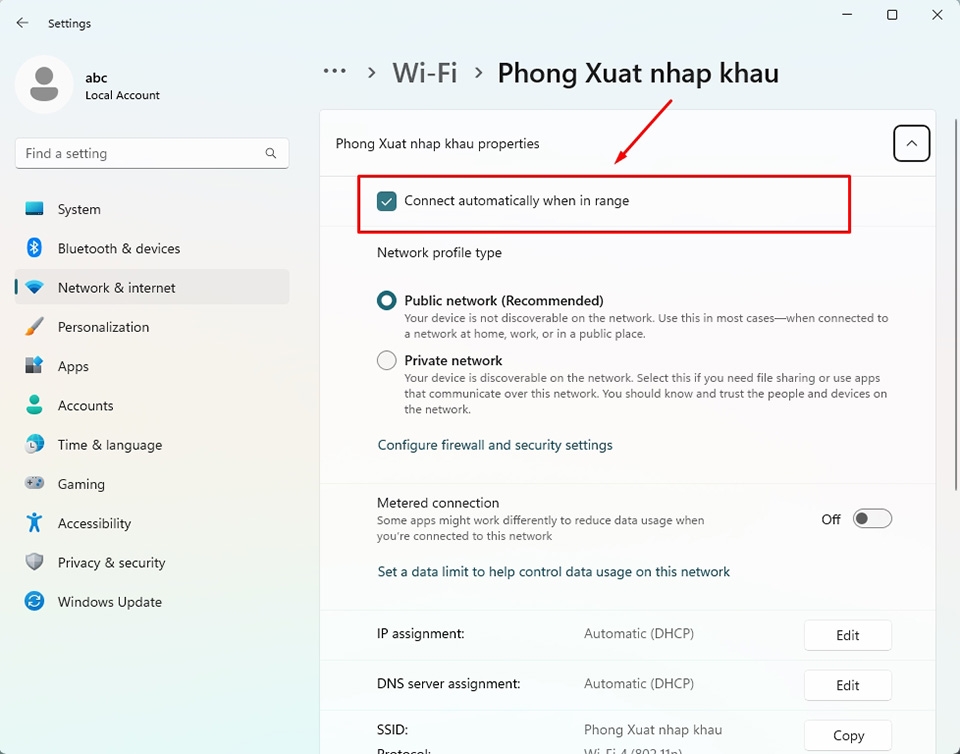
This setting helps Windows reconnect; it does not prevent the original drop. Continue if the connection still fails while the signal is strong.
4. Update or roll back the wireless driver
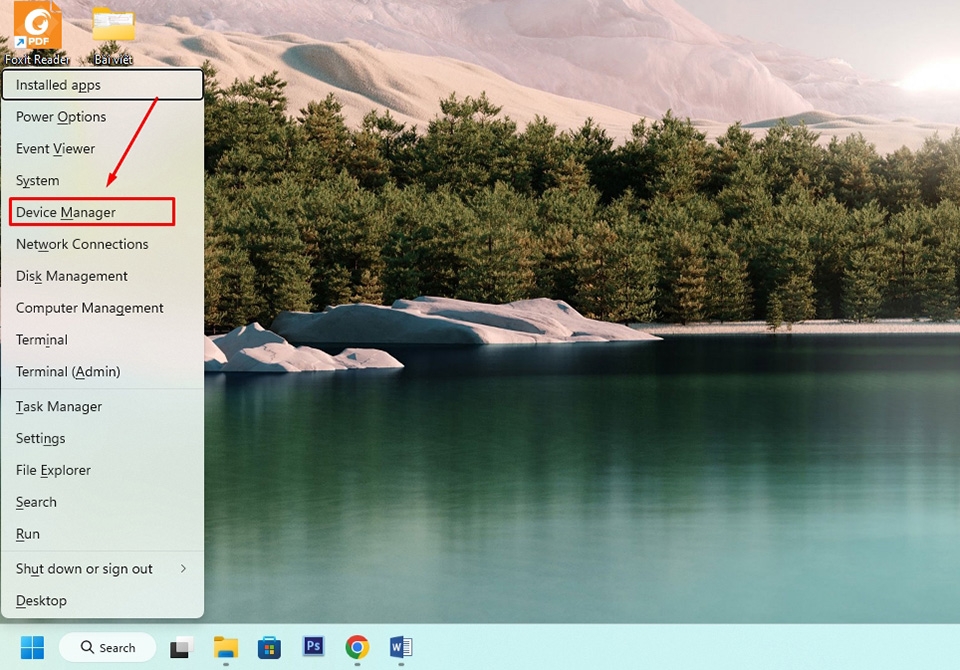
- Press Windows+X and open Device Manager.
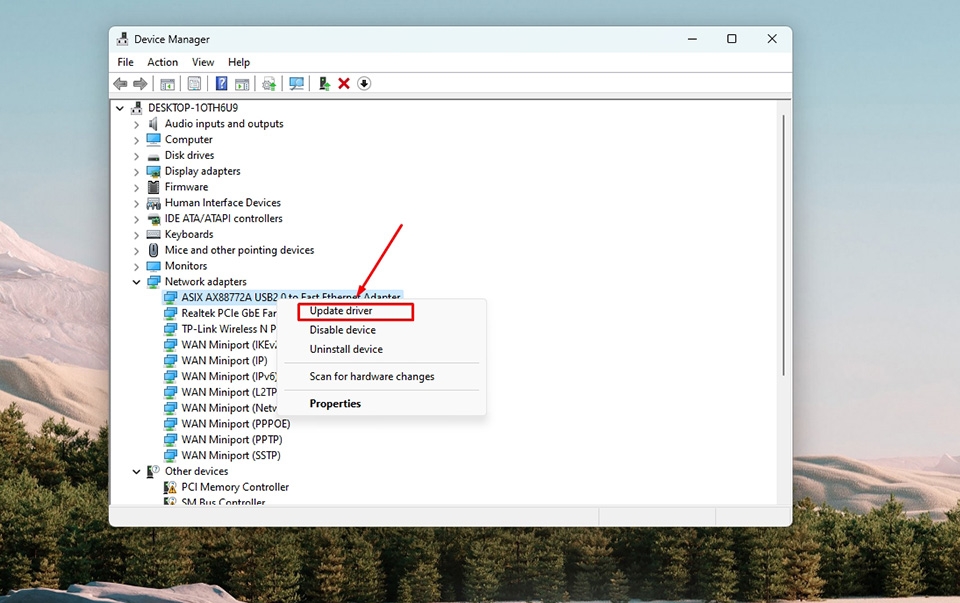
- Expand Network adapters and identify the Wi-Fi adapter.
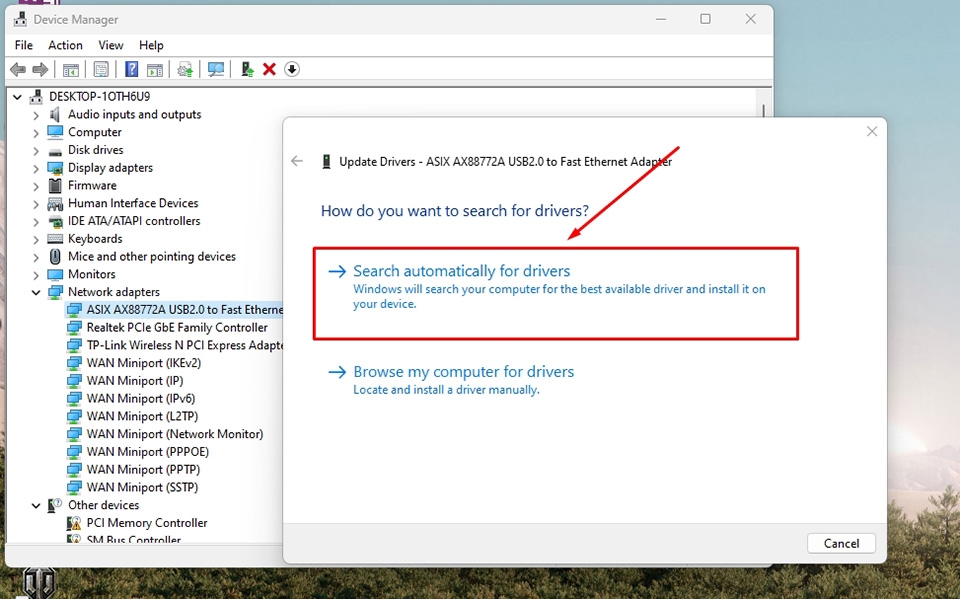
- Right-click it and choose Update driver > Search automatically for drivers.
- Check Windows Update > Advanced options > Optional updates and the laptop maker's support page for the exact model.
- Restart the PC.
If drops began immediately after a driver update, open Properties > Driver for the adapter and select Roll Back Driver when available. A newer driver is not always better for every laptop firmware version.
5. Check power management for drops after sleep
If Wi-Fi disconnects after closing the lid or waking the PC:
- In Device Manager, open the Wi-Fi adapter's Properties.
- On the Power Management tab, clear Allow the computer to turn off this device to save power, if the option exists.
- Restart and test another sleep/wake cycle.
The tab is not available on every modern adapter. Install the laptop maker's chipset, power-management, and wireless drivers before changing broad power-plan settings.
6. Restart and reposition the router
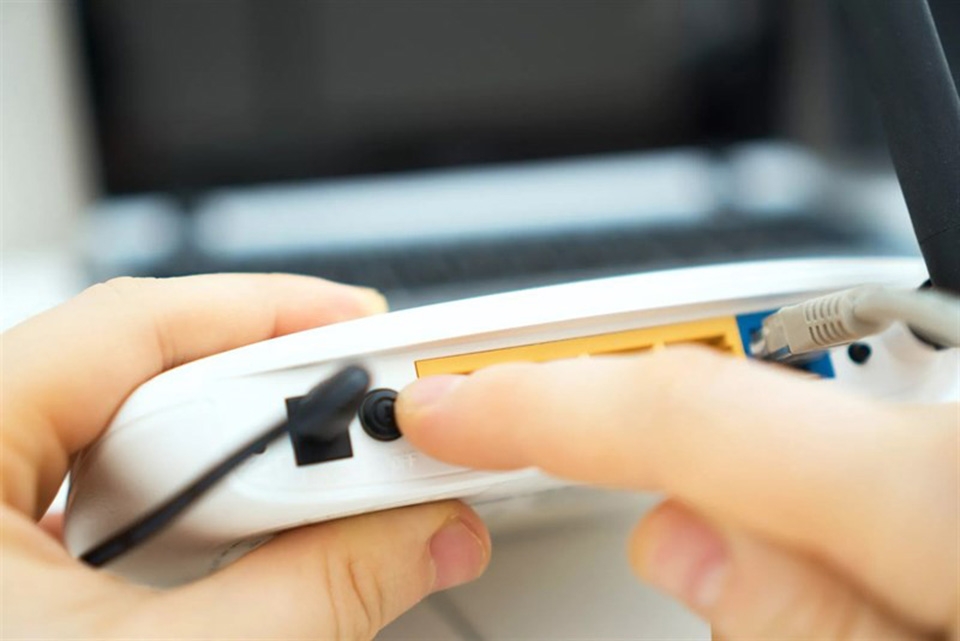
If several devices disconnect, restart the modem and router using their manufacturer's procedure. Do not press the factory-reset button. After the network returns, check for a router firmware update and place the router in an open, elevated position away from thick walls, metal, cordless-phone bases, and other sources of interference.
Compare bands if the router provides them separately. A 2.4 GHz connection generally reaches farther, while 5 GHz usually has more capacity at shorter range. On mesh systems, poor access-point placement or aggressive roaming can look like a laptop fault.
7. Collect evidence before a full reset
Open an administrator Terminal and create Windows' wireless report:
netsh wlan show wlanreportOpen the HTML file at the path shown. The session chart and disconnect-reason fields can reveal authentication failures, driver resets, signal loss, or service interruptions. Do not publish the report without reviewing device, user, and network identifiers.
Also note whether the drops happen:
- only on battery power;
- only after sleep;
- only on one router or band;
- under heavy downloads or video calls;
- at a particular distance from the access point;
- immediately after a Windows, BIOS, or driver update.
Last resort: Network reset
If the adapter is detected and none of the targeted fixes works, go to Settings > Network & internet > Advanced network settings > Network reset. Record Wi-Fi credentials, VPN settings, static IP addresses, custom DNS, and virtual switches first. The reset removes and reinstalls network adapters, restarts the PC, and can require VPN or virtualization networking to be configured again.
If Wi-Fi disappears from Device Manager entirely, repeated software resets are unlikely to help. Check BIOS/UEFI wireless settings, run the manufacturer's hardware diagnostics, and arrange service if the internal Wi-Fi card is not detected.
For Microsoft's current diagnostic sequence, see Fix Wi-Fi connection issues in Windows.
Related Articles
 6 Ways to Improve Battery Life for Windows Laptops7 minutes read
 Fixing Slow Laptop Startup and Long Screen Time Issues5 minutes read
 Fixed Driver Disconnection When Connecting to Wi-Fi Connection6 minutes read
 Instructions on How to Handle Android Auto Disconnection: Complete Overview8 minutes read
 Simple Way to Fix Wi-Fi Disconnection Error on Windows 10 Laptop Explained7 minutes read
 List of Windows 11 24H2 Errors, Reasons Not to Update9 minutes read
Reader Comments 0
Sign in with email or Google to join the discussion.