Table of Contents
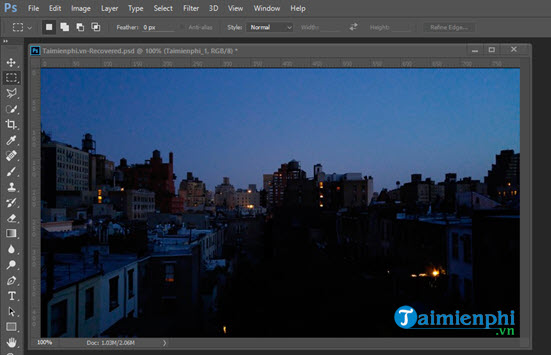
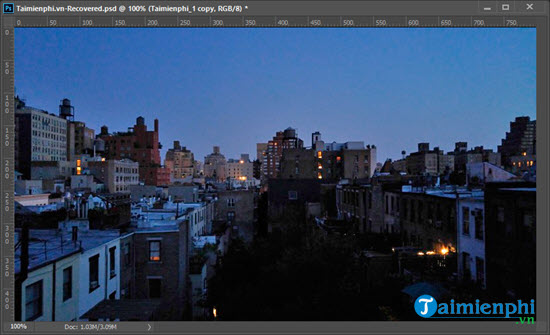
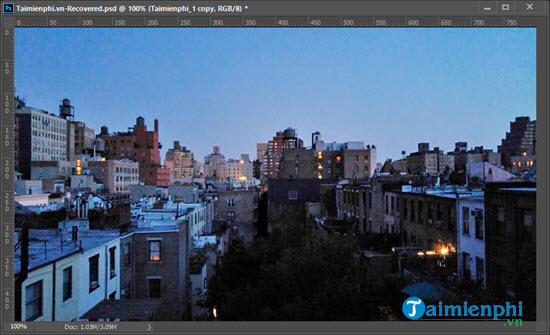
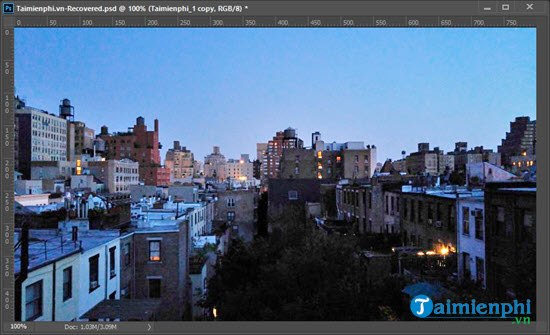
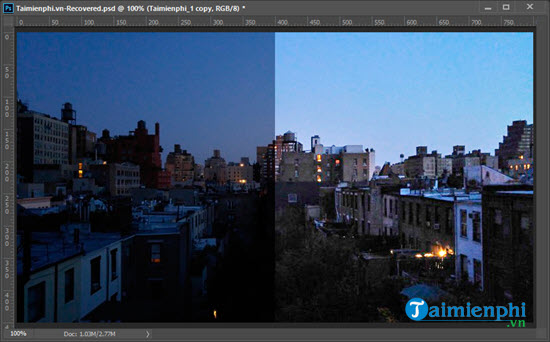
An underexposed photo can often be improved by lifting its midtones and shadows while protecting highlights. The safest Photoshop workflow uses adjustment layers so each correction remains editable. Brightening cannot restore detail that the camera never recorded, and strong shadow recovery may reveal noise.
Check the image before editing
Open Window > Histogram. A histogram weighted toward the left suggests many dark pixels, but the picture itself—not a target histogram shape—should guide the edit. Zoom to 100% and inspect whether important shadow areas contain texture or are completely black.
Fast workflow with Shadows/Highlights
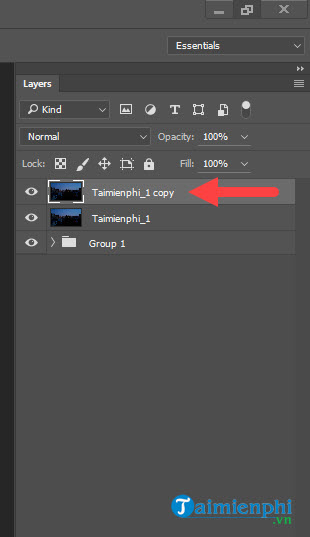
The original screenshots use direct adjustments on a duplicate layer. This is workable for a quick edit, although adjustment layers or Camera Raw are easier to revise.
- Select the image layer and press Ctrl+J on Windows or Command+J on macOS to duplicate it.
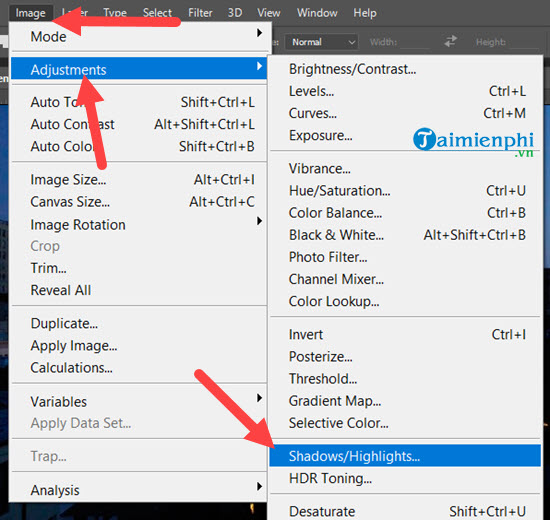
- Choose Image > Adjustments > Shadows/Highlights.
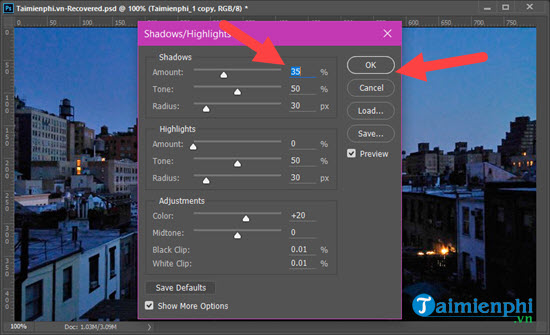
- Increase the Shadows Amount gradually while watching faces, edges and textured areas. The old example starts around 35%, but there is no universal value.
- If halos or flat-looking contrast appear, reduce the adjustment or open the additional controls and refine Tonal Width and Radius.
Refine brightness with Curves
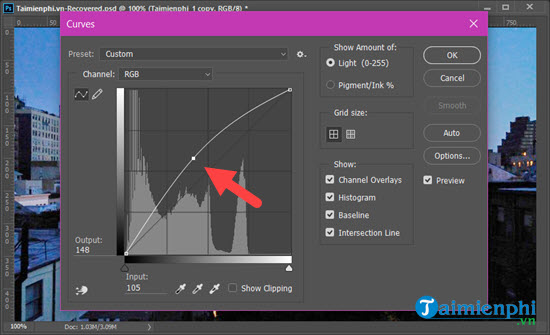
- Choose Layer > New Adjustment Layer > Curves.
- Click near the center of the curve and lift it gently to brighten midtones.
- Add another point in the highlights if you need to keep bright areas from becoming washed out.
- If only the subject needs correction, select the Curves mask and paint black over areas that should remain unchanged.
The legacy screenshot shows the direct Curves command opened with Ctrl+M. An adjustment layer provides similar tonal control without permanently changing the image layer.
Set the tonal range with Levels
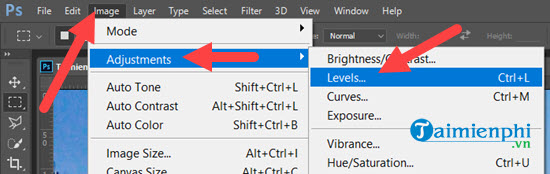
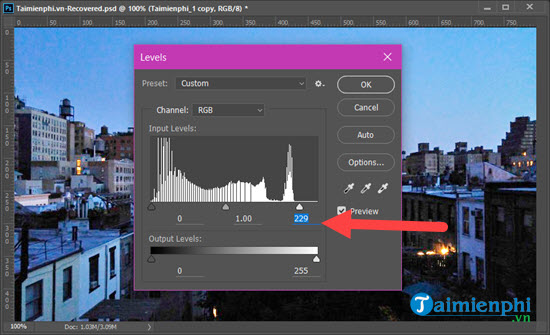
- Add a Levels adjustment layer.
- Move the middle gray input slider left to brighten midtones.
- Set black and white points only while watching for clipping. Holding Alt (Windows) or Option (macOS) while moving an endpoint can help reveal clipped pixels.
Avoid common brightening problems
- Noise and color blotches: these often become visible when deep shadows are lifted. Apply modest noise reduction after the tonal correction, not as a substitute for captured detail.
- Gray, flat blacks: reduce the shadow lift or use Curves to restore a controlled black point.
- Blown highlights: mask the adjustment away from bright regions or lower the curve there.
- Color changes: if a Curves layer changes saturation, try setting its blend mode to Luminosity.
RAW files offer more latitude
If a RAW file is available, begin in Adobe Camera Raw and adjust Exposure, Shadows, Highlights, Whites and Blacks before opening the image in Photoshop. A JPEG can still improve, but it contains less editing latitude and may show artifacts sooner.
Adobe explains how to read tonal distribution in its Photoshop histogram documentation. When the edit is complete, follow a suitable Photoshop export workflow. If Photoshop is unavailable, compare free desktop photo editors; for automated alternatives, review the AI photo enhancer comparison.
Related Articles
 The Fastest Method to Remove Noise in Photoshop8 minutes read
 How to Cut Circular Images in Photoshop: Cut Photos on Photoshop4 minutes read
 How to Use Photoshop CS6 (Part 1): Create Digital Photos11 minutes read
 Remove Bad Details from Photos with Adobe Photoshop5 minutes read
 Photoshop CS: Decorate Photos6 minutes read
 How to Create a Border for Photos in Photoshop2 minutes read
Reader Comments 0
Sign in with email or Google to join the discussion.