Table of Contents
To add text to an image in Photoshop, select the Type Tool, click for a short line or drag a text box for a paragraph, then format the new type layer. Keep the layer editable until the design is approved.
Add point text or paragraph text
- Open the image with File > Open.
- Select the Horizontal Type Tool or Vertical Type Tool. The shortcut T activates the current Type Tool.
- For a headline or caption, click once and type. For text that should wrap within a defined width, drag a text box and then type.
- Click the check mark in the Options bar, press Ctrl+Enter on Windows, or Command+Return on macOS to commit the text.
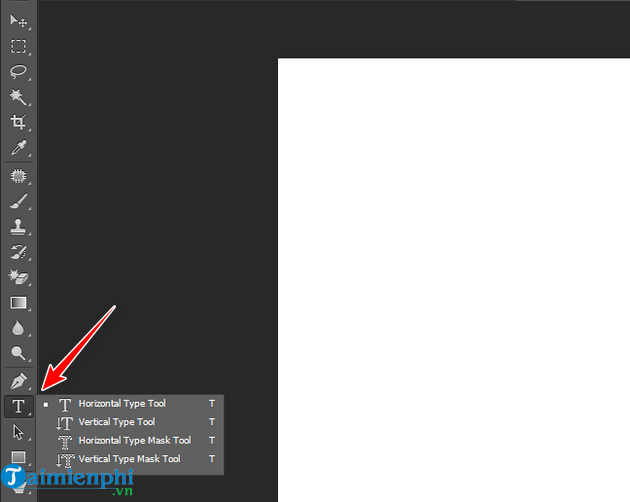

Format and position the text
Select the type layer, then use the Options bar or Window > Character to set the font family, style, size, color, tracking and leading. Use the Move Tool (V) to position the entire layer.


Before choosing a font, confirm that its license permits the intended use and that it contains every character your text needs. For multilingual designs, test accented letters, punctuation and numbers instead of relying on the font name alone.
Improve readability over a busy photo
A simple backing shape is often more legible than a strong glow or shadow:
- Select the Rectangle Tool and draw a shape behind the text.
- Choose a fill that contrasts with both the image and type.
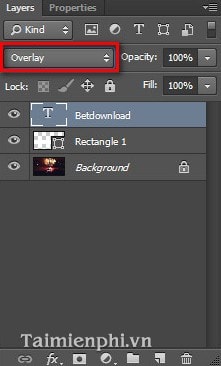
- Lower the shape layer's opacity until the photo remains visible but the words are easy to read.
The older example below uses a white rectangle and an Overlay blend mode. Treat those settings as a starting point, not fixed values; very low opacity may provide too little contrast for accessibility.

Edit, resize or replace the text later
- Double-click the type-layer thumbnail to edit the characters.
- Select the text and change formatting in the Options, Character or Paragraph panel.
- Use the text-box handles to resize paragraph text. Avoid scaling type blindly if an exact font size matters.
- Save a PSD copy with the type layer intact, then export the delivery format separately.
Design checks before export
- Read the text at the final display size, not only while zoomed in.
- Keep important words away from crop edges and interface overlays.
- Check spelling, line breaks and color contrast.
- Use Layer Styles sparingly; effects should support readability.
Adobe's current Photoshop text guide explains point and paragraph text. For more projects, see these Photoshop tutorials. For a simpler editor, learn how to add text in Microsoft Paint, or compare three tools for placing text on images.
Related Articles
 How to Integrate Images into Text on Photoshop5 minutes read
 How to Insert Text in Photoshop: Step-by-Step Guide9 minutes read
 How to Add Fonts to Photoshop: Step-by-Step Guide4 minutes read
 How to Export Text from Images Using Easy Screen OCR7 minutes read
 5 Easy Ways to Handle Low-Light Photos in Photoshop10 minutes read
 Add Text to GIF Images, Add Text to Animated Images5 minutes read
Reader Comments 0
Sign in with email or Google to join the discussion.