Table of Contents
Learn how to change the Color of Shirts and Pants using Photoshop with clear steps, practical tips, and troubleshooting guidance for common issues.
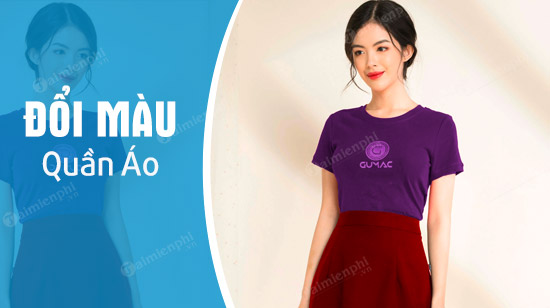
Change the color of your shirt and pants using Photoshop.
Instructions on changing the color of shirts and pants using Photoshop
Before we delve into the detailed instructions for changing the color of a shirt using Photoshop, we need to have this software on our computer. Click here to download Photoshop for your computer.
>> Refer to this link for instructions on how to install Photoshop if you have never installed this software before.
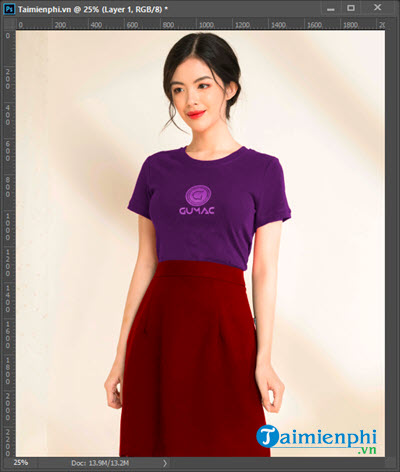
Let's assume we have the picture of the girl below. First, let's change the color of her shirt using Photoshop.
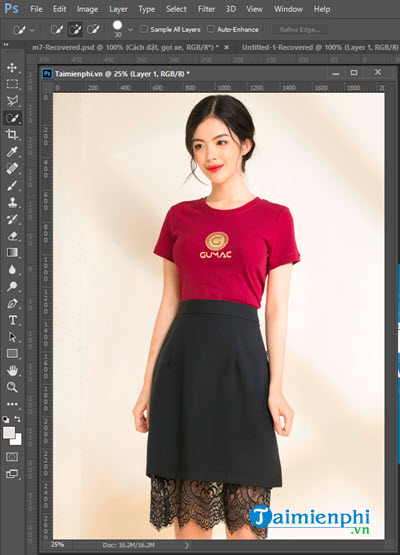
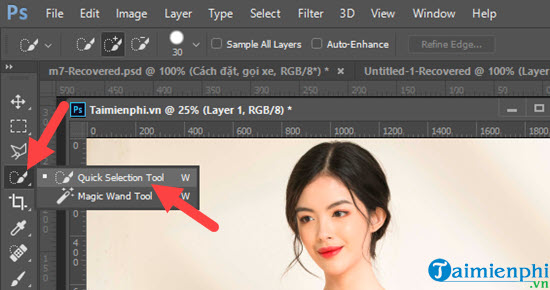
Step 1: To change the color of the shirt in Photoshop as shown In this guide,, we need to select the area of the shirt to prevent other parts from changing color. Specifically, you select the Quick Selection Tool.
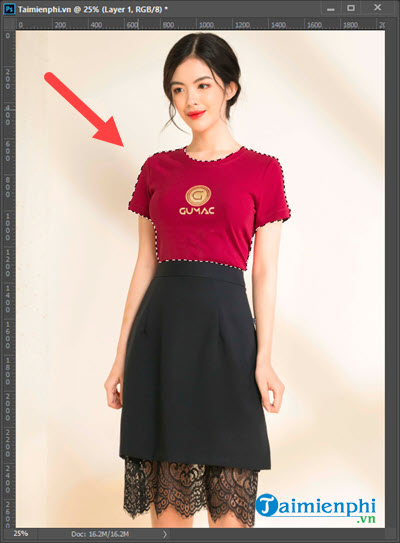
Step 2: Next, point to several points on the shirt and you will see a border around them; this means we have successfully selected the areas to change color.
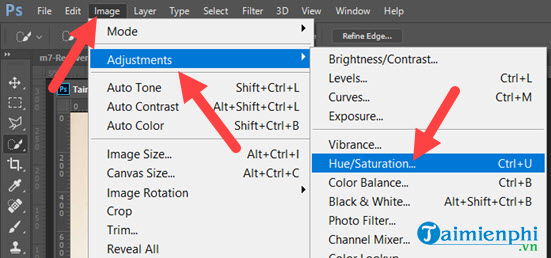
Step 3: Next, look at the menu bar and select Image > Adjustments > choose Hue/Saturation . This feature lets you change the color of the shirt using Photoshop.
Step 4: Here you will see a table with many color options; we just need to set the parameters here to change the color.
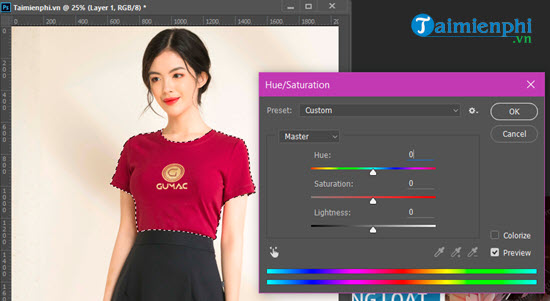
+ Hue : Changes the color of the selected image.
+ Saturation : Changes the intensity of the image's colors (affects HUE).
+ Lightness : Changes the brightness or darkness of the image (affects HUE).
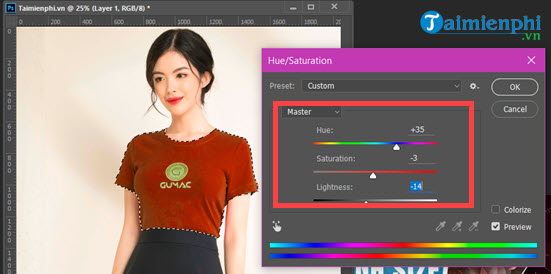
Step 5: And as you can see, with just a few drags, the color of the shirt has completely changed. You can click Colorize to fine-tune the color more specifically.
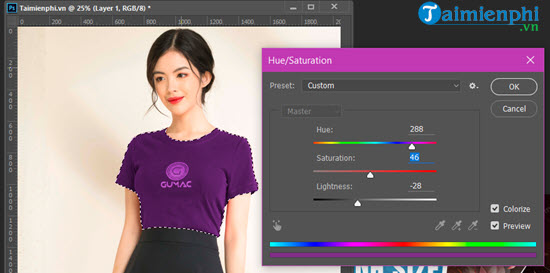
So, after changing the shirt color using Photoshop, we will get the result shown below, where the colors look quite harmonious.
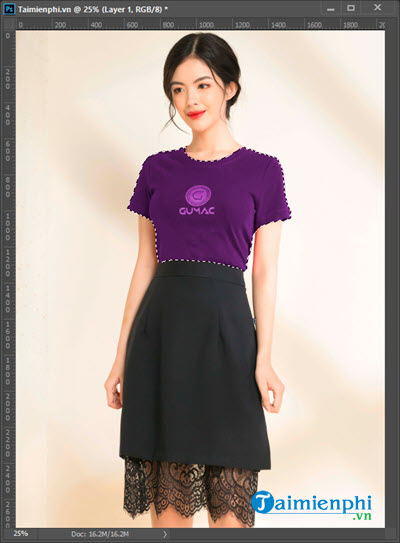
You can change colors in a snap with just a drag.
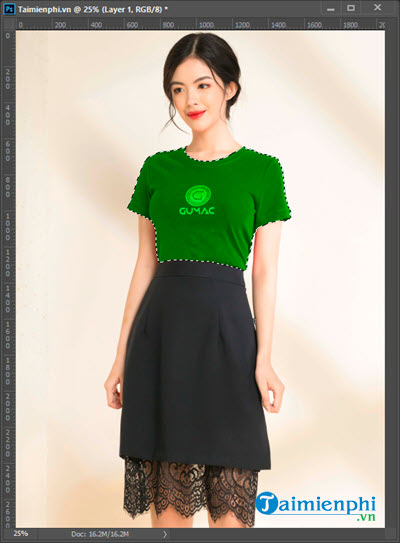
Step 6: Now that we've changed the shirt color using Photoshop, let's change the pants color. The process is similar to changing the shirt color.
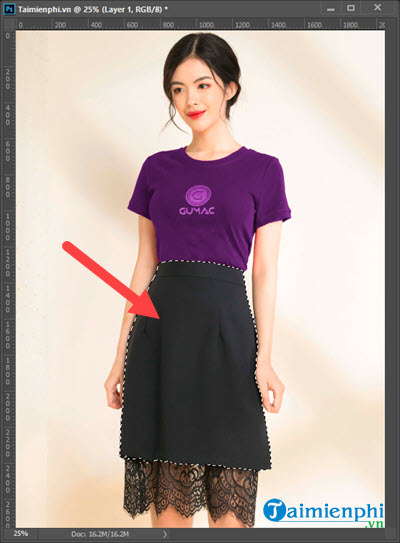
Step 7: Go back to Hue/Saturation to adjust the color of the pants to your liking.
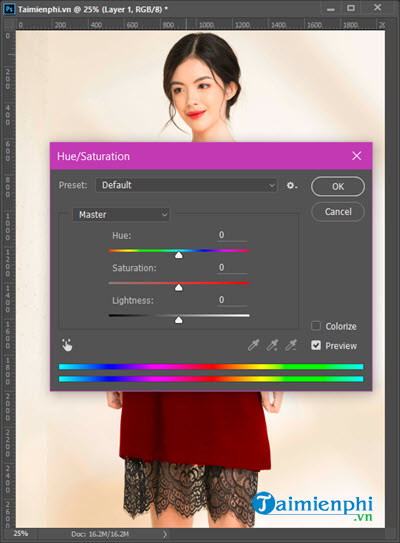
Ultimately, we will have a completely color-shifted image; whether this color shift is successful or not depends on the complexity of the colors and patterns on the clothing.
 Through the above instructions, you can also see how versatile Photoshop is. These are just basic techniques that users can apply to Photoshop. Of course, depending on the complexity of the image, we will have different solutions. Refer to how to change hair color using Photoshop here.
To improve your Photoshop skills, TipsMake recommends using keyboard shortcuts when working with Photoshop. Photoshop shortcuts will save you time and effort, and memorizing them wo n't take much time.
FAQ
How can you change the Color of Shirts and Pants using Photoshop?
Learn how to change the Color of Shirts and Pants using Photoshop with clear steps, practical tips, and troubleshooting guidance for common issues.
What should you know about instructions on changing the color of shirts and pants using Photoshop?
Before we delve into the detailed instructions for changing the color of a shirt using Photoshop, we need to have this software on our computer.
Do the steps or features vary by device or software version?
They can. Menu names, available settings, and compatibility may differ by device, region, account type, or software version, so check the options shown on your own screen.
Related Articles
 How to Change the Background Color in Photoshop6 minutes read
 How to Use Photoshop CS5 - Part 11: Change Colors from Black and6 minutes read
 How to Color Images in Photoshop: Color in Photoshop4 minutes read
 How to Choose and Change Object Colors in Photoshop Fastest3 minutes read
 How to Change the Font Color in Photoshop3 minutes read
 Unique Tricks Wearing Super Nice Shirts for Men8 minutes read
Reader Comments 0
Sign in with email or Google to join the discussion.