Table of Contents
Photoshop CS6 is discontinued and no longer supported as a current Photoshop release. Install it only if you already own a valid CS6 license and can obtain the installer from your registered Adobe account or original media. Do not use modified DLL files, key generators, unofficial “activation” packages or download sites.
Before installing Photoshop CS6
- Confirm ownership: you need a legitimate serial number or other entitlement associated with the product.
- Use an official source: Adobe says purchasers of registered non-subscription apps may be able to download earlier versions through their account.
- Check compatibility: Adobe's published CS6 requirements list Windows XP, Windows 7 and Windows 8-era environments. A modern Windows release is not part of that original supported matrix.
- Scan and back up: retain the installer and proof of purchase in a secure location. Scan any old removable media before opening it.
Install from legitimate media or your Adobe account
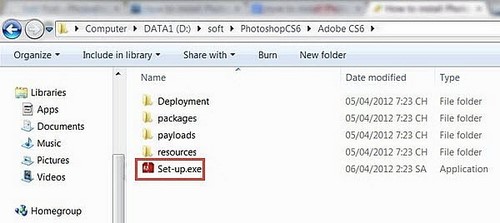
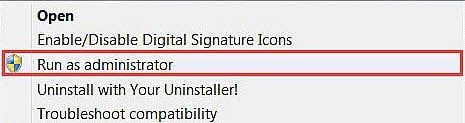
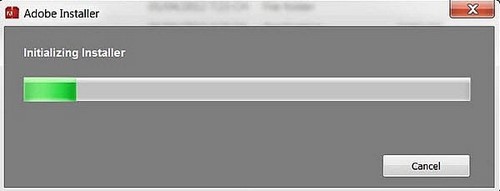
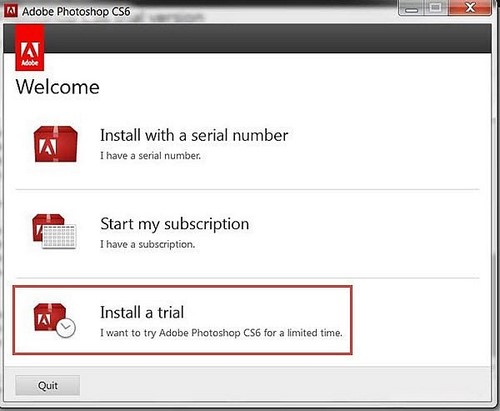
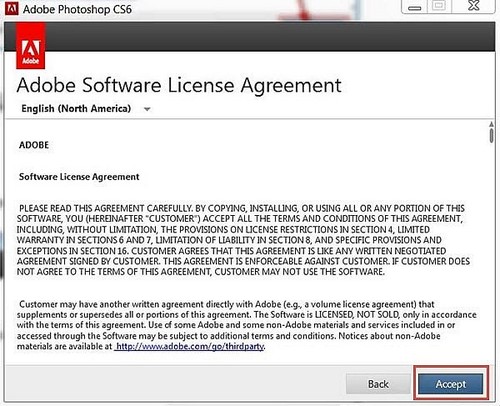
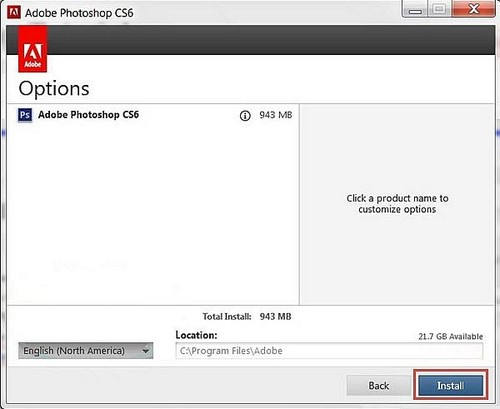
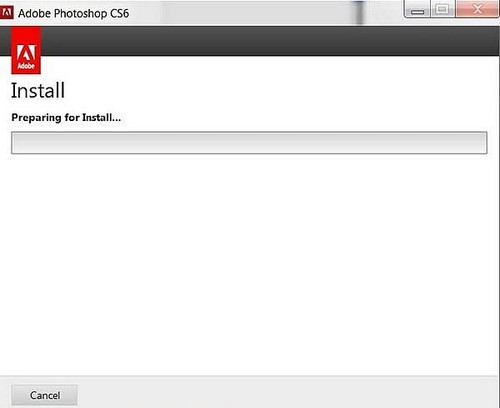
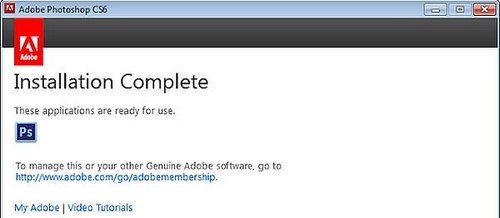
The following screenshots document the historical CS6 installer. Labels may differ by product edition and license type.
- Download the installer from your Adobe account if it is available there, or use your original installation media.
- Extract the official download if Adobe supplied it as an archive. Do not use a repackaged installer.
- Close other Adobe applications. Start Set-up.exe; approve the Windows prompt only after verifying the file came from your trusted source.
- Choose the licensed installation option and enter your legitimate serial number when prompted.
- Read and accept Adobe's license terms, choose the required language and components, then complete the installation.
Resolve legitimate activation or installation errors
Activation limit reached
Use Adobe's official activation-limit troubleshooting. You may need to deactivate the software on an old computer or sign out of another installation. Do not attempt to work around activation by replacing application files.
The installer will not run
- Compare the computer with Adobe's archived CS6 system requirements.
- Install pending Windows updates and restart before another attempt.
- Temporarily disconnect nonessential peripherals and close security-sensitive background tools, but do not disable security protection to run an untrusted installer.
- If remnants of a failed Adobe installation are interfering, use Adobe's official Creative Cloud Cleaner tool only after backing up settings and understanding what it will remove.
CS6 is incompatible with the computer
Use a currently supported Photoshop release or another maintained editor. Running an obsolete application on an unsupported operating system can create reliability, compatibility and security problems.
Why unofficial activators are unsafe
The original article instructed readers to replace amtlib.dll and obtain a free key. Those directions have been removed: they bypass licensing and require altering executable program files. Such packages can also conceal malware or break future updates. A serial number should come only from your legitimate purchase records or Adobe account.
Use Adobe's official CS6 installation archive, previous-version download guidance, and activation-limit troubleshooting. If CS6 is no longer practical, compare free Photoshop replacements, six free photo editors, or Photoshop alternatives for Windows and Mac.




Reader Comments 0
Sign in with email or Google to join the discussion.