Table of Contents
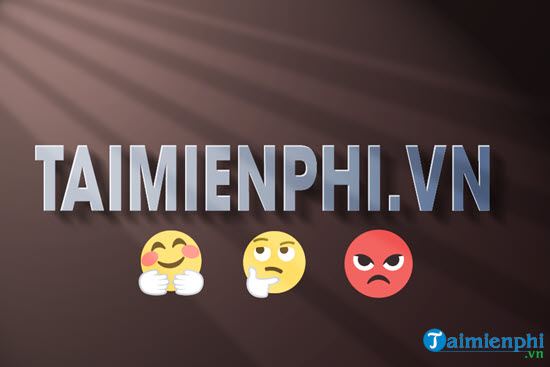
Photoshop can add an emoji as editable type through a color emoji font and the Glyphs panel. In current desktop versions, Adobe directs users to Noto Color Emoji SVG. Older installations and the screenshots below may show EmojiOne Color instead.
Insert an emoji with the Glyphs panel
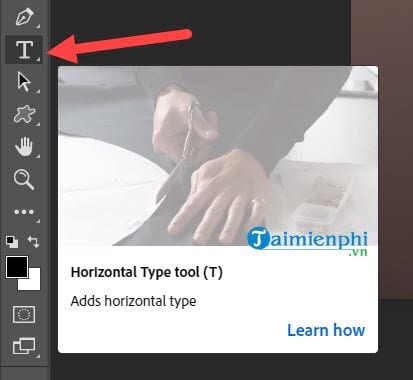
- Open the photo and select the Horizontal Type Tool or Vertical Type Tool.
- Click the image to create a new type layer.
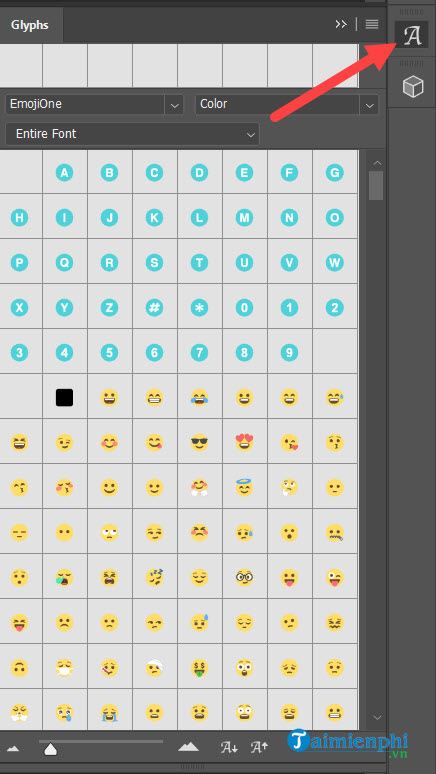
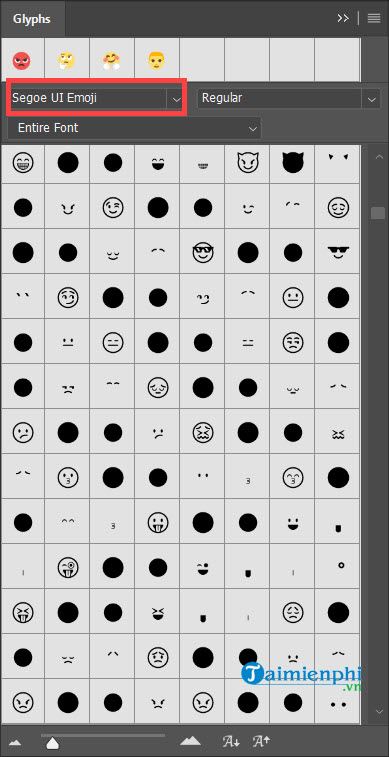
- Choose Noto Color Emoji SVG from the Options bar, Character panel or Properties panel. If the Glyphs panel does not open automatically, choose Window > Glyphs.
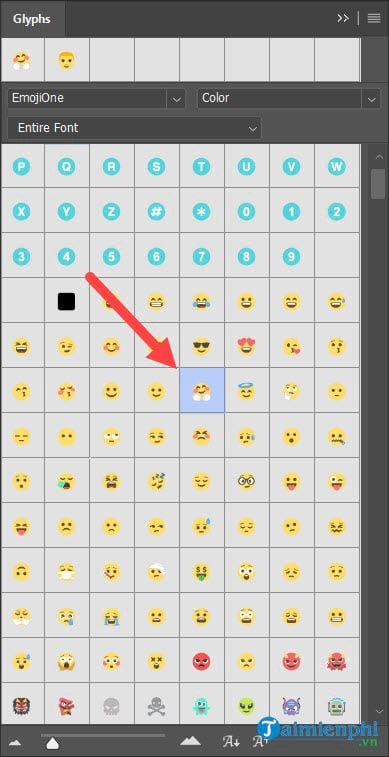
- Place the text cursor where the emoji should appear, then click the required glyph in the panel.
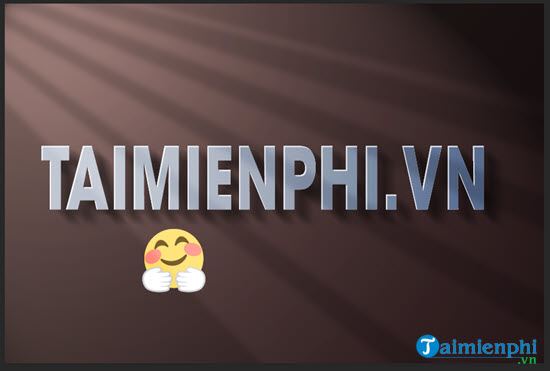
- Use the font-size control or Free Transform to size the emoji, and use the Move Tool to position its layer.
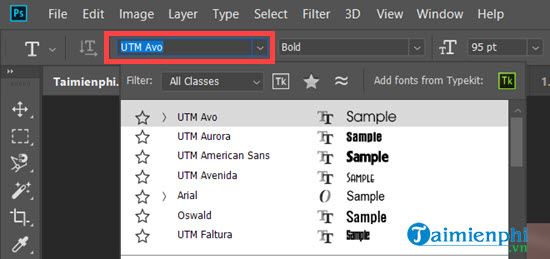
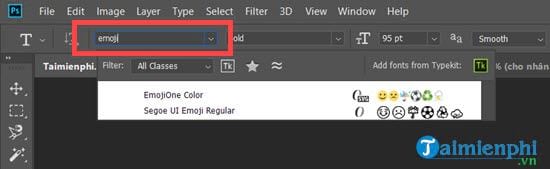
What the older screenshots show
The original tutorial lists EmojiOne Color and Segoe UI Emoji. Font availability and rendering depend on the Photoshop version and operating system, so do not assume those exact names will appear. Adobe's current instructions specify Noto Color Emoji SVG.
Resize and format the emoji
Because the emoji is a glyph, you can change its size, baseline and spacing with type controls. For free positioning, keep it on a separate type layer and move that layer independently. Hold Shift when transforming if your Photoshop settings require it to preserve proportions.
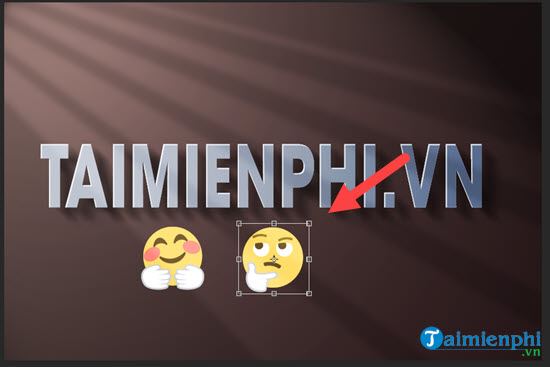
OpenType SVG fonts can contain multiple colors and gradients in one glyph. They do not behave exactly like ordinary single-color type, and some conversions can fall back to a monochrome appearance. Keep the editable type layer and test the final export format.
Use a monochrome emoji when appropriate
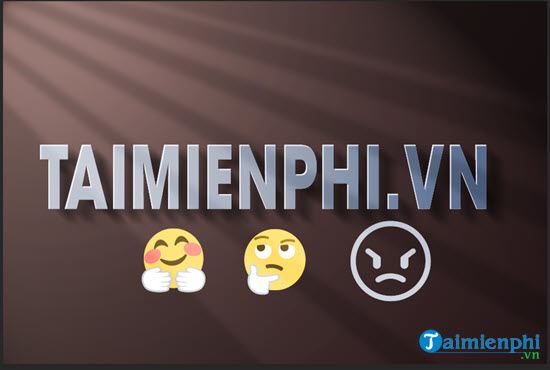
A monochrome emoji font can suit icons, labels and limited-color designs. The precise appearance is determined by the installed font and may differ across computers.
If the emoji is missing or black and white
- Confirm that the text layer uses a color emoji font supported by your Photoshop version.
- Open Window > Glyphs instead of relying on keyboard input alone.
- Keep the type layer editable; converting certain SVG-font characters may change their appearance.
- If the file will be opened on another computer, export a delivery copy and visually inspect it. Preserve the layered PSD separately.
See Adobe's current emoji glyph instructions for the supported font and panel workflow. For related Photoshop help, browse these Photoshop tutorials, learn how to undo multiple edits, and review export options before sharing the finished image.
Related Articles
 How to Cut Circular Images in Photoshop: Cut Photos on Photoshop4 minutes read
 Photoshop CS: Decorate Photos6 minutes read
 Super Photos Will Make You Admire the Ability of Humans to Photoshop3 minutes read
 A Comprehensive Guide to Emojis in Social Media Marketing6 minutes read
 How to Resize Photos in Photoshop4 minutes read
 'laughing Does Not Shut Up' with 23 Photos Falling into the Hands4 minutes read
Reader Comments 0
Sign in with email or Google to join the discussion.