Table of Contents
There are two different reasons to blur text in Photoshop: creating a visual motion effect on editable type, or obscuring text that is already part of an image. The workflows—and the privacy risks—are different.
Create a motion-blurred text effect
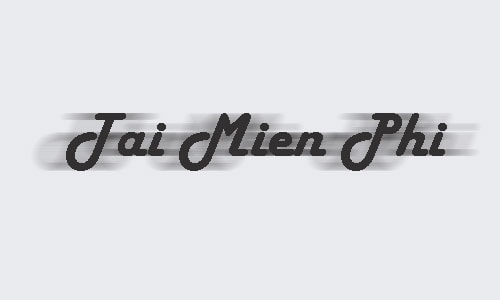
This effect keeps one sharp copy of the words and places a blurred duplicate behind it.
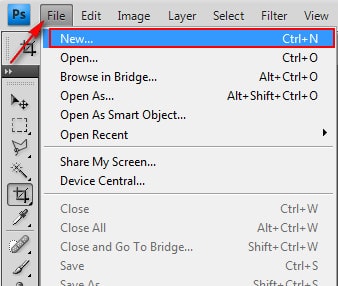
- Open the image or create a new document with File > New.
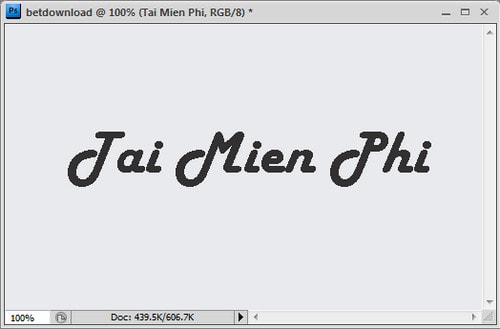
- Select the Type Tool (T), add the words, and choose the font, size and color.
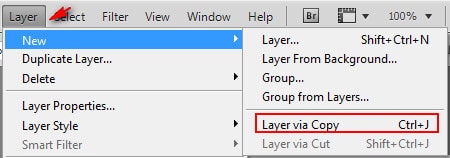
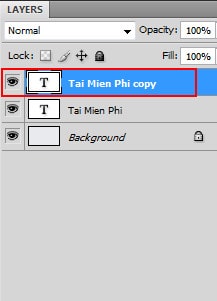
- Duplicate the type layer with Ctrl+J on Windows or Command+J on macOS.
- Select the lower copy. Choose Filter > Convert for Smart Filters so the blur can be edited later.
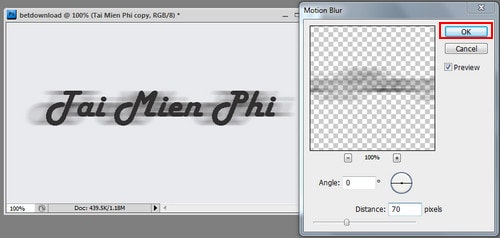
- Apply Filter > Blur > Motion Blur. Set the Angle to match the intended direction and increase Distance until the trail is visible but the sharp text remains readable.
- Reduce the blurred layer's Opacity or add a mask to limit the trail.
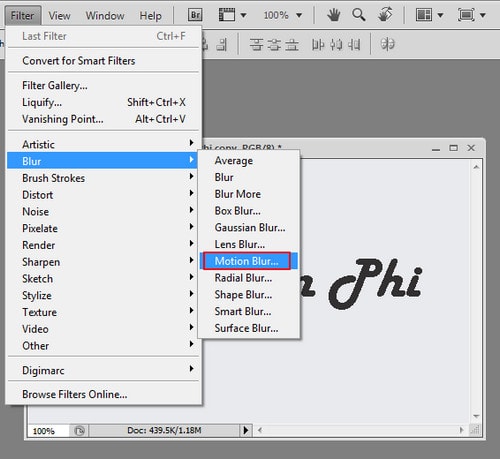
In Motion Blur, Distance controls the length of the blur, not its opacity. Use the Layers panel's Opacity control when you want the effect layer to appear fainter.
Blur text already present in an image
This method is suitable for a casual visual edit. For passwords, financial details, addresses or other sensitive information, use the secure redaction guidance in the next section.
- Duplicate the image layer or convert it to a Smart Object.
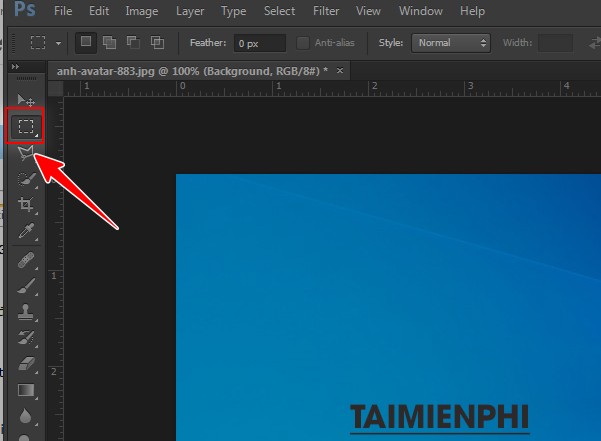
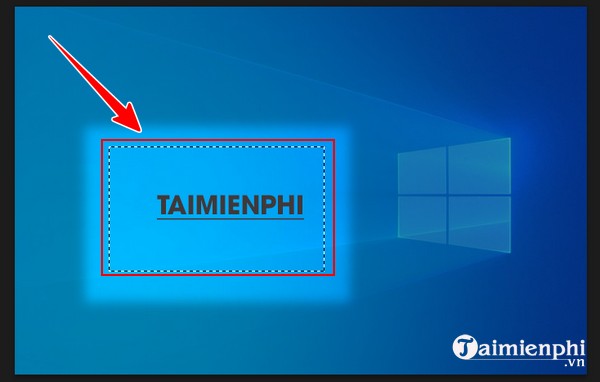
- Select the Rectangular Marquee Tool (M) and drag around the words. Include a margin so no letter edges remain outside the selection.
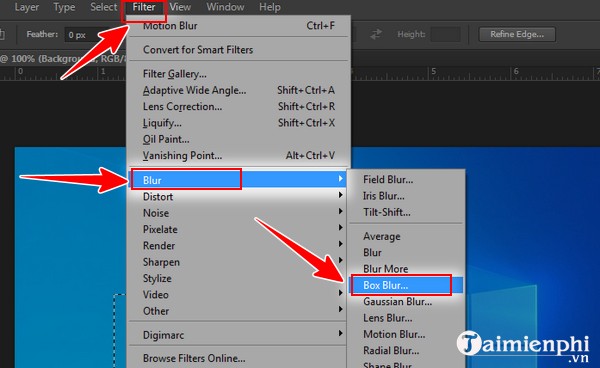
- Choose Filter > Blur > Box Blur or Gaussian Blur.
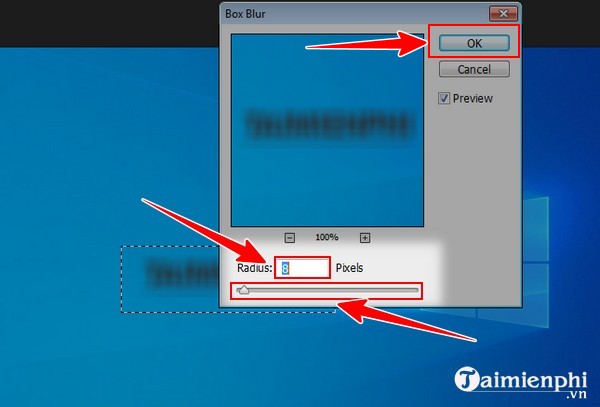
- Increase Radius until the text is no longer readable at the final output size, then click OK.
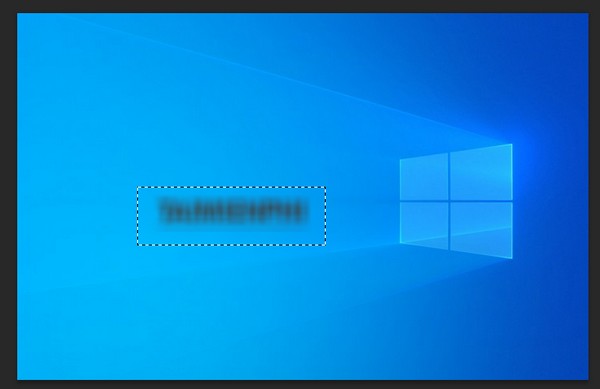
- Deselect and inspect the full image and a 100% zoom view.
Do not rely on blur for secure redaction
Blurred or pixelated text may remain recognizable, and weak transformations can sometimes be inferred from surrounding context. For sensitive material, cover the information completely with an opaque shape or remove the pixels, then export a flattened copy. Reopen that exported file and verify that the hidden information, layer content and metadata are not recoverable. Keep the original only in a protected location.
Save without losing editability
Save a layered PSD while working. Export a separate PNG or JPG for sharing. Do not merge the only working copy; Smart Filters, type layers and masks are valuable when the amount or position of the blur needs revision.
Adobe's Smart Filter guide explains how to keep blur effects editable, and its filter reference describes Box Blur. For more help, see how to undo multiple Photoshop edits, export images from Photoshop, or compare mobile photo-blurring apps.
Related Articles
 How to Integrate Images into Text on Photoshop5 minutes read
 Adobe Unveils 'Touch' Photoshop Version3 minutes read
 How to Insert Text in Photoshop: Step-by-Step Guide9 minutes read
 Microsoft and Adobe Started to Build a Touch-screen Photoshop4 minutes read
 How to Edit and Enhance Photos on Mobile with Photoshop Touch6 minutes read
 How to Remove Text on Photos with Photoshop10 minutes read
Reader Comments 0
Sign in with email or Google to join the discussion.