Table of Contents
Windows can display a Wi-Fi password saved on your own PC without third-party software. Use the Settings method first; the command-line method is useful for an older profile that is not currently connected. Reveal credentials only for a network you are authorized to use.
Windows 11: use Settings and the QR code
- Open Settings > Network & internet > Wi-Fi.
- For the current network, open Properties. For an older profile, choose Manage known networks and select the network.
- Next to Wi-Fi network password, select Show.
Supported Windows 11 builds also display a QR code that another device can scan. Microsoft's Wi-Fi connection guide documents the current Settings path.
Windows 10 or 11: use Wireless Properties
This method displays the security key for the network that is currently connected:
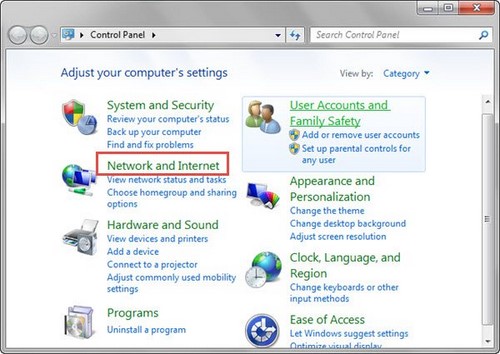
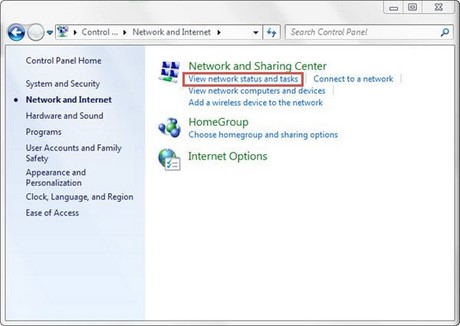
- Open Control Panel > Network and Internet > Network and Sharing Center.
- Select the Wi-Fi connection name beside Connections.
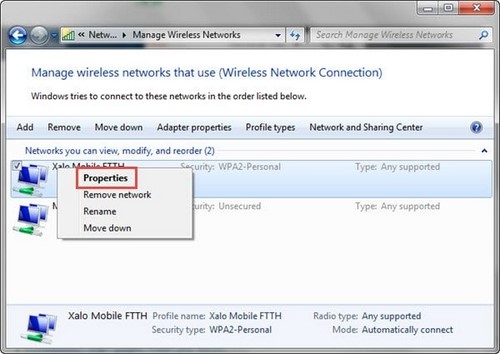
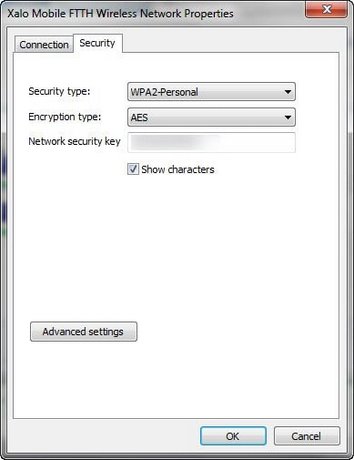
- Select Wireless Properties > Security.
- Check Show characters. Windows may require administrator approval.
The screenshots below show the older Control Panel route. The window styling can differ, but Wireless Properties still contains the Security tab for the active connection.
Use netsh for a saved profile
Open Terminal or Command Prompt and list the profiles stored on the PC:
netsh wlan show profilesThen replace YourNetworkName with the exact profile name:
netsh wlan show profile name="YourNetworkName" key=clearUnder Security settings, look for Key Content. The command may need administrator approval, and an organization can restrict access to managed Wi-Fi credentials. Microsoft's netsh wlan reference documents key=clear.
If no password appears
- The network may use enterprise authentication rather than one shared pre-shared key.
- The saved profile may have been removed or managed by an administrator.
- The PC may be connected by Ethernet or to a different Wi-Fi network.
- A router sticker can be outdated if the password was changed.
For a home network you own, sign in to the router or ISP app to view or change the wireless password. Changing it disconnects existing devices until they are updated.
Share the password safely
Prefer the Windows QR code or enter the password directly on the other device. Do not send a home or business Wi-Fi password in a public message. If an unexpected person may know it, change the password, use WPA2 or WPA3, update router firmware, and review connected devices.
TipsMake has a broader saved Wi-Fi password guide, a Wi-Fi troubleshooting assistant, and an explanation of Wi-Fi security types.
Related Articles
 minutes read
 How to View Saved Wi-Fi Passwords on Android8 minutes read
 Forgot Your Saved Wi-Fi Password?6 minutes read
 View Saved Passwords on iOS 114 minutes read
 How to View the Password, Delete the Saved Password on Chrome5 minutes read
 How to View Saved Passwords on Chrome: Step-by-Step Guide2 minutes read
Reader Comments 0
Sign in with email or Google to join the discussion.