Table of Contents
Windows 11 and 10 can block selected Wi-Fi network names with the built-in netsh wlan command. A block filter prevents that PC from connecting to the matching SSID; a separate display setting can hide blocked entries from the available-networks list. The change affects only the Windows computer where you run the commands.

What this setting does
- It does not turn off or interfere with a neighbor's router.
- It does not improve your signal strength or reduce radio interference.
- It does not hide your own network from other devices.
- It can prevent accidental connection to an unwanted or similarly named network on this PC.
Because a block filter changes connection behavior, record every command you add. On a work or school PC, the organization may already manage wireless filters; contact the administrator instead of changing them.
List nearby Wi-Fi networks
- Open Start, search for Terminal or Command Prompt, and select Run as administrator.
- Run:
netsh wlan show networks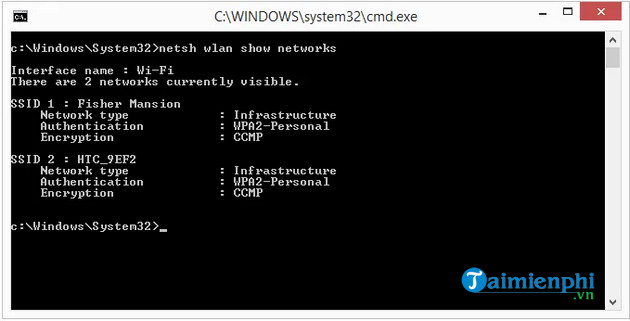
Copy the SSID exactly, including spaces and capitalization. An SSID can be reused by multiple access points, so filtering a name can block every nearby network broadcasting that same name.
Block one Wi-Fi network name
Replace NETWORK NAME with the unwanted SSID and keep the quotation marks:
netsh wlan add filter permission=block ssid="NETWORK NAME" networktype=infrastructure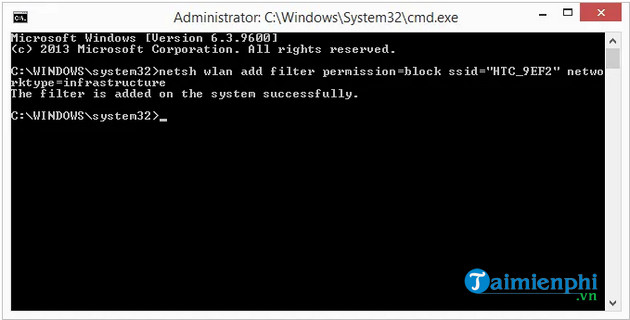
After the command succeeds, Windows will not connect to that SSID. Depending on the Windows build and display settings, the network may still appear with a blocked indicator rather than disappearing completely.
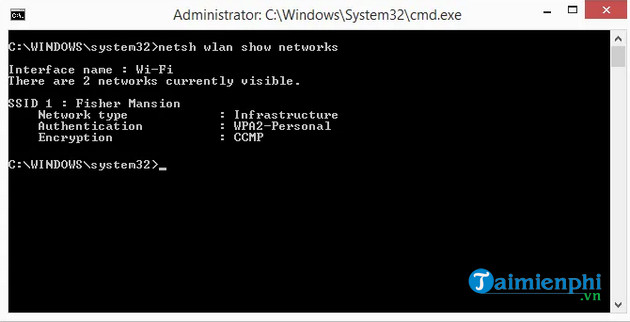
Hide blocked networks from the list
To hide entries that are already blocked, run:
netsh wlan set blockednetworks display=hideTo make blocked entries visible again without removing their filters:
netsh wlan set blockednetworks display=showMicrosoft documents these options in the official netsh wlan command reference.
Allow only selected Wi-Fi names
An allowlist can be useful on a dedicated or managed computer, but it is easy to lock yourself out. Add every approved SSID before enabling the deny-all filter:
netsh wlan add filter permission=allow ssid="MY NETWORK" networktype=infrastructure
netsh wlan add filter permission=denyall networktype=infrastructure
Run the first command again for each additional approved network. Confirm the names carefully and keep an administrator session open while testing. A deny-all filter will also block hotel, phone-hotspot, and emergency fallback networks that are not on the allowlist.
View current Wi-Fi filters
netsh wlan show filtersReview this output before deleting or adding filters. It separates allow, block, and deny-all entries.
Remove a filter
Unblock one named network:
netsh wlan delete filter permission=block ssid="NETWORK NAME" networktype=infrastructureRemove one allow entry:
netsh wlan delete filter permission=allow ssid="MY NETWORK" networktype=infrastructureRemove the deny-all rule:
netsh wlan delete filter permission=denyall networktype=infrastructureIf a network still does not appear, set blocked networks to display, rescan the Wi-Fi list, and verify that the router is in range:
netsh wlan set blockednetworks display=show
netsh wlan show filters
netsh wlan show networks
Filtering is not the same as forgetting a network
Forget removes the saved password and connection profile but leaves the SSID visible. A block filter prevents connection to that SSID until the filter is deleted. To forget a profile, open Settings > Network & internet > Wi-Fi > Manage known networks, select it, and choose Forget.
Do not hide your router's SSID for security
Turning off SSID broadcast does not make a wireless network meaningfully secure; devices still exchange information that can reveal its presence, and manually configured clients can remain connected. Use WPA2-Personal or WPA3-Personal, a strong unique password, current router firmware, and a separate guest network instead. TipsMake's guide to preventing unauthorized Wi-Fi access covers the practical controls.
Filtering will not fix interference
Hiding names changes only the Windows list. Nearby radios continue transmitting. If your Wi-Fi is slow or unstable, check signal strength, router placement, channel use, and frequency band. A Wi-Fi analyzer can help identify crowded channels, while TipsMake's Windows 11 Wi-Fi troubleshooting guide covers adapter and driver problems.
Related Articles
 How to Block Wi-Fi Networks in Windows6 minutes read
 How to Connect the Network Between Two Laptops Using a Network5 minutes read
 How to Fix Common Computer Network Issues: Step-by-Step12 minutes read
 Fix iPhone Error Not Connecting to Computer10 minutes read
 Test on Computer Network with Answer P93 minutes read
 How to Block Nearby Wi-Fi Networks from Appearing on Windows6 minutes read
Reader Comments 0
Sign in with email or Google to join the discussion.