Table of Contents
You can share a saved Wi-Fi network without reading the password aloud. Android creates a QR code that most modern phones can scan, while Apple devices can send the password through a nearby sharing prompt. Use these features only for a network you own or have permission to share.
Share Wi-Fi from an Android phone with a QR code
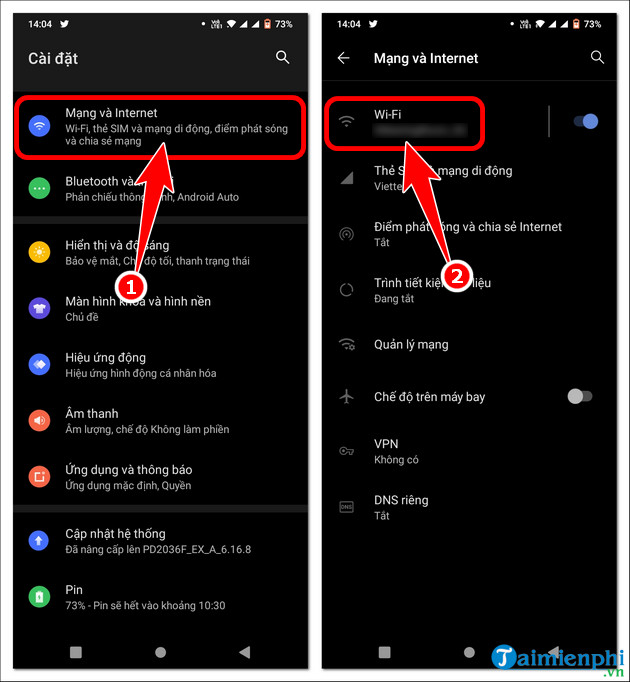
Menu names vary by manufacturer, but the standard Android path is Settings > Network & internet > Internet. Samsung and other brands may place the same feature under Connections > Wi-Fi.
- Connect the Android phone to the Wi-Fi network you want to share.
- Open Settings, then the Wi-Fi or Internet screen.
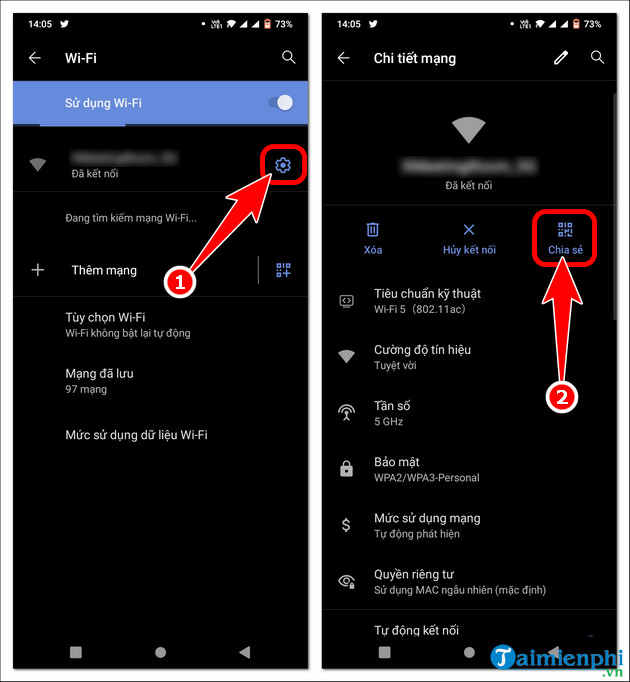
- Tap the connected network or the settings icon beside it.
- Tap Share or QR code. Authenticate with your PIN, fingerprint, or face if requested.
- On the receiving phone, open the Camera app or built-in QR scanner and scan the code. Confirm the network connection when prompted.
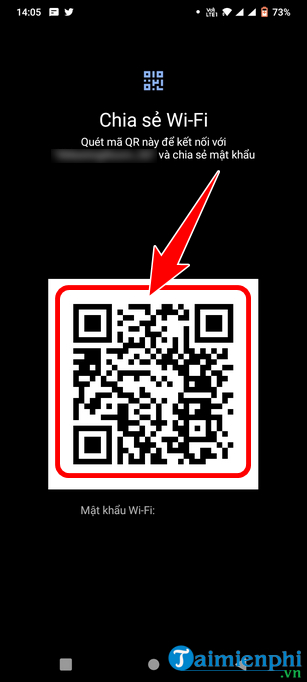
The QR code contains the connection details, so anyone who can scan or photograph it may be able to join the network. Close the screen after use and do not post the code publicly. Google's current instructions are available in its Android Wi-Fi support guide.
Share Wi-Fi between Apple devices
Apple's nearby password sharing works with an iPhone or iPad that is already connected and another nearby iPhone, iPad, or Mac. Before starting, turn on Wi-Fi and Bluetooth on both devices, turn off Personal Hotspot, unlock the sharing device, and make sure both people are signed in to their Apple Accounts. Apple also recommends that each person have the other's Apple Account email address saved in Contacts.
- On the receiving device, open Wi-Fi settings and select the network.
- Keep the connected iPhone or iPad unlocked and close to the receiving device.
- When the sharing prompt appears, tap Share Password.
- Tap Done after the other device connects.
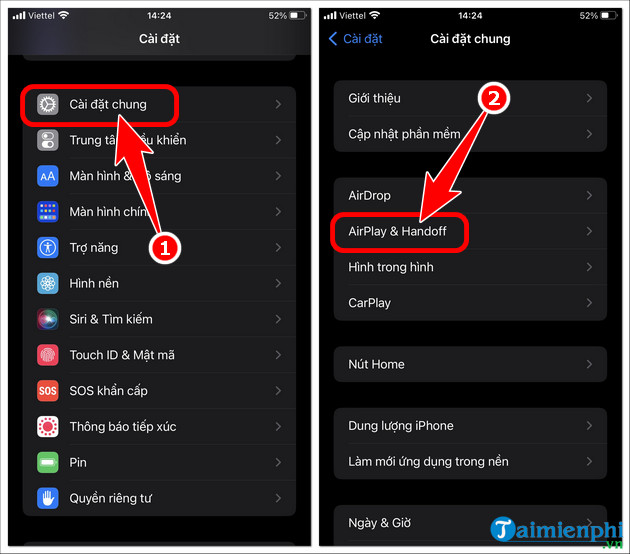
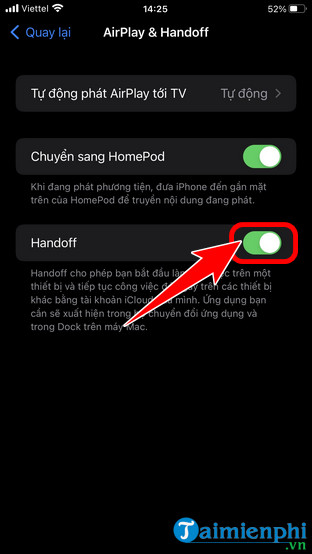
The two screenshots above show an older route through AirPlay & Handoff. Current Apple instructions do not require changing Handoff for ordinary Wi-Fi password sharing, so leave that setting alone unless you are troubleshooting another Continuity feature.
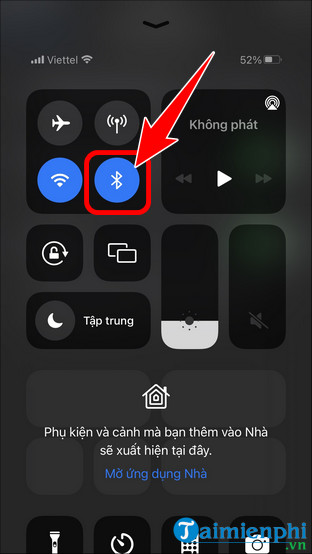
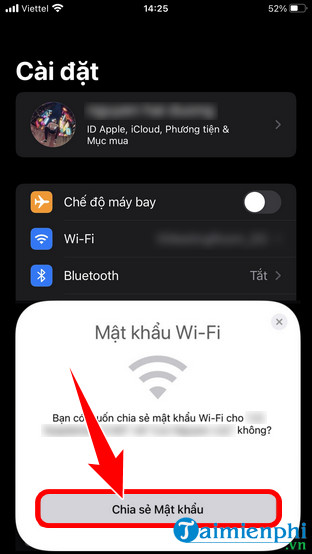
See Apple's official Wi-Fi password sharing instructions for the current requirements.
Share between iPhone and Android
An Android-generated Wi-Fi QR code can usually be scanned by an iPhone's Camera app, making Android-to-iPhone sharing straightforward. Apple's nearby Share Password prompt is designed for Apple devices, so it will not appear on an Android receiver.
When an iPhone is the connected device, open Passwords > Wi-Fi, select the saved network, authenticate, and copy or reveal the password to enter on Android. On supported iOS versions, you can also open Settings > Wi-Fi, tap the information button next to the network, and authenticate to reveal its password. Avoid sending the password through an untrusted chat or posting it in a shared space.
If the sharing prompt or QR code is missing
- Confirm that the sharing phone is connected to the intended network.
- Move the devices closer and keep both screens unlocked.
- On Apple devices, verify that Wi-Fi and Bluetooth are on and Personal Hotspot is off.
- Check that the contact card contains the correct Apple Account email address.
- On Android, look for Share, QR code, or a QR icon; manufacturers use different labels.
- Install operating-system updates, then restart both devices if the feature still does not appear.
If a phone cannot scan a code directly, TipsMake explains how to scan QR codes saved in photos. To share cellular data instead of an existing Wi-Fi network, use the phone's Personal Hotspot or tethering feature; that is a different process from sharing a saved network password.
Protect the network after sharing
Only share access with people you trust. A recipient can remain connected later and may be able to share the credentials again. For a business or frequent visitors, create a guest network instead of exposing the main network password. If access should end, change the Wi-Fi password and reconnect authorized devices; TipsMake's guide to preventing unauthorized Wi-Fi access covers additional safeguards.
Related Articles
 How to Share Calendars on iPhone: Step-by-Step Guide3 minutes read
 Is It True That Android Costs More RAM Than iOS?12 minutes read
 'Airdrop' Between iPhone and Android Is Now Possible: Complete Guide4 minutes read
 How to Play Wi-Fi on Your Phone, Share 3G, 4G Connection on iPhone and4 minutes read
 Steps to Use Nearby Share on Android Phones5 minutes read
 These Free Apps Turn Android into iPhone10 minutes read
Reader Comments 0
Sign in with email or Google to join the discussion.