Table of Contents
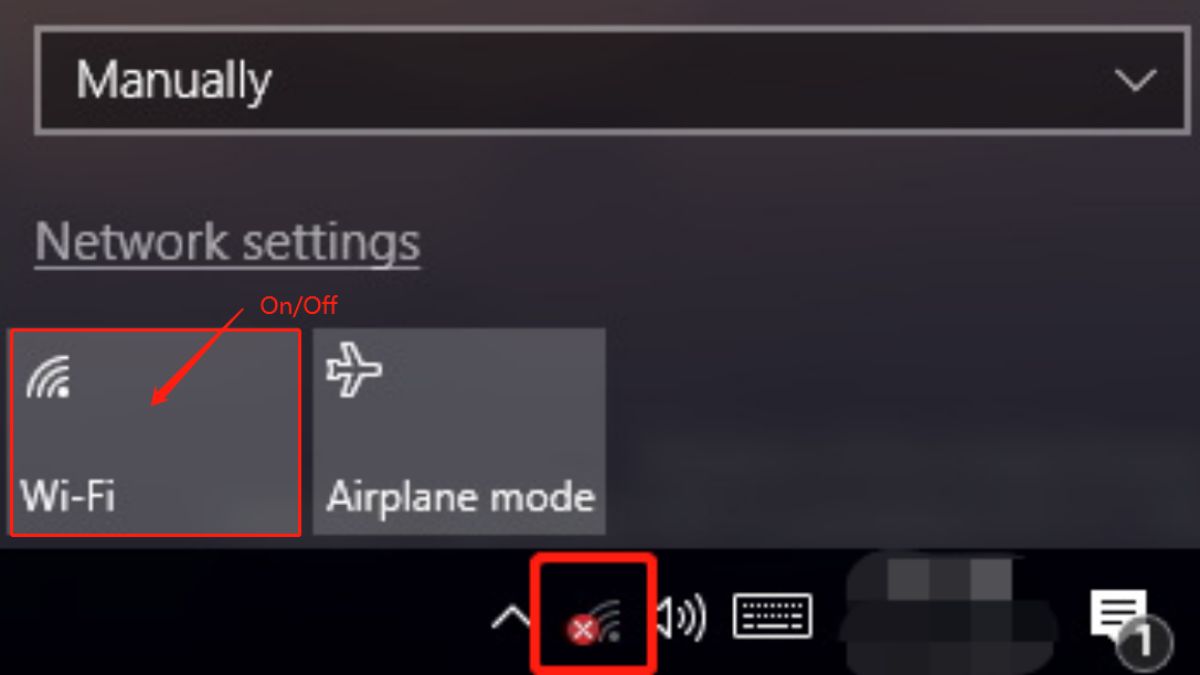
In Windows 11, Wi-Fi, volume, and battery are grouped in the Quick Settings area. The network symbol may change to a globe, Ethernet monitor, or disconnected icon, so first press Windows+A and check whether the Wi-Fi control is still available.
If the computer can browse the internet and only the taskbar symbol is missing, the problem is probably the Windows shell. If the Wi-Fi toggle and all wireless networks are gone, Windows may not be detecting or starting the wireless adapter.
1. Restart Windows and Quick Settings
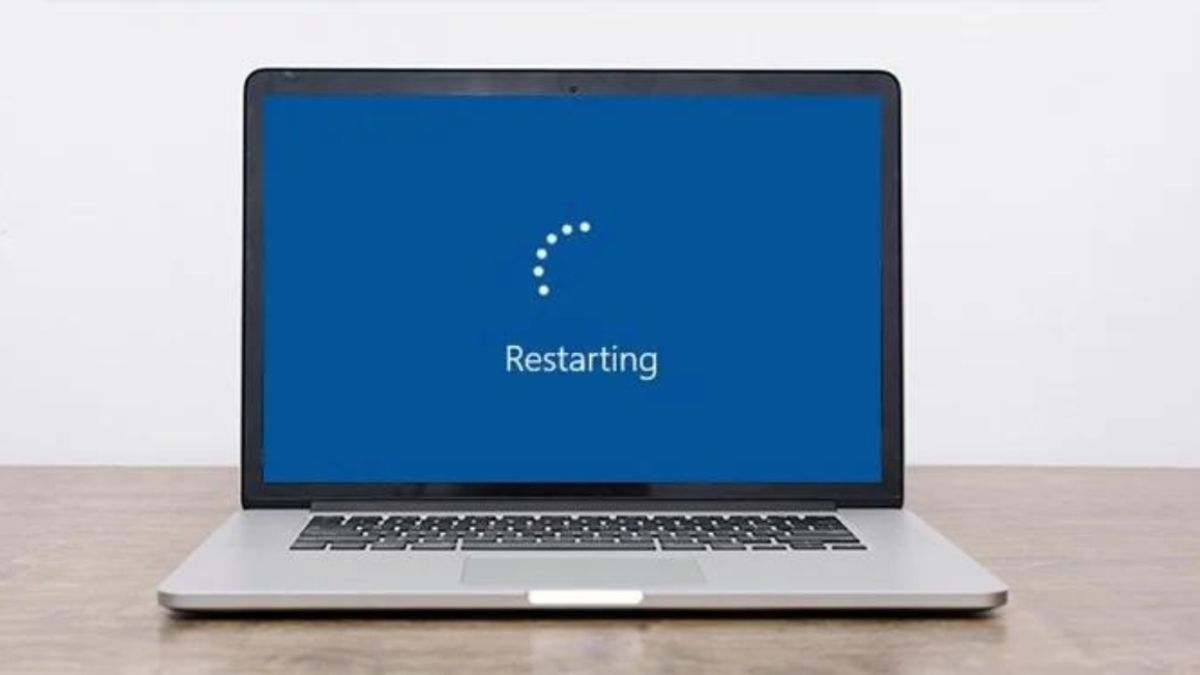
Select Start > Power > Restart. A restart reloads the taskbar, network services, and device drivers; shutting the lid is not equivalent.
If Wi-Fi works but the icon alone is missing, press Ctrl+Shift+Esc to open Task Manager, find Windows Explorer, right-click it, and choose Restart. The taskbar will briefly disappear and reload.
2. Check Airplane mode and the laptop's wireless control
- Press Windows+A and turn Airplane mode off.
- Open Settings > Network & internet and look for Wi-Fi.
- Check the laptop for a physical wireless switch or a function key marked with an antenna or airplane symbol.
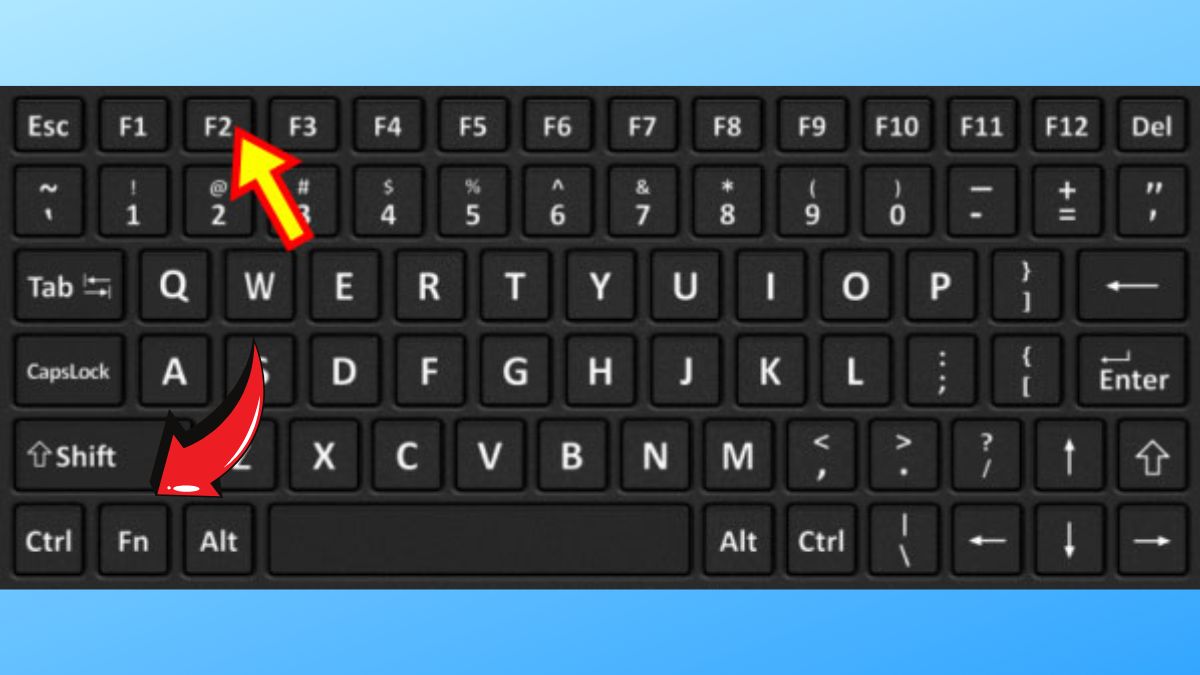
Do not rely on a generic list of Fn combinations. The key varies by model and can change when Function Lock is enabled. Use the keyboard symbol or the manufacturer's manual for the exact laptop.
3. Verify the adapter in Device Manager
- Press Windows+X and select Device Manager.
- Expand Network adapters.
- Find the Wi-Fi adapter, which may include Intel, Realtek, MediaTek, Qualcomm, Broadcom, or “Wireless.”
- If it is disabled, right-click it and choose Enable device.
- If it has a warning icon, open Properties and record the Device status error code.
If the adapter is absent, select View > Show hidden devices, then Action > Scan for hardware changes. A faded hidden entry means Windows remembers the device but does not currently detect it.
4. Run the Network and Internet troubleshooter
Open the Get Help app, enter network and internet troubleshooter, and follow the diagnostic prompts. Current Windows 11 builds may also launch it from Settings > System > Troubleshoot > Other troubleshooters.
Apply the result that matches the detected fault. A disabled adapter, stopped service, and missing driver require different repairs.
5. Restart WLAN AutoConfig
- Press Windows+R, enter
services.msc, and press Enter. - Find WLAN AutoConfig.
- If it is running, select Restart. If it is stopped, select Start.
- Make sure its startup type is not Disabled on a PC that uses Windows Wi-Fi management.
If the service immediately stops or shows an error, record the complete code and check Service Control Manager events in Event Viewer. Do not delete registry dependencies to force it to start.
6. Repair the Wi-Fi driver
Install Windows updates and check Windows Update > Advanced options > Optional updates. Then compare the driver with the package on the laptop maker's support page for the exact model.
In Device Manager, right-click the Wi-Fi adapter and choose Update driver. If the problem began after an update, use Properties > Driver > Roll Back Driver when available. For a reinstall, download the correct package first, uninstall the adapter, and restart Windows.
7. Use Network reset only as a last software step
Go to Settings > Network & internet > Advanced network settings > Network reset. Before selecting Reset now, save Wi-Fi credentials and record VPN adapters, static IP addresses, custom DNS, proxies, and virtual switches. Windows removes and reinstalls network adapters, so those configurations may need to be rebuilt.
When the icon points to a hardware problem
If the wireless adapter is missing from Device Manager after a restart and hardware scan, check the BIOS/UEFI wireless setting and run the manufacturer's hardware diagnostics. Wi-Fi and Bluetooth disappearing together can indicate a combined radio-card or firmware fault.
Do not open a laptop that remains under warranty. A compatible USB Wi-Fi adapter can provide temporary access, but the internal hardware should still be diagnosed.
Microsoft's current decision flow is available in Fix Wi-Fi connection issues in Windows.
Related Articles
 The Wifi Icon Is Missing from the Windows Taskbar; Here's How to Fix It9 minutes read
 Wi-Fi Icon Missing on the Taskbar Windows 10, This Is How to Fix4 minutes read
 How to Get the Missing Wi-Fi Icon Back from the Windows 10 Taskbar7 minutes read
 4 Easiest Ways to Fix Laptop's Lost Wi-Fi Icon7 minutes read
 How to Fix Wi-Fi Errors on Windows 10, Simple and Effective10 minutes read
 Turn on Wi-Fi Win 10: How to Turn on Wi-Fi on Windows 104 minutes read
Reader Comments 0
Sign in with email or Google to join the discussion.