Table of Contents
Overview
This guide covers block spam calls and messages on the web in clear, practical terms. It covers the key concepts, recommended steps, common limitations, and useful checks so you can make a better-informed decision.
In daily life, you often receive calls or messages advertising sales, insurance or real estate services, or even scams. But these services are not suitable for you and make you feel extremely annoyed. Recently, the Information Security Department has just announced a way to completely block spam calls and messages advertising to users of mobile devices. So Let's explore how to do this with this guide!
How to block calls and advertising messages from the Information Security Department
Step 1: Access the website of the Department of Information Security (Ministry of Information and Communications) at the address below:
The referenced website
Step 2: Enter your phone number (or the phone number you want to block calls and advertising messages) in the list management box. Continue to confirm with the OTP code sent to your phone.
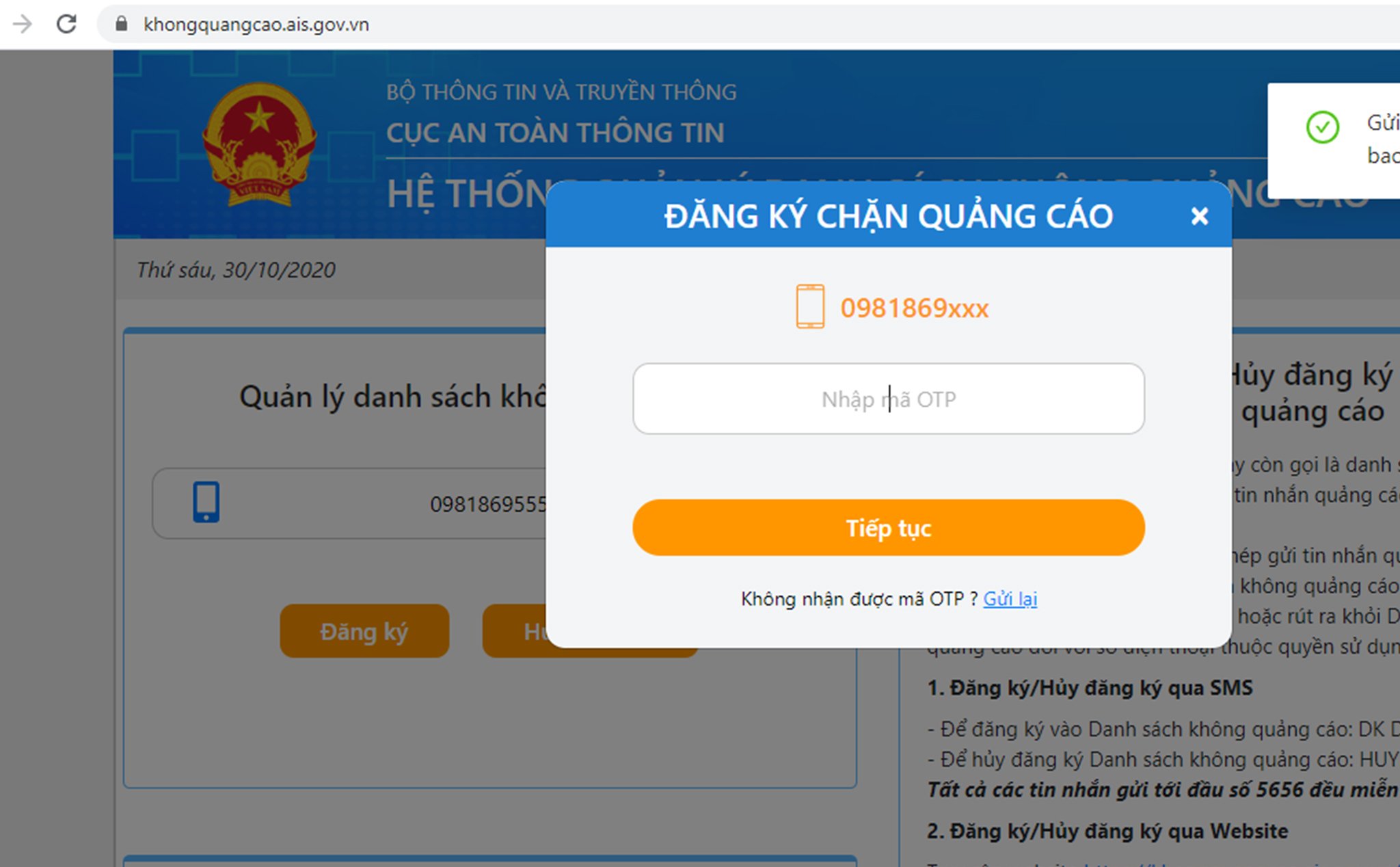
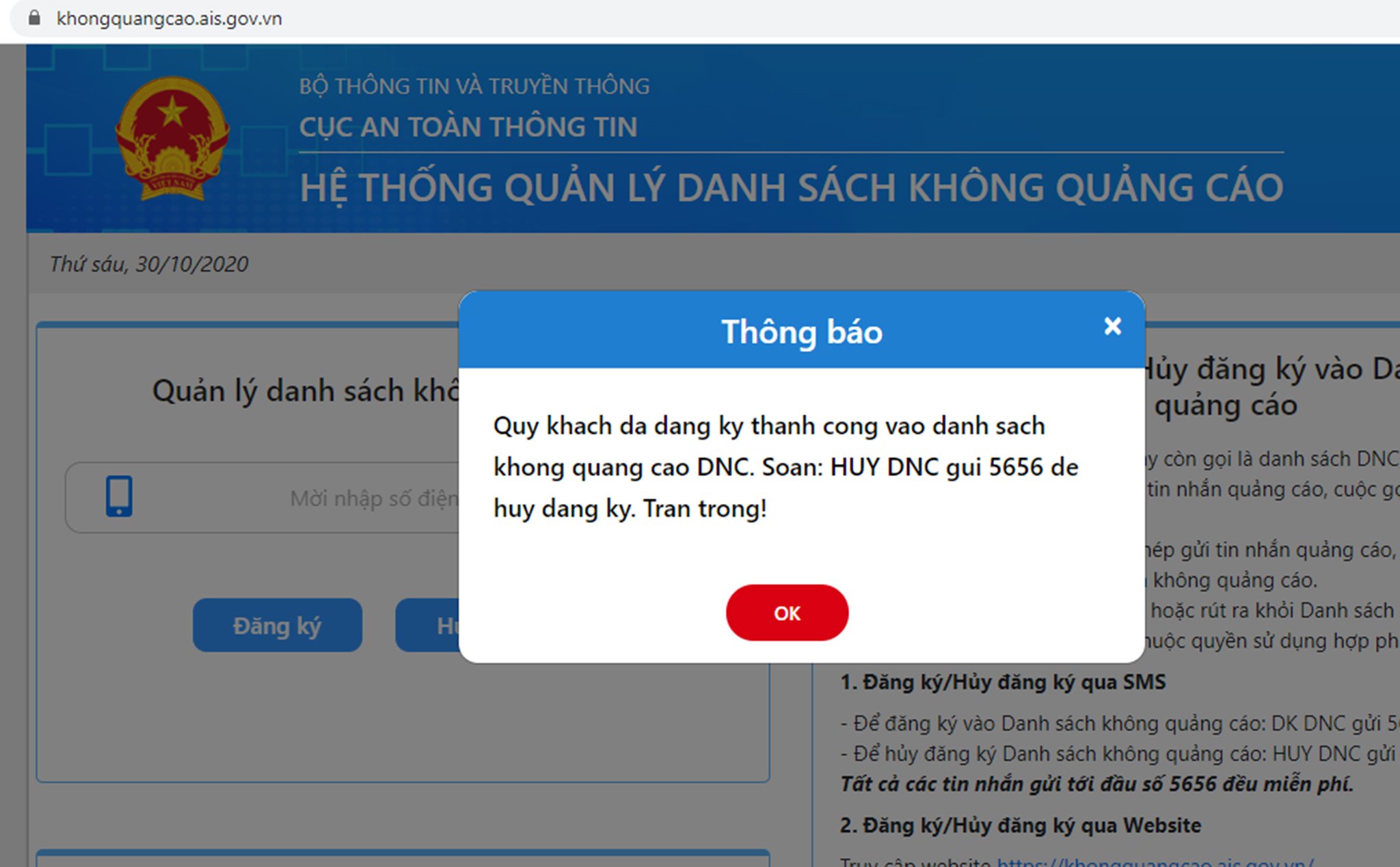
After confirming the OTP code, your phone number has been added to the list of requests to block spam calls and messages of the Ministry of Information and Communications. Now you will no longer receive advertising calls or messages.
In addition, if you want to try other methods, you can also refer to how to block calls and messages on IOS (iPhone) or Android phones below:
Block calls on iPhone
Block calls outside of contacts
By doing this, you will completely block phone numbers that are not in the contact list on your iPhone.
Step 1: Open Settings > Select Do Not Disturb
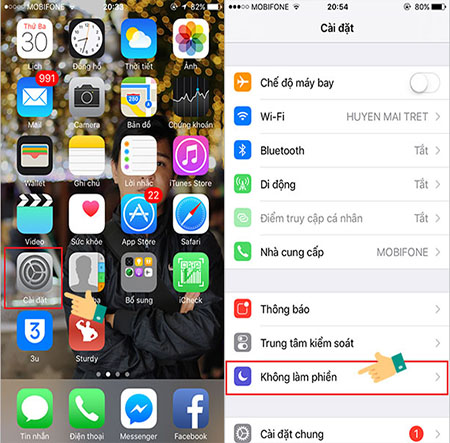
Step 2: In Allow calls from > select All Contacts
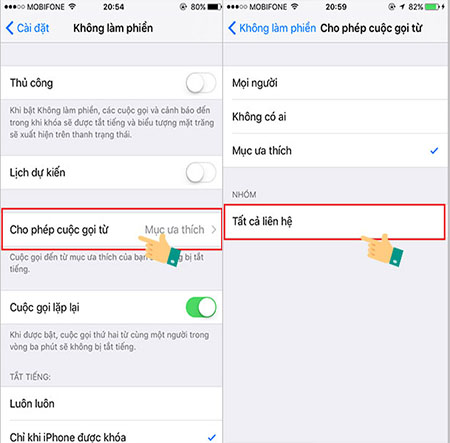
After completing the above steps, from now on, every time you turn on the do not disturb function on your phone, you will not receive calls from strange numbers on your iPhone anymore. To turn on the do not disturb function, on your iPhone, open the notification center and select the crescent moon icon as shown below.
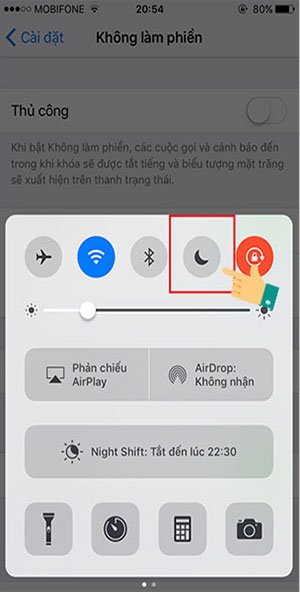
Block calls from any number on iPhone
In addition to blocking all calls outside of your iPhone's contacts, if you only want to block a certain phone number that bothers you the most, follow the instructions below.
Step 1: Open the phone calling application > find the annoying phone number you want to block > Click on the i icon
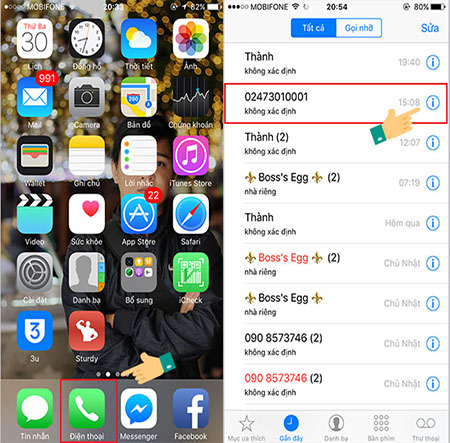
Step 2: To block this phone number, select Block this caller > Confirm Block contact
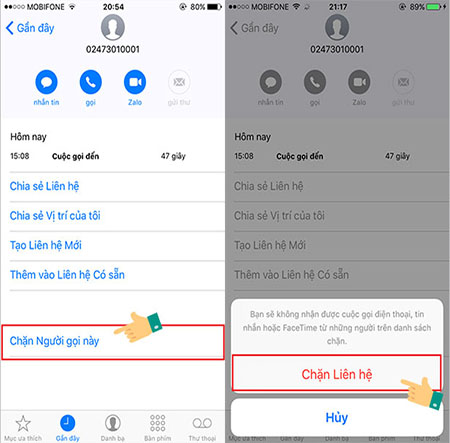
Block strange numbers on iPhone
Key Takeaways
Use the guidance above as a practical reference for block spam calls and messages on the web. Check compatibility, follow the steps carefully, and verify important details with official documentation when software, security, accounts, health, or purchases are involved.
FAQ
What is the main point of this article?
This article explains block spam calls and messages on the web information, including the central facts, context, practical implications, and details needed to understand the topic.
Why does this topic matter?
It may affect performance, cost, safety, convenience, purchasing decisions, or how people understand a broader development.
Could the information change over time?
Yes. Product details, software features, prices, policies, codes, and news developments can change, so verify time-sensitive information with official sources.
Related Articles
 Instructions to Block Spam Messages on Facebook3 minutes read
 Top 5 Apps That Help You Block Spam Calls on Android6 minutes read
 How to Block Spam Messages, Advertising Messages, and3 minutes read
 How Will iOS 26 'kill' Spam Calls and Messages?7 minutes read
 How to Block Annoying Advertising Messages on Facebook3 minutes read
 Instructions to Block Messages When Spammed on Viber3 minutes read
Reader Comments 0
Sign in with email or Google to join the discussion.