Table of Contents
Five small Command Prompt techniques can remove a surprising amount of repetitive work: send output directly to the clipboard, open CMD in the current folder, preserve session history, insert long paths by drag-and-drop, and chain commands according to success or failure.
The examples below target cmd.exe on Windows 10 and Windows 11. PowerShell has different history, variable, and command-operator behavior, so confirm the shell before pasting an example.
1. Pipe command output straight to the clipboard
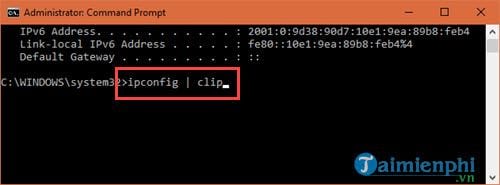
Windows includes clip.exe, which accepts text from the left side of a pipe and places it on the clipboard:
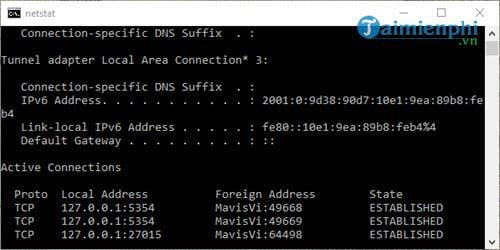
ipconfig /all | clip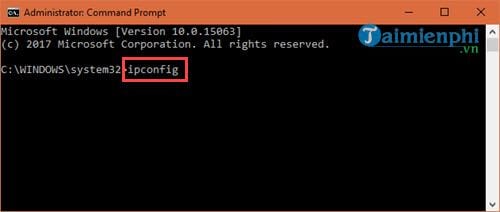
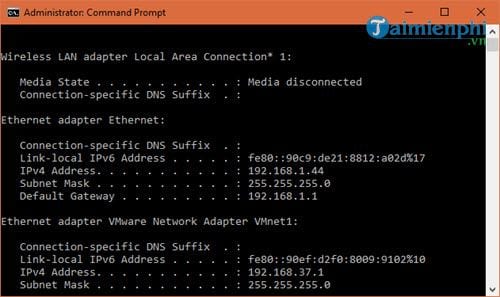
The output does not need to appear in the terminal. Paste it into Notepad, an email draft, or a support form with Ctrl + V.
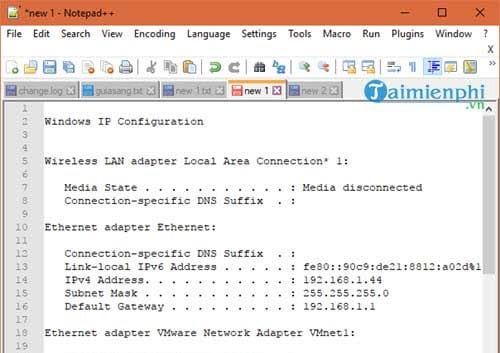
Other useful examples include:
systeminfo | clip
driverquery | clip
where python | clip
The clipboard is replaced without confirmation. Review the output before sharing it because commands such as ipconfig /all and systeminfo can expose device names, network details, or software configuration. For a file that is easier to archive, redirect instead:
ipconfig /all > "%USERPROFILE%\Desktop\network.txt"2. Open Command Prompt in the current File Explorer folder
You do not need an old Open command window here context-menu entry. In File Explorer:
- Open the target folder.
- Click the address bar.
- Type
cmdand press Enter.
The new Command Prompt starts in that folder. On current Windows versions, Open in Terminal may appear in the context menu instead; choose or start the Command Prompt profile from Windows Terminal.
From an existing CMD session, use:
cd /d "D:\Work\Reports"The /d switch changes the drive and folder together. See the full Command Prompt folder navigation guide for relative paths and completion.
3. Display, search, and save the current session history
Press the Up and Down arrow keys to reuse recent commands. To print everything recorded in the current CMD session:
doskey /history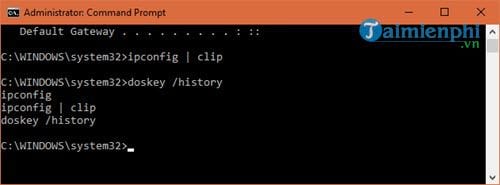
Save that list before closing the window:
doskey /history > "%USERPROFILE%\Desktop\cmd-history.txt"Filter a long list with findstr:
doskey /history | findstr /i "ipconfig ping netsh"This history normally lasts only for the current Command Prompt process. It may contain paths, server names, or arguments that should not be shared. Avoid putting passwords or secret tokens directly on a command line; history and process inspection can expose them.
4. Drag files and folders into CMD to insert exact paths
Type a command followed by a space, then drag a file or folder from File Explorer into the Command Prompt window. Windows inserts the path and usually adds quotes when the name contains spaces.
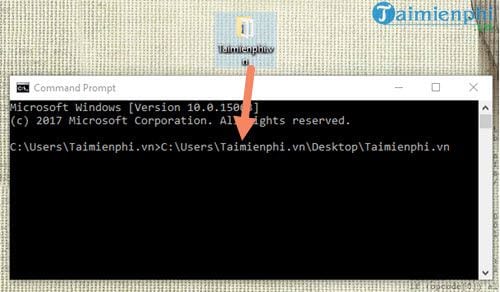
For example, type dir , drag a folder into the window, review the resulting path, and press Enter. Or type fc and drag two text files, adding a space between them.
Drag-and-drop can be blocked between apps running at different privilege levels, so it may not work when Command Prompt is elevated but File Explorer is not. More importantly, inserting a path does not run the file safely by itself—read the full command before pressing Enter.
5. Chain commands with &, &&, and ||
Command Prompt has three useful sequencing operators:
| Operator | Behavior | Example |
|---|---|---|
& | Run the next command regardless of the first result | echo First & echo Second |
&& | Run the next command only if the first reports success | mkdir Report && cd Report |
|| | Run the next command only if the first reports failure | where git || echo Git was not found |
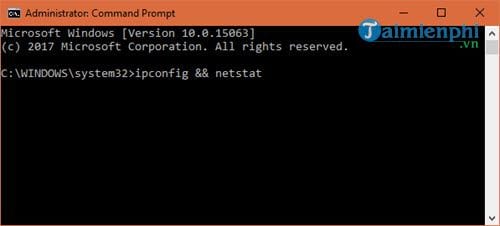
The operators sequence commands; they do not truly run them simultaneously. With &&, the second command waits and depends on the first program's exit code. Not every program uses exit codes consistently, so test each step separately before building a destructive or administrative chain.
Do not copy the old example netstart; that is not the service-listing syntax. The corresponding built-in command is net start, with a space:
ipconfig && net startThat example displays configuration and, if ipconfig reports success, lists started services. It makes no system changes.
CMD and PowerShell are not interchangeable here
doskey /history describes CMD's current history, while PowerShell uses commands such as Get-History. Windows PowerShell 5.1 also does not support && and || in the same way as modern PowerShell 7. The clipboard pipeline works from either shell because clip.exe is an external Windows program, but the data passed through a PowerShell pipeline may be formatted differently.
Microsoft's cmd.exe reference explains command processing and extensions. For a broader foundation, use the Command Prompt usage guide and the current CMD opening methods.
Quick safety checklist
- Confirm that the example is for Command Prompt.
- Use a standard session unless elevation is required.
- Review paths inserted by drag-and-drop or copied from history.
- Use
&&only when the next step should depend on success. - Inspect clipboard or saved output before sharing it.
Related Articles
 6 Cool Tricks You Can Do in Windows Command Prompt6 minutes read
 All Frequency Restart, Shutdown, Remote Off ... with Command6 minutes read
 How to Use the Command History Function in Command Prompt9 minutes read
 Tricks to Change Command Prompt Background Color on Windows3 minutes read
 Add Command Prompt to Power User Menu on Windows 103 minutes read
 How to Customize the Font in Windows Command Prompt5 minutes read
Reader Comments 0
Sign in with email or Google to join the discussion.