Table of Contents
PowerShell is a command shell, scripting language, and automation platform. Unlike Command Prompt, which usually passes text between programs, PowerShell commands normally return structured objects. You can filter, sort, group, export, and automate those objects without parsing screen columns by hand.
Windows PowerShell 5.1 and PowerShell 7 are separate
| Product | Launch command | Runtime and status |
|---|---|---|
| Windows PowerShell 5.1 | powershell | Built into supported Windows versions, Windows-only, based on the full .NET Framework, and no longer receiving new features |
| PowerShell 7 | pwsh | Installed separately, actively developed, cross-platform, and based on modern .NET |
PowerShell 7 installs side by side with Windows PowerShell 5.1; it does not replace it. Some older Windows modules still require 5.1, so test existing scripts and modules before moving production work. Microsoft explains the supported PowerShell 7 installation methods for Windows.
What about PowerShell ISE?

Windows PowerShell ISE works with Windows PowerShell, not PowerShell 7, and is no longer the recommended editor for new work. For PowerShell 7 scripts, use Visual Studio Code with Microsoft's PowerShell extension. You can still encounter ISE on older Windows systems, which is why its interface may appear in legacy instructions.
How to open PowerShell
- Start: search for PowerShell, Windows PowerShell, or pwsh.
- Run: press Win + R, enter
powershellfor 5.1 orpwshfor PowerShell 7, and press Enter. - Windows Terminal: choose the desired PowerShell profile from the tab menu.
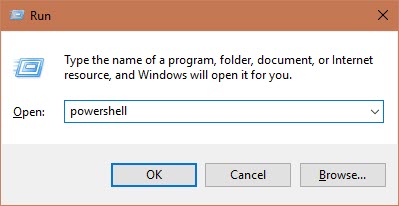
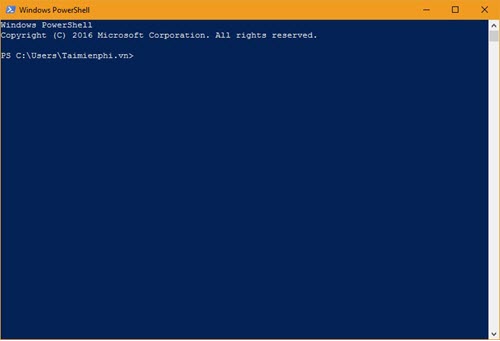
Start with a standard session. Choose Run as administrator only when a reviewed command needs protected system access. To confirm the current edition and version:
$PSVersionTable | Select-Object PSEdition, PSVersion, PlatformWindows Terminal is a host that can run either PowerShell edition, Command Prompt, or WSL. Compare Windows terminal applications and shells if you need tabs, profiles, SSH, or other environments.
How PowerShell commands are organized
PowerShell cmdlets generally use a consistent Verb-Noun name, such as Get-Process, Get-Service, and Export-Csv. Parameters begin with a hyphen. Tab completion can finish command, parameter, and path names.
To discover commands:
Get-Command
Get-Command -Verb Get
Get-Command -Noun Service
Get-Command *network*
Aliases are convenient, but scripts should prefer full names
dir works in PowerShell as an alias for Get-ChildItem. The visible output resembles Command Prompt, but the underlying result is a collection of file-system objects.
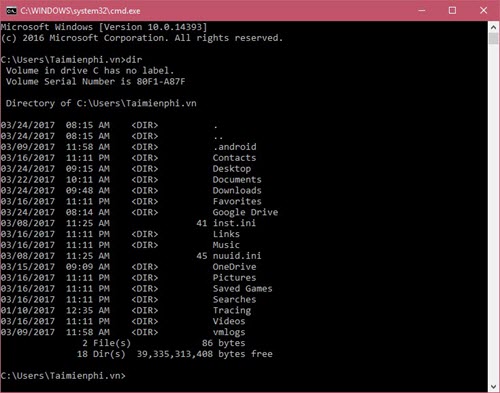
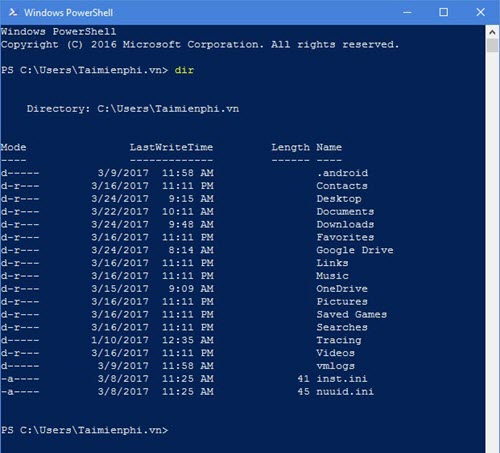
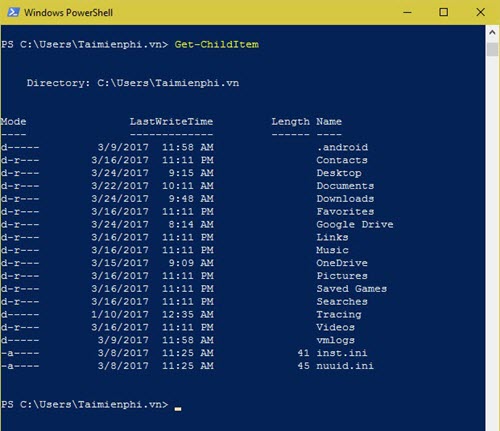
Interactive aliases save typing, but full cmdlet names make scripts clearer and reduce cross-shell confusion. The Command Prompt vs. PowerShell comparison explains the different pipeline and syntax models.
The object pipeline is PowerShell's central feature
A pipeline sends each output object to the next command. The next command can use named properties rather than formatted text:
Get-ChildItem -File |
    Where-Object Length -gt 1MB |
    Sort-Object Length -Descending |
    Select-Object -First 10 Name, Length, LastWriteTime
To see the properties and methods available on an object:
Get-Process | Get-Member
Get-Service | Get-Member
Formatting commands such as Format-Table are normally the end of a display pipeline. Do not place them before Export-Csv, because formatting objects are not the original data.
Use Get-Help before running an unfamiliar cmdlet
Get-Help Get-Process
Get-Help Get-Process -Examples
Get-Help Get-Process -Full
Get-Help about_Pipelines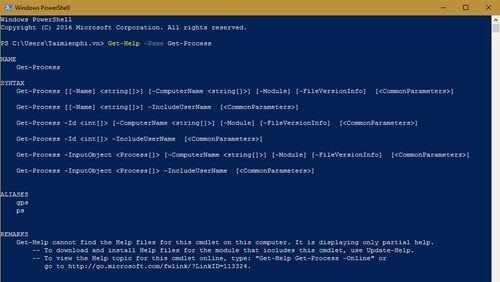
To find help topics by pattern:
Get-Help Get-*
Get-Help *service*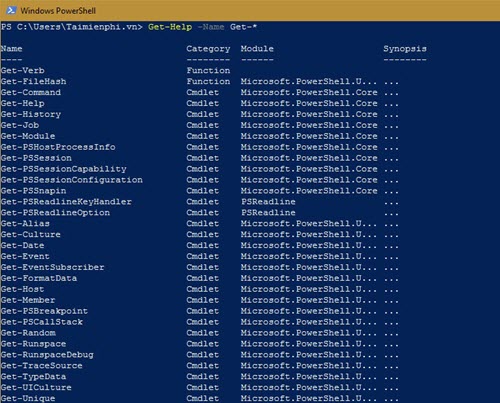
Help installed on a PC may be incomplete or out of date. Update-Help downloads help for modules that support updatable help; it may require network access and elevation for system-wide module folders.
Inspect services without changing them
Get-Service
Get-Service -Name wuauserv
Get-Service |
    Where-Object Status -eq 'Running' |
    Sort-Object DisplayName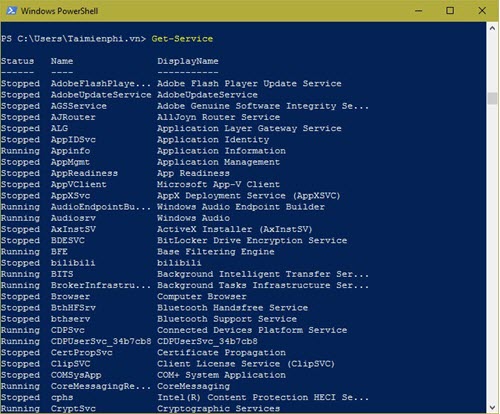
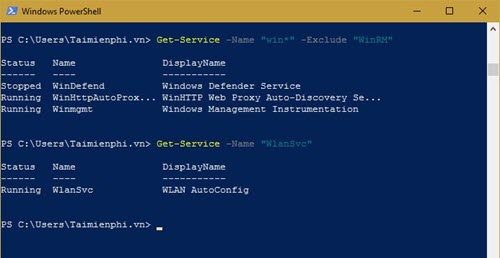
Get-Service lists services; it does not mean every listed service is running. Use the Status property to filter. Commands such as Stop-Service, Restart-Service, and Set-Service change system state and may disrupt Windows or applications, so identify dependencies and privileges first.
Export selected data to HTML
Build a report from objects, convert it to HTML, and write it using an explicit encoding:
$report = Join-Path ([Environment]::GetFolderPath('Desktop')) 'services.html'

Get-Service |
    Select-Object Name, DisplayName, Status |
    Sort-Object DisplayName |
    ConvertTo-Html -Title 'Windows Services' |
    Out-File -FilePath $report -Encoding utf8

Invoke-Item $report
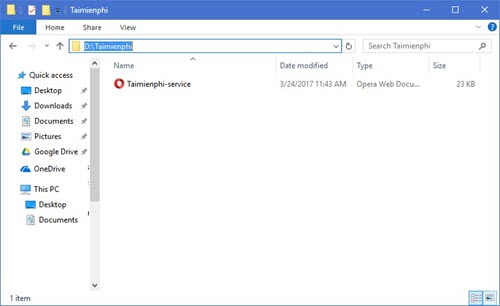
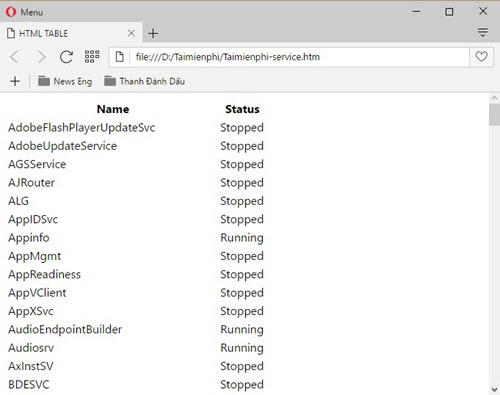
ConvertTo-Html creates HTML markup; Out-File saves it. Selecting only the needed properties keeps the report readable and avoids exposing unrelated object details.
Export structured data to CSV
$csv = Join-Path ([Environment]::GetFolderPath('Desktop')) 'services.csv'

Get-Service |
    Select-Object Name, DisplayName, Status, StartType |
    Export-Csv -Path $csv -NoTypeInformation -Encoding utf8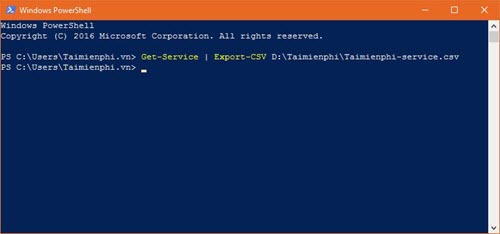
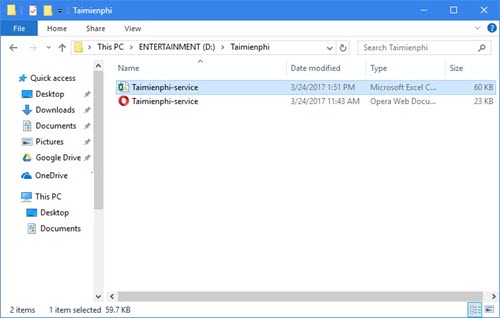
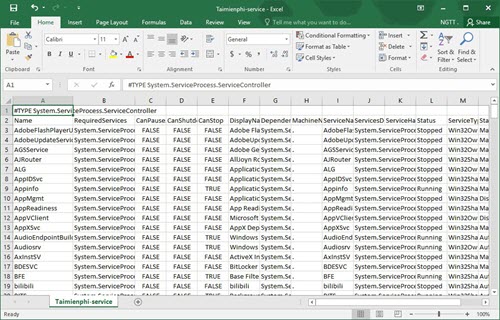
Export-Csv serializes object properties into rows and columns. Use Import-Csv to read the file back as PowerShell objects. Avoid piping Format-Table into Export-Csv; select properties instead. Microsoft's Export-Csv reference covers append, delimiters, encodings, and property selection.
Query Windows event logs with Get-WinEvent
Legacy examples often use Get-EventLog, which is limited to Windows PowerShell and is not available in PowerShell 7. Use Get-WinEvent for current Windows scripts:
Get-WinEvent -FilterHashtable @{
    LogName = 'System'
    Level   = 2
} -MaxEvents 20 |
    Select-Object TimeCreated, Id, ProviderName, Message
Filtering at the source is faster than retrieving an entire log and filtering later. Access to some logs or fields may require elevation.
Inspect and filter processes
Get-Process |
    Sort-Object CPU -Descending |
    Select-Object -First 10 Name, Id, CPU, WorkingSet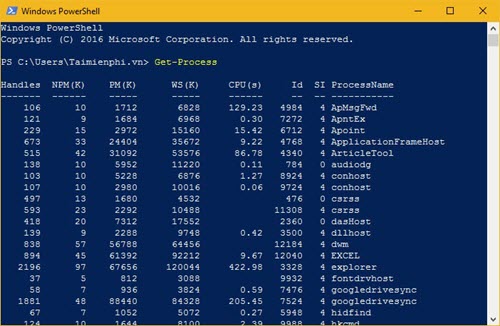
Some process properties can be unavailable because a process exited or the session lacks access. Stop-Process can discard unsaved work or destabilize dependent software; verify the process ID and try the application's normal close first.
Move from commands to scripts safely
A PowerShell script uses the .ps1 extension. Start with small, read-only scripts and add:
Set-StrictMode -Version Latestto catch some variable and syntax mistakes;- parameter validation instead of hard-coded paths;
-WhatIfwhen a state-changing cmdlet supports it;try/catchand explicit error handling; and- source control and testing before administrative deployment.
Execution policy controls when scripts are allowed to run, but it is not a security boundary. Do not weaken policy globally just to run an untrusted download. Inspect scripts, verify their source and signature where applicable, and use the narrowest justified scope.
A practical learning order
- Check
$PSVersionTableand know which edition you opened. - Practice
Get-Command,Get-Help, and tab completion. - Inspect objects with
Get-Member. - Filter and select properties before exporting.
- Turn a tested command into a small
.ps1script. - Use elevation only for the specific task that requires it.
If package commands such as winget are unavailable while setting up tools, follow the WinGet troubleshooting guide rather than downloading an unknown installer. For new PowerShell 7 development, Microsoft recommends Visual Studio Code with the PowerShell extension.
Related Articles
 10 Powershell Commands Help You Manage the Remote Computer Most8 minutes read
 About Powershell15 minutes read
 How to Install Powershell 7.0 in Windows 10/8/73 minutes read
 PowerShell and Everything You Need to Know About It: What You Need to Know31 minutes read
 12 Most Useful PowerShell Commands for Windows8 minutes read
 Windows PowerShell Explained: How It Works and Key Features6 minutes read
Reader Comments 0
Sign in with email or Google to join the discussion.