Table of Contents
You do not need to memorize every Windows command to work efficiently in Command Prompt. A few habits—opening the correct shell, using built-in help, completing paths, reusing history, redirecting output, and understanding command operators—make cmd.exe faster and safer on Windows 10 and Windows 11.
1. Open the right session and elevate only when required
Search for Command Prompt from Start, press Win + R and enter cmd, or open a Command Prompt profile in Windows Terminal. The Win + X menu on current Windows versions normally opens Terminal, which can host Command Prompt in a tab.
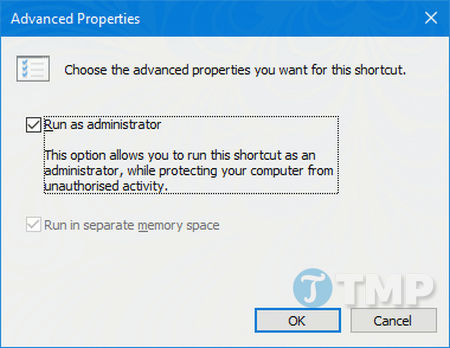
Use a standard session for ordinary navigation and read-only checks. Select Run as administrator only when a trusted command needs to modify protected system settings. Always opening CMD with administrator rights increases the impact of a typing or copy-and-paste mistake.
See the current ways to open Command Prompt, including recovery options.
2. Start CMD in the folder you are working with
In File Explorer, open the target folder, click the address bar, type cmd, and press Enter. Command Prompt opens with that folder as its working directory. In Windows Terminal, you can also open the target folder and use the appropriate Open in Terminal command, then start cmd if the tab uses another shell.
To change folders from an existing session:
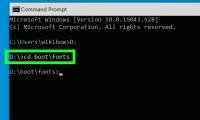
cd /d "D:\Projects\Example"The /d switch changes both drive and directory. Quote paths containing spaces. The guide to changing folders in Command Prompt explains relative paths, parent folders, and drive changes.
3. Drag a file or folder in to insert its path
Type the command and a space, then drag a file or folder from File Explorer into the Command Prompt window. Windows inserts the path, usually with quotes when needed.
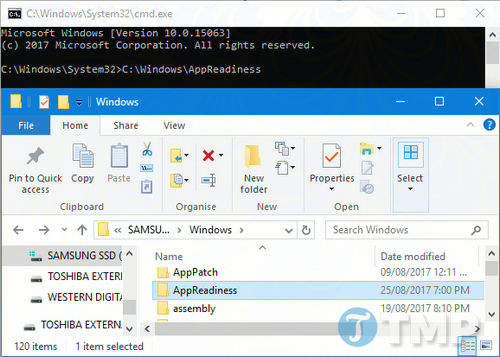
Review the inserted path before pressing Enter. Drag-and-drop is a typing aid, not a safety check, and behavior can differ for elevated windows because Windows blocks some drag operations across privilege levels.
4. Copy, select, and paste without fighting the console
In current Console Host and Windows Terminal sessions, Ctrl + C and Ctrl + V normally copy and paste selected text. In the legacy Console Host, Ctrl + M enters Mark mode, arrow keys adjust the selection, and Enter copies it.
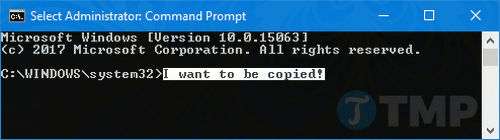
Shortcut behavior depends on the terminal host and its settings. Be especially careful when pasting multiple lines: a terminal may execute each completed line immediately. Paste into Notepad first when the content changes files, processes, accounts, networking, or security settings.
5. Reuse and inspect command history
Press the Up and Down arrow keys to move through recent commands. Edit the selected line before running it again. In the legacy Command Prompt history interface, F7 shows a list and Alt + F7 clears it.
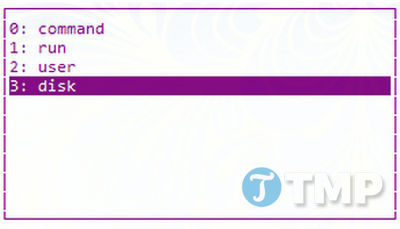
To print the current session's command history:
doskey /historyHistory is normally session-scoped; closing the shell does not create a permanent audit log. Redirect the output to a file before closing if you need to keep it.
6. Ask the command for help before guessing
Many Windows commands display syntax and switch descriptions when you append /?:
ipconfig /?
robocopy /?
shutdown /?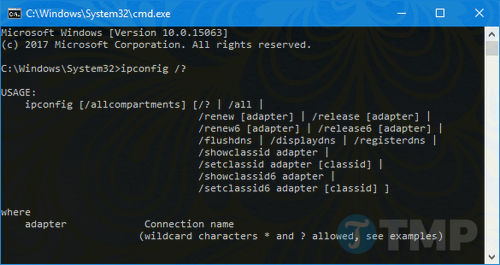
For Command Prompt built-ins, help lists commands and help command provides details. External programs may use --help, -h, or another convention. Microsoft's Windows command reference is useful when built-in help is terse.
7. Use Tab to complete file and folder names
Type part of a path and press Tab to cycle through matches. Press Shift + Tab to cycle backward. Completion reduces spelling errors and automatically adds quotes in many path scenarios.

Tab completes file-system names, not arbitrary command names. If a program is not recognized, use where program to see whether Windows can resolve its executable through the current directory or PATH.
8. Redirect output to a file or the clipboard
Redirection is more reliable than manually selecting a long screen of output:
ipconfig /all > "%USERPROFILE%\Desktop\network.txt"
systeminfo >> "%USERPROFILE%\Desktop\network.txt"
driverquery 2> "%USERPROFILE%\Desktop\driver-errors.txt"
ipconfig /all | clip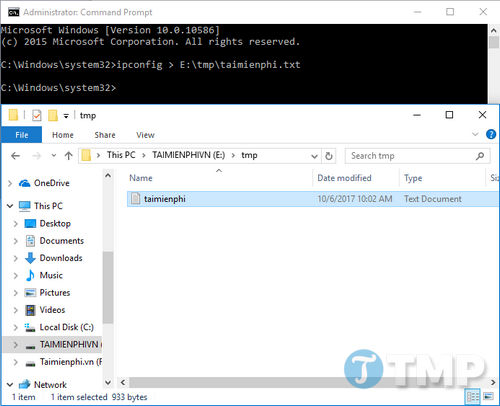
| Operator | Effect |
|---|---|
> | Create or overwrite a file with standard output |
>> | Append standard output to a file |
2> | Redirect error output |
| | Pass text output to another command |
Verify the destination before using >, because it replaces an existing file without asking. The clip command places text on the clipboard; it does not display a confirmation.
9. Stop a running command with Ctrl + C
Press Ctrl + C to request that the active console program stop. Some programs ask for confirmation, some handle the signal after finishing a current operation, and others may ignore it.
Stopping a command does not undo changes already made. If a copy, repair, update, or disk operation is in progress, read the tool's documentation before interrupting it.
10. Chain commands with the correct operator
Command Prompt provides three common sequencing operators:
command1 & command2
command1 && command2
command1 || command2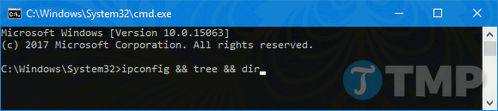
&runs the second command after the first, regardless of success.&&runs the second command only if the first reports success.||runs the second command only if the first reports failure.
A command's exit code determines success or failure; visible output alone does not. Test chained commands separately before placing them in a batch file.
11. Learn a small navigation toolkit
cd
dir
dir /a
cd ..
pushd "D:\Projects"
popd
cls
echo %USERPROFILE%
cd shows or changes the working directory, dir lists contents, cd .. moves to the parent, and pushd/popd temporarily switch locations and return. cls clears the visible screen but does not erase command history.
Environment variables such as %USERPROFILE%, %TEMP%, and %SystemRoot% make commands portable across user names and Windows installations. They use different syntax in PowerShell.
12. Customize the terminal host, not just CMD
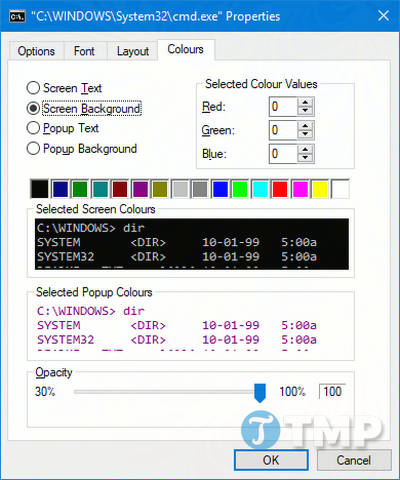
If Command Prompt runs in the legacy Console Host, use the title-bar menu to open Properties for the current shortcut or Defaults for broader console defaults. Available pages can include Options, Font, Layout, Colors, and Terminal.
If it runs in Windows Terminal, open Terminal Settings and edit the Command Prompt profile's appearance, starting directory, cursor, font, and launch behavior. Console Host settings and Windows Terminal settings are separate. For legacy font details, see how to customize the Command Prompt font.
A safe workflow for unfamiliar commands
- Confirm whether the instruction targets Command Prompt or PowerShell.
- Open a standard session unless elevation is required.
- Read
/?help and replace every example path. - Run read-only inspection commands before commands that change state.
- Save useful output and check the exit result before chaining another action.
Microsoft's Windows keyboard shortcut reference covers current terminal and general Windows shortcuts. Settings can override some defaults, so test a shortcut in a harmless session before relying on it.
Related Articles
 How to Use the Command History Function in Command Prompt9 minutes read
 How to Open Command Prompt on Windows 10, 8, 7, Vista and XP6 minutes read
 Add Command Prompt to Power User Menu on Windows 103 minutes read
 Use the Command in Windows: How to Using Command Prompt20 minutes read
 Open Folder in Command Prompt (CMD): What to Know5 minutes read
 6 Cool Tricks You Can Do in Windows Command Prompt6 minutes read
Reader Comments 0
Sign in with email or Google to join the discussion.