Table of Contents
ClockPositionRighteousifier is an old, open-source utility that swaps the Windows 10 clock and Action Center icon so the clock sits at the far-right edge of the Taskbar. Windows has no built-in switch for this specific arrangement. Because the utility was created for an older Windows 10 Taskbar and is no longer actively documented for current releases, treat this as a legacy customization and stop if it behaves unexpectedly.
Before you run the utility
- This guide is for the classic Windows 10 Taskbar, not the native Windows 11 Taskbar.
- Download the source or binaries only from the ClockPositionRighteousifier GitHub repository.
- Scan the downloaded archive with your security software. Old shell-modification tools may be blocked or may stop working after a Windows update.
- Save open work before testing it, because restarting or signing out may be necessary if Explorer becomes unstable.
Move the clock to the far-right edge
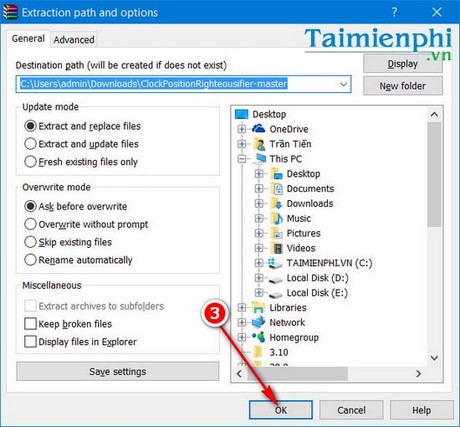
Download the repository ZIP and extract it to a permanent folder. Do not run the program from inside the compressed archive.
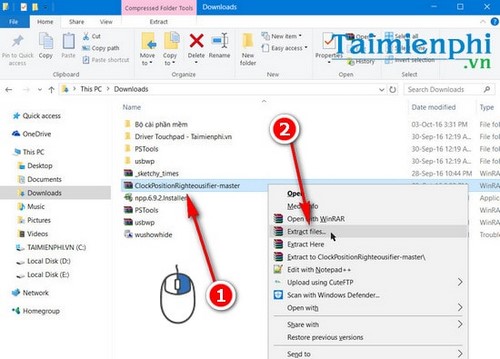
Confirm the extraction destination when prompted.
Open the extracted
binariesfolder. ChooseCPR_x64for 64-bit Windows orCPR_x86for 32-bit Windows. To check your system type, open Settings > System > About and read System type.Right-click
ClockPositionRighteousifier.exe, select Properties, and review its origin. If Windows shows an Unblock checkbox and you have verified the GitHub download, select it and click Apply. Repeat this check for the accompanying DLL if one is included.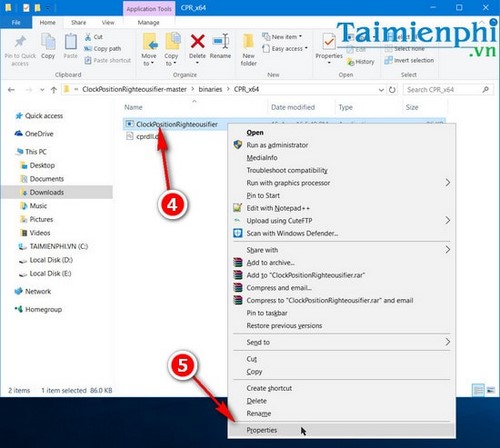
Run
ClockPositionRighteousifier.exe. On a compatible Windows 10 build, the clock and Action Center icon should exchange positions immediately.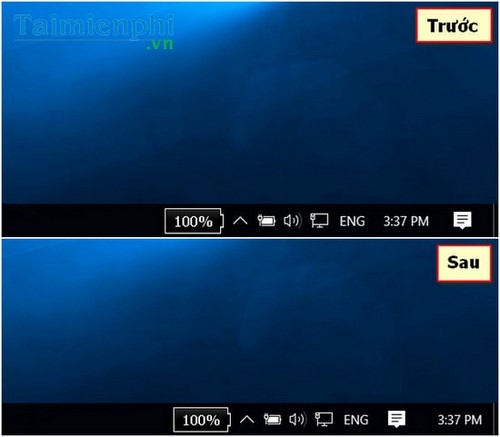
Undo the change
Run ClockPositionRighteousifier.exe a second time. According to the project's instructions, the second launch closes the running instance and restores the original icon order. If that does not happen, restart Windows Explorer from Task Manager or sign out and back in.
Start it automatically with Windows
The change lasts only while the utility is running. If you have tested it successfully and want it at every sign-in:
- Right-click the executable and create a shortcut.
- Press Windows + R, enter
shell:startup, and press Enter. - Move the shortcut into the Startup folder.
Remove that shortcut before deleting or moving the program folder. If a Windows update causes Taskbar problems, disable the startup shortcut first.
Safer built-in alternatives
If your goal is to reduce clutter rather than swap two icons, Windows 10 can control which notification icons remain visible. See how to show or hide system tray icons. You can also maximize Windows 10 display space without running an old shell utility, or learn how to pin a folder to the Taskbar.
Related Articles
 This Windows 11 Mod Lets You Have Tons of Useful Information4 minutes read
 Taskbar: Complete Guide: After All, Microsoft Seems to Be Working on3 minutes read
 How to Show the Clock on the Taskbar in Windows 103 minutes read
 Taskbar: Complete Guide: Microsoft Explains Why Users Can't Yet Own the4 minutes read
 Sense Desktop: the Best Clock for Windows 10 Desktop3 minutes read
 How to Move the Taskbar to the Top, Right, or Left4 minutes read
Reader Comments 0
Sign in with email or Google to join the discussion.