Table of Contents
You can pin Task Manager to the Windows 10 Taskbar or Start menu for one-click access. The simplest method is to search for Task Manager and use its pinning command; locating Taskmgr.exe directly is a useful fallback. If you prefer the keyboard, Ctrl + Shift + Esc opens Task Manager immediately without creating a shortcut.
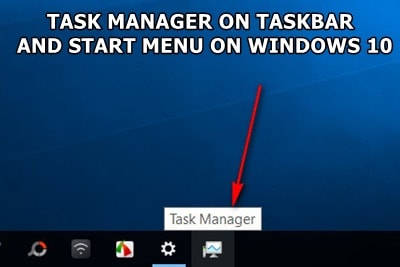
Method 1: Pin Task Manager from Windows Search
- Open Start and type Task Manager.
- Right-click the Task Manager result. If necessary, select More.
- Choose Pin to taskbar or Pin to Start.
This is the quickest route on most Windows 10 systems. To remove the item later, right-click it and select Unpin from taskbar or Unpin from Start.
Method 2: Pin Taskmgr.exe from System32
Open File Explorer and enter this path in the address bar:
C:\Windows\System32If Windows is installed on another drive, use
%SystemRoot%\System32instead.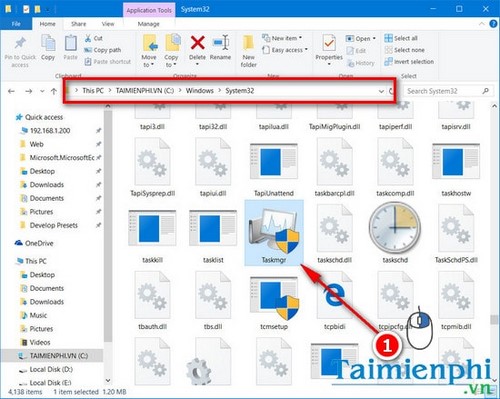
Find
Taskmgr.exe. Typing taskmgr in File Explorer's search box can help.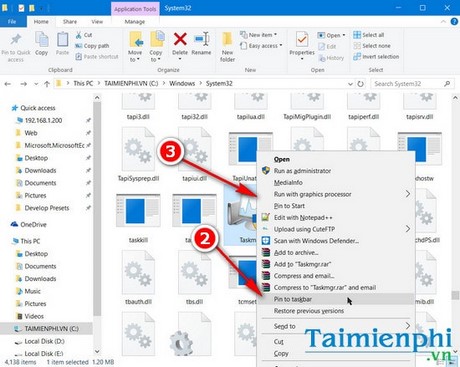
Right-click
Taskmgr.exeand select Pin to taskbar or Pin to Start. On a menu that does not show the command immediately, open More or Show more options.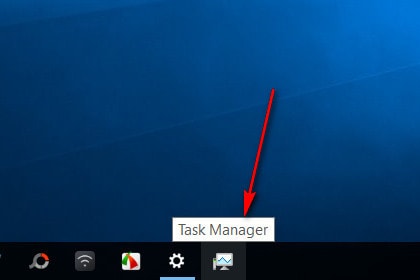
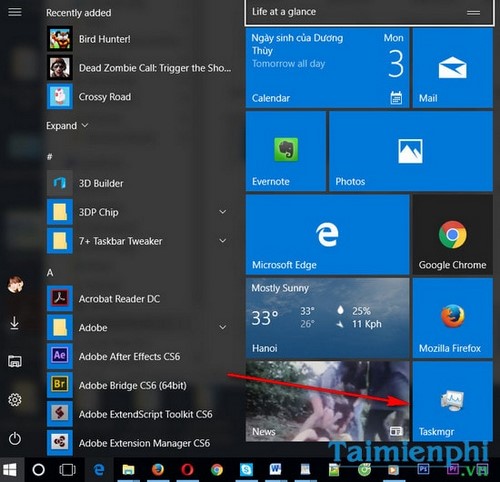
The pinned Taskbar button opens Task Manager directly:
Create a desktop shortcut
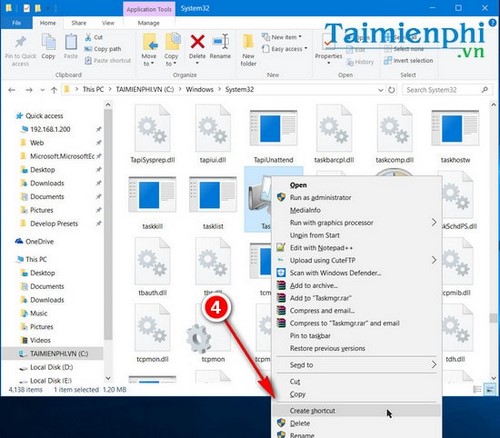
If you want a movable shortcut instead of a pinned item, right-click Taskmgr.exe and select Create shortcut.
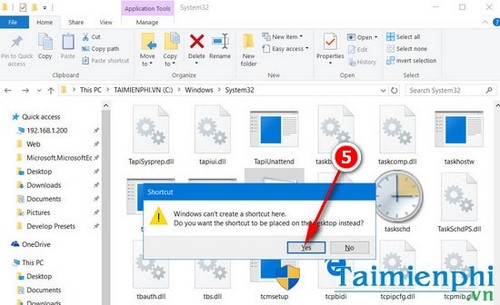
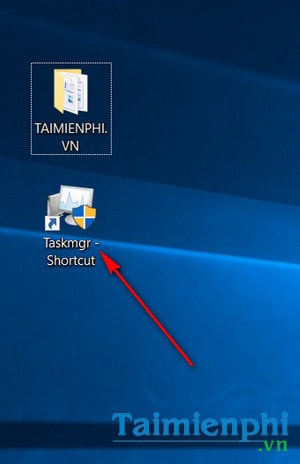
Windows cannot normally create files inside the protected System32 folder. When asked whether to place the shortcut on the desktop, select Yes.
Other fast ways to open Task Manager
- Press Ctrl + Shift + Esc.
- Press Ctrl + Alt + Delete, then select Task Manager.
- Press Windows + R, enter
taskmgr, and press Enter. - Right-click Start and select Task Manager where available.
For a broader comparison, see ways to open Task Manager in Windows 10. Windows 11 users can follow the dedicated Windows 11 Task Manager guide, while the Windows keyboard shortcut list covers other system tools.
Use Task Manager carefully
Task Manager can close unresponsive applications and show CPU, memory, disk, network, startup, and service activity. Ending an unfamiliar Windows process can interrupt the desktop, network, or another active task. Identify a process and save open work before selecting End task.
Related Articles
 Ways to Enable Task Manager in Windows 113 minutes read
 Task: How to Get Your Windows 10 Start Menu Back3 minutes read
 How to Pin a Task Manager Onto the Taskbar and Start Windows4 minutes read
 20 Best Tips for the Start Menu and Taskbar in Windows 722 minutes read
 Instructions to Fix Task Manager Has Been Disabled by Your4 minutes read
 All Problems About Using Task Manager6 minutes read
Reader Comments 0
Sign in with email or Google to join the discussion.