Table of Contents
7+ Taskbar Tweaker customizes taskbar button behavior on Windows 7, Windows 8/8.1, and Windows 10. It can change grouping and combining, middle-click actions, thumbnail behavior, dragging, and mouse-wheel controls that Windows does not expose in normal Taskbar settings.
Windows 11 warning: the developer states that the native Windows 11 taskbar is not supported and probably never will be. Do not install the utility on Windows 11 expecting it to work. Some comparable Windows 11 features are available as Windhawk mods; TipsMake's Windows 11 mod guide gives examples.
Before downloading
- Download only from the official 7+ Taskbar Tweaker page.
- Confirm that the PC runs Windows 7, 8/8.1, or 10. Windows 7, 8.1, and Windows 10 are outside normal support unless covered by an applicable program, so use a supported OS for sensitive work.
- Create a restore point or at least record the current Taskbar settings before making extensive changes.
- Read the developer's release notes after a major Windows update, because the utility hooks into Explorer and compatibility can change.
Install 7+ Taskbar Tweaker
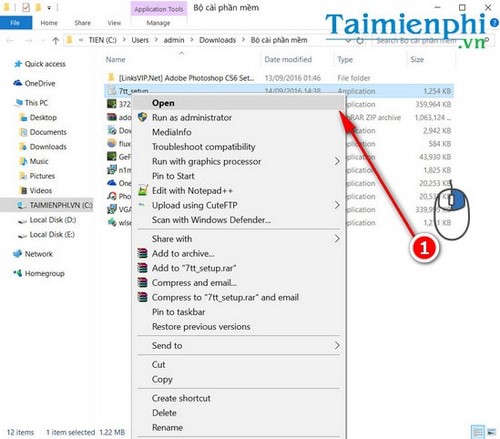
1. Start the installer
Open the installer downloaded from the official site. If Windows shows a security prompt, verify the file name and publisher/source rather than selecting Run automatically.
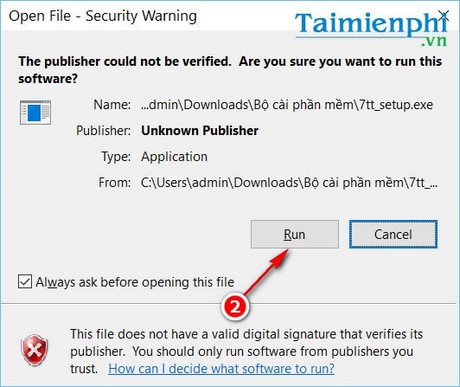
If SmartScreen reports an unknown or unrecognized file, stop and confirm that the download came from the official page and has not been replaced. A warning is not proof that the file is malicious, but it should not be ignored blindly.
2. Choose the installer language
Select the language used by the setup wizard and choose OK.
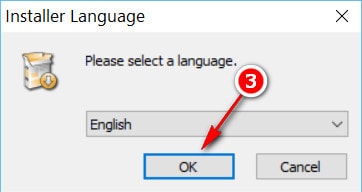
The available languages depend on the release. This selection controls installer and interface text; it does not change the Windows display language.
3. Choose installation or portable mode
The setup can offer a standard installation and shortcut options. Some releases also provide a portable mode. Choose based on how the PC is managed:
| Mode | Best for | Consideration |
|---|---|---|
| Standard installation | Regular use on one PC | Creates an uninstall entry and can create Start/Desktop shortcuts |
| Portable | Testing or keeping files in a chosen folder | You manage startup and removal manually; settings may still be stored for the user |
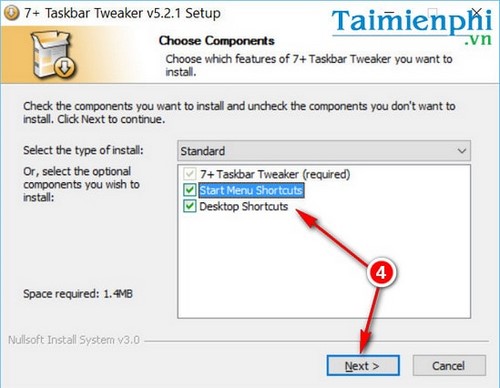
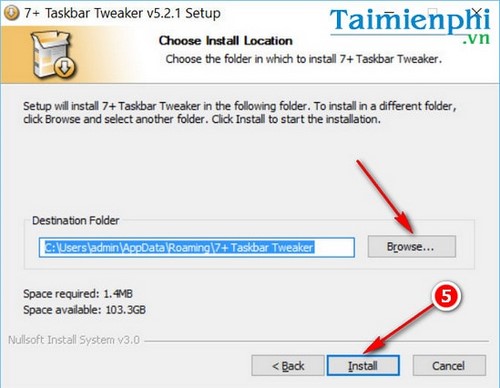
4. Choose the destination
Keep the default destination unless you have a specific reason to change it, then select Install. Avoid placing installed program files in a temporary, synced, or shared folder.
5. Finish and decide whether it starts with Windows
At the final page, you can launch the utility and enable its startup option.
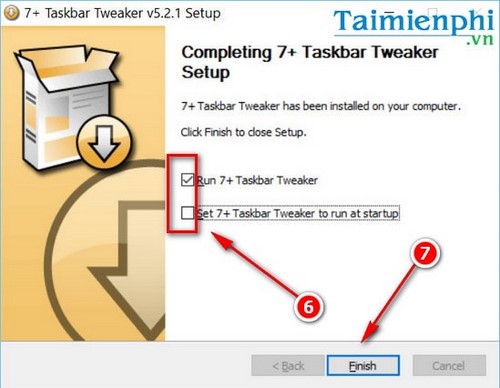
Leave automatic startup disabled while testing. Configure a few options, restart Explorer or sign out and back in if required, and verify stability before enabling the utility at every sign-in.
Understand the interface before changing options
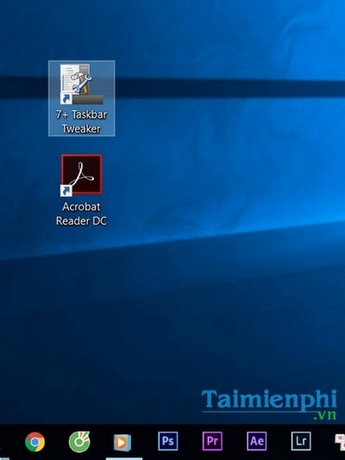
The program can be opened from its shortcut or notification-area icon.
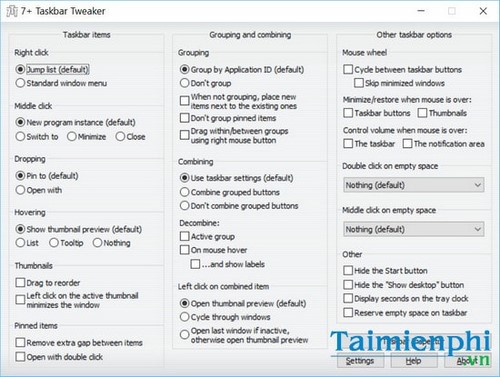
Options vary by release, but the interface is commonly divided into:
- Taskbar items: right-click and middle-click actions, dropping files onto buttons, and hover behavior.
- Grouping and combining: when windows share a taskbar button, labels, and per-application behavior.
- Other taskbar options: mouse-wheel actions, empty-space clicks, desktop display, and related shortcuts.
Change one option at a time and test it with several applications. A program with a custom taskbar implementation may behave differently from a standard desktop app.
Useful starter configurations
Middle-click to close
Configure a middle-click on a taskbar button or thumbnail to close that window. Test with a disposable Notepad window first; closing an app can discard unsaved work if the app does not prompt.
Control grouping and combining separately
Windows often treats grouping and button combining as one setting. 7+ Taskbar Tweaker can provide finer control, which is useful when multiple documents from one app need distinct buttons. A crowded taskbar is the tradeoff.
Cycle or minimize with the mouse wheel
Wheel actions can switch among grouped windows or minimize/restore a window depending on the configured target. Choose an action that will not conflict with touchpad gestures or accessibility tools.
How the utility works and why updates can break it
The developer explains that the program stores its own settings in the registry but implements taskbar behavior by injecting a DLL into Explorer and hooking taskbar functions. This is why it can offer options Windows does not expose—and why an Explorer or Windows update can temporarily break compatibility.
Because the utility modifies Explorer behavior in memory, security software may scrutinize it. Use the official download, keep Windows security enabled, and do not create broad antivirus exclusions just to silence a warning.
Troubleshooting
- The utility says the Windows build is unsupported: install a developer-supported release or restore default taskbar behavior; do not force an old build.
- Settings have no effect: confirm the app is running, check its notification-area icon, and verify that no other taskbar customization tool is overriding the same behavior.
- Explorer crashes or restarts: exit the utility, disable startup, revert the most recent setting, and check the official release notes.
- The icon is missing: review hidden notification-area icons or start the utility from its installed shortcut.
- Windows 11 is installed: uninstall 7+ Taskbar Tweaker unless you deliberately use an old-taskbar compatibility configuration that the developer currently supports. Native Windows 11 taskbar support is not available.
Disable or uninstall the utility
- Exit 7+ Taskbar Tweaker from its notification-area menu.
- Disable its start-with-Windows option.
- Open Control Panel > Programs and Features and uninstall it, or delete the portable folder if you used portable mode.
- Restart Explorer or sign out and back in if taskbar behavior does not immediately return to normal.
For Windows 11, first explore the built-in taskbar behaviors and these useful hidden Taskbar features. If visual transparency is the main goal rather than button behavior, compare the current Windows 11 transparency options instead of installing an incompatible utility.
Related Articles
 Hide the Start Button on the Windows 10 Taskbar Using 7+ Taskbar Tweaker3 minutes read
 Trick to Rearrange Stacking Windows on Windows Taskbar3 minutes read
 Refresh the Windows 10 Interface with 11 Custom Tools11 minutes read
 Don't Miss the Facebook Tweaker to Unlock Features on Facebook4 minutes read
 How to Add Applications to the Windows 11 Taskbar3 minutes read
 How to Fix Frozen Taskbar Effectively8 minutes read
Reader Comments 0
Sign in with email or Google to join the discussion.