Table of Contents
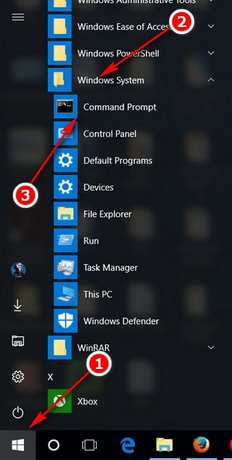
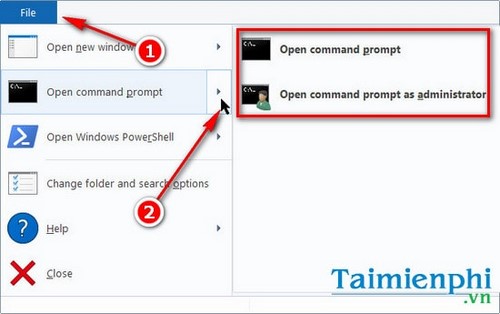
The quickest way to open Command Prompt in Windows 10 or Windows 11 is to press Windows+S, type cmd, and select Command Prompt. Use Run as administrator only when a trusted command specifically requires elevation. You can also start CMD from Run, Windows Terminal, File Explorer, Task Manager, or a desktop shortcut.
1. Open Command Prompt from Windows Search
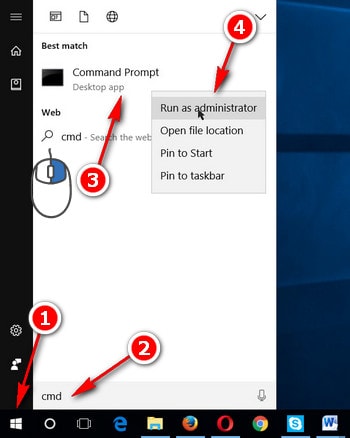
- Press
Windows+Sor open Start. - Type
cmdorCommand Prompt. - Select Open for a normal session.
For an elevated session, select Run as administrator and approve the User Account Control prompt. If Windows asks for administrator credentials, enter an authorized administrator account.
A normal window is the safer default for navigation, reading files, checking network information, and running user-level tools. Elevation gives commands greater ability to change the system.
2. Use the Run dialog
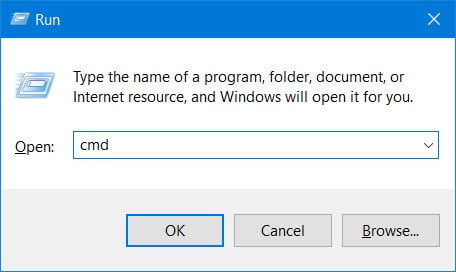
- Press
Windows+R. - Enter
cmd. - Press Enter.
This opens a normal Command Prompt. The working directory is usually your user profile, although launch context and configuration can affect it.
3. Open CMD in Windows Terminal
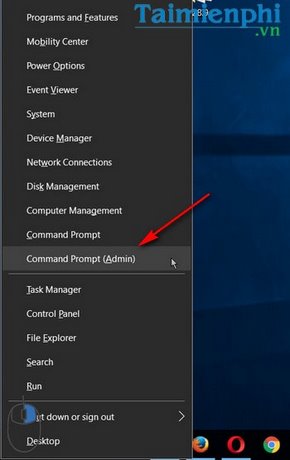
On current Windows installations, the Windows+X menu often shows Terminal or Terminal (Admin) instead of Command Prompt. Windows Terminal is a host that can run different shells.
- Open Windows Terminal.
- Select the arrow beside the new-tab button.
- Choose Command Prompt.
If no Command Prompt profile is visible, type cmd in the current PowerShell tab and press Enter. Type exit to return to PowerShell. Microsoft documents how to choose a default Windows Terminal profile if you want new tabs to start in CMD.
Do not assume a Terminal window is elevated. The title and User Account Control launch determine elevation, not the shell's appearance.
4. Open Command Prompt in the current File Explorer folder
- Open File Explorer and browse to the target folder.
- Select the address bar or press
Ctrl+L. - Type
cmdand press Enter.
CMD opens with that folder as its working directory. This is convenient for running a script or tool without typing the full path.
Current Windows context menus commonly offer Open in Terminal, not the old Open command window here. Open Terminal there and run cmd if you need Command Prompt syntax. TipsMake explains the current Windows 11 Terminal context-menu option.
5. Start cmd.exe directly
The Command Prompt executable is normally located at:
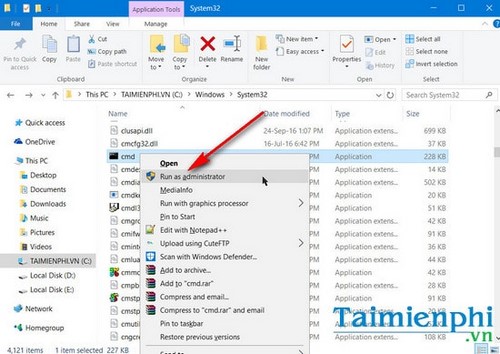
C:\Windows\System32\cmd.exe- Open File Explorer.
- Paste the path into the address bar.
- Open
cmd.exe, or right-click it and choose Run as administrator only when required.
Do not download a replacement cmd.exe from the web. If the system copy is damaged, use supported Windows repair tools rather than substituting an unknown executable.
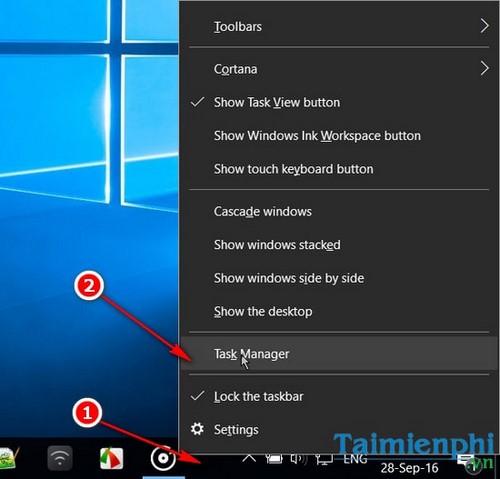
6. Open Command Prompt from Task Manager
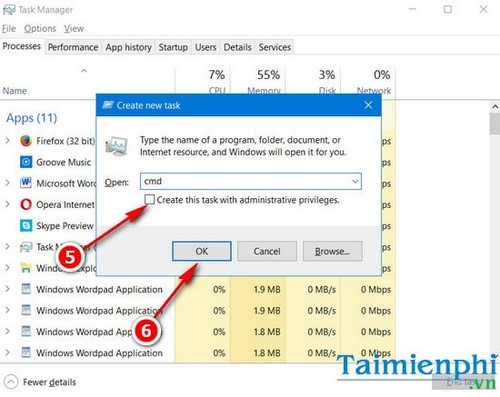
This method is useful when Explorer or the Start menu is not responding:
- Press
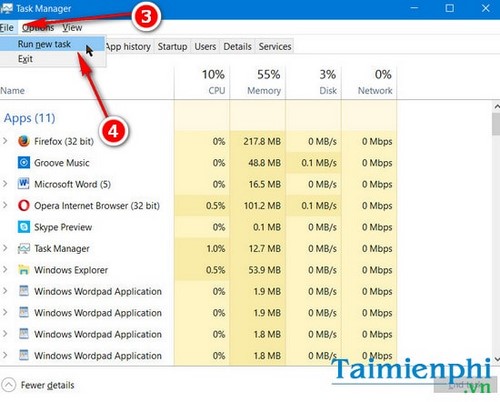
Ctrl+Shift+Escto open Task Manager. - Choose Run new task. Depending on the Task Manager layout, it may appear in the toolbar or under the File menu.
- Enter
cmd.exe. - Leave the administrative-privileges box clear unless the command genuinely requires it.
- Select OK.
7. Create a desktop shortcut
- Right-click an empty desktop area and choose New > Shortcut.
- Enter
%SystemRoot%\System32\cmd.exeas the item location. - Select Next, name the shortcut Command Prompt, and finish.
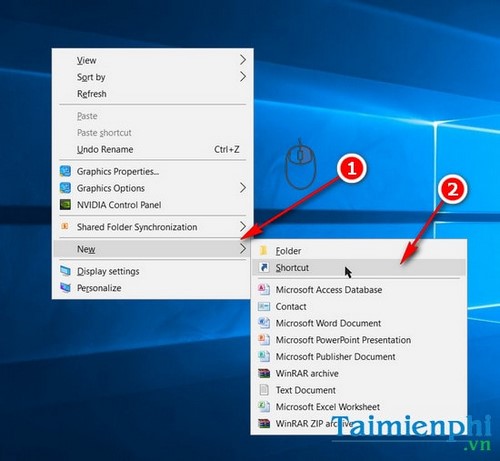
Avoid configuring the shortcut to always run as administrator. Elevate individual launches when necessary by right-clicking the shortcut and selecting Run as administrator.
8. Launch CMD with a command
Run can execute a command and keep or close the window afterward:
cmd /k ipconfig
cmd /c whoami/kruns the command and keeps the CMD window open./cruns the command and then closes CMD.
Quote complex commands carefully, especially when paths contain spaces or special characters. Use cmd /? to read the local syntax.
When should Command Prompt run as administrator?
Elevation may be required for selected system repairs, protected service changes, disk operations, firewall rules, or commands that modify protected Windows locations. It is not required merely to:
- change directories or list ordinary files;
- run
ipconfig,ping, orwhoamifor basic diagnostics; - compile code or run tools installed for your user;
- execute a script that only reads user-owned data.
Before pasting an elevated command from a website, understand every option, check the target path, and make a backup when the command changes important data. Microsoft's own repair instructions demonstrate the standard elevated Command Prompt workflow.
Command Prompt, PowerShell, and Windows Terminal
| Tool | What it is |
|---|---|
| Command Prompt | The cmd.exe command shell and its batch syntax |
| PowerShell | A separate automation shell with cmdlets, objects, and different scripting syntax |
| Windows Terminal | A tabbed terminal application that can host CMD, PowerShell, WSL, and other profiles |
Commands such as ipconfig.exe can run in several shells, but variables, aliases, pipelines, quoting, and scripts are not interchangeable.
If Command Prompt will not open
- Try both Search and
Windows+R > cmd. - Open Windows Terminal and run
cmd.exeto see an error message. - Check whether organization policy blocks Command Prompt on a managed device.
- Run a malware scan with the approved security product if the executable was unexpectedly replaced or blocked.
- Use Windows repair or recovery options when system files are damaged; do not download
cmd.exefrom a file-sharing site.
Once CMD is open, TipsMake's guide to common Windows CMD commands covers safe examples for files, folders, networks, and processes. The broader Command Prompt guide explains navigation and customization.
Related Articles
 Open Folder in Command Prompt (CMD): What to Know5 minutes read
 How to Open Command Prompt on Windows 10, 8, 7, Vista and XP6 minutes read
 How to Open Folders in CMD5 minutes read
 How to Use the Command History Function in Command Prompt9 minutes read
 How to Make Command Prompt Appear at School11 minutes read
 How to Open Command Prompt on Windows: Step-by-Step Guide4 minutes read
Reader Comments 0
Sign in with email or Google to join the discussion.