Table of Contents
An elevated Command Prompt runs cmd.exe with administrator rights. Use it only for a trusted command that needs protected system access—for example, certain DISM, SFC, service, firewall, or disk-management tasks. Routine commands such as ipconfig, ping, dir, and systeminfo normally do not need elevation.
Open Command Prompt as administrator from Windows Search
This is the clearest method in Windows 10 and Windows 11:
- Open Start or press the Windows key.
- Type Command Prompt or cmd.
- Select Run as administrator in the result panel. You can also right-click the result and choose the same command.
- Review the User Account Control prompt. Confirm that the app is Windows Command Processor from Microsoft, then select Yes. A standard user must provide an administrator account's credentials.
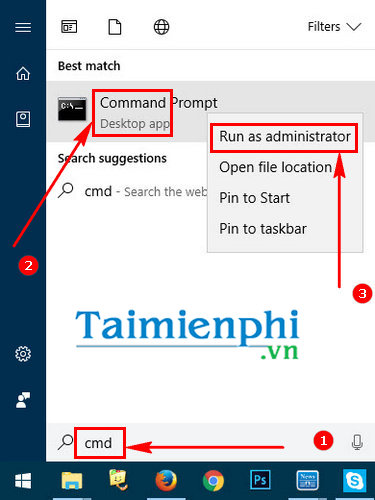
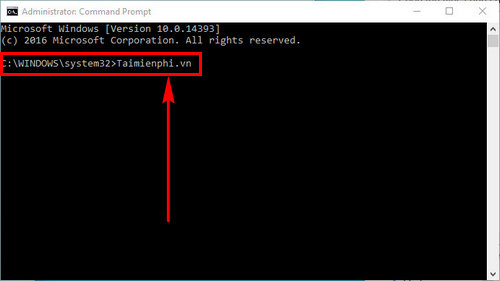
When a search result is selected, Ctrl + Shift + Enter also requests elevation. The complete Command Prompt opening guide covers standard, recovery, and folder-specific sessions.
Open an elevated CMD tab through Windows Terminal
On Windows 11, the Win + X menu commonly lists Windows Terminal instead of Command Prompt:
- Press Win + X.
- Select Terminal (Admin).
- Approve the UAC prompt.
- If the elevated Terminal opens a PowerShell profile, open its profile menu and choose Command Prompt, or enter
cmdto start it in that tab.
Every tab opened inside the same elevated Terminal window inherits elevated rights. Keep a separate standard Terminal window for ordinary work so an unrelated command does not receive administrator access.
Open elevated CMD from Task Manager
- Press Ctrl + Shift + Esc to open Task Manager.
- Select Run new task from the toolbar or File > Run new task, depending on the Task Manager layout.
- Enter
cmd. - Select Create this task with administrative privileges.
- Select OK and respond to UAC if prompted.
This is useful when Start or Search is not responding. It does not bypass organization policy or the requirement for administrator approval.
Windows 7 method
Windows 7 is unsupported, but on a legacy machine the original Start-menu method is:
- Open Start and type
cmdin the search box. - Right-click cmd.exe and select Run as administrator.
- Approve the UAC prompt or provide administrator credentials.
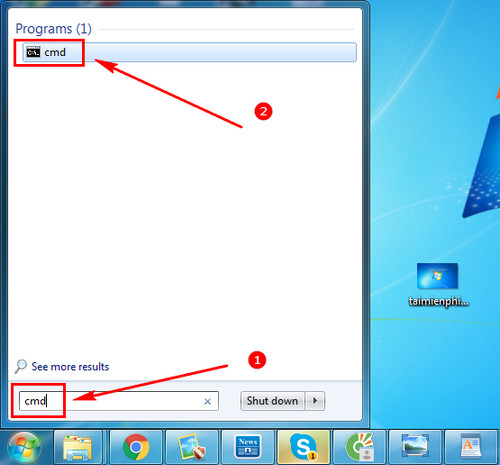
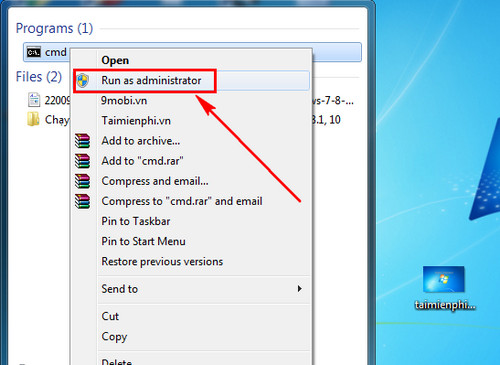
Windows 7, Windows 8.1, and earlier consumer releases no longer receive normal security support. Use a supported Windows version for internet-connected or sensitive work instead of treating elevation instructions as a security fix.
How to verify that CMD is really elevated
The most reliable visible clue is the window title, which commonly begins with Administrator:. In Windows Terminal, an elevated window may show an administrator shield or an administrator label depending on its version and settings.
Do not use the starting folder as proof. An elevated Command Prompt often starts in C:\Windows\System32, but any session can change to that folder, and an elevated session can start somewhere else.
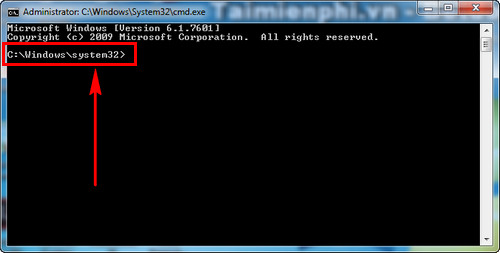
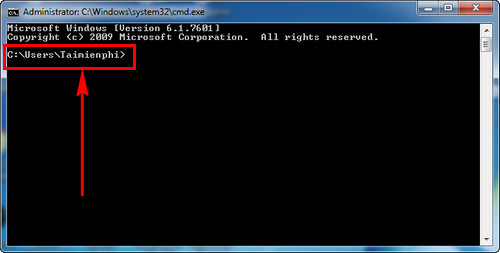
From the console, this read-only check reports whether the current token belongs to the local Administrators group as enabled in the session:
whoami /groups | findstr "S-1-5-32-544"Interpret the attributes shown with care; a user can be a member of Administrators while the current process still uses a filtered, non-elevated token. The title and the UAC launch path remain easier checks for typical use.
What User Account Control is doing
On a normal UAC-enabled system, even a member of the Administrators group uses a standard user token for everyday apps. When an app requests protected rights, Windows presents an elevation prompt and, after approval, starts that app with the administrator token. Microsoft describes this split-token behavior in How User Account Control works.
Elevation applies to the new process and programs it starts; it does not permanently elevate the account or every open window. Do not disable UAC to avoid prompts. Microsoft's UAC settings guide explains notification levels and their security effect.
When elevation is—and is not—needed
| Typical standard-session task | Task that often needs elevation |
|---|---|
View IP configuration with ipconfig /all | Repair the Windows image with DISM |
Test reachability with ping | Run sfc /scannow against protected system files |
List files with dir | Change protected firewall, service, or boot settings |
Display processes with tasklist | Manage processes owned by other users or the system |
| Create files in your user folders | Write to protected Windows or Program Files locations |
The command itself, target resource, local policy, and account determine whether access is required. If a read-only command returns Access is denied for a protected item, first confirm that the item is appropriate to inspect before elevating.
Run one elevated command instead of keeping an admin shell open
On supported Windows 11 systems where Sudo for Windows is enabled by an administrator, sudo can request elevation for a single command from a standard console:
sudo sfc /scannowThis feature is not present or enabled on every Windows 11 installation. Microsoft documents requirements and configuration in the Sudo for Windows guide. Do not install a third-party executable named sudo just to mimic it.
If “Run as administrator” does not work
- No UAC prompt appears: restart Windows, try Search and Task Manager, and check whether organization policy or security software is controlling elevation.
- The standard user's credentials are rejected: use a valid local or domain administrator account; a standard account cannot grant itself administrator rights.
- Command Prompt is blocked: on a managed device, contact the administrator instead of trying to bypass policy.
- The command still says Access is denied: verify the target path, file ownership, command syntax, security policy, and whether the operation is supported. Elevation does not override every access control or protection mechanism.
- A mapped drive is missing: elevated and standard sessions can have different drive mappings. Use the network path or map the resource within the correct security context.
Safety rules for an elevated Command Prompt
- Verify the publisher and purpose before approving UAC.
- Do not paste commands from an unknown site, chat, video description, or shortened link.
- Review destructive switches for
del,rd,diskpart,bcdedit,cipher,taskkill, and registry commands. - Save work and back up important data before disk, boot, or account changes.
- Close the elevated window as soon as the administrative task is complete.
For examples annotated with privilege and safety requirements, see these useful Command Prompt commands for Windows. The CMD productivity guide explains help, path completion, output capture, history, and command operators without requiring permanent elevation.
Related Articles
 5 Ways to Run File Explorer with Administrator Privileges on Windows 114 minutes read
 How to Log in with Administrator Privileges on Windows4 minutes read
 How to Open the Application with Administrator Privileges on Windows 102 minutes read
 Losing Admin Permissions on Windows 10 // 8.1, This Is a Fix6 minutes read
 How to Check If a Process Is Running with Admin Privileges4 minutes read
 How to Make Yourself an Administrator on Any Windows System5 minutes read
Reader Comments 0
Sign in with email or Google to join the discussion.