Table of Contents
On Windows 7, you can open Command Prompt from Start search, the Run dialog, the Accessories folder, a desktop shortcut, a taskbar shortcut, or cmd.exe in System32. A normal window is sufficient for most commands; choose Run as administrator only when a trusted command requires elevated rights.
Support note: Windows 7 no longer receives normal security updates. These instructions are for maintaining a legacy or offline PC; use a supported Windows version for internet-connected and sensitive work. Microsoft explains the risks of running an unsupported Windows release.
Method 1: Search from the Start menu
- Select Start.
- Type
cmdor Command Prompt in Search programs and files. - Select cmd.exe or Command Prompt in the results.
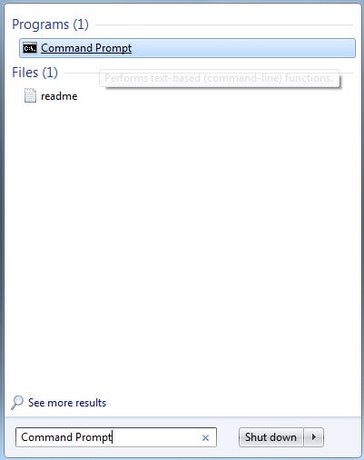
For an elevated session, right-click the result, select Run as administrator, and review the User Account Control prompt.
Method 2: Use the Run dialog
- Press Win + R.
- Enter
cmd. - Press Enter or select OK.
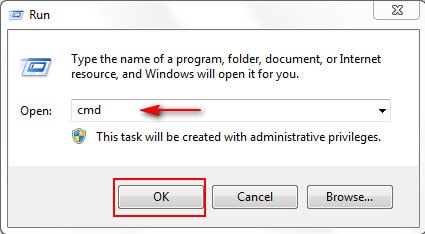
This opens a standard Command Prompt in the current user's context. Typing cmd.exe has the same result.
Method 3: Open it from Accessories
- Select Start > All Programs.
- Open Accessories.
- Select Command Prompt.
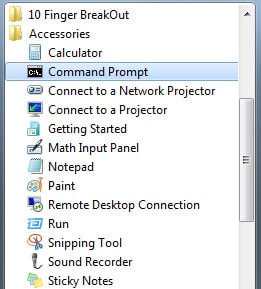
This route is useful when Start search is unavailable or disabled.
Method 4: Create a desktop shortcut
- Right-click an empty area of the desktop and select New > Shortcut.
- In the location field, enter
%SystemRoot%\System32\cmd.exe. - Select Next.
- Name the shortcut Command Prompt, then select Finish.
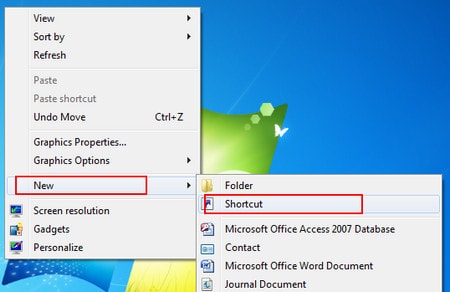
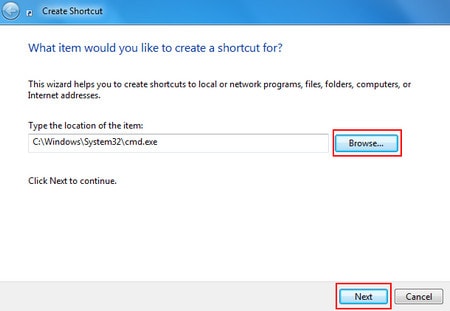
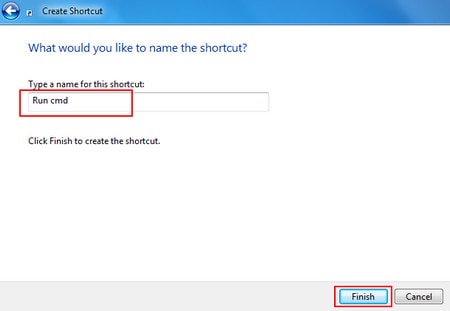
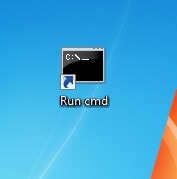
Using %SystemRoot% avoids assuming that Windows is installed on drive C. To choose a starting folder, right-click the shortcut, select Properties, and edit Start in. Do not configure the shortcut to always run as administrator unless every task launched from it genuinely requires elevation.
Method 5: Pin Command Prompt to the taskbar
Open Command Prompt, right-click its taskbar button, and choose Pin this program to taskbar. Alternatively, drag the desktop shortcut to the taskbar.

A normal click starts a standard session. Right-click the pinned icon, then right-click Command Prompt in the jump list and select Run as administrator when elevation is needed.
Method 6: Run cmd.exe from Windows Explorer
- Open Windows Explorer.
- Enter
%SystemRoot%\System32in the address bar. - Find and double-click
cmd.exe.
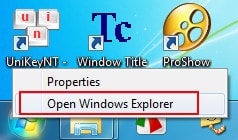
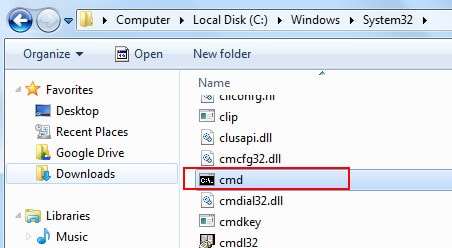
The file's location does not mean the window is elevated. Administrator rights depend on whether you used Run as administrator and approved UAC.
Open CMD directly in a specific folder
On many Windows 7 installations, hold Shift, right-click an empty area inside a folder, and select Open command window here. If the entry is unavailable, open CMD and enter:
cd /d "D:\Example Folder"The /d switch changes both the drive and folder. See the Command Prompt folder navigation guide for relative paths and Tab completion.
Standard CMD vs. administrator CMD
| Standard session | Elevated session |
|---|---|
Navigation, dir, ping, ipconfig, and work inside user folders | Some protected system repairs, service changes, firewall changes, and writes to protected locations |
| Lower impact if a command is mistyped | Can make system-wide changes |
| Recommended default | Open only for a specific trusted task |
Do not use the initial folder—such as C:\Windows\System32—as proof of elevation. Look for Administrator: in the title and confirm that you deliberately approved the UAC prompt. The administrator Command Prompt guide explains UAC, verification, and safer elevation.
If Command Prompt will not open
- Try both Start search and Win + R.
- Run
%SystemRoot%\System32\cmd.exedirectly. - Restart Windows if Explorer or Search is unresponsive.
- On a work or school PC, respect administrator policy; do not attempt to bypass a restriction.
- If security software reports a different
cmd.exeoutside the Windows system folders, investigate the file before running it.
Current Windows versions use somewhat different menus and Windows Terminal. For Windows 10 or 11, follow the updated Command Prompt opening instructions.
Related Articles
 How to Open PowerPoint on Your Computer, Open Ppt, Pptx Files4 minutes read
 The Fastest Ways to Shut Down Windows 10: Complete List7 minutes read
 Instructions on How to Use Paint in Windows12 minutes read
 5 Ways to Open Applications in Windows 105 minutes read
 Instructions on How to Install Windows 10 (32bit and 64bit)7 minutes read
 Detailed and Simple Instructions for Transferring Windows from HDD8 minutes read
Reader Comments 0
Sign in with email or Google to join the discussion.