Table of Contents
These nine Command Prompt commands cover useful everyday Windows tasks: schedule a shutdown, inspect local networking, test reachability, clear the DNS cache, repair protected system files, review connections, test a TCP port, and overwrite unused disk space. The examples are updated for Windows 10 and Windows 11.
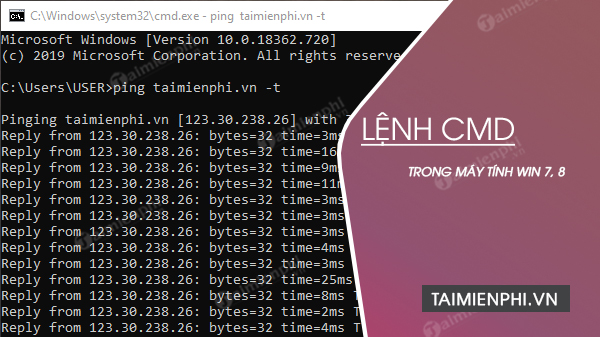
Open Start, search for Command Prompt, and select it. Use a standard session unless a section explicitly says elevation is required. Add /? to a command to read its local help before using unfamiliar switches.
1. Schedule, cancel, or perform a shutdown
Schedule a shutdown for 10 minutes from now:
shutdown /s /t 600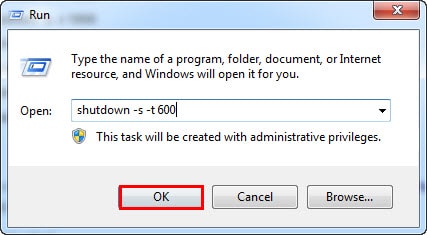
The timeout is measured in seconds, so 10 minutes is 600, not 3600. Save open work first. Cancel a pending shutdown during the timeout with:
shutdown /a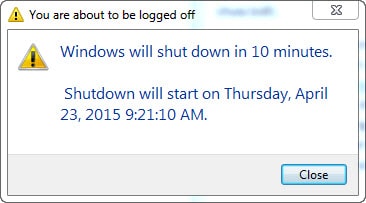
Shut down immediately with shutdown /s /t 0, or restart with shutdown /r /t 0. Avoid /f unless necessary because it can close applications without giving them a chance to save. Microsoft's shutdown command reference explains the full set of switches.
2. Show local IP configuration
ipconfig
ipconfig /all
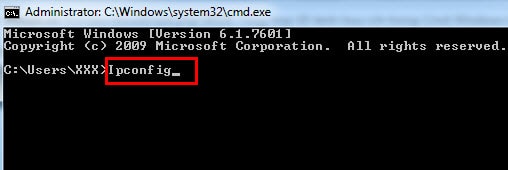
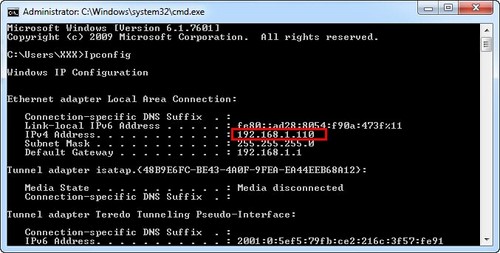
ipconfig shows each adapter's local IP address, subnet mask, and default gateway. /all adds DHCP, DNS, physical-address, and lease details. These are local network settings, not necessarily the public IP address visible to websites.
3. Test connectivity with ping
ping 1.1.1.1
ping tipsmake.com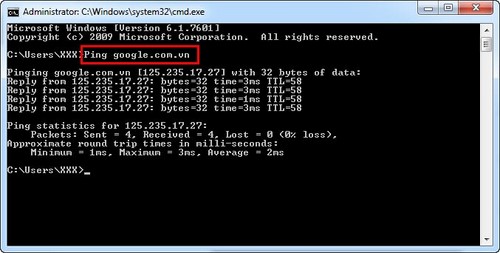
Comparing an IP-address test with a domain-name test can help separate a general connection problem from DNS trouble. A failed ping does not prove a host is offline because the destination or a firewall may block ICMP. Ping also does not measure full download speed.
4. Clear the local DNS resolver cache
ipconfig /flushdns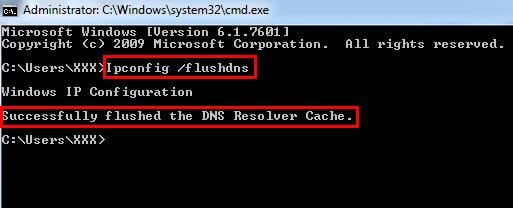
This removes cached DNS answers stored by the Windows client. It is useful after a record or DNS-server change, but it does not clear browser-specific caches, router caches, or records held by an upstream DNS service. If name resolution still fails, compare responses with nslookup rather than repeatedly flushing.
5. Repair the Windows image and protected files
Open Command Prompt as administrator, then run DISM followed by SFC:
DISM /Online /Cleanup-Image /RestoreHealth
sfc /scannow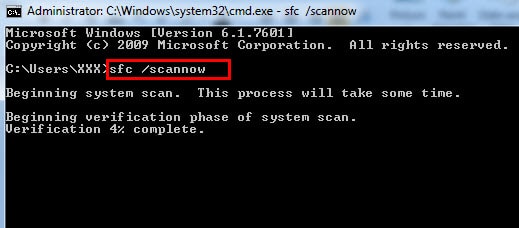
DISM repairs the Windows component store used as a repair source; SFC then verifies protected system files and replaces incorrect versions where possible. Let each command finish. These tools do not repair failing hardware, every driver problem, or every application error. Microsoft provides separate guidance for repairing a Windows image with DISM.
6. Review active connections and protocol statistics
netstat -ano
netstat -s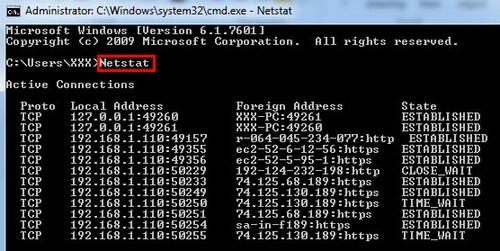
netstat -ano shows active connections, listening endpoints, numeric addresses, and PIDs. Match a PID with tasklist /fi "PID eq 1234" or Task Manager.
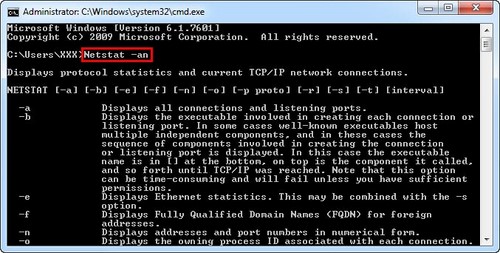
A listening port or unfamiliar remote address is not proof of malware. Browsers, update services, cloud sync tools, and background apps create normal connections. Investigate the signed executable and expected behavior before acting.
7. Query DNS records with nslookup
nslookup tipsmake.com
nslookup -type=mx tipsmake.com
nslookup tipsmake.com 1.1.1.1
The first query uses the configured DNS server; the second requests mail-exchanger records; the third asks a specified server. The nslookup DNS diagnosis guide explains timeouts, record types, and server comparisons.
8. Test a TCP service without using Telnet for login
The old article enabled Telnet Server, but that is unnecessary and unsafe for routine internet use. Telnet does not provide modern encrypted remote administration. Use PowerShell's TCP connection test instead:
powershell -NoProfile -Command "Test-NetConnection example.com -Port 443"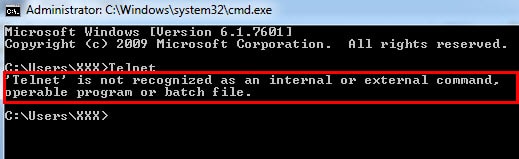
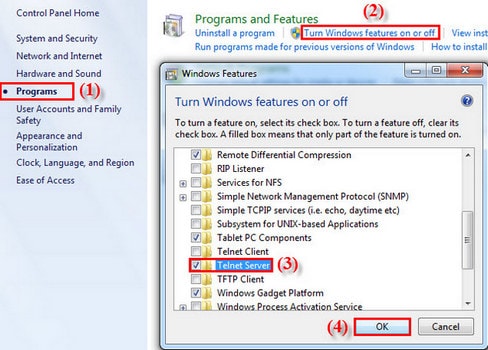
Replace the host and port with the service being tested. A successful TCP connection only proves that something accepted a connection at that endpoint; it does not validate the application, credentials, certificate, or full protocol exchange. Use SSH, HTTPS, or another encrypted management protocol for actual remote access.
9. Use cipher /w only to overwrite unused space
cipher /w:D:\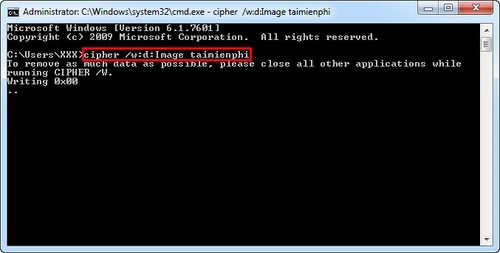
cipher /w does not delete a chosen folder. The path merely identifies a location on the target volume; Windows then overwrites available unused space across that volume. Existing files remain, but the operation can take a long time and generate substantial disk writes.
Confirm the drive letter, close applications, and ensure the PC has stable power. Results are not a universal erasure guarantee for SSD wear-leveling, backups, cloud copies, snapshots, or other storage layers. Microsoft's cipher reference documents /w and EFS operations.
Which of these commands needs administrator rights?
| Command | Typical privilege | Main caution |
|---|---|---|
shutdown | Standard user with shutdown right | Save work; timeout greater than zero implies forced app closure |
ipconfig, ping, nslookup | Standard | Interpret results in context |
ipconfig /flushdns | Usually standard on current clients | Clears only the local Windows resolver cache |
DISM and sfc /scannow | Administrator | Let the operation finish |
netstat -ano | Standard | Some ownership details may require elevation |
cipher /w | Depends on target access | Heavy writes and long runtime; verify volume |
For more commands grouped by task and risk, see the 15 useful Windows CMD commands and the system and network troubleshooting command set. The latter includes Group Policy, services, process ownership, routes, and identity checks.
Related Articles
 Cmd Command: All Cmd and Dos Commands on Windows43 minutes read
 How to Use the Command History Function in Command Prompt9 minutes read
 Windows Prompt: Tips and Examples3 minutes read
 How to Add and Delete Users Accounts with Command Prompt in3 minutes read
 How to Add and Delete User Accounts with Command Prompt on Windows: Clear5 minutes read
 How to Open Command Prompt on Windows 10, 8, 7, Vista and XP6 minutes read
Reader Comments 0
Sign in with email or Google to join the discussion.