Table of Contents
The fastest way to open the Run dialog is still Windows + R. If you prefer using the mouse, Windows 10 also lets you create a Run shortcut and pin it to Start or the Taskbar. The shortcut opens the same Run dialog; it does not execute a command by itself.

Create the Run shortcut
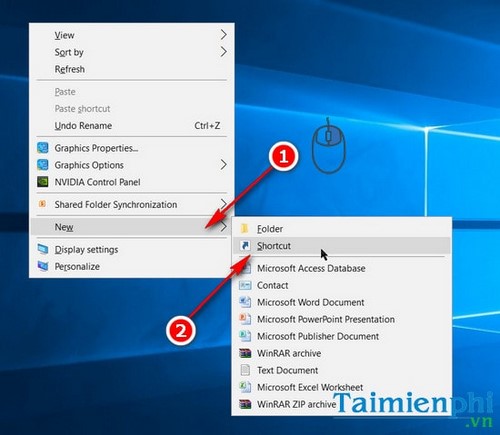
Right-click an empty area of the desktop and select New > Shortcut.
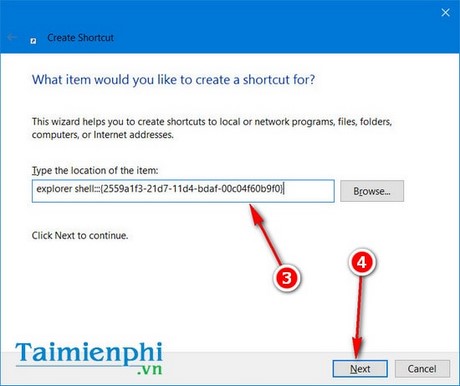
In Type the location of the item, enter this command exactly:
explorer.exe shell:::{2559a1f3-21d7-11d4-bdaf-00c04f60b9f0}Select Next.
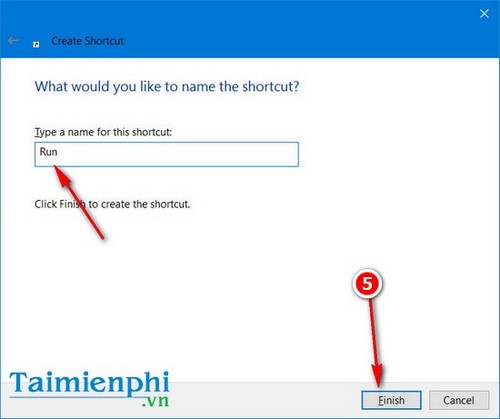
Name the shortcut Run, then select Finish.
Give the shortcut a Run icon
The new shortcut may use a generic File Explorer icon. You can replace it with a more recognizable system icon:
Right-click the Run shortcut and choose Properties.
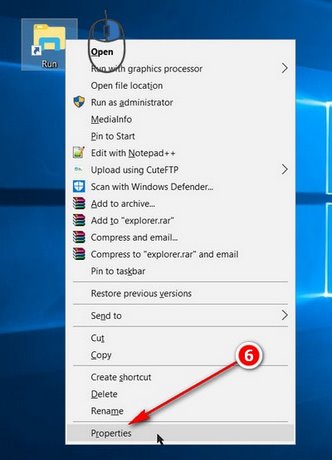
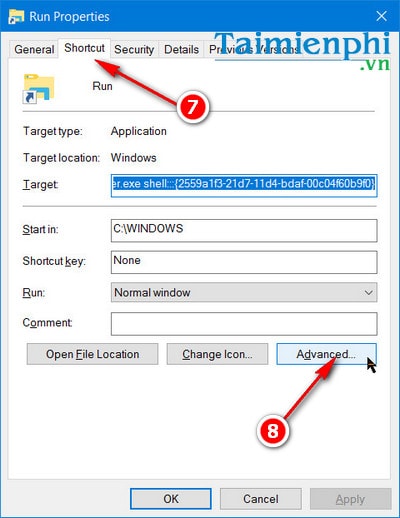
On the Shortcut tab, select Change Icon. You do not need to enable Run as administrator for the Run dialog itself.
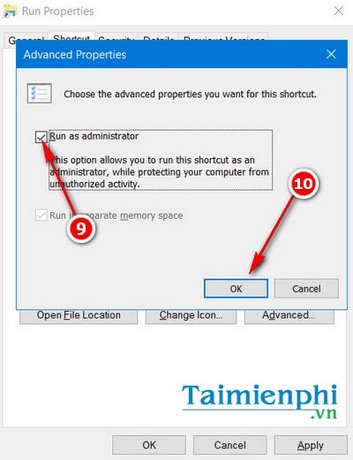
In Look for icons in this file, enter
%SystemRoot%\System32\shell32.dll, press Enter, and choose an icon. Select OK, then Apply.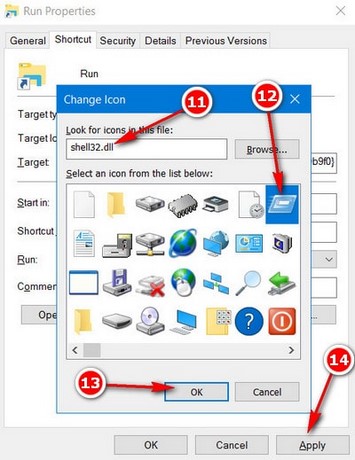
Pin Run to Start or the Taskbar
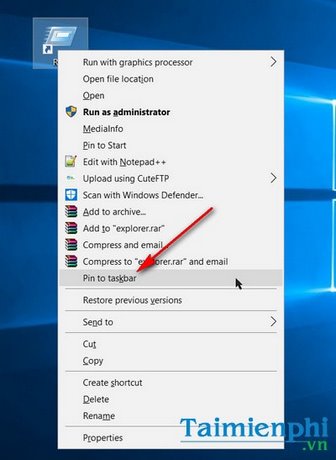
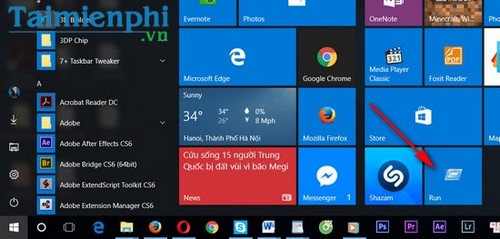
Right-click the completed shortcut and select Pin to Start to add it to the Windows 10 Start menu.
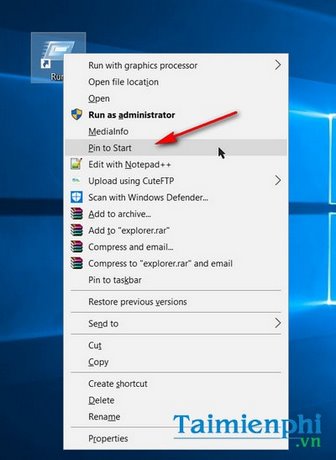
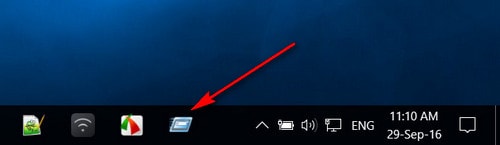
To add it to the Taskbar, right-click the shortcut and select Pin to taskbar. If that command is not displayed, drag the shortcut onto the Taskbar.
Use Run safely
Run accepts program names, system tools, paths, and URLs. Check a command before submitting it, especially if it changes system settings. To launch a command with elevated rights, type it in Run and press Ctrl + Shift + Enter; approve the User Account Control prompt only if you trust the command.
If you work mainly from the keyboard, the shortcut adds little value: use Windows + R instead. See the Windows keyboard shortcut reference for other time-saving combinations. You can also learn how to open Command Prompt or create a dedicated Windows shutdown shortcut.
Remove the shortcut
Right-click the pinned item and select Unpin from taskbar or Unpin from Start. You can then delete the desktop shortcut. Removing it does not disable the built-in Run dialog.
Related Articles
 Trick to Run Commands on Start Menu and Taskbar on Windows 103 minutes read
 20 Best Tips for the Start Menu and Taskbar in Windows 722 minutes read
 How to Pin Task Manager to the Taskbar and Start Menu on Windows 103 minutes read
 Steam Opens New Start Menu ''mod'' for Sale for Windows 114 minutes read
 How to Move Windows 11 Start Menu to the Left6 minutes read
 How to Customize the Taskbar and Start Menu of Windows 114 minutes read
Reader Comments 0
Sign in with email or Google to join the discussion.