Table of Contents
Windows includes a practical set of Command Prompt tools for inspecting system configuration, processes, network connections, DNS, routes, services, and Group Policy. Most commands below are read-only when used with the shown switches. Commands that stop processes, change services, or modify networking require extra care and may need an elevated session.

How to open CMD and get command-specific help
Open Start, search for Command Prompt, and select it. You can also press Win + R, enter cmd, and press Enter. Use a normal session for inspection. Open an elevated Command Prompt only when a trusted command needs protected access.
help
systeminfo /?
ipconfig /?
netsh /?
Microsoft's Windows commands reference lists current syntax for supported Windows and Windows Server releases.
1. systeminfo: summarize OS and hardware configuration
systeminfo
systeminfo > "%USERPROFILE%\Desktop\systeminfo.txt"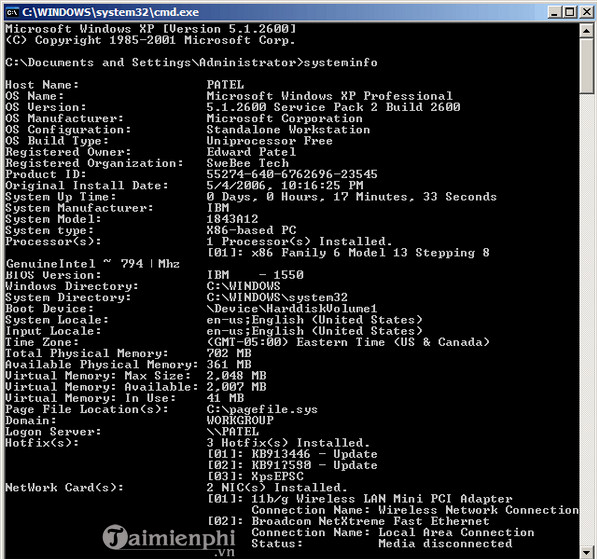
systeminfo reports the Windows edition and version, computer model, boot time, installed memory, network adapters, and other configuration data. The output can contain computer names, domain information, and installed-update details, so review it before posting publicly.
2. ipconfig: inspect local TCP/IP and DNS settings
ipconfig
ipconfig /all
ipconfig /flushdns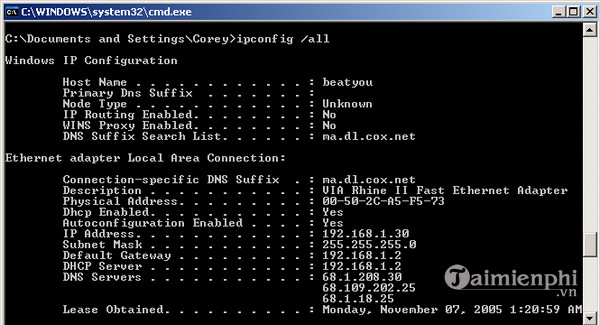
Without switches, ipconfig shows addresses, subnet masks, and default gateways. /all adds DHCP, DNS, physical-address, and adapter details. /flushdns clears the local resolver cache; it does not change the DNS server or public IP address.
ipconfig /release and /renew interrupt and renegotiate DHCP connectivity. Use them only when diagnosing a DHCP issue.
3. tasklist: list running processes
tasklist
tasklist /svc
tasklist /fi "IMAGENAME eq notepad.exe"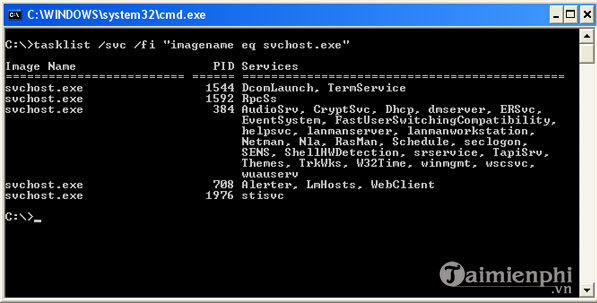
tasklist displays process names, process IDs, session information, and memory use. Add /svc to show services hosted by processes. A process appearing in the list is not evidence of malware; identify its signed executable, location, and context first.
4. taskkill: close a process by PID or image name
taskkill /PID 1234
taskkill /IM notepad.exe
taskkill /PID 1234 /F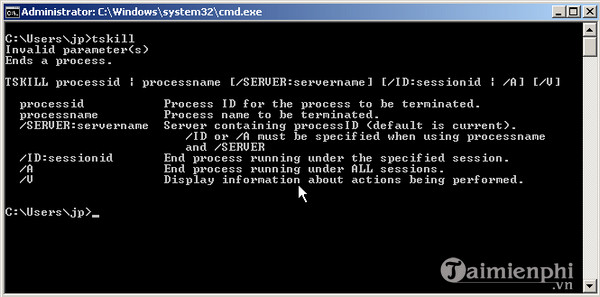
The command is taskkill, not taskill. Try the app's normal close first. Use /F only for an unresponsive process because forcing termination can discard unsaved data or interrupt dependent work. Verify the PID with tasklist immediately before acting.
5. netstat: review connections and listening endpoints
netstat -ano
netstat -ab
netstat -s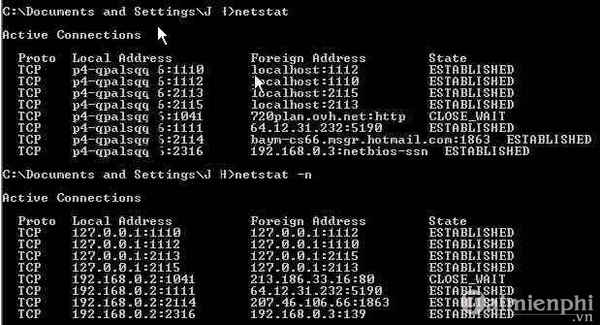
-a includes active connections and listening endpoints, -n keeps addresses numeric, and -o adds the PID. -b attempts to identify executables and usually needs elevation. -s displays protocol statistics.
Listening ports and outbound connections are normal. Correlate the PID, executable, remote address, digital signature, and expected app behavior before treating a result as suspicious.
6. net: work with services, shares, users, and connections
net help
net start
net use
net share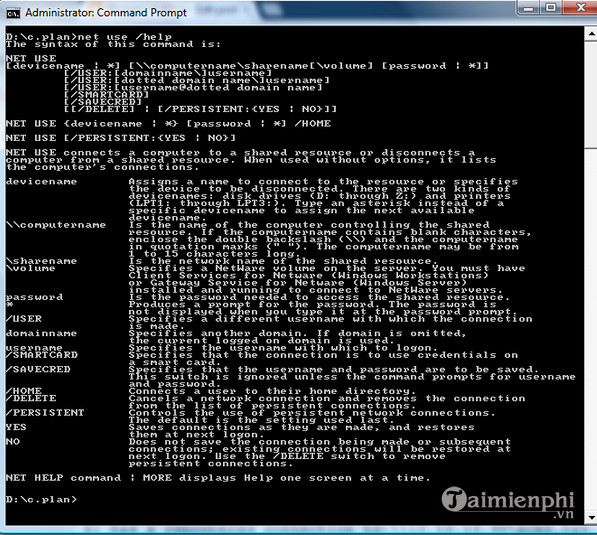
net is a family of commands. The examples above list help, started services, network connections, and shares. State-changing forms include:
net start "Service Display Name"
net stop "Service Display Name"
Starting or stopping a service can disrupt Windows or applications and typically requires elevation. Confirm the service's exact name, dependencies, and recovery behavior first; do not experiment on a production system.
7. nslookup: query DNS records and specific servers
nslookup tipsmake.com
nslookup -type=mx tipsmake.com
nslookup tipsmake.com 1.1.1.1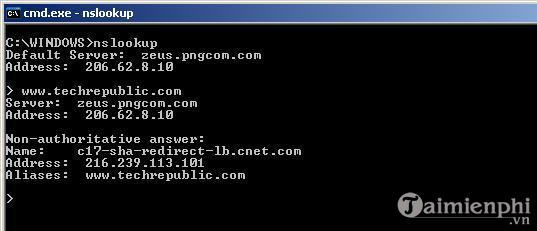
The first query uses the PC's configured DNS server, the second requests MX records, and the third asks a specified DNS server. Results can differ because of caching, split DNS, geography, or deliberate policy. A timeout can indicate server, firewall, or route trouble rather than a nonexistent record.
For a deeper workflow, see how to diagnose DNS with nslookup. PowerShell users can also use Resolve-DnsName for structured output.
8. ping: test basic IP reachability
ping 1.1.1.1
ping tipsmake.com
ping -n 10 tipsmake.com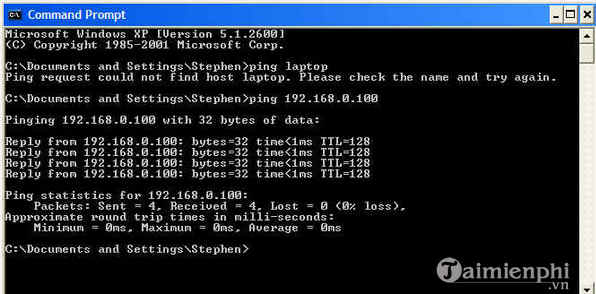
ping sends ICMP echo requests and reports replies and round-trip time. Compare an IP target with a host name to help distinguish connectivity from name-resolution trouble. A failed ping is not definitive because many destinations block ICMP, and ping does not measure full internet download speed.
9. tracert and pathping: examine the route
tracert tipsmake.com
pathping tipsmake.com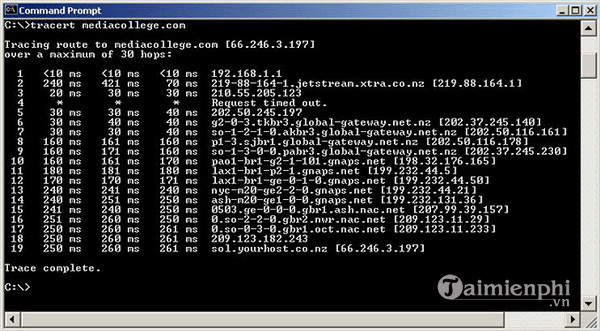
tracert lists responding hops toward a destination. pathping performs longer measurements to estimate loss along the route. Asterisks or a slow intermediate hop do not automatically prove a fault; routers can deprioritize or block probes while forwarding ordinary traffic normally.
10. gpresult: report applied Group Policy
gpresult /r
gpresult /scope user /v
gpresult /h "%USERPROFILE%\Desktop\gpresult.html"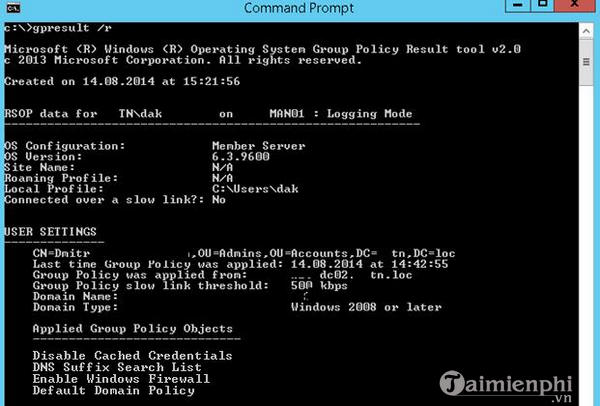
gpresult reports Resultant Set of Policy information for the current user and computer. The HTML report is easier to review. Computer scope, other users, or remote queries may require elevation and appropriate permissions.
Policy reports can expose user names, domain paths, security configuration, mapped resources, and software deployment information. Store and share them as sensitive administrative data.
11. netsh: inspect and modify network components
netsh interface show interface
netsh wlan show interfaces
netsh wlan show profiles
netsh advfirewall show allprofiles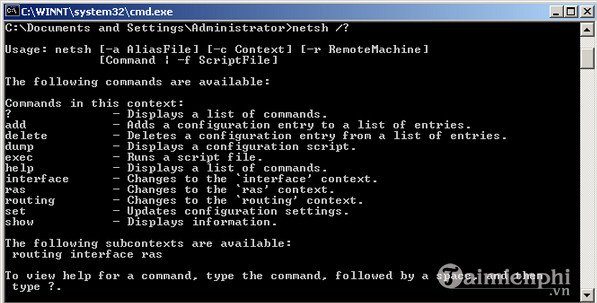
netsh contains contexts for interfaces, WLAN, firewall, and other networking components. The shown commands inspect state. Many set, add, delete, and reset commands modify connectivity and require elevation.
Do not run broad network reset commands as a first troubleshooting step; they can remove custom DNS, proxy, route, VPN, firewall, or adapter settings. For Wi-Fi-specific examples, use the netsh WLAN management guide.
12. whoami: confirm identity, groups, and privileges
whoami
whoami /groups
whoami /priv
whoami reports the security identity of the current process. The additional switches show group memberships and privileges attached to its access token. This helps explain why a command succeeds in one shell but returns Access is denied in another.
Group membership alone does not prove that a Command Prompt is elevated: UAC can give an administrator account a filtered token. Use the elevated window title and known UAC launch path as practical confirmation.
Quick reference by troubleshooting goal
| Question | Start with | What to verify next |
|---|---|---|
| What is this PC's configuration? | systeminfo | Windows version, model, memory, adapters |
| What are the local network settings? | ipconfig /all | Address, gateway, DHCP, DNS servers |
| Can the PC reach a target? | ping | Try IP and name; account for ICMP blocking |
| Where does the route change? | tracert | Compare later hops; avoid blaming one probe |
| Does DNS return the expected record? | nslookup | Compare configured and specified DNS servers |
| Which process owns a connection? | netstat -ano | Correlate PID with tasklist |
| Which policies are applied? | gpresult /r | User vs. computer scope and permissions |
| Which account and token are in use? | whoami /groups | UAC elevation and required permissions |
Safe habits for command-line troubleshooting
- Run read-only checks before changing state.
- Use
command /?and verify switches against current documentation. - Redirect long output to a file, then remove private data before sharing.
- Record the original configuration before a
netsh, service, firewall, or policy change. - Do not terminate processes or stop services based only on an unfamiliar name.
The 15 useful CMD commands guide adds system repair, power reports, drivers, file comparison, and shutdown examples. For a broader network-tool sequence, review the basic network troubleshooting toolkit.
Related Articles
 15 Tar Commands Should Try in Linux9 minutes read
 CMD Commands, Command Prompt Commands in Windows 7 And 87 minutes read
 Kali Linux Commands from AZ and Commonly Used Commands20 minutes read
 Command Prompt: Summary of the Common Run CMD Commands8 minutes read
 Some Commonly Used DOS Commands in CMD3 minutes read
 How to Run Linux Commands on Windows with WSL 26 minutes read
Reader Comments 0
Sign in with email or Google to join the discussion.