Table of Contents
Windows 10 does not offer a direct Pin to taskbar command for folders. The practical workaround is to create a shortcut that opens the folder through File Explorer, then pin that shortcut. This gives frequently used folders a permanent Taskbar button without moving or changing the folder itself.
Compatibility note: These steps are intended for Windows 10. Microsoft ended standard support for Windows 10 on October 14, 2025, so use a supported Windows release wherever possible. Windows 11 users can also review these useful Windows 11 Taskbar features.
Create a folder shortcut that can be pinned
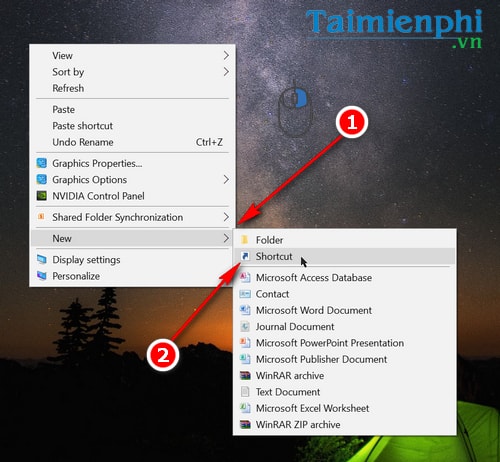
Right-click an empty area of the desktop and select New > Shortcut.
In the Create Shortcut window, select Browse, choose the folder you want, and click OK. Do not select Next yet.
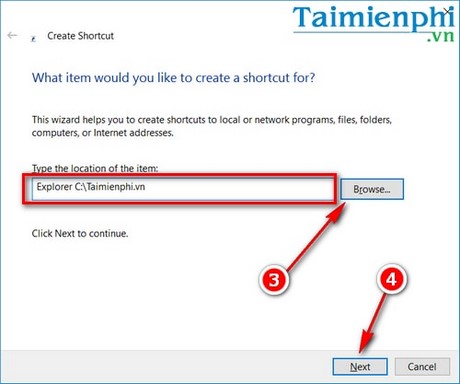
At the beginning of the location field, add
explorer.exefollowed by a space. If the folder path contains spaces, keep the path in quotation marks. The completed target should look like this:explorer.exe "C:\Users\YourName\Documents\Projects"Using File Explorer as the shortcut target makes Windows treat the item like an application shortcut, which can be pinned to the Taskbar.
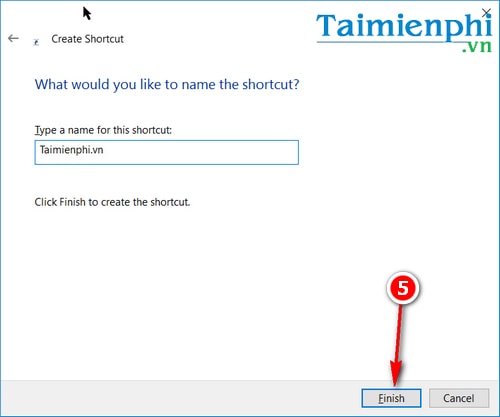
Select Next, enter a recognizable name for the shortcut, and click Finish.
Pin the shortcut to the Taskbar
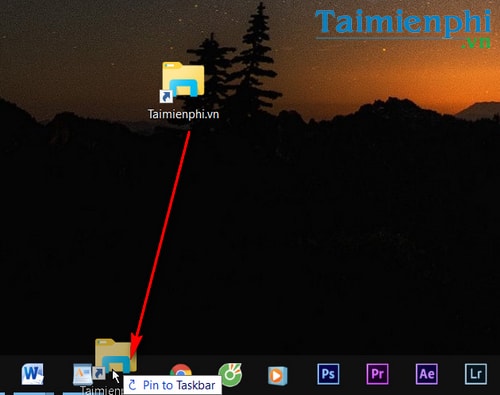
Drag the completed shortcut from the desktop onto the Taskbar. If dragging does not work, right-click the shortcut and look for Pin to taskbar. Click the pinned button to confirm that it opens the correct folder.
Choose a clearer icon
Because the shortcut launches File Explorer, its default icon may look like the standard Explorer icon. To make it easier to distinguish from other pinned items:
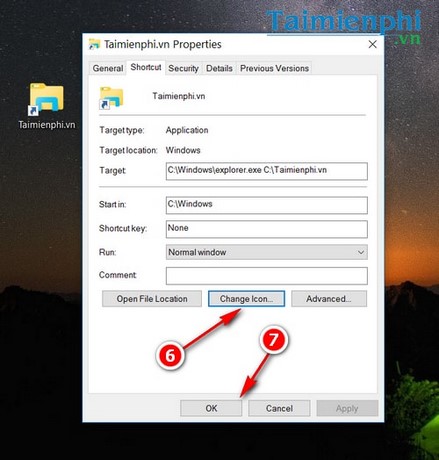
- Right-click the desktop shortcut and choose Properties.
- Open the Shortcut tab and select Change Icon.
- Choose an available icon, then select OK > Apply.
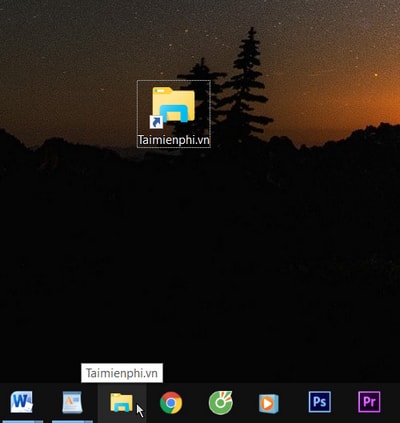
- If the old icon remains on the Taskbar, unpin it and pin the updated shortcut again.
Remove or repair the pinned folder
To remove the button, right-click it and select Unpin from taskbar. This removes only the shortcut; it does not delete the folder or its files. If the button later stops working, the folder was probably moved or renamed. Create a new shortcut with the current path and pin it again.
For other ways to organize quick access, see how to use the Windows 10 Start menu or learn how to change Windows desktop and shortcut icons.
Related Articles
 How to Pin a Folder to the Windows Taskbar, Pin Any Folder4 minutes read
 Instructions for Pinning Folders to Windows Taskbar4 minutes read
 How to Pinning Folders to the Taskbar on Win 7, 8, 103 minutes read
 How to Customize the Taskbar in Windows: Step-by-Step Guide15 minutes read
 Do You Know What Is the Optimal Location of the Windows8 minutes read
 How to Fix Windows 11 Taskbar Not Working8 minutes read
Reader Comments 0
Sign in with email or Google to join the discussion.