Table of Contents
The Windows ping command tests whether an IP host responds to ICMP echo requests and reports round-trip time and packet loss. It is useful for narrowing down network problems, but it does not prove that a website, DNS server, or internet connection is fully working, and it is not a bandwidth speed test.

Open a terminal and run a basic ping
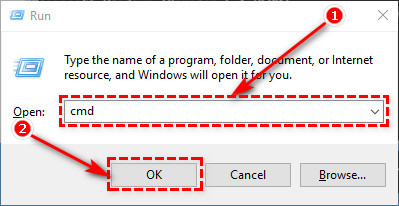
On Windows 10 or 11, open Start and search for Command Prompt, or press Win + R, enter cmd, and press Enter. A standard session is sufficient.
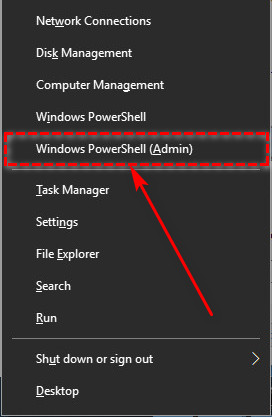
The command also works from PowerShell and a Command Prompt or PowerShell tab in Windows Terminal. The old Win + X menu entry may now say Terminal, and administrator rights are not needed for normal ping tests.
Try a public IP address and then a domain name:
ping 1.1.1.1
ping tipsmake.com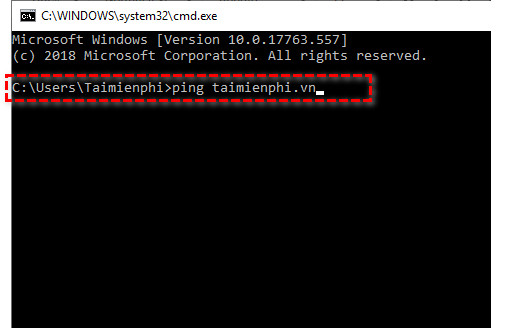
Windows sends four echo requests by default. For IPv4, the default data payload is 32 bytes. A reply displays the responding address, payload size, measured round-trip time, and TTL.
Test the local network in the right order
Do not assume that every router uses 192.168.1.1. Find this PC's actual default gateway:
ipconfigLocate the active Wi-Fi or Ethernet adapter and note Default Gateway. Then test it, replacing the example address:
ping 192.168.1.1A useful sequence is:
- Loopback:
ping 127.0.0.1checks the local IPv4 stack, not the cable, Wi-Fi, router, or internet. - Default gateway: checks whether the router responds from the local network.
- Public IP:
ping 1.1.1.1checks whether an IP destination on the internet responds. - Domain name:
ping tipsmake.comadds name resolution to the test.
| Result pattern | Likely area to investigate |
|---|---|
| Gateway fails | Wi-Fi/Ethernet link, adapter, local firewall, router address, router behavior |
| Gateway replies; public IP fails | Router uplink, ISP, route, firewall, or ICMP blocking |
| Public IP replies; domain name fails to resolve | DNS client, DNS server, suffix/search behavior, or the domain name |
| All pings reply; website still fails | Browser, proxy, TLS, HTTP service, application firewall, or the website itself |
Replace old ISP-specific test addresses with a gateway and destination relevant to your current connection. Provider infrastructure changes, and an old address may stop responding even when the service is healthy.
How to read ping output
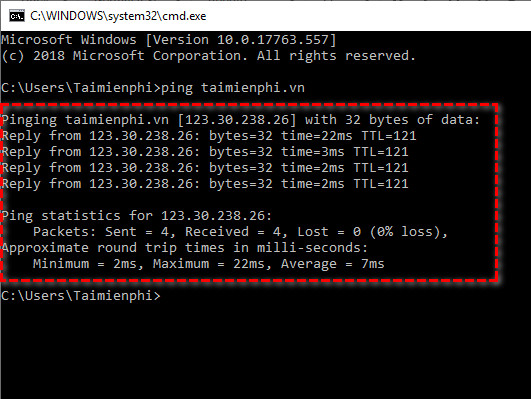
A line such as:
Reply from 203.0.113.10: bytes=32 time=18ms TTL=117- Reply from: the IP address that sent the response. A domain can resolve to different addresses over time or location.
- bytes: the data payload in the echo reply, not a “test file.”
- time: round-trip time for that probe. A single sample is not a reliable performance baseline.
- TTL: the remaining IP Time To Live value. Routers normally decrement it; it is not a connection-quality score or a precise hop count without knowing the sender's starting value.
The summary reports sent, received, and lost probes plus minimum, maximum, and average round-trip times. Packet loss during a longer test can be meaningful, but the destination may rate-limit ICMP while serving normal traffic successfully.
Useful ping options on Windows
| Command | Purpose |
|---|---|
ping -n 20 tipsmake.com | Send 20 probes instead of four |
ping -t 192.168.1.1 | Continue until stopped with Ctrl + C; Ctrl + Break displays interim statistics |
ping -w 2000 tipsmake.com | Wait up to 2,000 ms for each reply |
ping -4 tipsmake.com | Force IPv4 |
ping -6 tipsmake.com | Force IPv6 |
ping -a 192.0.2.10 | Attempt reverse name resolution for the address |
Use ping /? to see options supported by the installed Windows version, or consult Microsoft's ping command reference.
What common errors mean
Request timed out
No echo reply arrived before the timeout. Possible causes include packet loss, an offline target, ICMP filtering, an incorrect route, or a destination that simply does not answer ping. Test the gateway and another known destination before assigning blame.
Destination host unreachable
The PC or an intermediate device reports that it has no usable path to the destination. Check the source address, subnet, default gateway, adapter state, VPN routes, and the address you entered. The Reply from address in the message identifies the device reporting the failure.
Ping request could not find host
The name did not resolve. Check spelling, then compare:
ping 1.1.1.1
nslookup tipsmake.com
ipconfig /all
If an IP works but the name does not, investigate the configured DNS servers and DNS result. The nslookup troubleshooting guide shows how to query a specific DNS server.
General failure
Windows could not send the probe normally. Check the adapter, IP configuration, VPN, route table, security software, and Windows networking state. Restarting or resetting the entire network should not be the first step because it can remove custom configuration.
Ping cannot answer every network question
- It does not measure download/upload bandwidth; use a reputable speed test for that.
- It cannot confirm that TCP port 443 or a web application works.
- A reply does not prove the target is trustworthy.
- A timeout does not prove the target is offline.
- A few probes are insufficient to diagnose intermittent loss.
Use tracert or pathping when you need route information, nslookup for DNS, and PowerShell's Test-NetConnection -ComputerName host -Port 443 for a TCP-port test. The network troubleshooting toolkit explains how these tools complement each other.
If the problem affects Wi-Fi broadly, follow the ordered Windows 11 Wi-Fi troubleshooting guide instead of repeatedly pinging random public addresses.
Related Articles
 What Is the Ping: What Is PING? How Is PING Test?7 minutes read
 How to Ping in Linux4 minutes read
 How to Ping on Linux: Clear Instructions5 minutes read
 How to Ping an IP Address: Complete Guide8 minutes read
 How to Use the Ping Command in Linux: Step-by-Step Guide9 minutes read
 How to Ping a System to See If It's Alive3 minutes read
Reader Comments 0
Sign in with email or Google to join the discussion.