Table of Contents
This guide provides a practical overview of Table Operations in Word, including its main features, benefits, limitations, and important considerations.
Table operations in Word 2013 include:
1. Draw a box in the board.
- Creating a table cannot ignore Merge Cell operation , for example, if you want the column of the school day to have 2 values of even and odd dates, make 2 columns into one:
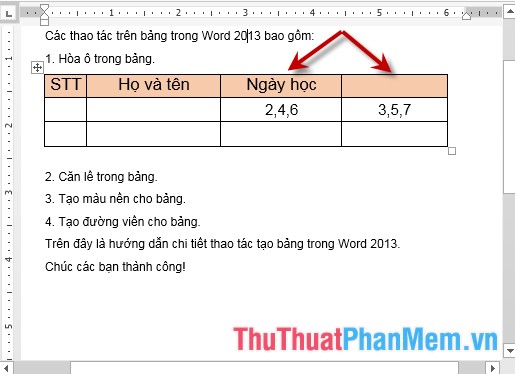
- To tie cells, do the following: Select the cells you want Meger Cell -> Layout -> Merge -> Merge Cells:

- The results have been merged into 1:

2. Align the table.
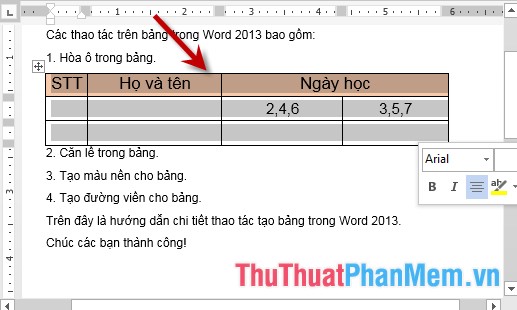
- When entering data in the table, you want the data to be in the middle of the cell and 4 equally spaced as follows: Select the table to align on the Layout tab -> Alignment -> select the alignment type:

- Results after choosing the alignment:
3. Create a background color for the board.
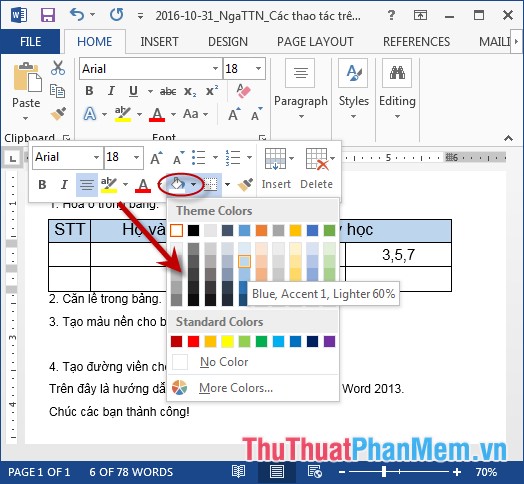
Method 1: Highlight the cells you want to create background color -> use the paint bucket icon or shadding in the quick toolbar -> select the colors to create the background:
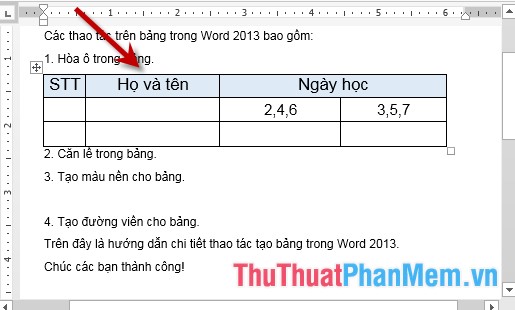
- Results after pouring background color:
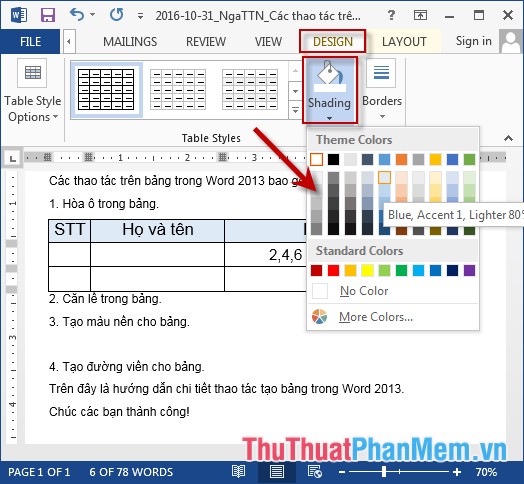
Method 2: Select cells to create background color -> Go to Design tab -> Shading -> select colors to fill background:
4. Create borders for the table.
- Open the Border and Shading dialog box with 2 ways:
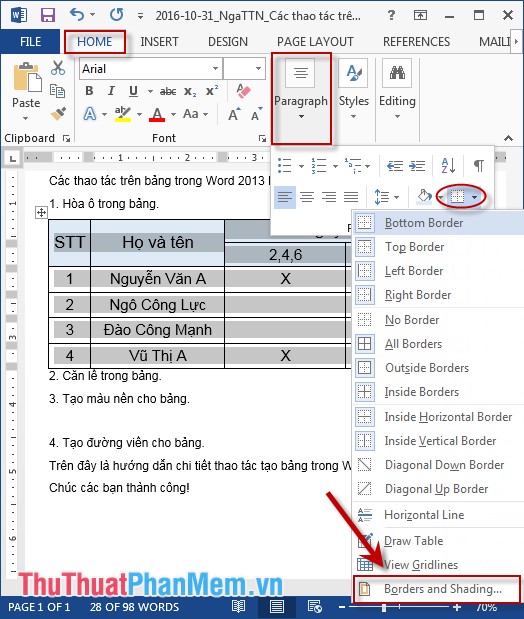
Method 1: Select the table to create borders -> on the Home tab -> Paragraph -> click on the Border icon -> can choose the default types or click Border and Shading:
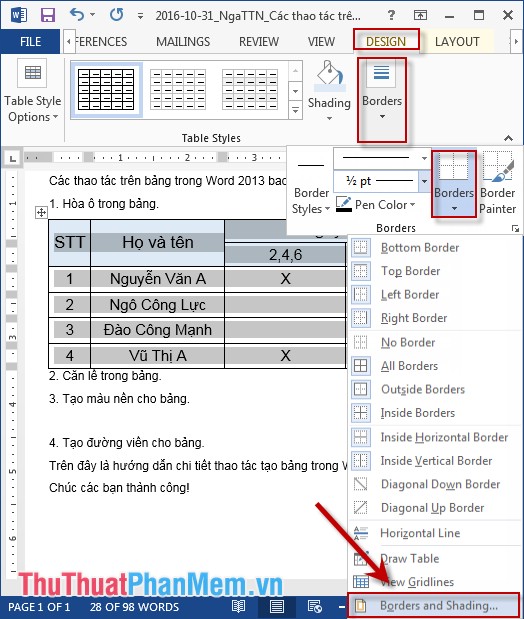
Method 2: Select the table to create borders -> go to Design tab -> Borders -> Borders can choose the default types available or click Border and Shading:
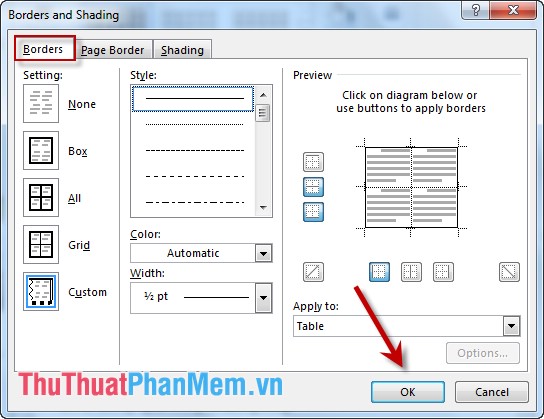
- In both ways, the Border and Shading dialog box appears and select the Border tab, including the following options:
+ Item Setting:
None: Cancels the table border.
Box: Only external roads have no internal roads.
All: Change the border style both inside and outside borders change
Grid: Change the border outside the inner line to keep the default.
Custom: Changing the border inside the outer line remains the default.
+ Item Style: select border style.
+ Item Color: select the color for the border.
+ Section Width: choose the width for the border.
For example, here, select the outer solid line, the inner line is three dots:
- The table border results have changed:
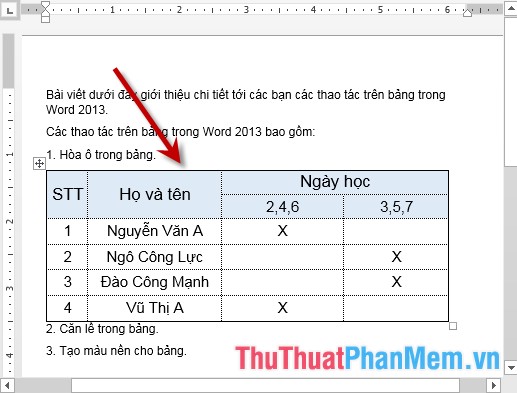
The above is a detailed guide on table operations in Word.
Good luck!
FAQ
What should I know about Table Operations in Word?
Focus on the key features, requirements, limitations, and practical use cases explained in this guide.
How do I get the best results with Table Operations in Word?
Follow the recommended steps, use current software or information, confirm compatibility, and review settings before major changes.
Are there any risks or limitations?
Potential limitations depend on compatibility, data quality, cost, privacy, support, and how the product or method is used.
Related Articles
 How to Create a Table in Word 20077 minutes read
 How to Fix Table Errors in Word Overflow: Step-by-Step Guide3 minutes read
 Manipulation Editing on a Table in Word4 minutes read
 How to Adjust the Size of Word Table Cells Equally4 minutes read
 Instructions for Inserting Table Captions in Word3 minutes read
 How to Insert a Table, Create a Table in Word 20165 minutes read
Reader Comments 0
Sign in with email or Google to join the discussion.