Table of Contents
Google Sheets' AI function sends a natural-language instruction and selected spreadsheet data to Google's AI service, then returns the generated response in a cell. It is useful for text tasks such as summarizing feedback, assigning categories, or rewriting descriptions.
The feature is not a replacement for normal formulas. Use SUM, IF, lookup functions, and other deterministic formulas when the result must be exact. AI output can vary or contain errors and should be reviewed before it drives a decision.
Availability and requirements
The AI function is available only to eligible Google Workspace accounts and may depend on the subscription, region, administrator settings, and rollout stage. If Sheets does not recognize AI, check the Workspace features enabled for the account rather than assuming the formula is typed incorrectly.
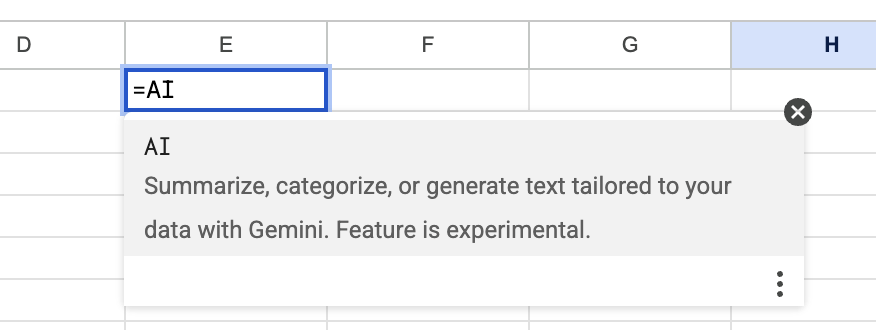
Use the current web version of Google Sheets while signed in to the eligible account. For a work or school account, an administrator may need to enable the relevant Gemini or Workspace AI features.
Basic formula structure
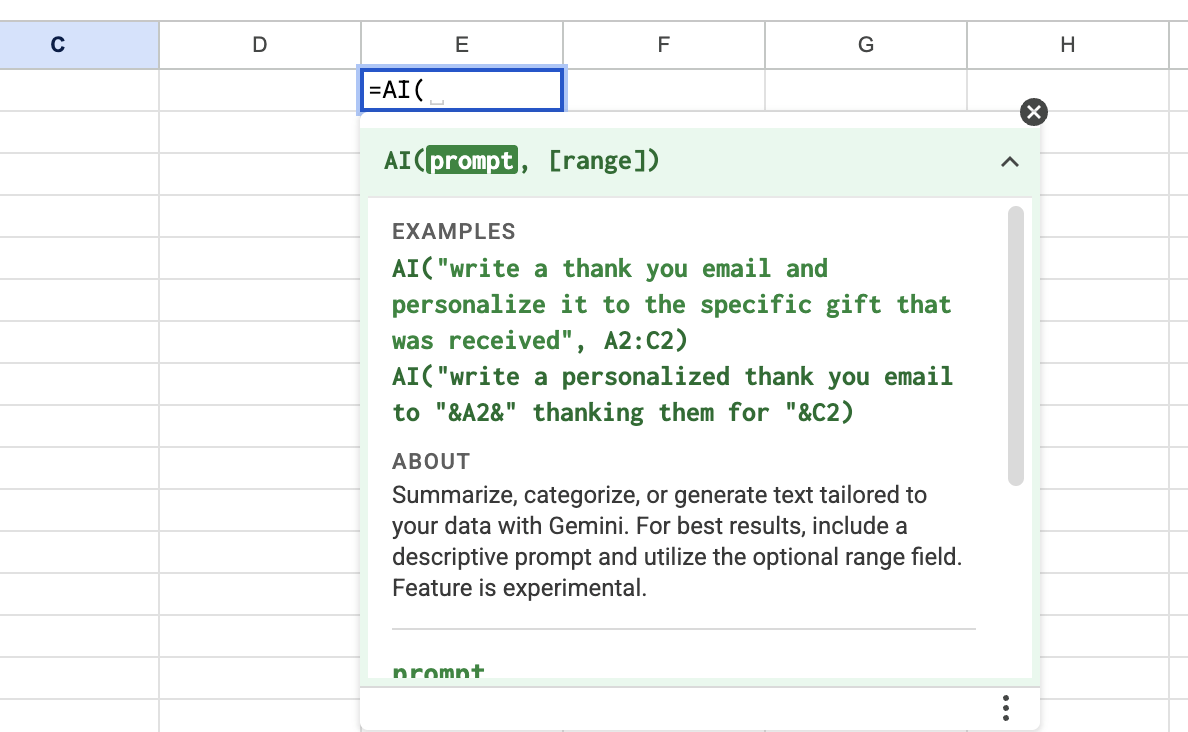
The function takes a quoted instruction and, when needed, a cell or range containing the source data. The interface may show the exact syntax supported for your account as soon as you type:
=AI("prompt", A2)Enter the formula in an empty cell. Keep the instruction specific and state the output format you want.
Practical examples
Summarize customer feedback
=AI("Summarize this feedback in one neutral sentence.", A2)Assign a category
=AI("Return exactly one category: Travel, Food, Software, Utilities, or Other.", B2)Write a short product description
=AI("Write a factual product description of no more than 20 words. Do not invent features.", C2)Rewrite text in a professional tone
=AI("Rewrite this in a concise professional tone without changing the meaning.", D2)Classify sentiment
=AI("Return only Positive, Neutral, or Negative based on this response.", E2)Test a formula on a few rows before filling it down. A large range may take time to process, consume account limits, or produce inconsistent labels if the prompt is vague.
Write prompts that produce usable cells
- Specify the allowed output, such as one category from a fixed list.
- Set a length limit when the result must fit into a table.
- Tell the model not to invent details when rewriting source text.
- Keep one task in each formula instead of asking for several unrelated operations.
- Include the context needed to interpret abbreviations or internal labels.
Important limitations
Generated values are probabilistic. The same type of input can receive slightly different wording, and a confident response can still be wrong. Validate a representative sample and use data validation or a separate checking column where consistency matters.
Do not pass sensitive or regulated information to the function unless your organization's data policy and Google Workspace configuration allow it. The formula sends referenced content to a cloud AI service for processing.
AI-generated cells may also need to be converted to static values before a final handoff. Keep the original data, prompt, and review status so another person can understand how the result was produced.
Related Articles
 5 Hidden Functions in Google Sheets That Excel Doesn't Have: Practical Guide6 minutes read
 How to Use the AND and OR Functions in Google Sheets7 minutes read
 How to Use the SMALL Function in Google Sheets8 minutes read
 30+ Useful Google Sheets Functions: Main Insights7 minutes read
 How to Use the DMAX Function in Google Sheets3 minutes read
 9 Basic Google Sheets Functions You Should Know8 minutes read
Reader Comments 0
Sign in with email or Google to join the discussion.