Table of Contents
Quick answer
In our previous article, we guided you on how to create an organizational chart using Google Sheets. Today, taimienphi.vn will show you how to use the DMAX function in Google Sheets to find the largest value.
If you have a data table showing customer debt balances, the DMAX function will help you find the longest outstanding balance for each customer.
HOW TO USE THE DMAX FUNCTION IN GOOGLE SHEETS
This example uses the data table in Sheet 2.
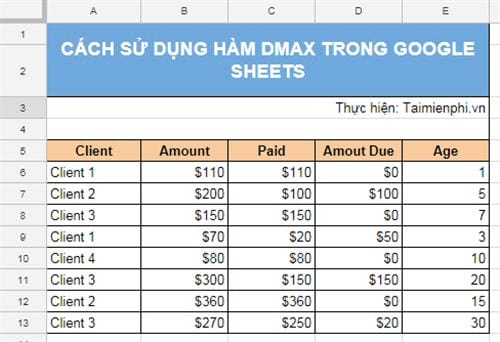
I will create a table in Sheet 1 to retrieve information on customers with the longest outstanding debt.
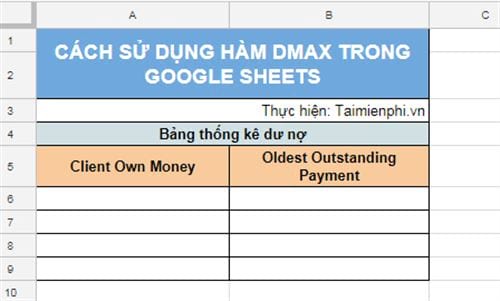
Step 1 : Create a table summarizing outstanding debt in Sheet 1, including the columns "Client Own Money" and " Oldest Outstanding Payment".
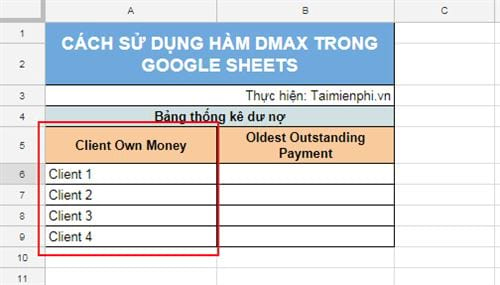
Next, enter the data into the Client Own Money field.
Step 2 : Enter the formula =DMAX( into cell B6 in Sheet 1. Then, use the mouse to highlight the entire data table in Sheet 2. In this example, the data table is 'Sheet 2'!A5:E13 '. Press F4 to convert the formula to an absolute formula, changing it to 'Sheet 2'!$A$5:$E$13'.
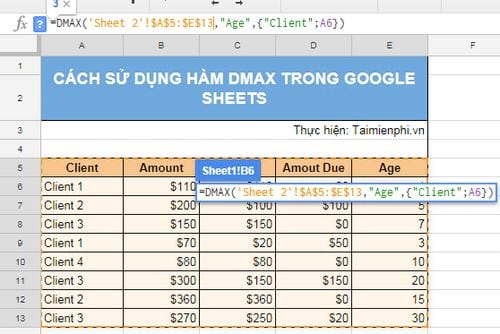
Step 3: Add a comma (,) to the formula bar and select the column header from the data table where you want to return the value, then add a comma.
In this example, the selected column is "Age".
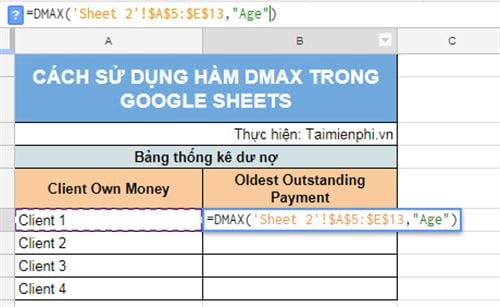
Step 4 : Next, add commas and parentheses {}. The condition for retrieving the corresponding result from Sheet 2 will be inside these parentheses. For example, the condition is {"Client"; A6}, where A6 is the cell in Sheet 1.
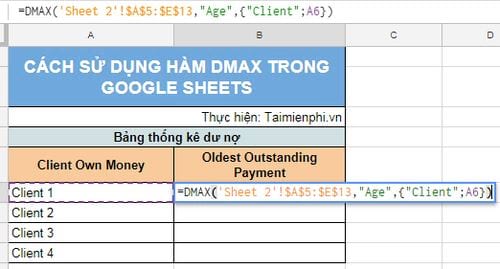
Step 5: Press Enter to complete the formula and get the result. Then, hold and drag the formula down to apply it to the cells below.
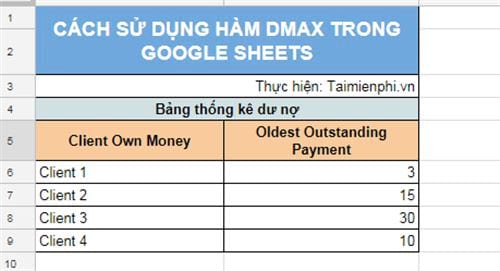
Above is how to use the DMAX function in Google Sheets to find the largest value. If you encounter any difficulties, feel free to comment below the article; the TipsMake technical team will assist you. Like Excel, Google Sheets also supports many basic mathematical functions, and all basic functions in Excel can be applied to Google Sheets.
Related Articles
 Instructions on How to Use the Dmax Function in Excel4 minutes read
 5 Hidden Functions in Google Sheets That Excel Doesn't Have: Practical Guide6 minutes read
 How to Use the AND and OR Functions in Google Sheets7 minutes read
 How to Use the SMALL Function in Google Sheets8 minutes read
 30+ Useful Google Sheets Functions: Main Insights7 minutes read
 9 Basic Google Sheets Functions You Should Know8 minutes read
Reader Comments 0
Sign in with email or Google to join the discussion.